
Common signs include random restarts, freezing, lag, boot issues, driver crashes, and blue screen of Death with the stop code.
Kernel Security Check Failure on Windows: Causes, Fixes, and Prevention

Reviewed By :
Mr Kumar  Mahima Dave
Updated on: May 20, 2026
A Kernel Security Check Failure is one of the most common causes behind the Blue Screen of Death in both Windows 10 and Windows 11.
It usually appears when your system detects a serious issue with drivers, memory, corrupted files, malware, or failing hardware. While the error can be frustrating, it is often fixable using a few simple steps.
The key is finding the real cause first. In this guide, I will break down the most common reasons behind the kernel security check failure BSOD error and the easiest ways to fix it before it gets worse.
Quick Answer: How Do I Fix Windows Kernel Security Check Failure?
- Start by booting into Safe mode and updating or rolling back faulty drivers.
- Then, run Windows Memory Diagnostic, SFC, DISM, ANd CHKDSK to check for RAM, system files, and storage issues.
- If the error started recently, use System Restore.
- If nothing works, reset or reinstall Windows as a last resort.
What Does Kernel Security Check Failure Mean?
Kernel Security Check Failure is a Windows blue screen error, similar to VIDEO DXGKRNL FATAL ERROR and Error Code 0xc00000f. It appears when the system detects an issue in the Windows Kernel.
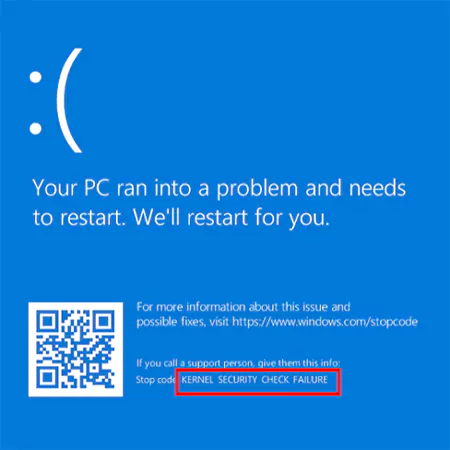
The kernel is the core part of Windows that controls memory, drivers, hardware, and important system processes. This error usually appears with the stop code: KERNEL_SECURITY_CHECK_FAILURE. Microsoft identifies it as bug check 0x139.
Many users notice this blue screen during startup, gaming, file transfers, driver updates, or after waking the PC from sleep mode. In simple words, this error is not the actual problem. It is a warning sign that something deeper is wrong, such as bad RAM, broken drivers, damaged system files, or incompatible software.
What Causes BSOD Kernel Security Check Failure on Windows?
There is no single reason behind the kernel security check failure in Windows 11 or 10. Here are some of the most common causes:
- Outdated or Corrupted Drivers
Faulty drivers are one of the most common culprits. Problems usually come from graphics drivers, storage drivers, chipset drivers, and network drivers.
If the error started after a driver update, that update may be causing the issue.
- Faulty RAM or Memory Corruption
Bad RAM is another major reason behind this error. This often happens after overclocking, enabling XMP settings, installing new RAM, and mixing incompatible memory sticks.
When memory becomes unstable, Windows may detect corrupted data and show a blue screen.
- Corrupted System Files
Windows files can get damaged after failed updates, sudden shutdowns, malware attacks, or disk errors. When important system files stop working properly, Windows may fail a security check and trigger a blue screen.
- Hard Drive or SSD Problems
Storage issues like bad sectors, file corruption, or a failing SSD can also trigger this error. If your PC feels unusually slow, freezes often, or makes strange noises, your drive may be failing.
- Recently Installed Hardware or Software
If the error started after installing new hardware or software, there could be a compatibility issue. This is common after adding new RAM, a graphics card, antivirus software, RGB tools, or overclocking apps.
- Overheating and Hardware Instability
Excess heat can make your CPU, GPU, or RAM unstable. This is more common in gaming laptops, older desktops, and systems with poor airflow.
How to Fix Kernel Security Check Failure?
Kernel panicking is common, but you can easily troubleshoot the issues. The smartest way to fix a Windows 11 or Win 10 kernel security check failure is to start with simple steps first. If the blue screen keeps coming back, move to the more advanced fixes.
1. Boot Into Safe Mode
If your PC crashes before you can do anything, start Windows in Safe Mode.
- Open Settings and go to System > Recovery.
- Under Advanced Startup, click on Restart Now.
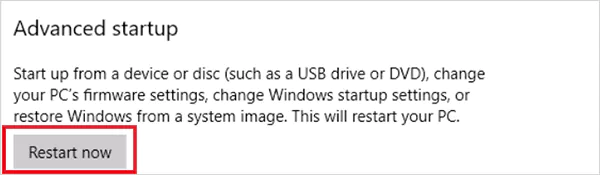
- After your PC restarts, select Troubleshoot.
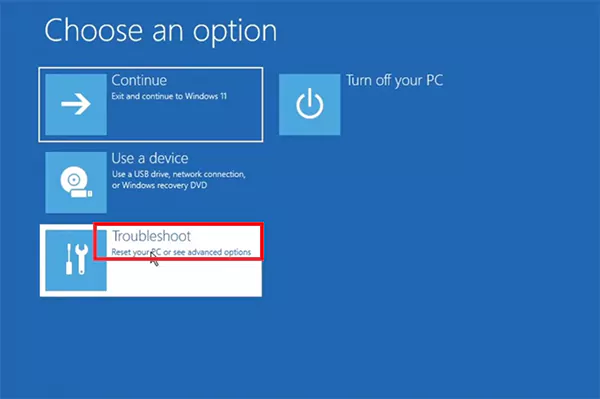
- Choose Advanced Options > Startup Settings > Restart.
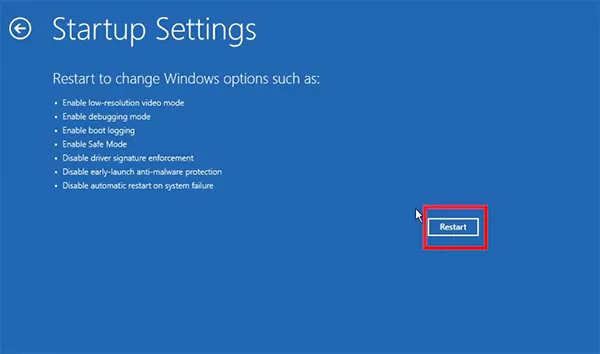
- Finally, press 4 or F4 for Safe Mode, or 5 or F5 for Safe Mode with Networking.
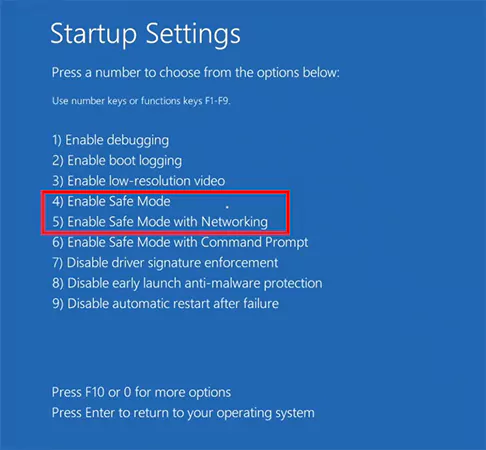
Safe Mode loads only the essential drivers and services, which makes it easier to figure out if the issue is being caused by a third-party app, startup program, or faulty driver.
2. Update or Roll Back Drivers
You need to focus on drivers related to the graphics card, storage controller, network adapter, chipset, bluetooth and USB devices. Here’s how you can update drivers through Device Manager in Windows:
- Open Device Manager by pressing Windows + X.
- Then, right-click the device and select Update Driver.
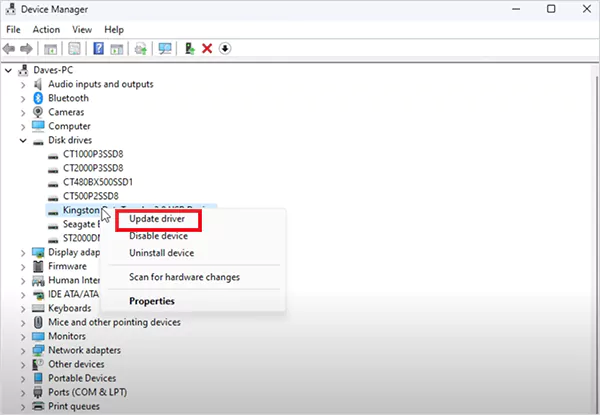
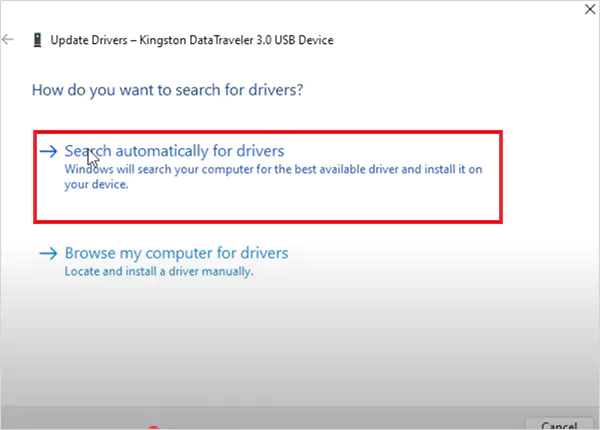
- Next, choose Search automatically or drivers.
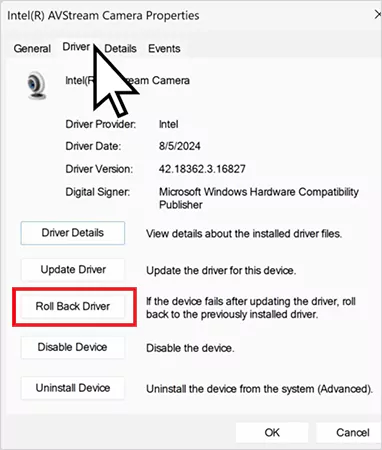
If the problem started after a recent driver update, go to Driver Properties > Driver > Roll Back Driver.
For graphics drivers, it is better to use official tools from companies like NVIDIA or AMD instead of relying on Windows Update.
3. Run the Windows Memory Diagnostic Tool
BAD RAM is another cause of kernel-related crashes. Here’s how you can avoid kernel panicking:
- Search for Windows Memory Diagnostic in the Start menu and open it.
- Select Restart now and check for problems.
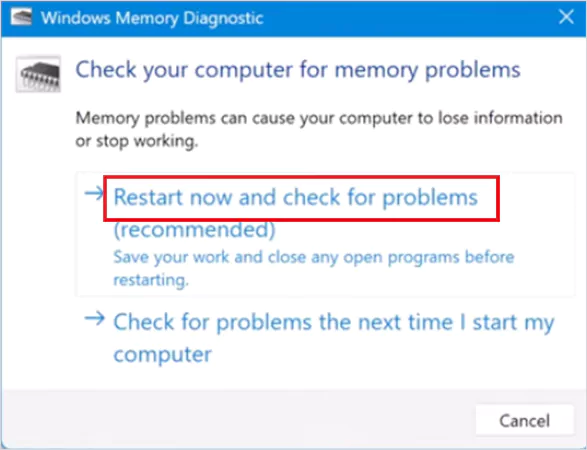
- Your PC will restart and scan the RAM for errors.
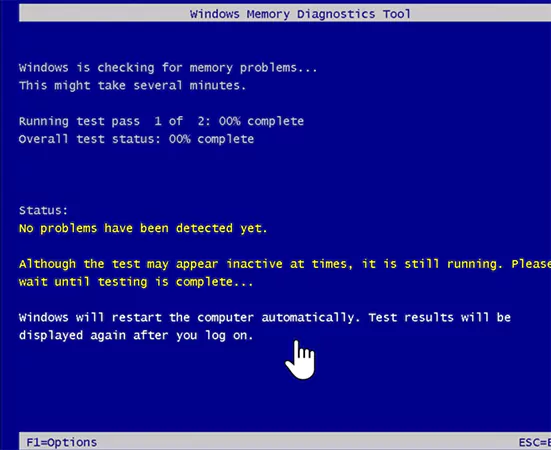
If it finds a problem, you may need to reseat the RAM, replace it, or test each memory stick one by one.
4. Repair Corrupted System Files with DISM and SFC
Damaged Windows files can also trigger this blue screen error. Here’s how you can repair them using DISM commands:
- Open Command Prompt as an administrator and run: “DISM /Online /Cleanup-Image /RestoreHealth”.
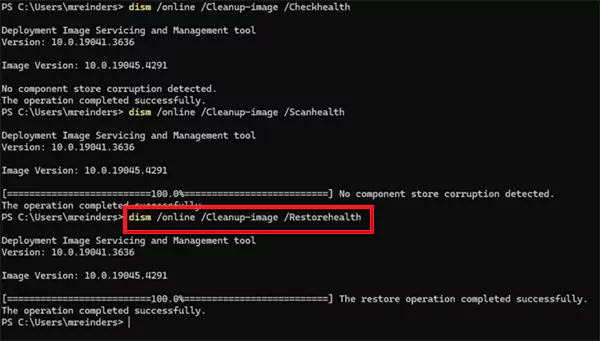
- Once that finishes, run: “sfc /scannow”.
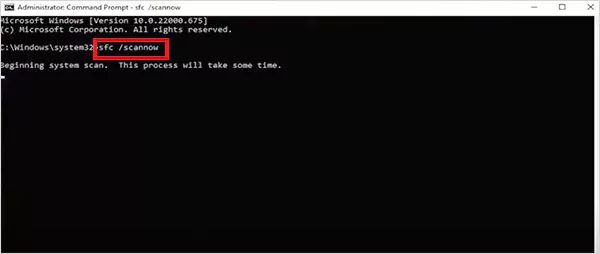
Run DISM first because it repairs the Windows images that SFC uses to replace damaged files.
5. Check Your Hard Drive for Errors
A failing SSD, bad sectors, or file system corruption can also lead to Kernel Security Check Failure. CHKDSK is one of the best drive repair tools. Here’s how to use it:
- Open Command Prompt as administrator.
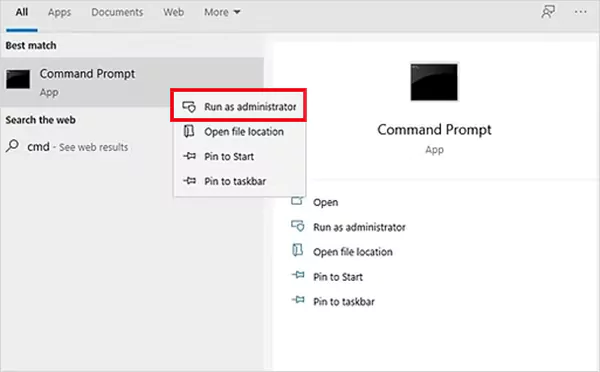
- Type chkdsk g: /f /r /x (replace ‘g’ with your drive’s letter), and press Enter.
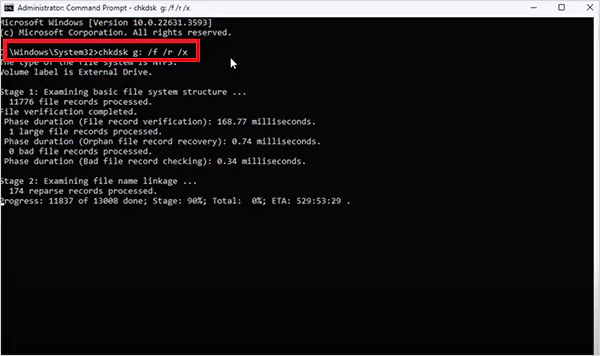
Windows may ask to schedule the scan for the next restart. Let the scan complete fully, especially if your PC has been freezing, slowing down, or making unusual noises.
6. Scan for Malware
Malware can also damage system files, corrupt drivers, and interfere with important Windows processes. This can trigger I/O device errors and BSOD errors. So, make sure you run a full system scan using Windows Security or another trusted antivirus program.
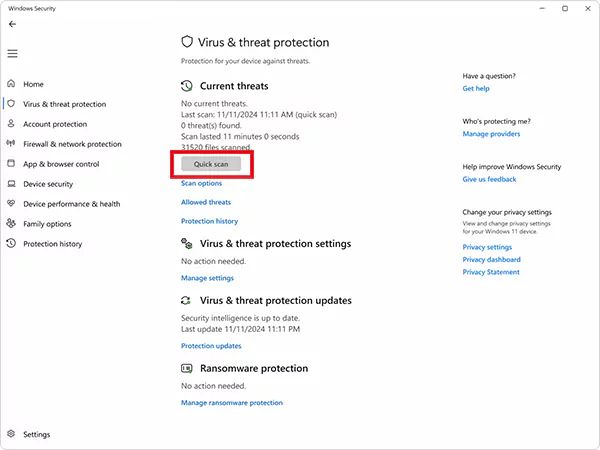
If you recently installed cracked software, suspicious apps, or unknown drivers, remove them immediately.
7. Perform a Clean Boot
If the error started after installing antivirus software, RGB tools, overclocking apps, or other utilities, perform a clean boot.
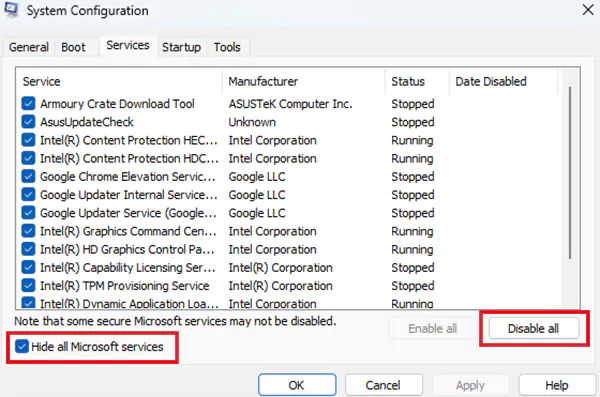
- Press Windows + R, and run misconfig.
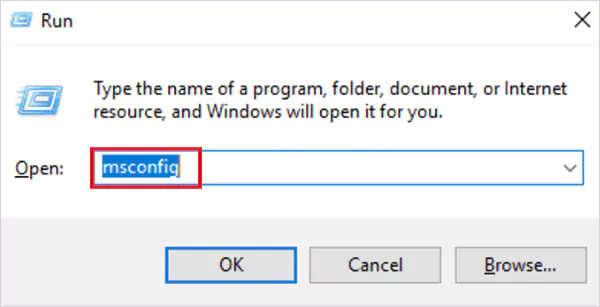
- Go to Services, check Hide all Microsoft services, select Disable all, and click on Apply.
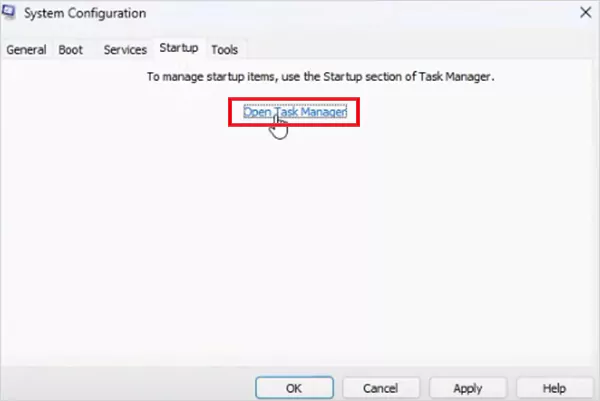
- Now, go to the Startup tab and click on Open Task Manager.
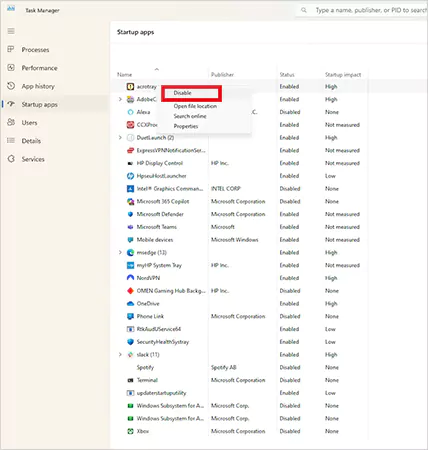
- Here, just disable all enabled startup apps.
- Close Task Manager, and on the Startup tab of System Configuration, select OK.
- Finally, restart your computer.
A clean boot starts Windows with only the essential Microsoft services. If the errors stop after this, one of your startup programs or background services is likely causing the issue.
8. Use System Restore
If the error appeared after a driver update, Windows update, or software installation, you can also try using System Restore.
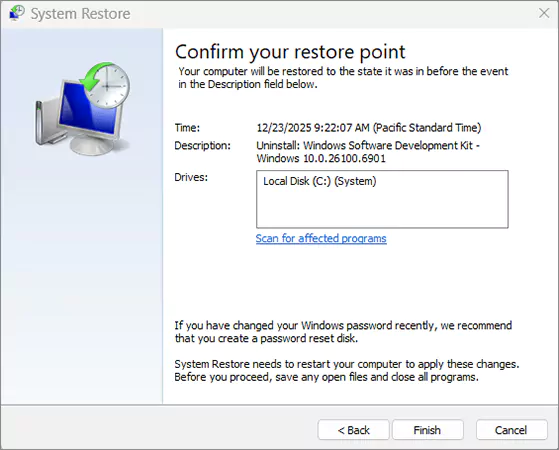
Pick a restore point from before the issue started. This can undo recent system changes without deleting your personal files.
9. Reset or Reinstall Windows (Last Resort)
If none of these fixes works, resetting Windows may be your final option. Choose the Keep my Files option so Windows can reinstall without deleting your personal documents, downloads, and photos.
I would advise you to use this step only after ruling out Windows problems with drivers, RAM, and storage.
How to Prevent Kernel Security Check Failure in the Future?
The best way to prevent kernel failure is to keep your PC updated and avoid unnecessary changes. Some simple habits can lower the chances of seeing this blue screen:
- Update drivers for your graphics card, chipset, storage, and BIOS.
- Avoid installing too many background apps, RGB tools, cracked software, or overclocking programs.
- Keep at least 10% to 15% free storage space.
- Make sure new RAM, SSDs, and GPUs are compatible with your system and installed correctly.
- Try to run Windows Memory Diagnostic every few months and scan for malware regularly.
- Always create restore points before major updates and avoid changing BIOS or registry settings unless necessary.
These small steps can help you avoid bigger problems later and keep your system running smoothly.
Final Thoughts
Kernel Security Check Failure may look serious, but it is usually fixable. Just do not jump straight to reinstalling Windows. Start with simple fixes like Safe Mode, driver updates, memory checks, SFC, DISM, and CHKDSK. If the blue screen keeps returning after trying everything, the problem is likely hardware-related, especially with RAM or storage.
Frequently Asked Questions
What are the symptoms of kernel security check failure?
What is the Blue Screen of Death (BSOD)?
BSOD is a Windows error screen that appears when the system runs into a serious problem and needs to shut down to prevent damage.
What is the unexpected kernel mode trap?
Unexpected kernel mode trap is another Windows stop code, usually linked to RAM issues, hardware faults, or driver conflicts.
Can bad RAM cause a kernel security check failure?
Yes, faulty or unstable RAM is one of the most common reasons behind this error.
How to update drivers to fix kernel security check failure?
Just open the Device Manager, right-click the correct driver, and select Update Driver.
Related Posts
Sorry, No post were found