
To fix an HTTP status 409 on any website, you should try to check the URL and request, clear your browser cache, roll back recent updates, and uninstall faulty extensions and plugins.
How to Fix the 409 Error [409 Conflict Explained]
 Upasna Deewan
Updated on: Sep 18, 2025
Are you encountering a 409 error on your website? It is quite irritating to get these errors on the screen. However, the good news is that I have been researching for a while on these HTTP status codes like 502 Bad Gateway and 401 error, and I am here to help.
This 409 response code is used to show that the request made by the client does not match the server’s existing state, which ultimately leads to failure.
This helpful guide will focus on understanding what Conflict 409 is, why it occurs, and how to solve this problem as soon as possible.
What is a 409 Error?

The 409 Error (Conflict) is an HTTP status code, which is used when a request cannot be performed due to an incompatibility with the current state of a resource on the server.
In other words, it generally occurs when two actions attempt to update or alter the same thing simultaneously, and the server gets confused between the two. For example:
- Attempting to upload an older version of a file when there is a newer version in the record.
- Making a folder or collection, but its parent folder does not exist.
- Two or more users are trying to update or edit the same resource.
HTTP Code 409 is a common occurrence in content management systems, APIs, and collaborative platforms, where version control is important. So, the primary thing to understand is that there is nothing wrong with the request here, and you need to know the conflict to resolve the issue.
What are the Causes of an HTTP 409 Error?

Now that you know about the 409 HTTP code, let’s take a look at some of the most common reasons behind the error:
- Unique constraint conflicts: Databases frequently demand unique values such as usernames, emails, or IDs. Trying to create a duplicate record will cause the error.
- Duplicate requests: It can also appear when you send the same request twice by mistake.
- Version mismatch: In the case of an obsolete client communicating with a newer server or vice versa, version differences may cause problems.
- Old cache data: When the client relies on old cached information that no longer matches the latest state of the server, the request can be rejected.
- Precondition failures: Requests may have conditions, such as time stamps or ETags. The request will not pass through in case the server has changed.
- Resource dependencies: A Change in a parent resource can prevent the change in a related child resource, leading to conflict.
- Wrong targeting: Typing the resource IDs or URLs incorrectly may cause the request to be in conflict with what the server wants.
- Permission problems: If the user does not have the right access level to make an update, the server may respond with a 409 conflict.
So, these are the major triggers of the error. Sometimes, even corrupted data or unanticipated server conditions may cause conflicts.
How to Identify the Cause of a 409 Status Code?
The error 409 normally occurs when two actions are incompatible to update or make changes in the same resource. However, it is quite easy to identify the exact cause as long as you know where to look. Here are your options:
- Check Server Logs
Begin with your server logs, which log all the requests to your site. Try to find entries with a 409 status code, and these logs will tell you:
- What request caused the error
- What resource was involved
- In what circumstance did the conflict take place
The hosting providers allow you to access the logs either in the control panel or via an SSH connection. You should pay special attention to PUT requests, which are often used to update the resources. They are the common suspects of this error.
- Use Browser Developer Tools
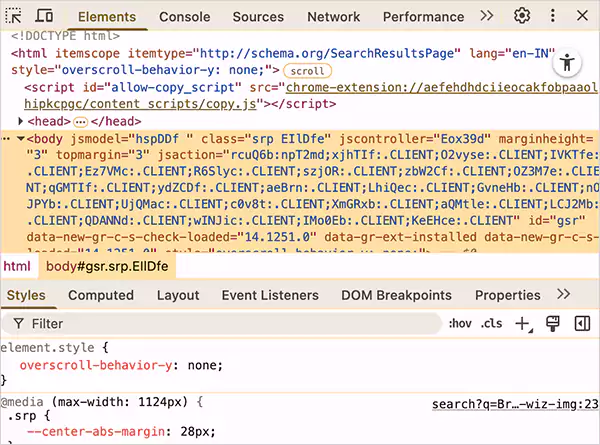
You can use the Developer Tools of your browser (press F12) to look for the error:
- Click the Network tab and refresh the page.
- Search requests with a 409 status.
- Click on them to view payloads and headers.
This live view will help you to easily identify what exactly is the cause of the conflict.
- Review Application Logs
When you have a web application or CMS such as WordPress, try to look into its application logs for context. You might have to turn on error logging for this. These logs often highlight:
- Version mismatches.
- The conflict in terms of resources.
- Stack traces that indicate the section of the code where the problem appeared.
These three checks will give you a clear understanding of the reason why the 409 Conflict occurred, and you can then proceed to fix it.
How to Fix a 409 Conflict Error?
An HTTP 409 error can be fixed easily, and you do not have to be a developer to troubleshoot it. The following are the top 9 practical ways that you can attempt to fix the issue effectively:
Recheck the URL or Request
Most of the time, the mistake can be seen as a result of merely typing in the wrong URL. When trying an update or modification of a resource, ensure that the request is directed toward the appropriate destination. Even a small error can interrupt the request.
In case you typed the URL manually, check it again to be sure. Finally, try to reload the page again to see if the issue is fixed or not.
Delete Browser and System Cache
Even after the site has been fixed, old cached data can cause the HTTP error 409. To make sure you are loading new content in your system:
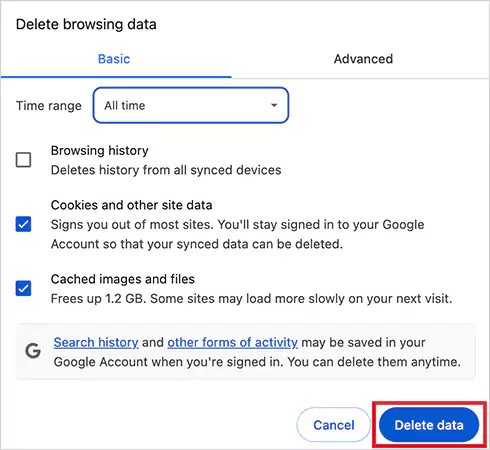
- Empty cookies and cache in your browser
- In Windows, use Disk Cleanup to delete system cache files.
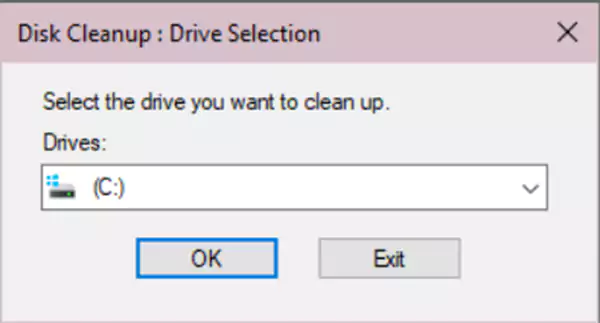
When you are done with the cleanup, restart your computer with a clean slate. This step usually fixes the mistake if the problem was related to the outdated resources.
Disable Browser Extensions
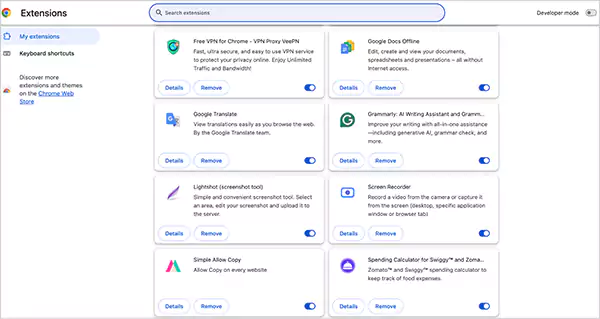
Extensions occasionally alter the requests you send. When one of them interrupts, you may get a 409 HTTP error. So, just go to your browser settings, disable all the extensions, and reload the page to see if the issue is fixed. Now, you can re-enable all of them one by one to identify the main culprit.
Roll Back Recent Site Updates
In case you operate a website and the error appears following a theme, a plugin, or a code update, this change might be the reason. Platforms like WordPress have backups that can be restored within a few clicks.
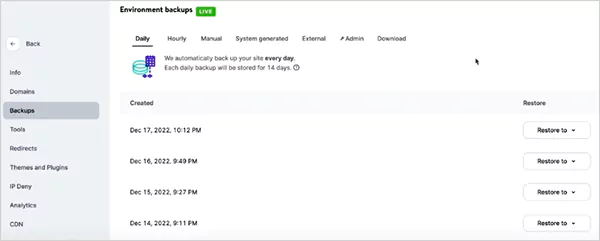
Webflow and other CMSs also allow going back to earlier versions. Also, I would advise you to never apply changes to a live site without testing them in a staging environment to avoid such conflicts.
Check Server Configuration
Improper configuration of server settings can stop or fail to update resources. So, it is important to look into resource locks and file permissions, prolonged external requests, database performance, or plugin inefficiencies.
There are many tools to track the activity of servers and indicate a conflict point in requests. After identifying, just adjust the settings to stabilize things and stop receiving the status code 409.
Run a System File Check
In case the problem appears to have a device-related issue, the main cause might be corrupted files. Here’s what you can do:
- Open the search bar on Windows and enter cmd.
- Now, launch Command Prompt as an administrator.
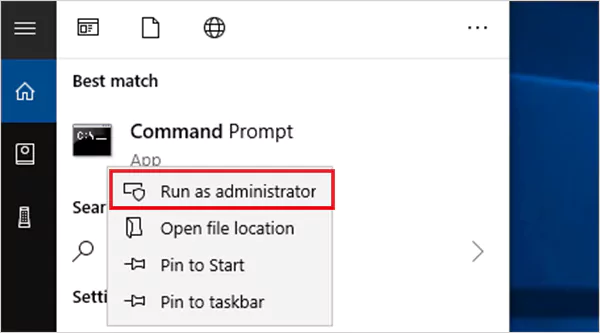
- Here, type: sfc /scannow
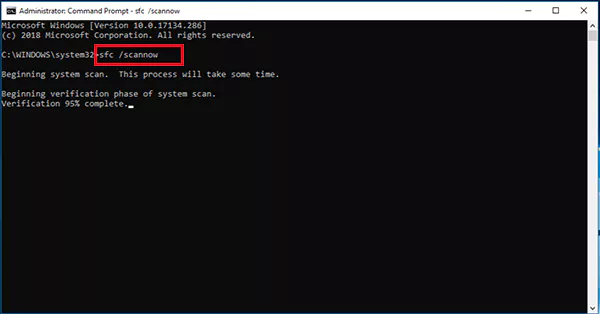
- Press Enter and allow the scan to restore broken system files.
Now, just try reloading the page again or sending the same request again to see if the issue persists.
Use Conditional Requests
As discussed earlier, a response code 409 may occur when data is being edited by two or more users/processes. Here, conditional requests can help you avoid overwriting.
By setting HTTP headers like “If-Match” or “If-Unmodified-Since”, updates only go through if the resource is still in the expected state. So, when two individuals are working on the same document, conditional logic is used to make sure that the work of one individual is not lost at the expense of the other.
Keep Your System Updated
Although rare, operating a very old operating system may lead to compatibility problems with requests. So, just try to install any pending updates and restart your system. This makes sure that your device is in line with the most recent protocols.
Scan for Malware
Malware or a virus can disrupt network traffic, which can occasionally create false 409 errors. So, it would be better to scan your computer using a reliable antivirus.
By using these 9 solutions, you can easily fix the error code 409 and get back to normal browsing or site management.
Analyzing the Impact of Error 409 on SEO
One occurrence of the Response Code 409 alone will not destroy your SEO efforts. However, if it appears frequently, it may damage the user experience and search visibility.
The visitors may see broken pages, missing data, or broken updates when they encounter such HTTP errors as 409, 504 Gateway Timeout, 400 Bad Request, and others. This brings frustration, reduces engagement, and can increase bounce rates. With time, crawlability and rankings may be influenced by repeated errors.
Search engines are designed to cope with short-term problems. So, there won’t be any visible impact if you fix the issue and take all precautions to avoid it in the future.
How to Avoid a 409 Error in the Future?
You can avoid most of these occurrences of HTTP status code 409 using the right practices. Here are some important things to consider:
- Always inquire whether a resource has changed before updating it.
- Add version number or timestamps to prevent overwriting outdated data.
- Make sure repeating an action does not cause duplicates.
- Use real-time updates or webhooks so the client always works with fresh data.
- Use special and unique tokens to ensure that a given request is not sent twice.
- Track 409 errors to identify the pattern and rectify the recurring issues within a short time.
With these practices, you will be able to minimize the number of HTTP Error 409, enhance reliability, and keep users and search engines happy.
Wrapping Up
Knowing the meaning and causes of an HTTP status code can help you troubleshoot quickly. It can feel tricky to detect a 409 error, but in many cases, it can be fixed with a simple refresh or by clearing cache data.
When these problems continuously occur, then you need to be more cautious with request conditions, version controls, or caching rules. With a proactive approach, you can reduce conflicts and keep your website running smoothly.
If you think this article was helpful, please share it with your friends and family.
Frequently Asked Questions
How to fix a 409 Conflict on the Payhip website?
What is the difference between 409 and 422?
422 indicates that there is a validation and semantic error in the request payload. On the other hand, 409 tells you about the conflict caused by the request’s interaction with the current state of the server.
What is an example of a 409 Conflict?
One example is when two users attempt to reserve the same seat on an airplane. Here, the server accepts the first request but declines the second one with a 409 error.
Related Posts
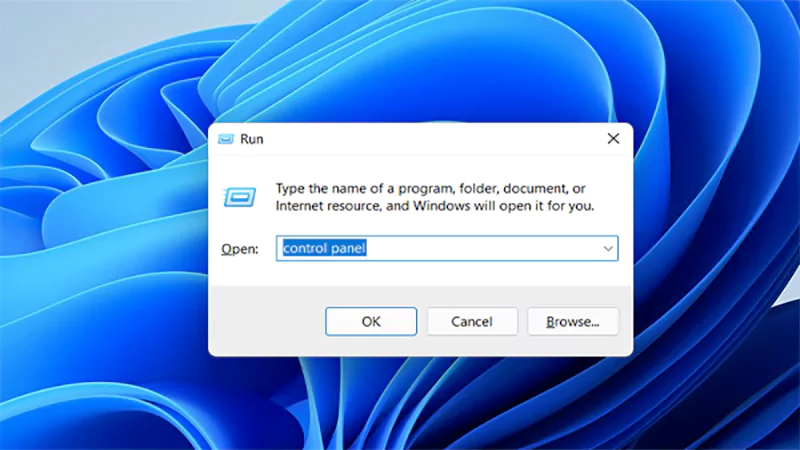
How to Open Control Panel in Windows? (All Methods Explained)
The control panel in Windows is a collection of tiny programs. It is used to configure the various aspects of…

How to Delete Apps on Mac? Safe and Quick Ways to Uninstall Apps
How do you remove applications from a Mac? Most Mac users think there is just one way to delete apps.…
Why Proxy Servers Are Popular
Many tech platforms, ad networks, SaaS tools, and online stores in the world have critical traffic and infrastructure that require…
Data Loss vs. Data Strategy: Why One Conversation Matters More Than the Other
In the corporate conversation around information, most of the firms are scared of losing data. That’s understandable, as most of…

How to Turn Off Touchscreen on Chromebook? Step-by-Step Guide
Touchscreen on a Chromebook sounds great until it starts getting in the way. Accidental taps while typing, smudges, and random…

How to See Blocked Messages on iPhone? (What Actually Works)
Ever blocked someone on your iPhone and later found yourself wondering if you can see blocked texts on iPhone? It…
The 5 Architecture Decisions That Haunt SaaS Founders Two Years Later
Architecture decisions are fundamental to ensuring steady growth in any business or technical step, especially when the topic is laying…

Database Scaling: How to Manage 10,000+ Political Volunteers
Every small business or growing team needs to deal with a common issue—the database that was working perfectly for the…

What Structured Cabling Systems Include and Why Businesses Still Need Them
Nowadays, IT conversations jump straight to cloud apps, wireless coverage, and cybersecurity tools. While these are visible and easy to…