
A hard reset usually means a force restart, usually used when the device does not respond. It refreshes iPadOS without deleting data. For new iPads with no home button, press and release the Volume Up button, then the Volume Down button, and press and hold the top button.
How to Hard Reset iPad: Restart or Reset (With or Without Password)
 Kartik Wadhwa
Updated on: Jan 20, 2026
Table of Contents
- Resetting an iPad: What a Hard Reset Actually Means?
- How to Restart or Hard Reboot an iPad?
- Pre-Reset Checklist to Avoid Data Loss
- How to Reset an iPad With a Passcode (Using Settings)?
- How to Reset an iPad Without a Password?
- What to Do If You Are Stuck on Apple ID or Activation Lock?
- Post Reset: Set Up Your iPad the Right Way
- Conclusion
- Frequently Asked Questions
Last week, someone asked me, “How to Hard Reset iPad?”
It sounds simple, but the question itself was the problem. When an iPad stops responding, people often jump to the term “hard reset” without knowing what it really means. The truth is, not every problem needs the same fix.
Depending on the situation, I will walk you through the right way to reset an iPad. You will learn when to use restart or reset, how to reset an iPad without passwords, and without losing access or data (when possible). These are real and experience-based fixes that actually work.
TL;DR: How to Reset an iPad?
- iPad slow or glitching?: Restart the device (Soft Reset).
- Screen frozen or not responding?: Force reset the iPad (Hard Reset)
- Want a clean reset or selling the iPad?: Factory reset from Settings.
- Forgot passcode?: Factory reset using a computer.
- No access to the iPad?: Erase it remotely using Find My.
- Stuck on Apple ID after reset?: You will need the original Apple ID to activate it.
Resetting an iPad: What a Hard Reset Actually Means?

Let’s clear this first: “Hard Reset” or “Hard Reboot iPad” is not an official Apple term. It is something users say when an iPad starts acting strangely. That is why people get confused and sometimes wipe their device by mistake.
So, when someone says hard reset, they usually mean one of three very different actions:
- Restarting the iPad
- Force restarting a frozen iPad
- Factory resetting the iPad
Each option fixes a different problem and has very different consequences. Choosing the wrong one can either do nothing or erase more than you intended.
Restart vs Force Restart vs Factory Reset
Here’s the simple breakdown you need to understand before you learn how to hard reset an iPad:
- Restart (Soft Reset): This involves shutting down and powering on the device normally. Think of this as a quick refresh for your iPad.
- Best for slow performance, app crashes, or small glitches.
- It is safe and does not delete anything.
- It works only if the screen is still responding.
- Force Restart (Hard Reset): This is used when the iPad is stuck or frozen. It just forces the hardware to reboot, nothing more.
- It is useful when the screen does not respond, or the iPad won’t boot.
- It does not erase data.
- It does not require a passcode.
- Factory Reset: This is the serious one, and it restores the device to its original state.
- It erases everything from the iPad.
- Use it when you are selling the device, fixing major software issues, or if you forgot the passcode.
- It can be done from Settings, using a computer, or remotely via Find My.
- Requires the Apple ID after reset because of Activation Lock.
Quick Rule to Remember
If the iPad is slow, restart it; if it’s frozen, force restart it; and if you’re locked out or handing it over, factory reset it.
How to Restart or Hard Reboot an iPad?
When something goes wrong, always start with the least destructive option. Both methods below are safe and keep your data intact.
How to Reboot an iPad (Soft Reset)?
A soft restart simply turns the iPad off and back on. Use this when the device is laggy but still responsive.
- For iPads with a Home Button
- Press and hold the Top button until the power slider appears.

- Drag the slider to power off.

- Wait 30 seconds, then press the Top button again until you see the Apple logo.
- Press and hold the Top button until the power slider appears.
- For iPads without a Home Button
- Press and hold the Top button and any volume button.
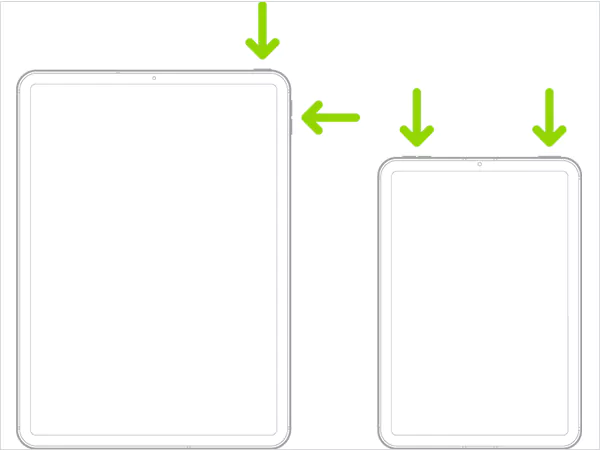
- Then, slide to power off.
- Turn it back on after a few seconds.
- Press and hold the Top button and any volume button.
If you are on iPadOS 18 or later, you can also turn off your device from Control Centre. Just press and hold the Power button and then let go of it. You will see the slider on your screen to power off.
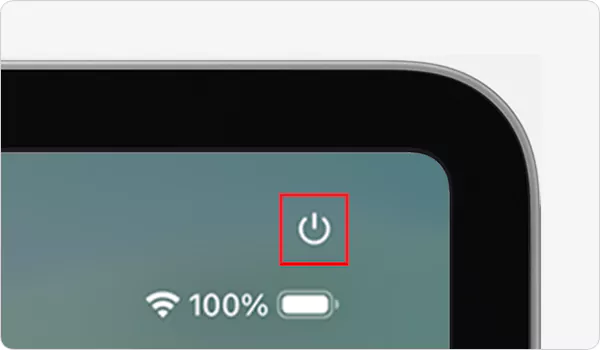
This alone can fix most everyday issues like slow apps, lag, and temporary freezes.
How to Hard Reset iPads (Force Restart)?
A hard reboot or force restart forces the hardware to reboot when the screen is frozen or unresponsive, without erasing data.
- For iPads with a Home Button
- Press and hold both the Home button and the Top button together.
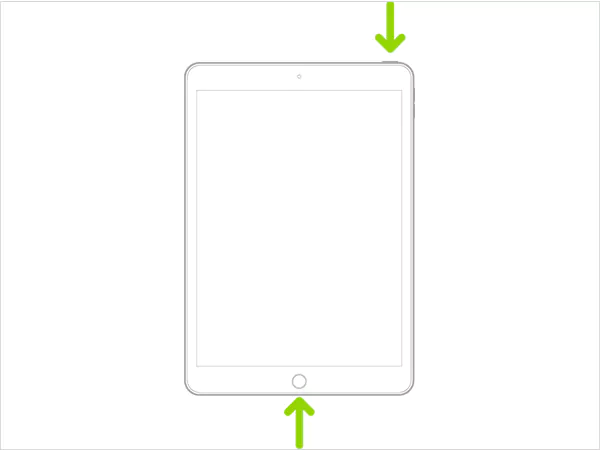
- Keep holding until you see the Apple logo.

- Press and hold both the Home button and the Top button together.
- For iPads without a Home Button
- Quickly press and release the Volume Up button.
- Then, quickly press and release the Volume Down button.
- Now, press and hold the top button.
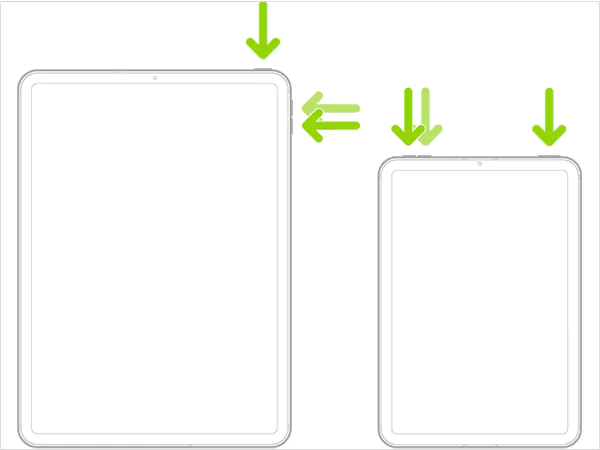
- And, release it when you see the Apple logo on your screen.
Use this only when the screen won’t respond. If your iPad needs frequent force restarts, the issue is usually a buggy app, low storage, or a pending software update. So, try to fix the root cause instead of restarting again and again.
Pre-Reset Checklist to Avoid Data Loss
Before you reset your iPad, stop for a minute and run through this checklist:
- Confirm you have a working backup: Check that a recent backup actually finished, not just started. Go to Settings > Apple ID > iCloud > iCloud Backup. And if your iCloud storage is full, use a computer instead.
- Make sure you know your Apple ID and password: After a reset, Apple will ask for the same Apple ID because of Activation Lock. If you’re unsure about the password, recover it first.
- Check Find My Status: If you’re selling or giving away the iPad, turn off Find My iPad. If the device is lost, keep Find My enabled so you can erase it remotely.
- Sync important data: Ensure photos, contacts, notes, and files are synced to iCloud or another service.
- Charge the iPad: Keep at least 50 percent battery or plug it in during the reset. A reset interrupted by power loss can cause restore errors and setup loops.
Remember, if you can’t sign back into your Apple ID after the reset, do not reset it yet.
How to Reset an iPad With a Passcode (Using Settings)?
If you know the passcode and just want a clean reset, this is the correct way to erase an iPad:
- Open the Settings app and tap on General.
- Scroll down and tap on Transfer or Reset iPad.
- Choose Erase All Content and Settings.
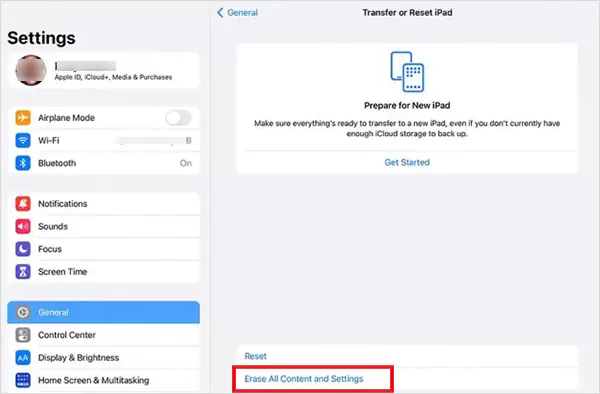
- Tap on Continue to erase this iPad.
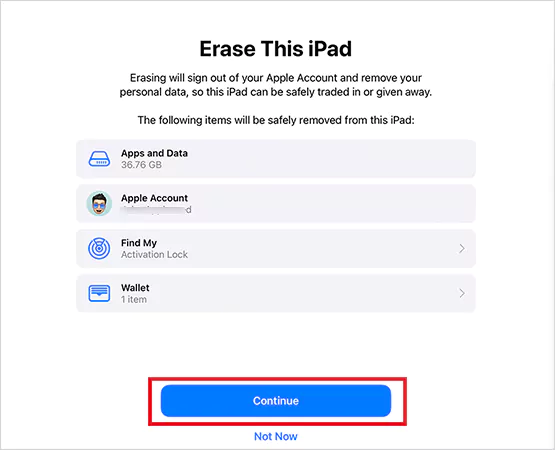
- Enter your device passcode when prompted, and enter your Apple ID if asked.
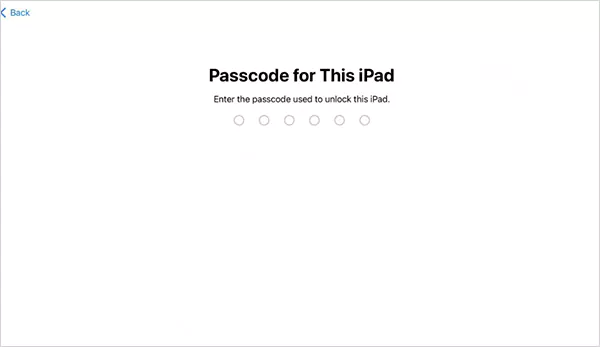
- Confirm the reset and wait for the process to complete.
The iPad will erase everything and return to the setup screen. After the reset, you can restore from a backup or set it up as new.
How to Reset an iPad Without a Password?
How can I reset an iPad without a password? Well, if you forgot the passcode, Settings will not help you. There is no way to remove the passcode without erasing the iPad. You have only two real options here.
Method 1: How to Reset Locked iPads Using a Computer?
Similar to Mac Recovery Mode, you can use the recovery mode on an iPad when it is locked and nearby. Here’s how to reset an iPad without an Apple ID password:
- Turn off the iPad.
- Connect it to a Mac or PC using a USB cable.
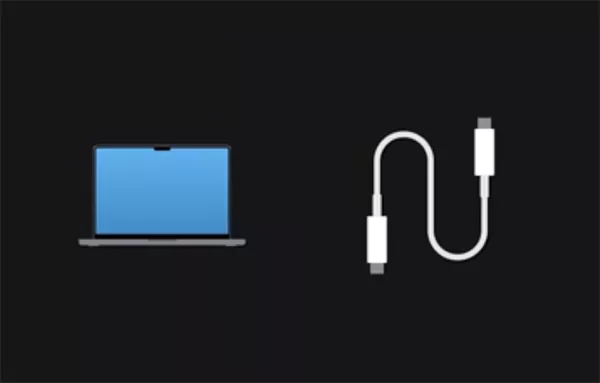
- Now, open Finder (Mac) or iTunes/Apple Devices app (Windows) and locate your iPad.
- Keep the iPad connected to the computer and put the iPad into Recovery Mode (use the correct button combo for your model).
- If your iPad does not have a home button:
- Press and release Volume Up.
- Press and release Volume Down.
- Press and hold the Top button.
- Keep holding until the Recovery Mode screen appears.

- If your iPad has a home button:
- Press and hold Home + Top button together.

- When the screen turns off, release the Top button. But keep holding Home until the Recovery Mode screen appears.
- Press and hold Home + Top button together.
- Choose Restore when prompted.
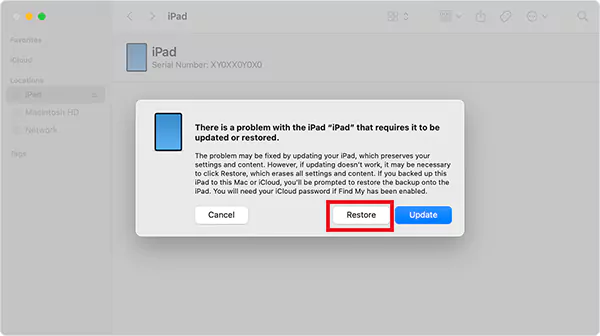
- Wait for your computer to download the software and complete the reset.
This process removes the passcode and executes a factory reset on your iPad.
Method 2: How Do I Reset My iPad Remotely Using Find My (Lost or Stolen iPad)?
iCloud.com is my go-to platform for many services, like remotely resetting a device, restoring contacts, or recovering deleted notes on iPhone/iPad. Use this if Find My was already enabled for your iPad. Here are the steps:
- On another device or computer, go to iCloud.com/find.
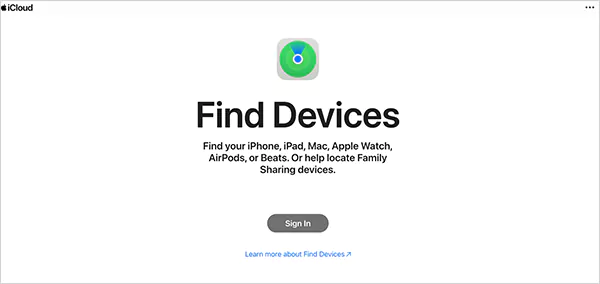
- Sign in with your Apple ID.
- Under All Devices, select your iPad.
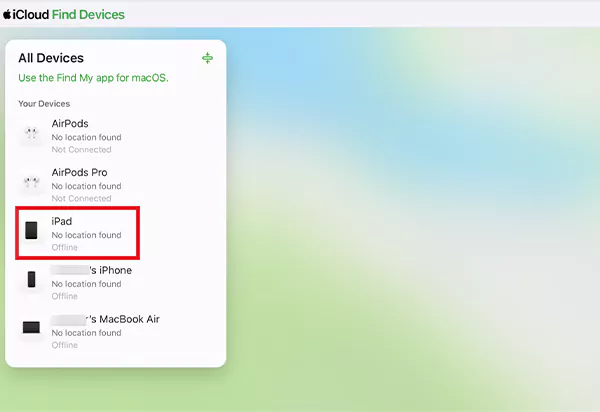
- Tap on Erase and confirm the action.
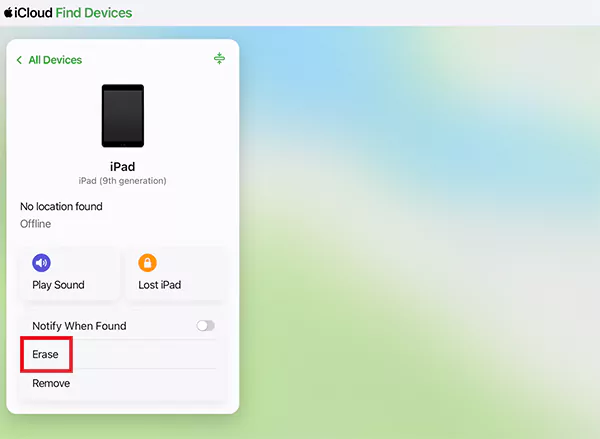
The iPad will reset once it connects to the internet. This method also removes the passcode but requires the Apple ID password after the reset.
What to Do If You Are Stuck on Apple ID or Activation Lock?
If your iPad stops during setup and asks for an Apple ID, Activation Lock is doing its job. It means the iPad is still linked to the Apple ID used before the reset.
This is not an error, but a security wall. Here are the legitimate things you can do:
- Sign in with the Original Apple ID: Use the Apple ID and password that were previously on the device. If it is the correct account, the lock disappears instantly.
- Recover the Apple ID or Password: If you forgot your credentials, use Apple’s recovery tools at iforgot.apple.com to reset your password.
- If the iPad Belongs to Someone Else: The previous owner must remove the device from their iCloud account. They can do this remotely. Without that step, Activation Lock will not go away.
- Contact Apple Support with Proof of Purchase: If you’re the original owner but cannot sign in, you can start an Activation Lock support request with Apple using your purchase receipt and device serial number.
Keep in mind that there is no safe or legal way to bypass Activation Lock. Third-party tools claiming to unlock it are unreliable, risky, and often damage the device permanently. Activation Lock is important to protect the real owners of a device.
Post Reset: Set Up Your iPad the Right Way
Once the iPad is reset, you’ll see the initial setup screen. Here’s how to do it so you don’t undo all your preparation:
- Connect to a reliable Wi-Fi because a weak connection causes setup failures and restore delays.
- Sign in with your Apple ID to restore purchases, photos, and backups. This step helps you reconnect with your digital life.
- Now, restore your data (if you backed up earlier). Choose Restore from iCloud Backup or Restore from Mac/PC so that you can access your apps and data.
- Re-enable security settings by setting up a passcode, Face ID or Touch ID, and Find My iPad. This protects you from future lockouts and thefts.
- After setup, go to Settings > General > Software Update and install the latest update. Keeping the OS updated improves performance and security.
This structured setup helps you get back to normal without missing anything important.
Conclusion
Resetting an iPad is simple once you pick the right method. Restart for minor issues, hard reboot for freezes, and factory reset only when you are locked out or starting fresh.
So, if you followed these steps, your iPad is now reset the right way, without unnecessary data loss or lock issues.
Frequently Asked Questions
How do I hard reset my iPad?
Can I reset my iPad without losing data?
You can restart or force restart without losing data. Any factory reset will erase everything unless you restore from an iCloud or computer backup.
Can I reset my iPad remotely if it is lost or stolen?
Yes, if Find My is enabled. You can erase the iPad from iCloud.com or another Apple device. This protects your data but still keeps Activation Lock active.
How do you reset an iPad without the password?
You can reset it using Recovery Mode with a Mac or PC, or by erasing it remotely using Find My. Both methods remove the passcode but wipe all data.
Will resetting my iPad remove Activation Lock?
No, Activation Lock stays active even after a reset. You must sign in with the original Apple ID, or the previous owner must remove the device from their iCloud account.
How can I restore my data after a factory reset?
During setup, choose Restore from iCloud Backup or Restore from Mac/PC backup. However, you can only recover data backed up earlier.
Related Posts
How Poor Contract Visibility Leads to Revenue Leakage in Growing Companies
Growth is an important factor that determines the success rate of any business. When we witness new operations, partnerships and…

Managing Bitcoin Operations? Here’s How Salesforce Automation Helps
“Digital currency is here to stay, and it’s only a matter of how long before governments embrace it.” — Brad…

Why Modern Organizations Depend on Data Privacy Software
Data growth has significantly accelerated beyond what most compliance teams can manage, with personal records, financial details, contracts, and emails…

Converting Chats Into Leads While Maintaining Professionalism
The way marketing teams and businesses approach their potential clients to boost their sales has completely transformed in the last…
How to Delete iCloud Account? Complete Guide for 2026
Thinking, how can I delete iCloud or Apple account? It is not just about removing an account; it is about…

How Different Industries Use Specialized Software to Stay Competitive
In the market we have today, companies are always trying to find ways to work better and get results. The…

What Key Adjustments Enhance Visual Appeal Across Web Pages
Attractive web pages form the roots of any appealing website. For instance, imagine looking for content on Google, and you…

When is it Time to Consider IT Support Services for Your Business?
Every business needs to ensure smooth operations for a successful business. But despite trying hard to avoid barriers, technical issues…
How to Delete User Profile in Windows 10: Step-by-Step Guide
You don’t notice user profiles until one starts causing problems. A profile gets corrupted, a login error pops up, or…