
It may happen due to accidental closure, sudden power outage, crash, browser crash, or a recent update.
How to Restore Chrome Tabs (Even After a Crash)
 Kartik Wadhwa
Updated on: Dec 23, 2025
Table of Contents
- How to Restore Chrome Tabs Using Shortcuts?
- How Do I Restore Tabs in Chrome from History?
- How Do I Restore Multiple Tabs or the Entire Chrome Window?
- How to Restore Tabs in Chrome After a Crash?
- How Do I Set Chrome to Restore Tabs on Startup?
- How to Restore Tabs on Chrome Using Chrome Extensions?
- How to Choose the Right Method to Restore Tabs on Chrome?
- How Do I Keep My Chrome Tabs Safe?
- Conclusion
- Frequently Asked Questions
Imagine this: You are juggling ten things—one tab for work, one for shopping, and one for that article you wanted to finish—and suddenly all your Chrome tabs disappear. Maybe it was your mistake, or your Chrome crashed on its own.
It feels annoying, but can you restore closed tabs on Chrome? Yes, the browser offers various smart tools to bring back lost tabs and even your full session. It is one of the reasons I stick with Chrome. Let me show you all the right moves and explain how to restore Chrome tabs every time.
Quick Look: Restore Chrome Tabs
- Closed a tab by mistake?
Press Ctrl + Shift + T or Cmd + Shift + T.
- Closed an entire window?
Hold the shortcut, use the right-click recovery method, or go to Menu > History > Recently Closed and restore the full session.
- Chrome crashed?
Relaunch once, look for the Restore prompt, or check the History.
- Need long-term backup?
Use extensions like Session Buddy or OneTab to save full sessions.
How to Restore Chrome Tabs Using Shortcuts?
If you closed a tab by mistake, Google Chrome gives you a quick way to bring it back without digging through menus or history. Use the following shortcut to reopen your last closed tab:
- On Mac: Cmd + Shift + T
- On Windows: Ctrl + Shift + T
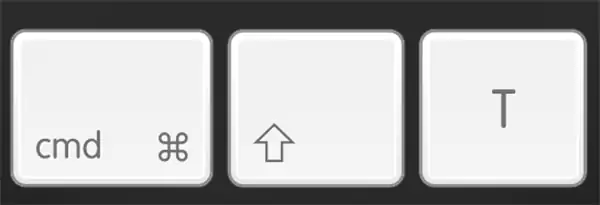
You can hit the shortcut again to keep restoring older tabs. If you hold the shortcut for 1-2 seconds, you can even restore an entire window you closed earlier.
If you are on a Mac device and prefer clicking over shortcuts, go to File > Re-open Closed Tab.
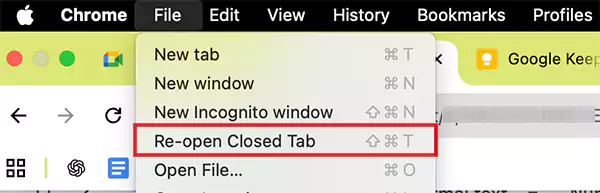
So, the best recovery method when the tab was closed recently is to use the keyboard shortcut. If the tab is older, you can try the History method below.
How Do I Restore Tabs in Chrome from History?
If the shortcut does not bring your tab back, Chrome’s History view is your next option. Here’s how to restore tabs Chromebook:
- Open Chrome, click on the three dots in the top right, and hover your cursor over History.
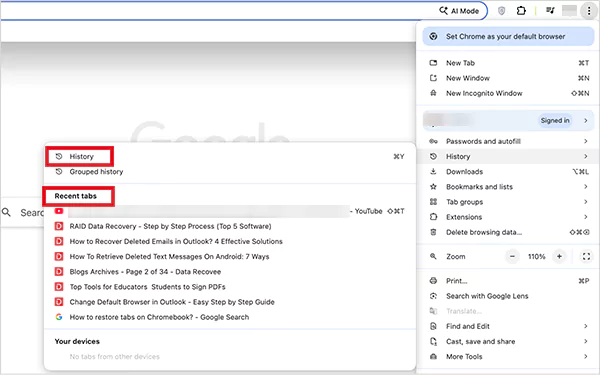
- Look under Recently Closed or Recent tabs for your last window or tab.
- Now, click on the tab you want to restore.
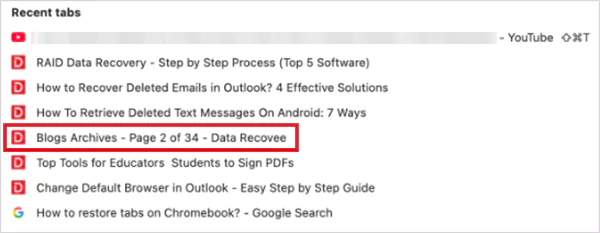
- You can even restore the entire window at once using this method.
If you want to go deeper, use Cmd/Ctrl + Y to open the full browsing history, where you can scroll through everything chronologically. A quick scan works best when you roughly remember the day or time you had the page open.
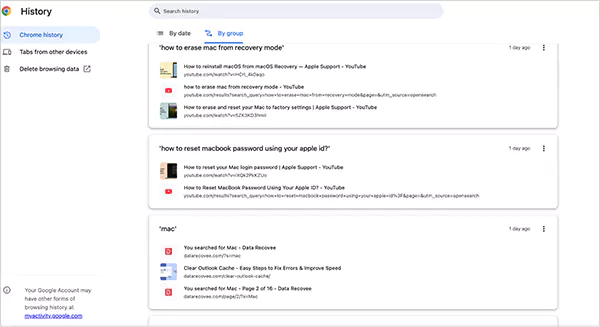
Chrome also groups related pages under Groups. If you lost a tab that belonged to a group of similar searches or tasks, this view can save you some scrolling.
Still can’t find it? You can use Chrome’s built-in tab search at the top of History. It is faster than browsing different dates. Just click on a result to reopen it instantly or open the whole group if available.
How Do I Restore Multiple Tabs or the Entire Chrome Window?
If you closed all your tabs or the complete workspace accidentally, Google Chrome can bring the whole thing back with a single action. You can use the same shortcut key option or browse history to do this. Here’s another simple method you can try:
- Right-click the empty space on the tab bar.
- Here, click on the Reopen Closed Tab option.
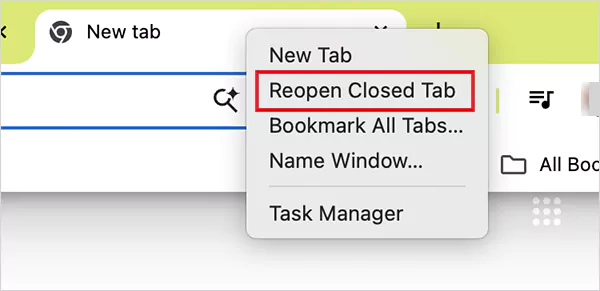
Chrome will reopen tabs one by one in reverse order. Keep right-clicking and following the same step, and it will take you through your recently closed tabs and Windows.
If you closed Chrome completely, the option changes to Reopen Closed Window, which restores everything from your last session.
How to Restore Tabs in Chrome After a Crash?
When Chrome crashes, recovery works a little differently. The key is to restore before Chrome overwrites its recovery files. Follow the steps and learn how to restore Chrome tabs after a crash:
- Relaunch Chrome, and if you see a Restore prompt at the top, click it immediately. This will do the job quickly.
- If you don’t see any prompt, hit the shortcut keys repeatedly to reopen lost windows.
- If that too does not work for you, try checking the recently closed section by going to Menu > History. Look for entries like “7 tabs” and open the whole session.
- Use the full history option as a last resort to restore pages individually if Chrome did not save the full window.
Golden Rule: After a crash, avoid opening new tabs for a few minutes. New activity can overwrite Chrome’s recovery data and make lost tabs harder to retrieve.
How Do I Set Chrome to Restore Tabs on Startup?
If you want Chrome to reopen everything exactly where you left it, turn on its automatic session restore option. Once enabled, you don’t have to panic about sudden shutdowns or accidental exits. Chrome will simply reload your full session each time it starts. Here’s how to switch it on:
- Open Chrome on your computer.
- Click the three dots or press Alt + F.
- Go to Settings and select “On startup”.

- Now, click on Continue where you left off.
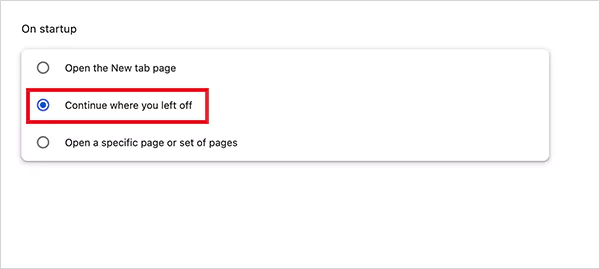
That’s it. From your next restart onward, Chrome will load back your tabs without you doing anything. It is the easiest long-term protection against this issue.
How to Restore Tabs on Chrome Using Chrome Extensions?
Chrome’s built-in tools can easily handle everyday tab recovery, but if you want advanced control, third-party browser extensions add an extra safety layer. They are especially useful if you manage large research sessions, multiple client projects, or long-running workflows.
Here are the 3 most reliable ones I use:
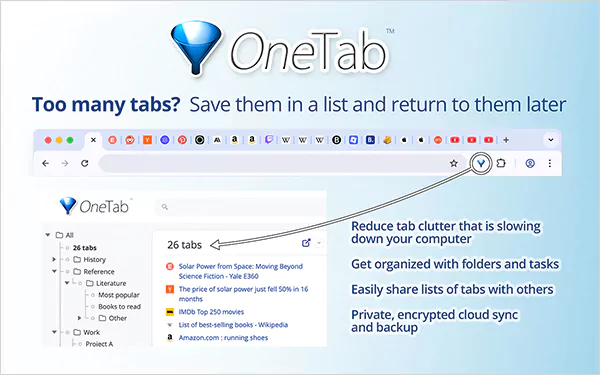
- OneTab: It turns all open tabs into a single list, cutting memory usage and helping you save sessions without clutter.
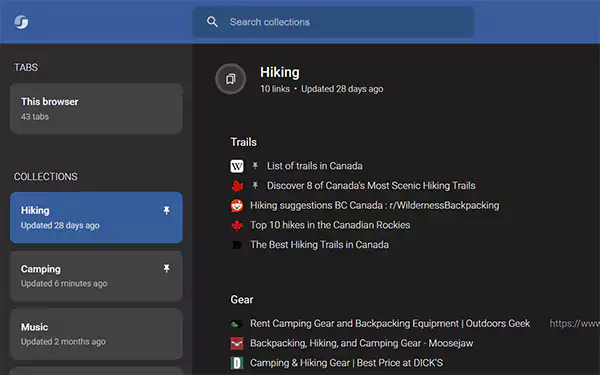
- Session Buddy: It works like a session vault. It saves snapshots of your entire browsing session, allows you to label them, reorganize them, and restore Chrome tabs anytime.
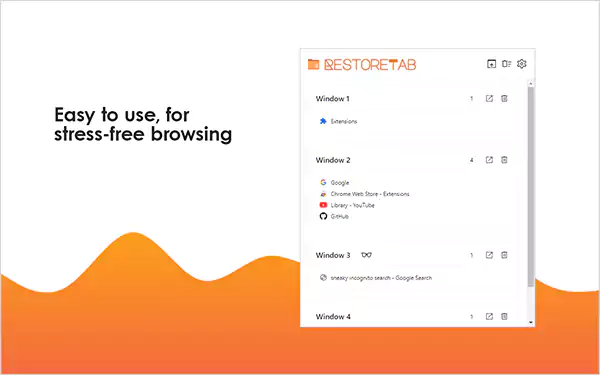
- RestoreTab: This extension records your open tabs and windows locally, which allows you to restore them instantly.
Extensions are great for long-term recovery and organization, but you don’t need them for standard tab recovery. I have done this so many times, and trust me when I say this: browser history and shortcuts can solve almost every issue.
How to Choose the Right Method to Restore Tabs on Chrome?
Instead of trying random fixes, try the solution according to your situation. Here are some quick insights that keep things simple and effective:
- If you closed a tab by mistake while Chrome is running, use the shortcut. Press Ctrl + Shift + T on Windows or Chromebook, and Cmd + Shift + T on Mac.
- If you closed an entire window or restarted Chrome, go to Menu > History > Recently Closed and restore the whole window.
- If you are using a Chromebook, use the same shortcut and recently closed menu. However, you should also check the Tabs from other devices option. Chrome Os syncs better than the desktop versions.
So, the rule of thumb is to use shortcuts and history first, and then proceed with other methods.
How Do I Keep My Chrome Tabs Safe?
Losing a tab is preventable if you build a browser setup that defends your work instead of leaving everything to chance. Here’s how I do it, and you can follow the same:
- Turn on the sync option across all devices. It enables backup across devices and often provides a second copy of your tabs if your main system loses them.
- Don’t rely on Chrome for everything, and bookmark important tabs.
- Try to stay on the stable Chrome version for most of your tasks. Beta builds are fun until they crash at the wrong time.
- Organizing tabs into groups helps in recovering them more reliably and keeps your workspace cleaner.
- Regularly update the browser, remove unused extensions, clear cache, and review sync settings.
- Enable the “Continue where you left off” option to auto-restore sessions.
Plus, you should try to keep fewer tabs open to reduce the load and chances of crashes. It saves things more reliably when RAM is not overloaded.
Conclusion
You have now seen every reliable way to restore Chrome tabs, recover full windows, and protect your sessions against crashes or accidental closures. The pattern is simple:
- Use shortcuts for quick recovery
- Use history for full window restoration
- Use extensions for long-term tab management
- Use Sync and startup settings for automatic protection
Together, these tools create a repeatable recovery system that works well on Chromebooks, MacBooks, and Windows. If a tab disappears, I hope you will know exactly where to look and which method will bring it back fastest.
Frequently Asked Questions
Why did all my tabs disappear in Chrome?
Can I restore tabs after a Chrome update?
Yes, you can easily restore by using the Ctrl/Cmd + Shift + T. You can even hold the shortcut keys to restore the entire Window.
How to restore lost tabs on Chrome?
Start by using the keyboard shortcuts. Then, you can also try by right-clicking the space on tabs bar, searching the browser history, or using the browser extension.
How to restore a browser window after accidentally closing it?
The fastest way to recover an accidentally closed tab is to use the keyboard shortcut method.
How to restore tabs on Chromebook?
Click on the space on the tabs bar and select the Reopen closed tab option. You can also use the shortcut and history method to restore tabs on a Chromebook.
Related Posts

8 Best AI Presentation Makers for Business-Ready Slides
Making a presentation doesn’t just mean designing slides. It’s about defining a clear structure, using defined logic, useful visuals, and…

Queue Management Software Troubleshooting Guide: 8 Common Faults and Fixes
The long wait times and ineffective management of customer queues can have a significant impact on customer satisfaction and business…

How to Use Similarweb Website Traffic Data for Competitor Research
Competitor research without traffic data is guesswork. You can guess who your rivals are, guess how big they are, guess…

Choosing the Right Hosting Model for Scalable Digital Platforms
The performance of digital business is directly related to website speed, uptime, and scalability. Slow page performance has a negative…

How Data-Driven Performance Tools Are Transforming Employee Recognition in Tech Companies
“People work for money but go the extra mile for recognition, praise, and rewards.” — Dale Carnegie (Writer & Teacher)…

Why Businesses Struggle to Collect Reliable Data from the Web
Almost every company that depends on data runs into the same problem: although they can find the data they need,…

Why Financial Data Recovery Matters for Businesses
Financial data supports every part of a business, directly affecting cash flow, payroll, tax reports, audits, customer billing, and daily…

CMMC Compliance Is Coming for Manufacturers. Here Is What You Need to Do
“Cybersecurity is much more than a matter of IT.” — Stephane Nappo (Cybersecurity Professional) For manufacturers working within the defense…

How Data-Based Tools Influence Learning Performance
Learning has transformed in the modern age with the integration of new technologies to help students and professionals prosper in…