
Yes, you can recover deleted messages because Android does not wipe off deleted data right away. So, if you act fast and use the right tools for your case, recovery is possible.
How to Retrieve Deleted Text Messages on Android?
 Upasna Deewan
Updated on: Dec 10, 2025
Table of Contents
- How to Recover Deleted Text Messages on Android from Trash or Archive?
- How to Retrieve Deleted Text Messages on Android from Cloud Backups?
- How to Retrieve Text Messages from Android Phones Using a Recovery App?
- How to Retrieve Deleted Messages on Android with Data Recovery Software?
- How to Recover Deleted SMS in Android from Your Mobile Carrier?
- Smart Tips to Avoid Permanent Loss of Important Texts
- Wrapping Up
- Frequently Asked Questions
Looking to recover deleted text messages on Android? A deleted message feels small until the moment you need it. It may have the client’s update, a link you forgot to save, or a detail your brain insists you will remember later.
It vanishes, and your phone suddenly feels like a locked room. Don’t freak out. Android rarely erases things instantly. Most messages leave traces (backups, syncs, hidden files, etc.) that you can pull back with the right moves.
I will show you how to retrieve deleted text messages on Android safely. Let’s recover what most people think is lost forever.
Quick Glance (If You’re in a Hurry)
- Always check the Archive or Trash first before trying any other solution to recover deleted messages on Android.
- Backups are your safest recovery option, but restoring them requires a factory reset.
- Recovery apps on Android work best when you act fast.
- Desktop data recovery software offers deeper scans and can recover older or partially corrupted texts.
- Mobile carrier recovery is also possible, but limited and slow.
- Please turn on automatic backups and keep storage free to avoid future loss of text messages.
How to Recover Deleted Text Messages on Android from Trash or Archive?
Accidentally deleted a conversation? Most Android phones quietly store your messages in a background folder before permanently wiping them. The trick is to check the right place and do it quickly. Let’s see how to retrieve deleted text messages from Android phones:
Check the Trash or Recycle Bin (Samsung and phones with similar UI)
Some Android brands keep deleted texts in the temporary bin for about 30 days. If your device (like a Samsung Galaxy) supports this, recovering a message just takes seconds:
- Open Messages on your device.
- Tap the menu (three dots) and select Trash/Bin/Recycle Bin.
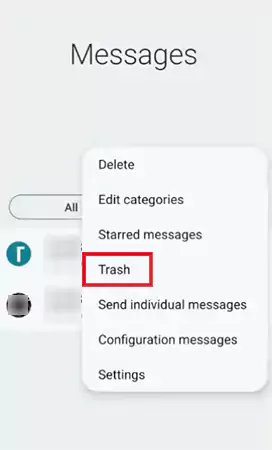
- Here, long-press the message you are looking for.
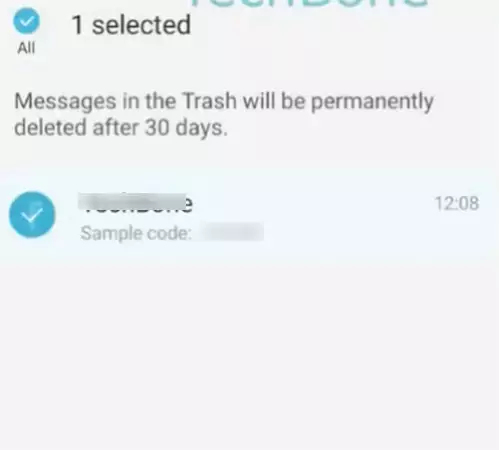
- Finally, just tap on Restore.
If the message is within the recovery window, it will go back to your inbox instantly. Ensure you act within the 30-day window. Otherwise, it will be removed permanently.
Check the Archive on Google Messages and Stock Android Apps
Archived chats are not deleted; they are only hidden, which makes this the easiest method to retrieve deleted text messages on Android. Do this:
- Open Google Messages on your Android device.
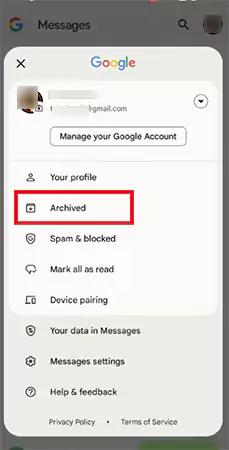
- Tap on your profile icon on the menu.
- Now, open the Archived section.
- Finally, just long-press the chat you want to recover and tap on the Unarchive button.
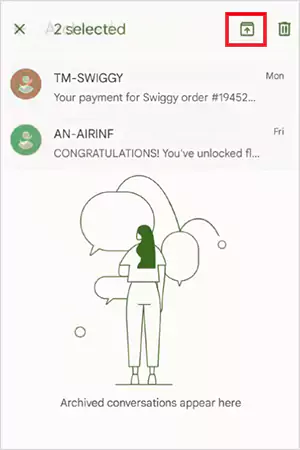
- Your conversation will return to the main inbox immediately.
Google Messages supports high-quality media and cloud sync. But it does not keep a Trash folder, so Archive is the only built-in recovery place.
How to Retrieve Deleted Text Messages on Android from Cloud Backups?
If you had backup enabled earlier, your deleted texts on Android may still be inside your last Google Drive (or any other cloud platform).
However, the catch here is that restoring messages from a cloud backup requires a factory reset. So, ensure you back up the important data that was not saved in that version of the backup.
Before you proceed, check if the backup actually has your older messages:
- Open Settings on your device.
- Go to System and select Backup.
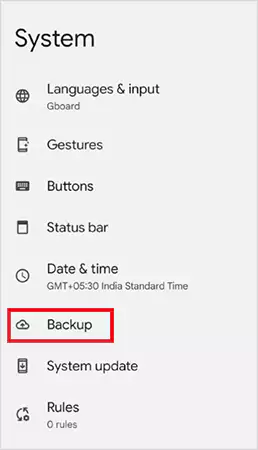
- Now, check the date of your last backup.
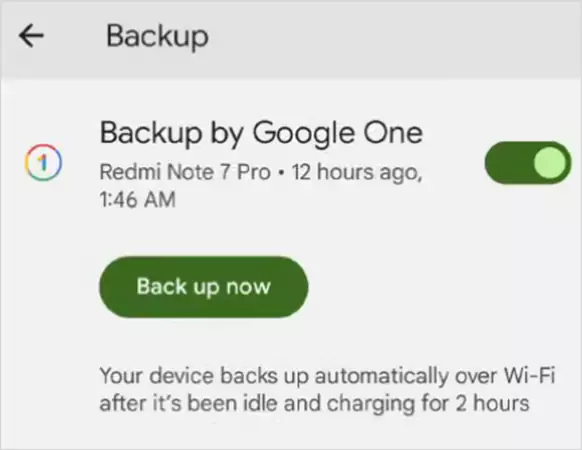
If the backup is recent and from a time when the messages existed, here’s how to restore deleted text messages from Google Drive backup:
- Go to Settings > System > Reset Options.
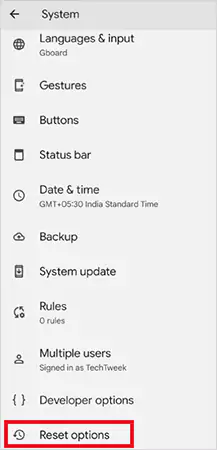
- Now, select the Erase all data (factory reset)option.
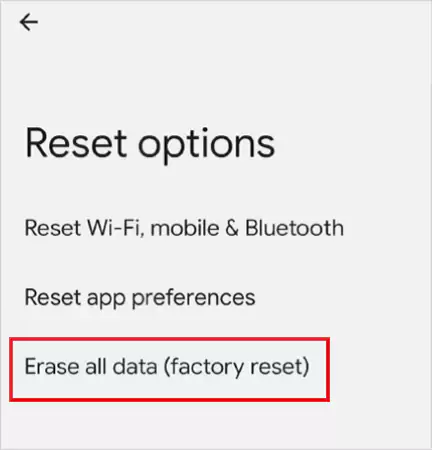
- Enter your device PIN and confirm.
- This will trigger your device to restart.
- When prompted while setting up the phone, log in to your Google account.
- Choose Restore from Backup, and select what to restore.
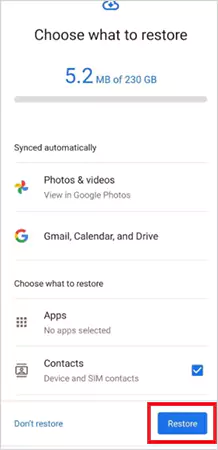
Your device will reinstall apps, settings, and your deleted text messages (if included in the backup).
How to Retrieve Text Messages from Android Phones Using a Recovery App?
How to recover from an emptied Trash or Archive folder? If none of the above options work for you, you can use a trusted third-party Android recovery tool.
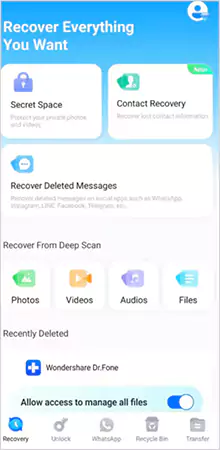
Recovery apps work like digital detectives. When a message is deleted, Android does not erase it immediately; it simply marks the space as available. So, if nothing else has overwritten that spot, recovery tools can still pull the data.
Here’s how to get back deleted messages without backup:
- Choose a reliable recovery app and download it from the Play Store. Disk Digger, Recoverit, and Dr. Fone are some of the best apps you can try. These can scan your storage without forcing a reset.
- Next, give storage access and essential permissions to the app. Without this, the app cannot scan hidden data.
- Now, run a deep scan to dig into older, damaged, or hidden fragments. Deep scan takes more time but usually finds more stuff.
- Preview the messages you want to recover and select them.
- Finally, restore directly into your inbox or save the messages as a readable file.
Keep in mind that these apps work best if you catch the permanent deletion quickly. Also, some features may require a paid plan.
How to Retrieve Deleted Messages on Android with Data Recovery Software?
People often contact me to tell me that the data recovery apps for mobile devices could not find anything. In this case, computer-based data recovery software can be a great option. These programs scan your phone the same way they do to recover SD cards and hard drives.
These desktop tools dig into raw data sectors and try to reassemble parts of data that mobile apps miss. Just make sure you use trusted recovery software. Here are the best tools I recommend for deeper scans:
- Datarecovee (best data recovery software for Windows)
- Disk Drill (excellent at raw data extraction and best recovery software for Mac)
- TenorShare UltData (strong preview features)
- iMyFone D-Back (Wide device compatibility; can also recover deleted WhatsApp chats)
Here’s how to recover deleted texts on Android using a computer:
- Install the software on your computer.
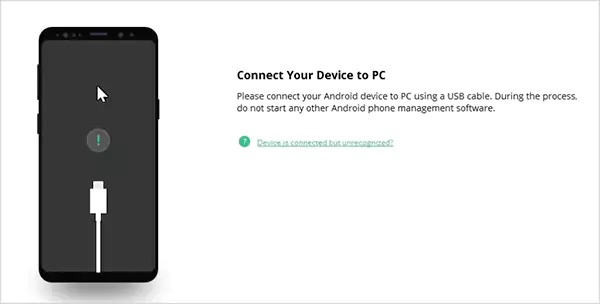
- Connect your Android device via USB.
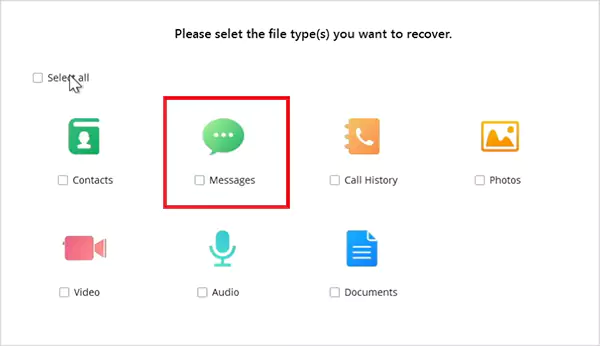
- Now, select the device and Messages as the category.
- Next, run a deep scan and preview the recovered texts.
- Select the messages you want, and restore them to your phone.
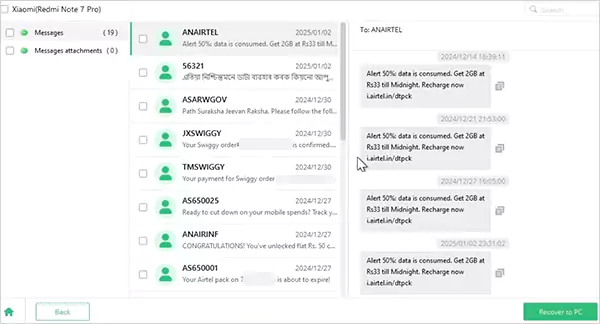
Some tools need root access for full scanning. This option is ideal when you have no backup. Also, understand that no tool guarantees 100 percent recovery because overwritten file recovery is complex.
How to Recover Deleted SMS in Android from Your Mobile Carrier?
Although the chances are low if you act on time. But imagine if you cannot restore messages even after trying every solution mentioned till now.
Can deleted texts still be retrieved? Yes, one more option exists, but it is slow and uncertain. So, try this only as a last resort.
Mobile carriers sometimes store basic SMS logs, but their access depends on local privacy laws, the carrier’s data retention policy, and whether the message is still in their system.
Some carriers only share the records if there is a legal request. Others simply don’t store this type of content at all. But you can try your luck.
Here’s how to recover deleted messages from your network provider:
- Contact your carrier’s customer support and ask if they can retrieve SMS logs.
- If allowed, you may need to verify your identity with ID proof, share your phone number, account details, and the date of the message.
Some carriers also charge a fee, and they can take a few days or weeks to respond. Also, you will receive message records, not a chat restored in your inbox.
Expert Advice: If everything fails, and if the message is crucial, you can also ask the sender to forward the original text. This might not be ideal for everyone. But if you can, this can be the easiest way of recovering a text.
Smart Tips to Avoid Permanent Loss of Important Texts
Understanding how to retrieve deleted text messages on Android is necessary. But preventing the problem is also crucial.
Here are the best practical habits that can make a big difference:
- Use Google Drive, Samsung Cloud, or any other cloud platform. Turn on automatic backups, and your SMS will sync silently in the background.
- Maintain enough storage space because Android overwrites faster when storage is low. Keep at least 15-20 percent free.
- Avoid using unverified apps because random apps can clear or modify storage, reducing your chances of recovery.
- Keep your software updated, as new Android versions handle backup and storage more effectively.
And don’t forget to act as soon as possible. The sooner you try restoring, the higher the success rate.
Wrapping Up
Just take a deep breath because your deleted messages are not gone instantly. They simply move into hidden storage until something replaces them. You now know every method that works to retrieve deleted messages on Android.
Before wrapping up, I want to remind you to enable backups, keep your storage healthy, and treat important chats carefully. By following this, you will rarely lose a message again. And even if you do, you will have several ways to get it back.
Frequently Asked Questions
Can you recover deleted text messages on Android?
Do Android backups save deleted texts?
Yes, they do save deleted texts if you enabled it earlier while setting up. However, you will have to reset to factory settings to restore data from a backup.
Where are deleted text messages stored on Android?
The deleted messages go to the Trash or Bin of your messaging app, and stay there for around 30 days. Even after deleting it from the Bin, Android does not completely erase the message instantly. It just makes the space available for new data.
How to recover deleted messages on Samsung devices?
Start by checking the Recycle Bin in the Samsung messaging app. You can also retrieve messages using Samsung Cloud backup and the Smart Switch tool.
How to recover permanently deleted text messages?
Permanently deleted messages can also be restored if you act fast. Third-party data recovery software can scan your device storage and recover parts of your lost data.
How to restore deleted text messages on Google Messages?
First, check the Archive section of your Google Messages app. If you can’t find the text there, try using a Google Drive backup or a third-party recovery tool.
How do I recover deleted text messages on Android without backup?
Advanced data recovery software and recovery apps on Android can help you recover text without backup. Another way you can do so is by checking with the sender of the text.
How to enable automatic backups on Android?
Go to Settings, tap on Google, select Backup, and turn on Backup by Google One option. This keeps your device ready for future restores without any hassle.
Related Posts
How to Fix an iPhone Not Connecting to Wi-Fi?
Why can I not connect to Wi-Fi on my iPhone? It is frustrating, but the good news is that most…

Top 6 Observability Platforms for SRE Teams
With the rise of distributed systems, microservices, and cloud-native architectures, the sheer amount of telemetry data being generated is staggering.…
How to Remove a Directory in Linux?: Exact Commands and Safe Steps
Managing files and folders is a core part of working with Linux. One skill every user should know is how…
How to Protect Your Privacy Online in 2026: The Smart User Playbook
Your digital life also runs on small settings most people ignore. Think of your online life like an apartment. You…
10 Best SD Card Recovery Software to Recover Deleted, Formatted, and Corrupted Files
The use of SD card recovery software allows you to restore pictures, videos, and document files that have been deleted…
How to Mass Delete Emails on Outlook (Fast and Safe Bulk Cleanup)
Stressed by too many emails in Outlook? Fix that properly by learning how to mass delete emails on Outlook. A…

Why Businesses Use Payroll Outsourcing to Manage W-2 Reporting and Tax Deadlines
Managing payroll is one of the most complex administrative responsibilities for businesses. Beyond calculating wages and issuing paychecks, payroll teams…

10 Best Linux Data Recovery Software in 2026
Linux data recovery software programs allow users to recover deleted, corrupted, and lost files from their Linux storage device(s) (HDD,…

Key Benefits Of Software Designed To Organize Teams And Tasks
Managing teams and operations in an aligned way is much more complex than it seems. However, the use of specialized…