
To reformat an SD card, insert the SD card and open Disk Utility. Select the card you have inserted and click Erase. A pop-up will appear there; choose the format (exFAT/FAT32) and confirm to reformat it.
How to Reformat an SD Card on Mac? 3 Practical Methods

Reviewed By :
Brijesh Kumar Singh  Kartik Wadhwa
Updated on: May 21, 2026
Table of Contents
- What Reformatting an SD Card on Mac Actually Means
- Method 1: How to Reformat an SD Card on Mac Using Disk Utility?
- Method 2: How to Reformat an SD Card on Mac Using Terminal?
- Method 3: How to Reformat an SD Card on Mac Using Third-Party Tools?
- Important Things to Know Before Formatting an SD Card
- Troubleshooting: SD Card Not Formatting on Mac
- Final Thoughts
- Frequently Asked Questions
Disk Utility is the main way to format an SD card on a Mac. This built-in tool can be used to format (erase) the SD card and create a new file system on it so that it will function properly with your computer or other devices again.
If you have had an SD card that was not working correctly (corrupted, unreadable, or incompatible), learning how to reformat an SD card on Mac will help to restore that card to a usable state.
What Reformatting an SD Card on Mac Actually Means
You can remove all information on your SD card by reformatting it to create a file system that is compatible with macOS. To reformat SD card use Disk Utility, erase the existing data on that device and produce a file system format that macOS understands.
How formatting an SD card using a Mac will work:
- Any existing data on that SD card will be deleted.
- A new file system will be configured for that SD card;
- Fixing any minor file system corruption;
- Allow the SD card to be used with an applicable device.
When your SD card becomes corrupt, runs slowly, or you cannot access your SD card, you might have to reformat it.
Method 1: How to Reformat an SD Card on Mac Using Disk Utility?
Disk Utility is Apple’s recommended method for erasing and formatting external storage devices. This also includes SD cards. So, here’s how to reformat an SD card on a Mac using Disk Utility:
Follow these steps:
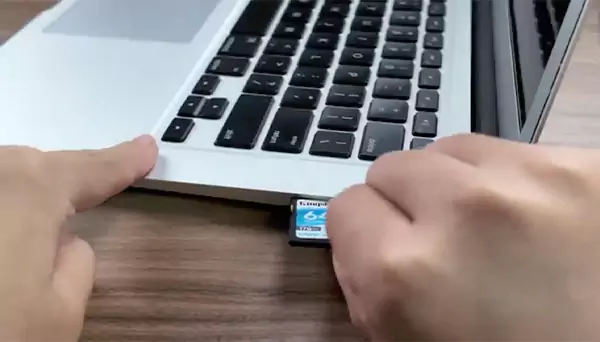
Step 1: Insert the SD Card in your Macbook
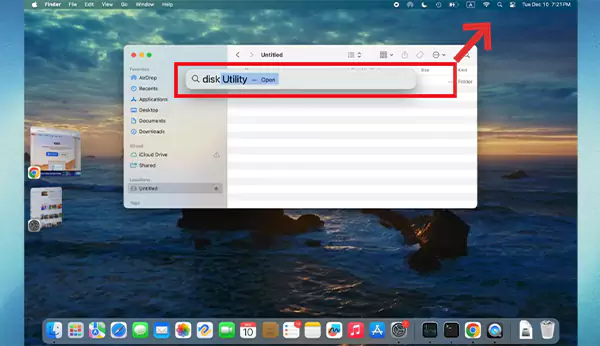
Step 2: Now Open Disk Utility
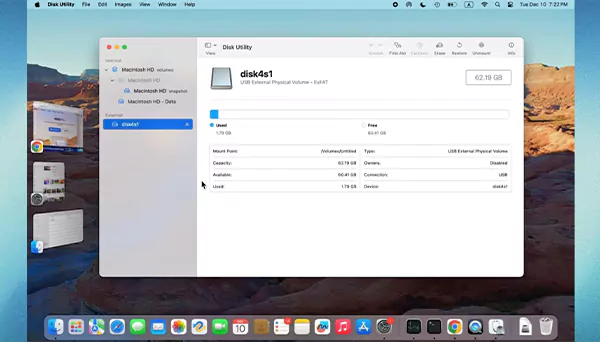
Step 3: Select the SD Card that You Had Inserted
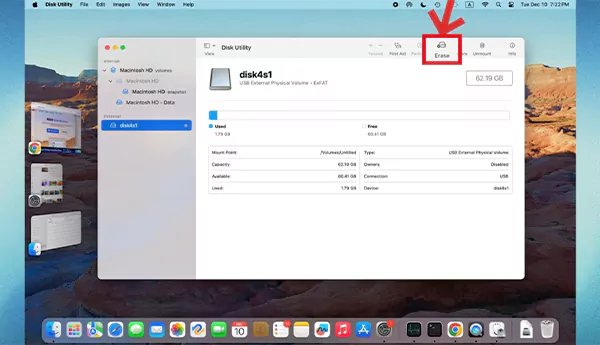
Step 4: Click on the Erase Option
Step 5: Choose the File System Format
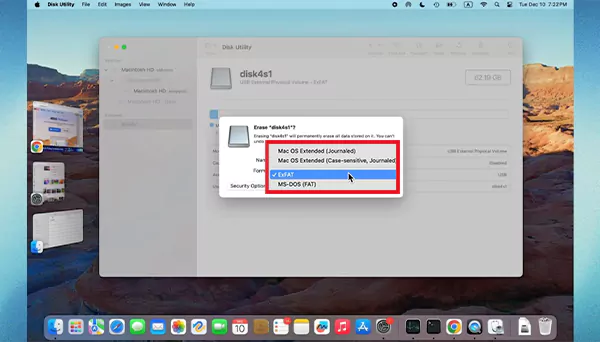
Step 6: Click “Erase” to Reformat the SD Card
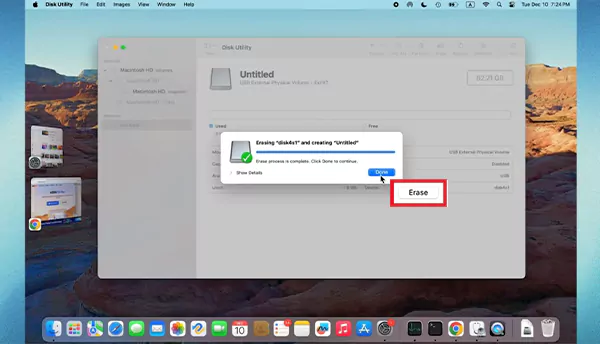
Once the process finishes, macOS will mount the card again, and it will be ready to store new files.
Method 2: How to Reformat an SD Card on Mac Using Terminal?
Terminal is an advanced method that allows users to reformat storage devices using macOS command-line tools. This method can help when Disk Utility fails to format the SD card. You have to follow these steps to reformat an SD card on a Mac using Terminal:
File manager on Android devices can be located at the home or app screen that is referred to as “My Files”, “File”, or “File Manager”, depending upon the smartphone brand.
Steps:
- Start by inserting the SD Card in your Mac
- Now open the Terminal by searching for it
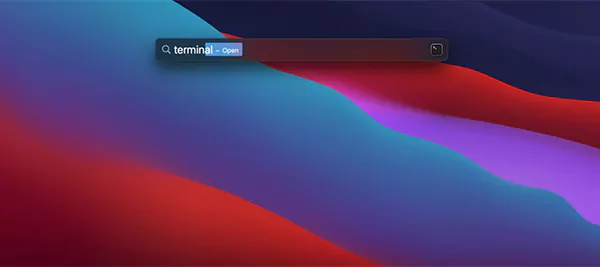
- Identify the SD Card using the diskutil list command
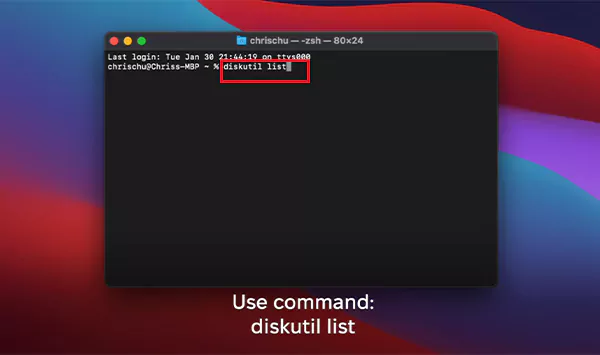
- Identify your SD card with its name.
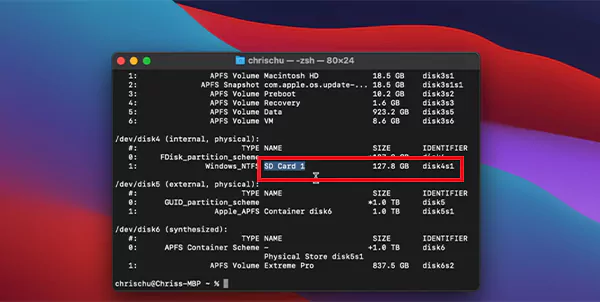
- Use the diskutil eraseDisk command (diskutil reformat) along with the name of the disk to format the card.
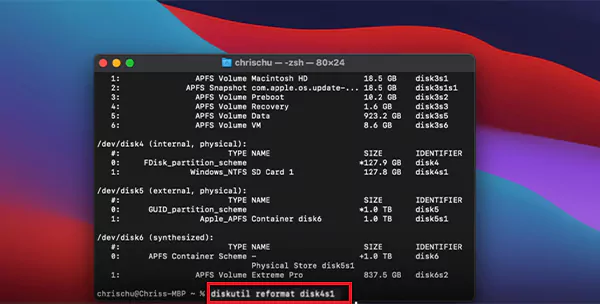
After the command completes, the SD card will be reformatted with the selected file system.
Method 3: How to Reformat an SD Card on Mac Using Third-Party Tools?
There are multiple options available to help learn how to reformat an SD card on a Mac with third-party disk management software. They often attempt this when they are not able to access or repair the SD card using macOS utilities.
Examples of tools that can be used for formatting an SD card:
- Disk management utilities
- Data recovery programs that have the ability to format
- Storage repair utilities
Some of these utilities may even allow a user to repair a badly damaged SD card before formatting it. Datarecovee is one of the best-known services to safely recover your lost data, which might have been deleted accidentally while formatting the SD card.
Important Things to Know Before Formatting an SD Card
Formatting will permanently erase all data from an SD card. Before formatting any storage device, Apple recommends creating a backup of all your important files.
Follow these key points when you are formatting an SD card:
- Always back up your important data: Make sure that you have saved all your important data on a different device or cloud storage so that you can use it in the future. Backup also comes in handy when your Mac computer freezes and doesn’t respond.
- Select the proper file system type: Based on your device compatibility, choose a file format like FAT32, exFAT, or APFS for smooth performance.
- Make sure you are using the correct device in Disk Utility: Double-check that you have selected the correct SD card in Disk Utility or the formatting tool to prevent accidentally erasing data from another storage device.
- Never remove the SD card during formatting: While formatting the SD card, always ensure that you don’t remove it, as it can damage the SD card, cancel the formatting process, or cause permanent data loss.
- Be sure to use a reliable card reader: Use a high-quality and compatible card reader to ensure stable connectivity during formatting, reducing the risk of errors, disconnections, or incomplete formatting processes.
Taking these precautions can help prevent the loss of your data and avoid formatting errors.
Troubleshooting: SD Card Not Formatting on Mac
In case the SD card is not formatting on Mac, the issue is often caused by write protection, a hardware problem, or file system corruption.
1. Check the Write-Protection Switch
Some SD cards have a physical switch that can put the card into a write-protected state. If this switch is enabled, the SD card will be read-only, preventing any data from being written to or formatted from the SD card. Make sure that the switch is ‘off’ before formatting the SD card with your Mac.
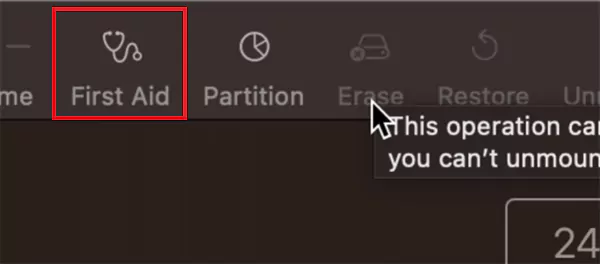
2. Run Disk Utility First Aid
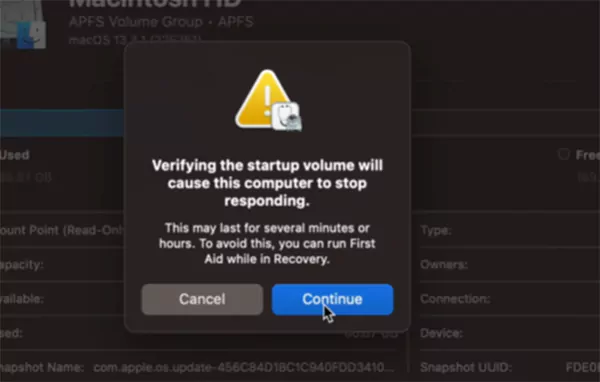
On a Mac, the Disk Utility program has an automatic repair feature called ‘First Aid’, which can correct small errors in the file system. Make sure to use the ‘First Aid’ tool first, before attempting to how to reformat an SD card on Mac. Here’s how to do it:
Steps:
- Go to Disk Utility and open it.
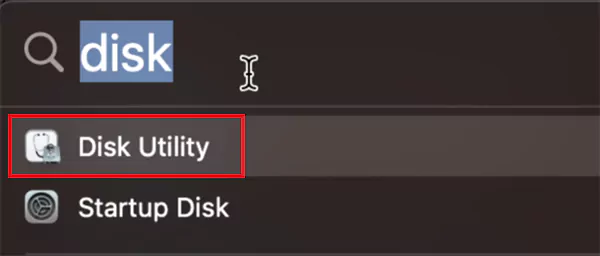
- Select the SD Card that you want to repair.
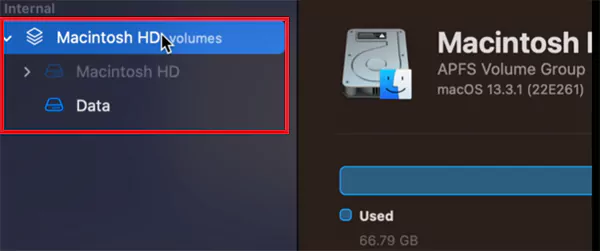
- Simply click on the First Aid option.
- Run the Repair Process.
3. Try a Different Card Reader
In some cases, it may not be the SD card that is the problem; rather, it could be a faulty or incompatible card reader or USB adapter. In addition, a bad or incompatible reader might not allow macOS to recognize or format the SD card properly.
Final Thoughts
If you want to format an SD card on your Mac, you will be able to repair storage problems, delete any files you do not want to keep, and set it up for your camera or other devices as required. It is still suggested that Mac users use Disk Utility whenever they’re formatting their SD card, however if you are looking to Format using Terminal commands, It is also important to select the appropriate format for your SD card and the appropriate means of Formatting in order to ensure compatibility with other devices.
Frequently Asked Questions
How do I reformat an SD card on my Mac?
How to get a Mac to recognize an SD card?
Insert the SD card in your Mac and restart the Mac. Once it’s turned on, ensure “External disks” is enabled in Finder Preferences.
Can you completely wipe an SD card?
Yes, you can completely wipe an SD card using Disk Utility on Mac by erasing it, which permanently removes all data and resets the card for fresh use.
How to fix a corrupted SD card on a Mac?
Run First Aid in Disk Utility to repair errors, then try reformatting the SD card. If the issue still remains, use Terminal commands or a different reader.
Is exFAT the same as FAT32 on Mac?
No, exFAT and FAT32 are different; exFAT supports larger files and storage, while FAT32 has a 4GB file size limit but broader compatibility.
Related Posts
How to Change Directory in Command Prompt? Quick and Easy Methods
The Command Prompt is a powerful CLI (Command line interface) used for Windows interaction, mainly for file management, application execution,…

What is an HEIC file? A Simple Beginner’s Guide
Have you noticed that when you click a photo on your iPhone, it does not show up as PNG or…