
It’s usually due to high memory usage, too many apps, software bugs, or low storage. Sometimes, a faulty app can also be the reason.
Mac Computer Freezing? 10 Proven Ways to Fix Your Frozen Mac
 Mahima Dave
Updated on: Apr 15, 2026
Your Mac does not freeze randomly; it is usually a sign that something is not working right. A Mac computer freezing issue can be caused by overloaded apps, a small software glitch, or a deeper system issue.
If your Mac hangs during work or even while watching something, do not randomly start trying random fixes. First, understand why it happens and learn how to fix the Mac frozen screen step-by-step.
I will explain everything from quick solutions like force quitting to deeper methods like Safe Mode. So you can fix it fast and get back to what matters.
Why Does My Mac Keep Freezing?
Once you understand why your Mac hangs or freezes abruptly, fixing it becomes much easier. Here’s what actually causes most freezes.
- You are Pushing It Too Hard: If your Mac is handling more than it can process, it slows down or freezes. Heavy apps and dozens of browser tabs can overload the CPU and memory.
- A Single App is Crashing: Sometimes it is not the whole system. Just one app stops responding and makes your Mac screen freeze.
- macOS Bugs or Outdated Software: Old updates leave bugs unresolved and can cause freezing.
- Low Storage or Memory Issues: Your Mac needs free space to run smoothly. If storage is almost full or RAM is under pressure, performance drops, and Mac computer freezing becomes common.
- Faulty or Incompatible External Devices: Cheap or incompatible USB devices, drives, or accessories can conflict with macOS.
- Corrupted System Files: If important system files get damaged, your Mac may freeze or behave unpredictably.
- Hardware Problems: Overheating, failing storage, or internal component issues can cause frequent freezing.
If your MacBook has frozen just once or twice, it is normal. But it is happening regularly, or during specific tasks, something is clearly wrong.
The next section is where you fix it, step-by-step, based on what’s actually causing the issue.
How to Fix Mac Computer Freezing Issues?
If your iMac or MacBook has frozen, don’t jump around trying random fixes. Follow the given order to fix it properly. Start simple, then go deeper only if needed. Here’s how to fix frozen MacBooks:
Force Quit the Frozen App
Before blaming your Mac, check whether this is happening only with one app or across the entire system.
- Press Command + Option + Esc.
- Select the app freezing or showing “Not Responding”.
- Now, click Force Quit.
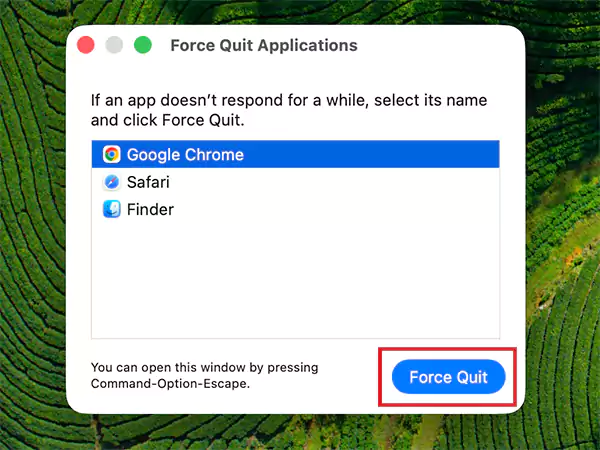
OR
- Hold Option and right-click the app in the Dock.
- Then, click on Force Quit.
This instantly removes the app without restarting your Mac. If your system works fine now, the app was the main problem.
Restart Your Pac Properly
A restart clears temporary bugs and resets system processes. Here’s how to restart a MacBook:
- Click the Apple logo (top-left) > Restart.
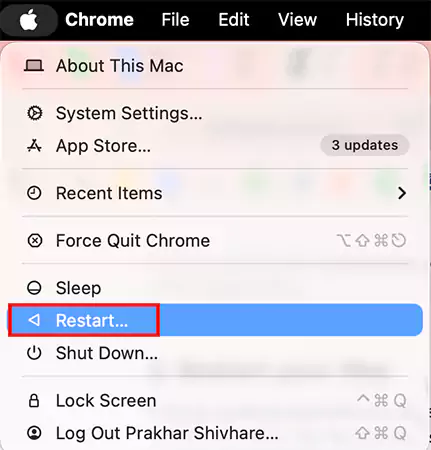
- Uncheck “Reopen windows” for a cleaner restart.
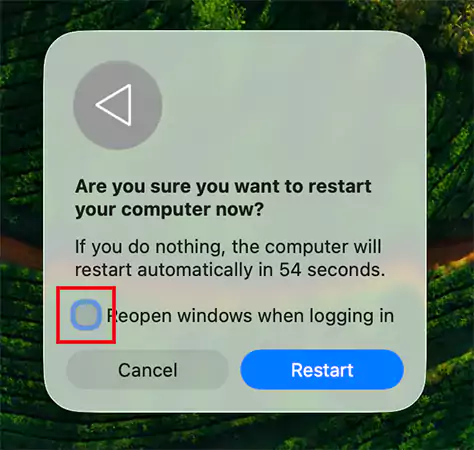
If your Mac screen is completely frozen:
- Press and hold the power button until it shuts down.
- Wait 10 seconds, then turn it back on.
This is the fastest full-system reset and one of the most effective fixes.
Use Activity Monitor to Spot the Problem
If your Mac slows before freezing, something is overloading it.
- Press Command + Space and type Activity Monitor.
- Open it and go to the CPU or Memory tab.
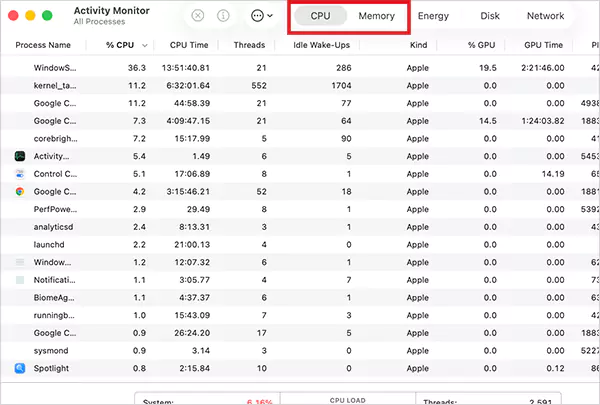
- Look for apps using unusually high resources.
- Then, select the app > click ”x” > Quit/Force Quit.

This helps you catch the exact cause, not just fix symptoms.
Free Up RAM
Close apps you are not actively using, reduce browser tabs, and avoid running heavy apps at the same time. If your Mac suddenly feels smooth after this, memory overload was the issue.
Free Up Storage Space
As I have already mentioned, your Mac needs free space to function properly.
- Go to System Settings > General > Storage.
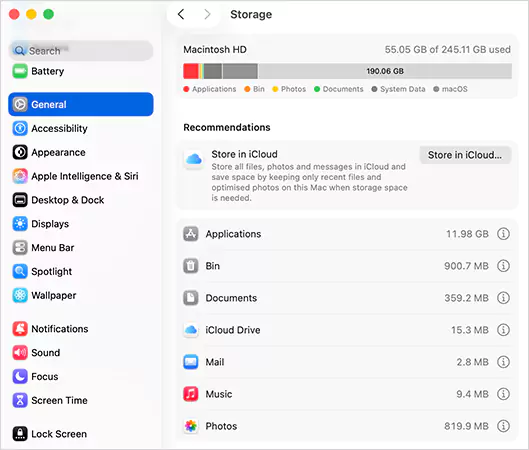
- Keep at least 10-15% storage free.
- Now, focus on removing large downloads and videos, Bin, and delete unused apps on Mac.
Full storage can silently cause freezing even if everything looks fine.
Disconnect External Devices
Next, if the Mac computer freezing issue is still troubling you. Try to unplug all external devices, restart your Mac, and plug them back one by one. If freezing stops after this, one of your devices is the culprit. So, just fix or replace that device.
Start Your Mac in Safe Mode
Starting up your Mac in Safe Mode will help you confirm if a third-party app is freezing your Mac screen.
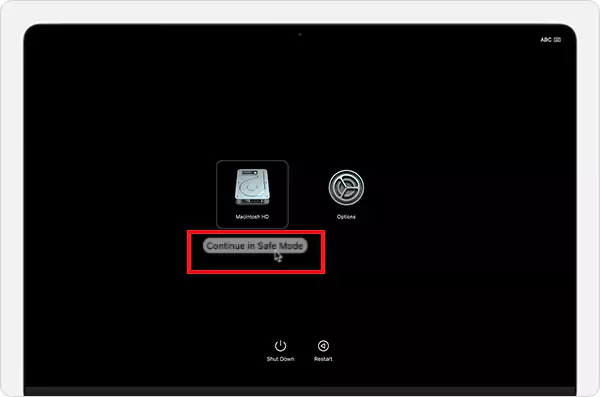
For Apple Silicon (M1/M2/M3):
- Shut down your Mac.
- Press and hold the power button.
- Now, click on your disk, hold Shift, and click Continue in Safe Mode.
For Intel Mac:
- Restart your Mac.
- Then, immediately hold the Shift key.
- Release when the login screen appears.
Now, if your Mac works fine in Safe Mode, try to locate the third-party app causing the issue and fix it.
Update macOS
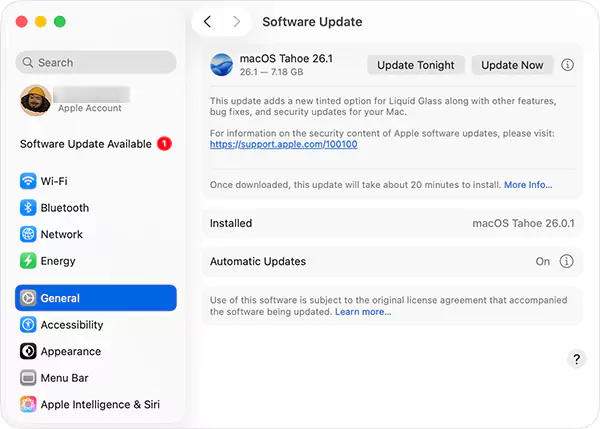
Go to System Settings > General > Software Update, and install any available update. Updates fix bugs, improve stability, and optimize performance.
Reset NVRAM/SMC
For deeper glitches related to power, display, or performance issues, try to reset NVRAM/SMC on Mac:
- Shut down your device.
- Turn on and immediately press: Option + Command + P + R.

- Hold for about 20 seconds.
This resets hidden system settings that can cause instability.
Use macOS Recovery (Last Resort)
If your Mac keeps freezing even after everything, the issue is probably deeper. You can use Mac Recovery Mode to fix this. Here’s how to do it:
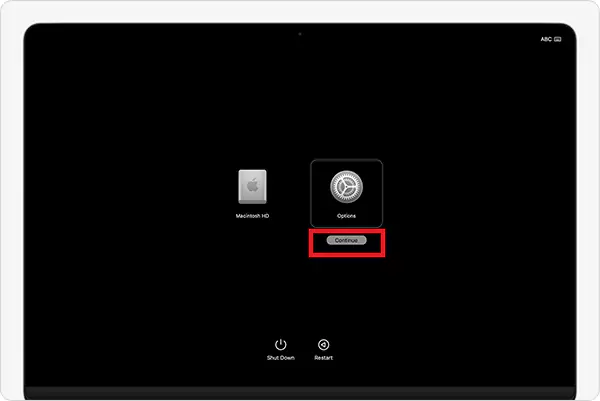
For Apple Silicon:
- Shut down your device.
- Hold the power button until you see “Loading startup options”.
- Click on Options > Continue.
For Intel Mac:
- Restart your device.
- Then, hold Command + R.
Once you are inside macOS Recovery, open Disk Utility and run First Aid to repair the disk.
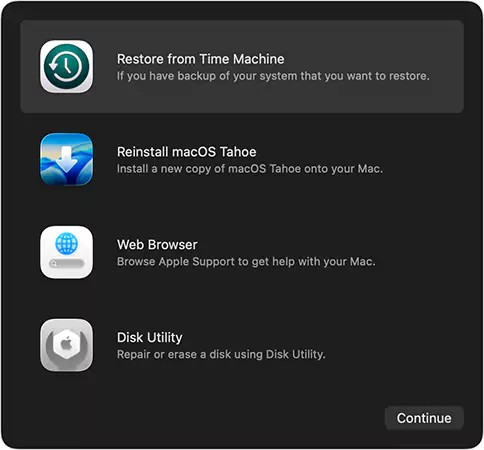
You can also reinstall macOS if needed. This fixes corrupted system files and other deeper issues.
How to Stop Your Mac from Freezing Again (Prevention Tips)
Fixing the Mac computer freezing issue is not enough. If you don’t change anything, it will come back. Here’s how you make sure it doesn’t:
- Keep your macOS updated because new updates often fix real bugs that cause freezing.
- Control how many apps you run at once. Do not run too many heavy apps or tabs together, and close what you do not need.
- Maintain at least 15-20% free storage, and check Activity Monitor once a week to look at CPU and Memory usage.
- Keep your Mac cool, use it on flat surfaces, and do not block vents. Overheating may lead to throttling and freezing.
- Be careful with external devices. If freezing starts after plugging something in, that device is likely problematic.
Mac screen freezing is usually a usage problem, not just a system problem. Fix how you use your Mac, and most issues will disappear.
Final Thoughts
A Mac computer freezing is annoying, but not complicated. In most cases, it comes down to heavy usage, low memory, or storage issues. Follow the correct order mentioned in this guide, and most users will be able to tackle the error.
If it still keeps freezing, don’t ignore it. That’s usually a deeper system or hardware issue that needs professional attention.
Frequently Asked Questions
Why does my Mac keep freezing randomly?
Is it safe to force shut down a frozen Mac?
Yes, but only when necessary. You may lose unsaved work, but it won’t damage your Mac.
How do I force quit a frozen app on Mac?
Just press the Command + Option + Esc keys together, select the app, and click on Force Quit.
How do I quickly fix my Mac freezing?
Try force-quitting the app first. If that doesn’t work, restart your Mac. If it’s completely unresponsive, press and hold the power button for about 10 seconds to shut it down and restart.
Related Posts

8 Best AI Presentation Makers for Business-Ready Slides
Making a presentation doesn’t just mean designing slides. It’s about defining a clear structure, using defined logic, useful visuals, and…

Queue Management Software Troubleshooting Guide: 8 Common Faults and Fixes
The long wait times and ineffective management of customer queues can have a significant impact on customer satisfaction and business…

How to Use Similarweb Website Traffic Data for Competitor Research
Competitor research without traffic data is guesswork. You can guess who your rivals are, guess how big they are, guess…

Choosing the Right Hosting Model for Scalable Digital Platforms
The performance of digital business is directly related to website speed, uptime, and scalability. Slow page performance has a negative…

How Data-Driven Performance Tools Are Transforming Employee Recognition in Tech Companies
“People work for money but go the extra mile for recognition, praise, and rewards.” — Dale Carnegie (Writer & Teacher)…

Why Businesses Struggle to Collect Reliable Data from the Web
Almost every company that depends on data runs into the same problem: although they can find the data they need,…

Why Financial Data Recovery Matters for Businesses
Financial data supports every part of a business, directly affecting cash flow, payroll, tax reports, audits, customer billing, and daily…

CMMC Compliance Is Coming for Manufacturers. Here Is What You Need to Do
“Cybersecurity is much more than a matter of IT.” — Stephane Nappo (Cybersecurity Professional) For manufacturers working within the defense…

How Data-Based Tools Influence Learning Performance
Learning has transformed in the modern age with the integration of new technologies to help students and professionals prosper in…