
An orange dot near the menu bar means an app is using the microphone. On the other hand, a fixed orange patch can arise due to heat exposure, pressure, liquid damage, or backlight issues.
Orange Spot on MacBook Screen: What It Means and How to Fix It?
 Mahima Dave
Updated on: Feb 25, 2026
Table of Contents
Seeing an orange spot on MacBook screens is unsettling, but not every spot means damage. Sometimes it’s just Apple’s software indicator, like the mic-in-use dot near the menu bar. The display can also look warm or tinted due to Night Shift or True Tone.
But if you see a fixed orange smudge that won’t move, you are probably dealing with hardware damage. The key is to identify what you are seeing before trying any fix.
Let’s break it down so you can confirm the cause of the MacBook/MacBook Pro orange screens, try safe solutions, and decide if a repair is needed.
Quick Summary
- A small orange dot near the menu bar usually means an app is using the microphone.
- A fixed orange smudge on the MacBook screen usually points to heat, pressure, moisture, or panel damage.
- Start by turning off Night Shift and True Tone, and restarting the Mac.
- If the spot stays after basic tests, it is likely a hardware issue and needs professional diagnosis.
What Does the Orange Spot on MacBook Screens Mean?
An orange spot on a MacBook screen can mean two very different things. One is normal, and the other needs your attention. You just need to know which one you are seeing.
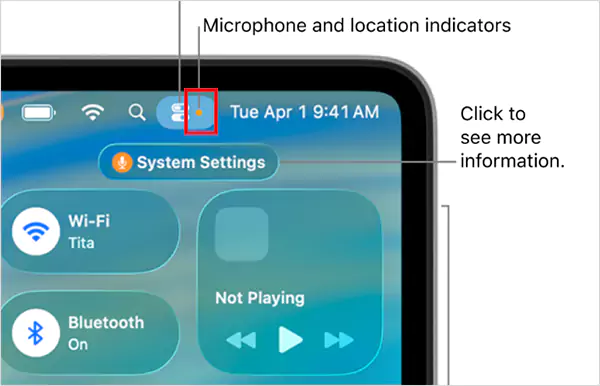
If the orange dot appears near the menu bar or Control Center and disappears when you close certain apps, it is a privacy indicator. macOS shows this when an app is using your microphone. Nothing is wrong with your screen in this case.

But if you see an orange smudge on MacBook Pro screens, sitting on the display itself, and it stays in the same place no matter what you do, that’s not a system indicator. That usually points to a screen issue.
Spotting the difference early can save you a lot of time from wasting time on the wrong fix.
What are the Causes of a MacBook Orange Screen or Spot?
Once you rule out the privacy dot, most spots on MacBook Pro screens come from display stress or internal panel issues. Here are some common causes:
- Long-term Heat Buildup: MacBooks run hot during heavy use. Over time, heat can affect the screen layers and adhesives inside the panel. This may create warm-colored patches near the bottom or edges.
- Pressure on the Display: Tight bags, objects placed on the lid, or even strong pressure while closing the laptop can compress LCD layers. That pressure can leave behind orange or yellow smudges in one area.
- Moisture Exposure: Even minor moisture can interfere with the backlight and screen diffusion. This often shows up as uneven MacBook Pro orange smudges that don’t fully disappear.
- Panel or Backlight Defects: Sometimes, the issue starts inside the screen itself. Layer separation or backlight problems can create a fixed orange spot that software settings cannot fix.
- Graphics or Connector Issues: A loose display cable or GPU glitch can also cause color patches on rare occasions. These usually show up inconsistently across the screen.
Some of these issues are temporary, and some need to be repaired. Let’s see what options we have in the next section.
How to Fix an Orange Spot on MacBook Screen?
We need to start with some quick checks. Don’t just jump straight to repair. Here’s how to approach the orange discoloration on MacBook Pro issue:
Check Your Color Settings
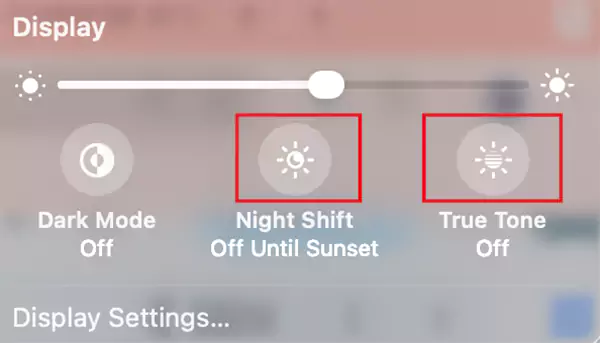
Turn off Night Shift and True Tone in Display Settings. These settings warm up screen colors, which can make parts of the screen look orange. Also, try to reboot your Mac computer and check again. A simple restart can sometimes reset temporary display glitches.
Reset Display Settings
Reset NVRAM or PRAM on Intel Macs. On Apple Silicon Macs, a simple restart usually handles this. Plus, switch the display color profile back to default.
Test With Solid Backgrounds
Open a full white screen and then a full black screen. If the orange spot stays in the same place on both, it is probably a panel issue.
Allow the Mac to Cool Down
As I have mentioned, heat can temporarily affect the display. Shut down your device and leave it on a flat surface for a few hours. Small heat–related patches sometimes fade once the device cools.
Connect an External Monitor
Plug your MacBook into another display. If the external screen looks normal, the issue is limited to the MacBook panel. If the spot shows on both screens, then it could be a graphics-related issue.
If the orange spot does not move, does not fade, and survives all these checks, the software won’t be able to fix it.
When to Contact Apple or an Authorized Service Provider?
If the MacBook Pro screen burn marks or orange spots are clearly hardware-related, stop trying random fixes. Display discoloration rarely improves on its own and often gets worse.
Reach out to Apple Support or an authorized provider if:
- The orange spot stays visible on every app and background.
- The patch is spreading or getting brighter.
- You notice flickering, lines, or uneven brightness.
- The issue started after a drop or liquid exposure.
Apple-certified repairs use genuine parts and trained technicians, which helps maintain display quality. If you have AppleCare+, it usually covers accidental screen damage for a service fee.
Always get an official estimate first. If the repair cost is close to the laptop’s current value, replacement is a better option.
How to Prevent Orange Smudges or Screen Discoloration?
Most orange spots on a MacBook build up over time. Heat, pressure, moisture, and rough handling are the usual triggers. A few simple habits can prevent most of these cases.
- Avoid Pressure on the Lid: Don’t stack books or heavy items on a closed MacBook. Even light but constant pressure can damage the display layers.
- Control Heat: Manage heat properly and use the laptop on a hard surface so that the vents stay clear. Stop using the device for some time if it gets too hot.
- Keep Liquids Away: Small spills or humidity exposure can cause internal discoloration that spreads slowly.
- Use a Padded Sleeve: A sleeve reduces pressure and impact when carrying your MacBook in a bag.
- Clean Properly: Use a Microfiber cloth only. Harsh cleaners can damage coatings and show screen discoloration.
Final Takeaway
An orange spot on MacBook screens looks alarming, but the fix depends on the cause. It is a menu bar dot or a display setting; it is not even a problem in the first place. If it is a fixed patch on the screen, it is usually hardware.
Start with basic checks, and if the spot does not move or fade, get your MacBook screen inspected by a professional. The sooner you find out, the easier and cheaper the repair.
Frequently Asked Questions
Why is there an orange dot on my MacBook screen?
How to get rid of the orange dot on the MacBook Screen?
Turn off Night Shift and True Tone, restart the Mac, and reset display settings. If the spot remains in the same place, contact Apple for screen repair.
What is the orange screen of death?
It is a term used by users for severe display or graphics failure where the screen turns orange during normal use or startup.
How to fix an orange dot on a MacBook?
If caused by software or color settings, just close the app using the microphone and adjust your display settings.
What does the purple dot on a MacBook mean?
It is a privacy indicator, which indicates that the system audio is being recorded.
Related Posts

8 Best AI Presentation Makers for Business-Ready Slides
Making a presentation doesn’t just mean designing slides. It’s about defining a clear structure, using defined logic, useful visuals, and…

Queue Management Software Troubleshooting Guide: 8 Common Faults and Fixes
The long wait times and ineffective management of customer queues can have a significant impact on customer satisfaction and business…

How to Use Similarweb Website Traffic Data for Competitor Research
Competitor research without traffic data is guesswork. You can guess who your rivals are, guess how big they are, guess…

Choosing the Right Hosting Model for Scalable Digital Platforms
The performance of digital business is directly related to website speed, uptime, and scalability. Slow page performance has a negative…

How Data-Driven Performance Tools Are Transforming Employee Recognition in Tech Companies
“People work for money but go the extra mile for recognition, praise, and rewards.” — Dale Carnegie (Writer & Teacher)…

Why Businesses Struggle to Collect Reliable Data from the Web
Almost every company that depends on data runs into the same problem: although they can find the data they need,…

Why Financial Data Recovery Matters for Businesses
Financial data supports every part of a business, directly affecting cash flow, payroll, tax reports, audits, customer billing, and daily…

CMMC Compliance Is Coming for Manufacturers. Here Is What You Need to Do
“Cybersecurity is much more than a matter of IT.” — Stephane Nappo (Cybersecurity Professional) For manufacturers working within the defense…

How Data-Based Tools Influence Learning Performance
Learning has transformed in the modern age with the integration of new technologies to help students and professionals prosper in…