
The local backup files are stored in your user profile folder. The location is usually: AppData\Local\Google\Chrome\User Data\Default. If you export the bookmark HTML file manually, you can store it anywhere you want.
How to Restore Bookmarks in Chrome Step-by-Step?
 Mahima Dave
Updated on: Jan 08, 2026
We rely on Chrome bookmarks every day. They hold our work links, research, tools, reading lists, and everything important. So, when they disappear after an update, the reinstalling process can be frustrating.
But can you restore bookmarks in Chrome? I get a lot of such queries, and it is obvious because Chrome is dominating the browser market with around 71% share. And the short answer is yes.

Starting with quick checks, I will explain the right recovery path to recover deleted bookmarks in Chrome. Follow the order, avoid risky moves, and get your bookmarks back safely.
Quick Look: How to Restore Deleted Bookmarks in Chrome?
- Try to undo immediately when you accidentally delete a bookmark.
- Google Sync is the easiest recovery path if it was enabled before bookmarks disappeared.
- Local backup files like Bookmarks.bak are often the real lifesaver.
- Importing bookmarks from an HTML file is the cleanest way to restore or move bookmarks across devices.
- A data recovery software can help you recover the local backup files of your Chrome bookmarks.
- Chrome history can help rebuild bookmarks when files are gone, but you visited them recently.
Recover Bookmarks Chrome: Quick Checks
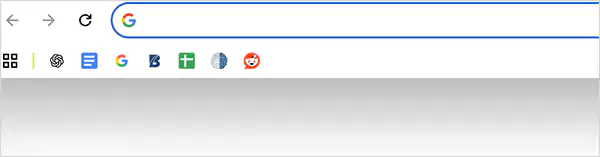
Before you attempt advanced fixes to restore bookmarks Chrome, pause and go through these checks. These steps are fast, safe, and surprisingly effective.
Use the Instant Undo Option (if deletion just happened):
If you deleted a bookmark a few seconds ago, Chrome provides a brief recovery window. Here’s what to do:
- Open Bookmark Manager by pressing Ctrl + Shift + O on Windows and Option + Cmd + B on Mac.
- Now, just press Ctrl/Cmd + Z to undo your actions.
This only works in the same session. So, if you close Chrome, you will lose this option.
Check the Google Account and Profile:
Make sure you are signed into the same Google account and Chrome profile you used earlier. This is where most people mess up. They think bookmarks vanished, but you are simply logged into a different account or a fresh profile.
If your bookmarks are still lost, stop using Chrome immediately and start the recovery process. The more you browse, the higher the chance those files get overwritten.
How Do I Restore Bookmarks in Chrome?
Your recovery path depends on how the bookmarks disappeared. To restore bookmarks on Chrome, start with the first simple method and go advanced only if needed.
How to Recover Bookmarks in Chrome Using Google Account Sync?
This is the fastest and cleanest fix if the sync was on before the deletion. Here’s how to check and recover if your bookmarks suddenly disappeared:
- Open Chrome and sign in with the correct Google account.
- Go to Settings > You and Google > Sync and Google services.
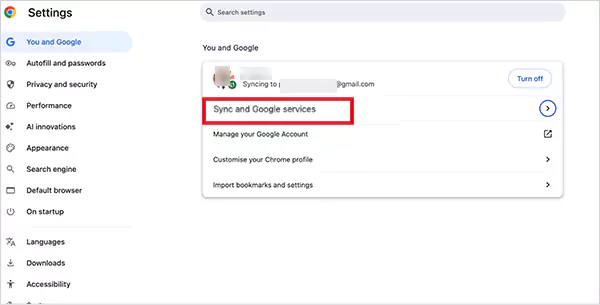
- Click on Manage what you sync.
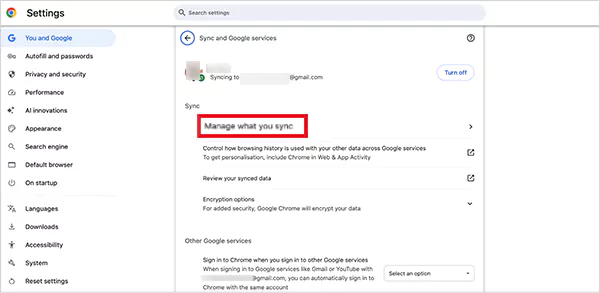
- Here, make sure Bookmarks are turned on.
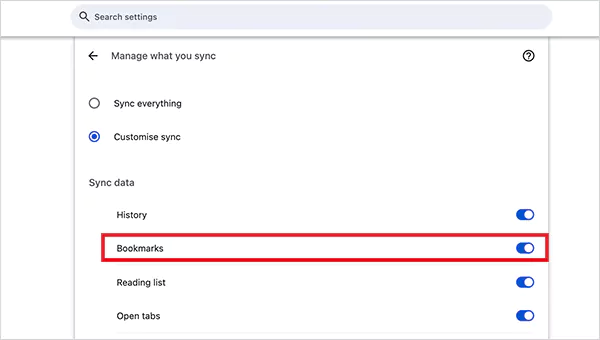
Now, wait a few minutes because sync can take time. Chrome often merges cloud bookmarks back into your browser automatically. However, if sync was off before deletion, this method will not restore anything.
How Do I Recover Chrome Bookmarks from a Backup File?
Google Chrome keeps a local backup of your bookmarks. This is your best offline recovery option. It stores two key files: the ‘Bookmarks’ file for current data and the ‘Bookmarks.bak’ file for the last backup.
Here’s how to recover deleted bookmarks in Chrome using a backup file:
- Close Chrome completely on your device.
- On Windows: Go to
C:/Users/UserName/AppData/Local/Google/Chrome/User Data (replace username with the actual name)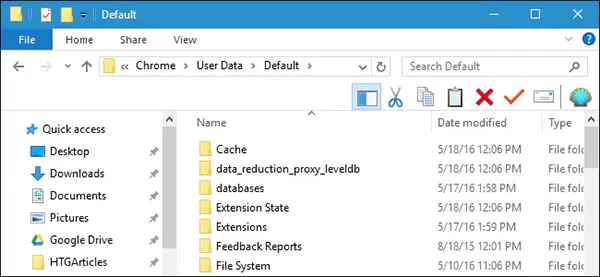
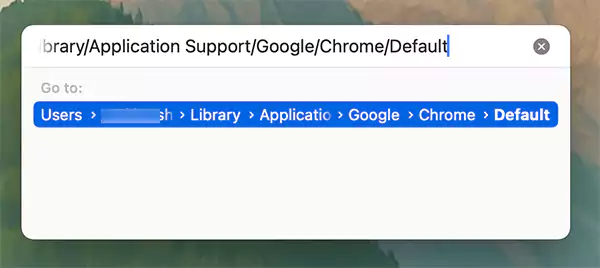
- On Mac: Click on Go > Go to Folder, and type ‘~/Library/Application Support/Google/Chrome/Default’. If you have multiple profiles, replace Default with Profile 1, Profile 2, etc.
- Now inside the folder:
- Rename the ‘Bookmarks’ file to something like ‘Bookmarks.old’.
- And, rename the ‘Bookmarks.bak’ file to ‘Bookmarks’.
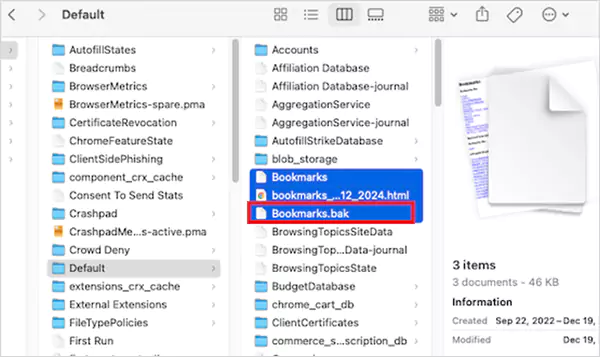
Finally, just open Chrome again, and your bookmarks should be restored. If the Bookmarks.bak file is missing on your device, move to the next method.
How Do I Restore Bookmarks in Chrome Using Data Recovery Software?
I use this method only when the local bookmarks file has been deleted or overwritten. Recovering overwritten files works when the deletion was recent, and the disk has not been heavily used since.
So, if you want to recover Chrome bookmarks without backup:
- Stop using the drive where Chrome is installed.
- Then, download a trusted recovery software like datarecovee, Disk Drill and EaseUS that supports deep scan and preview.
- Search specifically for file names Bookmarks or Bookmarks.bak.
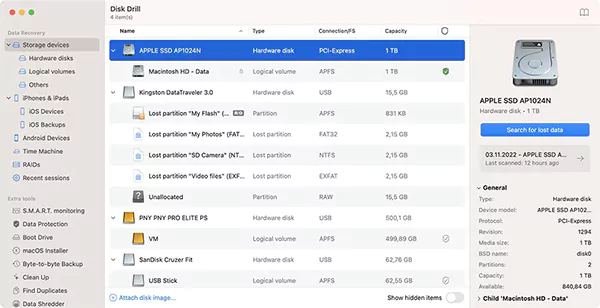
- If you find the files, recover them to a safe location.
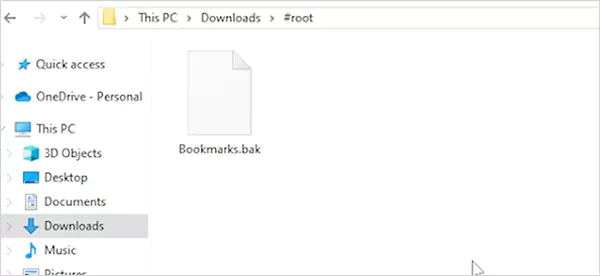
Once recovered, restore them using the backup method above, and Chrome will restore your bookmarks.
How to Recover Bookmarks From Chrome History?
If bookmarks are gone, but you remember visiting the pages, you can rebuild them. Here’s what you can do:
- Open chrome://history.
- Here, search for the site or page name.
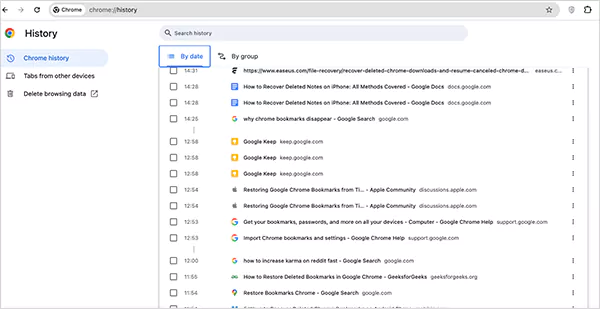
- Open the page and bookmark it again.
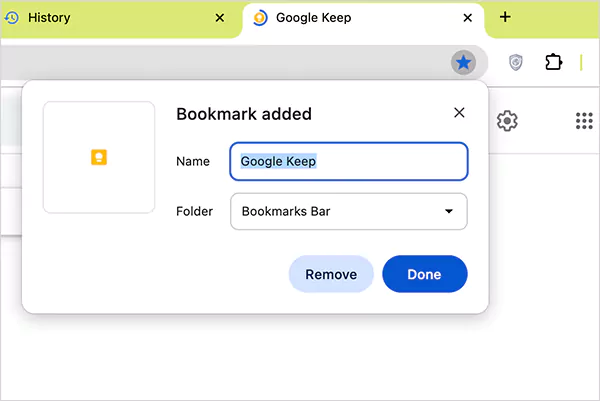
That’s how simple it is if you have your history intact. You can use date filters if you remember when you visited the site. This Restore Bookmarks Chrome method takes time, but it works when backup files are unrecoverable.
How to Recover Chrome Bookmarks After Reinstall or Update?
Sometimes Chrome updates wipe the local data of your device, but some traces remain deep down in the system. So, if none of the above fixes work for you, here’s another Restore Bookmarks Chrome method you can try:
- Open Command Prompt as an administrator.
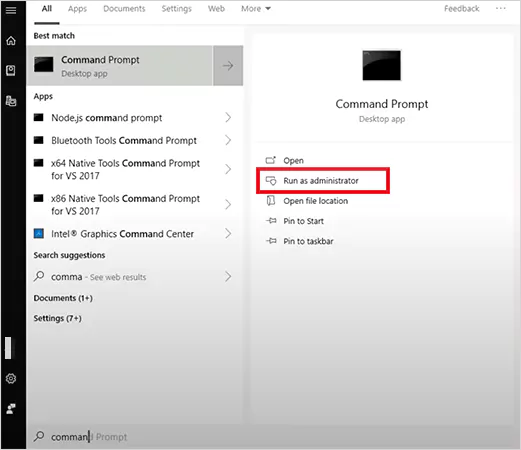
- Now, run: ‘ipconfig /displaydns’.
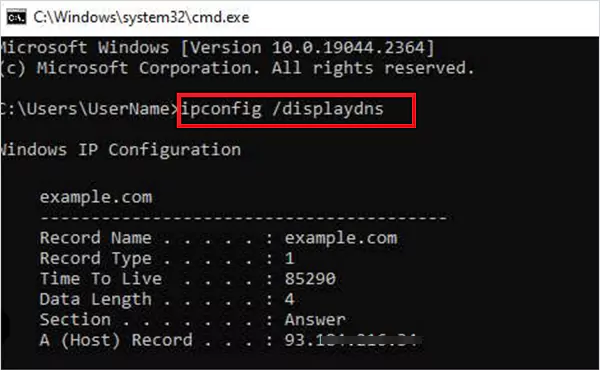
- This will show you a list of recently visited websites, review them, and re-bookmark important ones manually.
This method does not restore bookmarks automatically, but it helps in rebuilding critical links after an update or reinstall.
How Do I Restore Chrome Bookmarks by Importing Bookmarks & Settings?
This is a bonus method if you already have a backup, you exported bookmarks earlier as an HTML file, or want to move bookmarks from another browser or device. It is safe, reversible, and works even when sync fails.
Here’s how to import bookmarks into Chrome:
- Open Google Chrome.
- Go to Menu > Bookmarks and lists > Bookmark Manager.
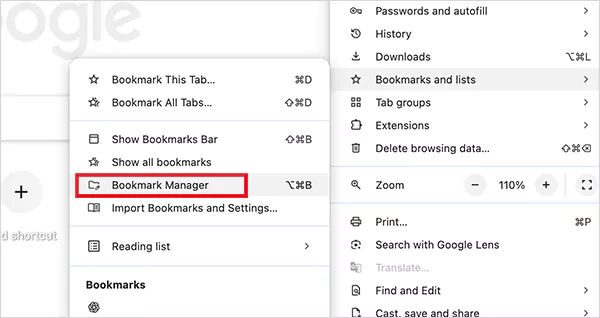
- Click on the three-dot menu in Bookmark Manager.
- Next, select the Import bookmarks option.
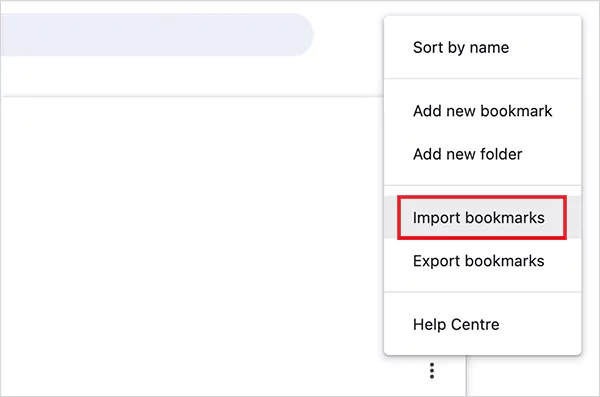
- Now, just choose your exported HTML file.
Chrome will add these bookmarks under Imported or directly into the Bookmark bar. Chrome also supports direct imports from another browser. Just go to Menu > Bookmarks and lists > Import bookmarks and settings > Select the file of another installed browser.
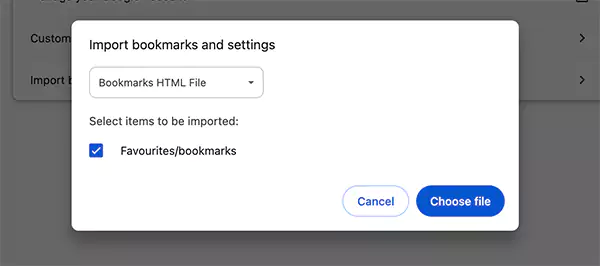
This method is ideal for migrations and fresh setups. Nothing gets overwritten in the process until you manually delete items.
Why Did My Chrome Bookmarks Disappear?
Chrome does not randomly erase bookmarks. There is always a trigger, and knowing the cause is important to prevent repeat losses. Let’s take a look at some of the most common reasons:
- Accidental Deletion: Bookmark Manager has no confirmation prompt. One wrong click can wipe folders instantly.
- Sync Conflicts: If sync was paused, failed, or re-enabled late, Chrome may overwrite local bookmarks with an empty cloud version.
- Corrupt Bookmarks File: A crash can sometimes corrupt the Bookmarks file, forcing Chrome to show no bookmarks.
- Reinstallation: Chrome may point to a new profile folder after reinstalling or switching system users.
Once you identify the cause, choosing the right recovery method becomes simple.
How Do I Avoid Losing Chrome Bookmarks Again?
Before closing this topic, I want to tell you about some simple habits that just take minutes and can save you a lot of time in the future:
- Keep Chrome sync and confirm that it is active after updates or new logins.
- Automate a weekly backup of the Bookmarks file or full profile folder.
- Avoid aggressive cleanup tools and exclude the Chrome profile folder from automated scans.
- Organize your bookmarks clearly because clean folders reduce the chances of accidental deletion.
Just follow them regularly, and you won’t have to lose any Chrome bookmarks in the future.
Final Thoughts
Chrome bookmarks are small files but high-impact data. Most bookmark losses are reversible if you act fast and follow the right path. So, just stay calm and follow the right order to restore bookmarks in Chrome.
Start with sync and profiles, then backups, history, and use recovery software as your final weapon. This will save time, avoid data overwrite, and give you the highest success rate.
Frequently Asked Questions
Where are Chrome bookmark backups stored?
How do I recover my bookmarks on Google Chrome?
Try syncing with your Google Account, or manually restore using a local backup file. You can also import the bookmarks using an HTML backup. As a last resort, using a trusted data recovery software can also restore bookmarks.
How to recover bookmarks.bak file?
If you are not able to find your bookmarks.bak file, the only option you have to restore it is to quickly use a data recovery tool with a deep scan feature.
How to import bookmarks from a backup file?
Open the Bookmarks Manager on Chrome, click on the three-dot menu, select the import option, and choose the backup file.
How to recover deleted Chrome bookmarks on Android?
You can try using the Google account sync or the Google Dashboard to recover bookmarks in the Chrome Android app.
Sources:
- Recover Deleted Bookmarks in Chrome – Google Chrome Help
- Get your bookmarks, passwords, and more on all your devices – Google Chrome Help
- Import Chrome bookmarks & settings – Google Chrome Help
Related Posts

How to Fix an iPhone Not Connecting to Wi-Fi?
Why can I not connect to Wi-Fi on my iPhone? It is frustrating, but the good news is that most…

Top 6 Observability Platforms for SRE Teams
With the rise of distributed systems, microservices, and cloud-native architectures, the sheer amount of telemetry data being generated is staggering.…
How to Remove a Directory in Linux?: Exact Commands and Safe Steps
Managing files and folders is a core part of working with Linux. One skill every user should know is how…

How to Protect Your Privacy Online in 2026: The Smart User Playbook
Your digital life also runs on small settings most people ignore. Think of your online life like an apartment. You…

10 Best SD Card Recovery Software to Recover Deleted, Formatted, and Corrupted Files
The use of SD card recovery software allows you to restore pictures, videos, and document files that have been deleted…
How to Mass Delete Emails on Outlook (Fast and Safe Bulk Cleanup)
Stressed by too many emails in Outlook? Fix that properly by learning how to mass delete emails on Outlook. A…

Why Businesses Use Payroll Outsourcing to Manage W-2 Reporting and Tax Deadlines
Managing payroll is one of the most complex administrative responsibilities for businesses. Beyond calculating wages and issuing paychecks, payroll teams…

10 Best Linux Data Recovery Software in 2026
Linux data recovery software programs allow users to recover deleted, corrupted, and lost files from their Linux storage device(s) (HDD,…

Key Benefits Of Software Designed To Organize Teams And Tasks
Managing teams and operations in an aligned way is much more complex than it seems. However, the use of specialized…