
Restoring default settings only resets visual, audio, and system preferences. Initializing or resetting the PS4 deletes everything and cannot be undone.
How to Factory Reset PS4 Safely: Step-by-Step Guide
 Kartik Wadhwa
Updated on: Jan 22, 2026
Table of Contents
- What Does a PS4 Factory Reset Actually Mean?
- When Do You Need to Factory Reset PS4 Consoles?
- Things You Must Do Before Resetting a PS4
- How to Factory Reset a PS4 from Settings?
- How Do I Reset a PS4 Using Safe Mode?
- What Happens After You Factory Reset a PS4?
- How to Reset a PlayStation 4 Before Selling or Giving it Away?
- Wrapping Up
- Frequently Asked Questions
How do you reset a PS4 the right way? Maybe you are selling it after upgrading to a PS5, trying to fix performance issues, or just want a clean slate. Whatever the reason, a factory reset is a serious move.
It erases everything from your saves to accounts, and there is no point of return. So, doing it properly is crucial. That’s why I will carefully explain when a reset makes sense, what you must protect first, and how to factory reset PS4 without stress or confusion.
Quick Summary: How to Factory Reset a PS4?
- Back up your data first and deactivate your account as Primary PS4 to avoid license issues.
- If the PS4 turns on normally, go to Settings > Initialization > Initiate PS4 > Full to reset the console.
- If the PS4 won’t boot, use Safe Mode to reset. Power off the console, hold down the power button until two beeps, and select Initialize PS4.
- Sign in again after resetting to download games and restore saves.
What Does a PS4 Factory Reset Actually Mean?

A PS4 factory reset is a complete restoration of the console. It goes back to its original out-of-the-box state. Every user account, game, save file, screenshot, video, and setting gets deleted.
This happens when you use Initialize PS4, not when you simply restore settings. Many people confuse the two, and that’s where mistakes start.
- Restore Default Settings only resets preferences like display, sound, or network. This does not interfere with your data.
- Initialize PS4 deletes everything without exception. So, keep that in mind before you learn how to reset a PS4 to factory settings.
After a factory reset, the PS4 restarts like a brand-new console. A simple rule to remember is that a factory reset is a full erase, not just a performance cleanup.
When Do You Need to Factory Reset PS4 Consoles?
You don’t need to factory reset often. But when you do, it is usually for one of these reasons:
- Fixing Serious System Issues: If your PS4 is behaving strangely, and basic troubleshooting is not working, a factory reset can help by removing corrupted settings or system-level conflicts. However, it should be your last option. Try restarting the console or clearing the cache before wiping everything.
- Selling or Giving Away Your PS4: This is the most common reason. A factory reset removes all accounts, saved data, and personal settings so the next owner can start fresh. It also protects your privacy and prevents access to your games or account.
- Solving Boot or Startup Problems: If your PlayStation 4 won’t start properly or gets stuck during boot, a factory reset through Safe mode is often the only way to bring it back to a usable state.
However, once you reset, all local data will be gone permanently. So, make sure you back up your important data.
Things You Must Do Before Resetting a PS4
Skipping the pre-reset prep is how people lose years of progress. So do this before you learn how to factory reset and delete everything on PS4:
- Back Up Your Data: Save your game progress to PlayStation Plus cloud storage or copy it to a USB drive. If you skip this, your saves are gone for good.
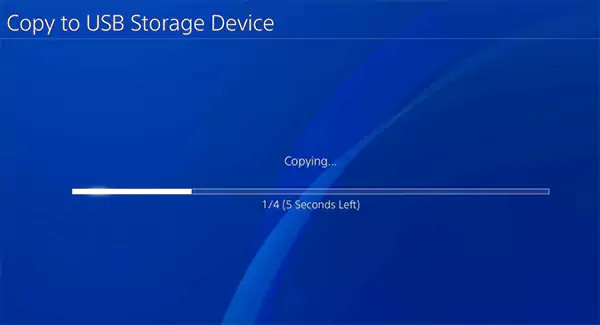
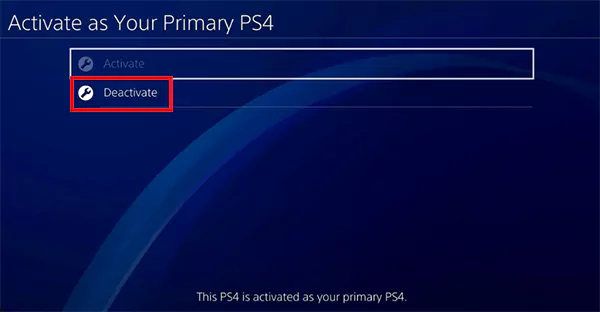
- Deactivate Your PS4 as Primary: Go to Settings > Account Management > Activate as Your Primary PS4, then deactivate it. This frees your account for use on another console.
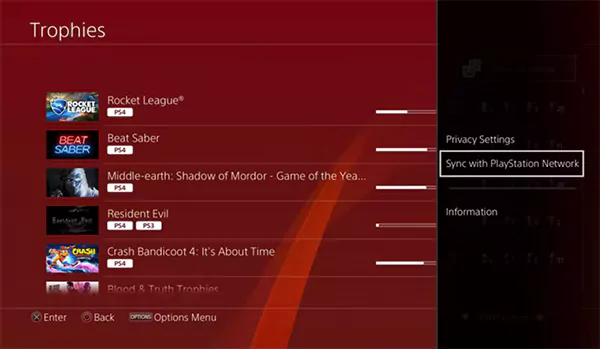
- Sync Trophies: Make sure trophies are uploaded to your PlayStation Network Account so they are not lost.
- Sign Out of Your Account: Log out of your PSN account to protect personal information.
- Remove Discs and External Storage: Take out game discs, USB drives, and external hard drives before resetting a PS4.
If you are done with the console, cancel active subscriptions through your account settings to avoid future changes.
How to Factory Reset a PS4 from Settings?
If your PS4 powers on normally, this is the easiest way to reset. Here’s how to factory reset PlayStation 4:
- Turn on the PS4 and sign in.
- Go to Settings and select Initialization.
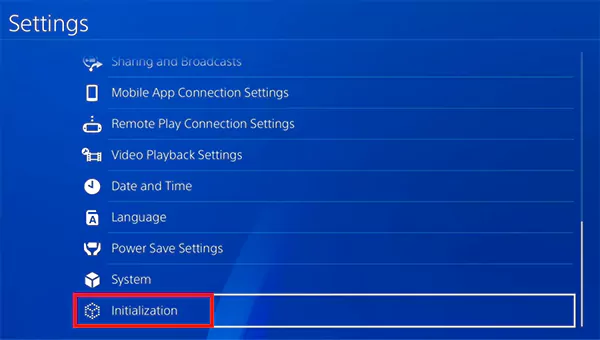
- Here, choose Initialize PS4.
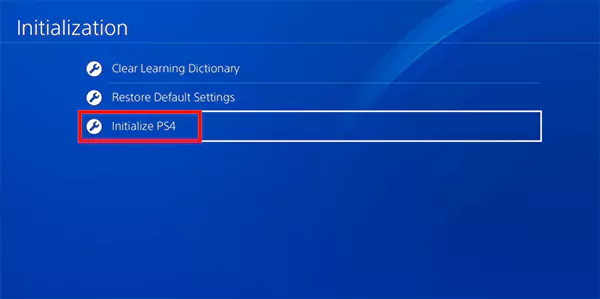
- Now, you’ll see two options: Quick and Full. Select the one you want.
- Quick is faster but less thorough.
- Full wipes your console completely (Master Reset PS4).
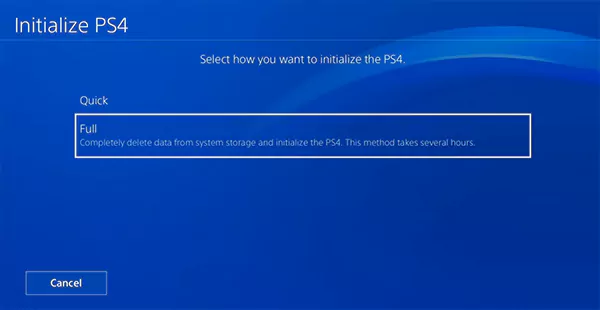
- Finally, just confirm and wait for the process to finish.
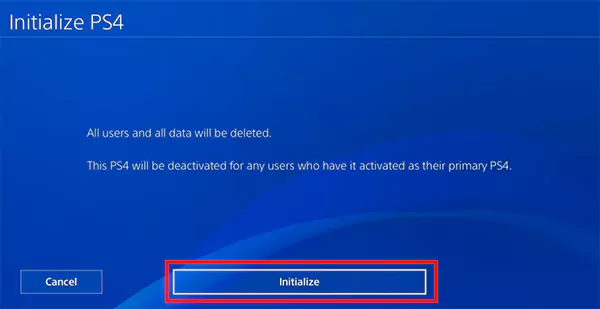
The process can take a while, so make sure the console stays powered until it’s done.
How Do I Reset a PS4 Using Safe Mode?
If the console won’t boot properly, Safe Mode can help you. Safe Mode gives you more control and recovery options. Here’s how to factory reset a PlayStation 4 using the Safe Mode:
- Turn the PS4 completely off.
- Press and hold the power button until you hear two beeps (about 5-6 seconds apart).
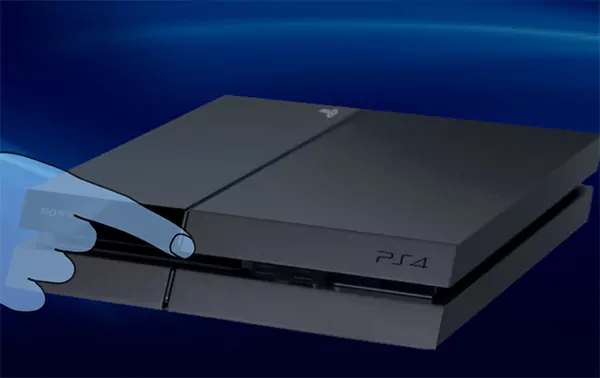
- Next, connect the controller using a USB cable and press the PS button.

- Now, in Safe Mode, choose Initialize PS4. You can choose Initialize PS4 (Reinstall System Software) if software files are corrupted or missing.
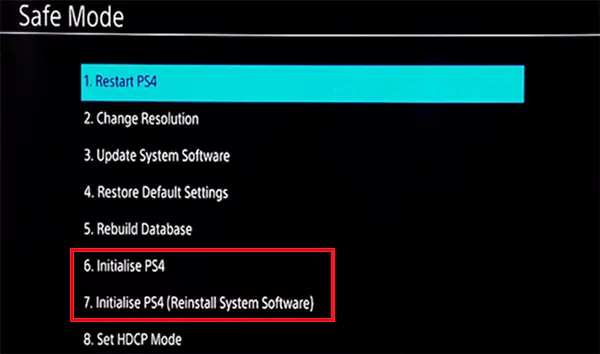
- Finally, just follow the on-screen instructions.
Once finished, your PS4 is restored to a clean and fresh state. Safe Mode is also useful if the normal reset fails or the system crashes repeatedly. It is like Mac or Android recovery mode that runs only essential functions, allowing you to wipe or fix the system safely.
What Happens After You Factory Reset a PS4?
After a full factory reset, your PS4 starts fresh, exactly like it did on day one. When you turn it on, you will see the initial setup screen asking for language, time zone, and Wi-Fi. Here’s what gets deleted instantly:
- All user accounts
- Installed games and apps
- Saved game data, screenshots, and videos
- Network, display, and system settings
What does not get deleted is your PlayStation identity. Your digital purchases stay linked to your PSN account, not the console. Once you sign back in, you can re-download games and restore cloud saves, assuming you backed them up earlier.
If you are giving the PS4 to someone else, note down the serial and model number from the console body. This helps later if you ever need proof of ownership or support.
How to Reset a PlayStation 4 Before Selling or Giving it Away?
If you’re handing your PS4 to someone else, learning how to reset PlayStation 4 is not optional. It’s about protecting your account, your purchases, and your personal data. Follow this order:
- Deactivate your account as Primary PS4 to avoid license and access issues later.
- Make sure you sign out of your PlayStation account, and no user profile linked to you remains on the console.
- Use Settings > Initialization > Initialize PS4 and select Full. This ensures all data is wiped properly.
- Remove all physical items like discs, USB drives, and external hard drives before handing the console over.
Once reset, the PS4 should show the first-time setup screen. That’s your confirmation that the console is clean and ready for its next owner.
Wrapping Up
Factory resetting a PS4 is not complicated, but it is not casual either. If you’re fixing deep system problems, a reset can give the console a clean slate. If you are selling or gifting it, it protects your account and personal data.
In both cases, following the right process and preparation matters more than the reset itself. So, back up what matters, choose the right method, and do it properly.
Frequently Asked Questions
What is the difference between Reset and Restore Default Settings?
How do I wipe my PS4 to factory settings?
Back up saves and trophies, deactivate your account, then go to Settings > Initialization > Initialize PS4 and select Full. If the system menu won’t load, use Safe Mode.
How do I wipe my PS4 as a new owner?
Check if the previous owner deactivated the console. If not, ask them to do it remotely. If you have access, sign in, deactivate if needed, then run a full initialization.
Can you factory reset a PS4 without turning it on?
No, a full reset requires the console to turn on, either normally or through Safe Mode. If it will not power on, your options are limited to online account deactivation.
Do you need to factory reset a PS4 before selling?
Yes, you should. Deactivate your PSN account on that console, run a Full Initialize, remove all storage devices, and hand over proof to the buyer. This protects your account, purchases, and personal data.
How to restore games and saves after a reset?
If you use PlayStation Plus, sign in to your account, go to Settings > Saved Data and Game/App Settings, open Saved Data (PS4), and download your files from cloud storage. If you used a USB backup, plug the drive, open Settings > System > Back Up and Restore, select Restore PS4, and choose your backup file.
Will factory resetting my PS4 delete my PSN account?
No, a factory reset only clears data from the console. Your PlayStation Network account, purchases, and subscriptions remain intact. You can access everything again by signing in on the same or a new console.
Related Posts
Top 6 Observability Platforms for SRE Teams
With the rise of distributed systems, microservices, and cloud-native architectures, the sheer amount of telemetry data being generated is staggering.…

How to Remove a Directory in Linux?: Exact Commands and Safe Steps
Managing files and folders is a core part of working with Linux. One skill every user should know is how…

How to Protect Your Privacy Online in 2026: The Smart User Playbook
Your digital life also runs on small settings most people ignore. Think of your online life like an apartment. You…
10 Best SD Card Recovery Software to Recover Deleted, Formatted, and Corrupted Files
The use of SD card recovery software allows you to restore pictures, videos, and document files that have been deleted…
How to Mass Delete Emails on Outlook (Fast and Safe Bulk Cleanup)
Stressed by too many emails in Outlook? Fix that properly by learning how to mass delete emails on Outlook. A…

Why Businesses Use Payroll Outsourcing to Manage W-2 Reporting and Tax Deadlines
Managing payroll is one of the most complex administrative responsibilities for businesses. Beyond calculating wages and issuing paychecks, payroll teams…
10 Best Linux Data Recovery Software in 2026
Linux data recovery software programs allow users to recover deleted, corrupted, and lost files from their Linux storage device(s) (HDD,…

Key Benefits Of Software Designed To Organize Teams And Tasks
Managing teams and operations in an aligned way is much more complex than it seems. However, the use of specialized…

Why WordPress Remains the Best Platform for Modern Websites
In the rapidly evolving digital world, businesses need websites that are flexible, scalable, and easy to manage. With so many…