
A soft reset simply means restarting or rebooting your device. Whereas a hard reset or a factory reset erases all your data and settings and completely restores your router.
How to Reset Router: Step-by-Step Guide to Fix Wi-Fi Problems
 Prakhar Shivhare
Updated on: Jan 13, 2026
Table of Contents
- Quick Checklist Before You Reset Routers
- Reboot vs Reset: What’s the Difference?
- How Do I Reset My Wi-Fi Router?
- How to Reset Popular Routers (Brand-Specific Notes)?
- What to Do After Resetting Your Router?
- Why and When Should You Reset a Router?
- When Should You Upgrade Your Wi-Fi Router?
- How to Avoid Frequent Router or Network Resets?
- Final Thoughts
- Frequently Asked Questions
Most Wi-Fi issues are not actually internal failures. They are usually router problems. Restarting or resetting the router is one of the quickest fixes. However, randomly hitting the reset button often creates more problems than it solves.
I will fix that and explain how to reset routers properly, when a quick reboot is enough, when a full reset makes sense, and what really happens behind the scenes when you reset routers.
So, if your Wi-Fi feels slow, unstable, or keeps disconnecting, this guide will show you the right path without any complicated stuff.
Key Takeaways: How to Reset Wi-Fi Routers?
- Make sure you always reboot first. Most Wi-Fi problems don’t require a hard reset.
- A factory reset erases everything and should be used as a last option.
- Unplug your router, wait for some time, and start again to do a soft reset or reboot.
- Press and hold the reset button until the light changes or starts to blink to perform a factory reset.
Quick Checklist Before You Reset Routers
Before I tell you, “How do I reset the Wi-Fi router?”, pause for two minutes. This step alone can save you from hours of frustration.
- Check for an ISP app or restart option first before jumping to a factory reset.
- Note your current Wi-Fi name and password because a factory reset erases the custom credentials.
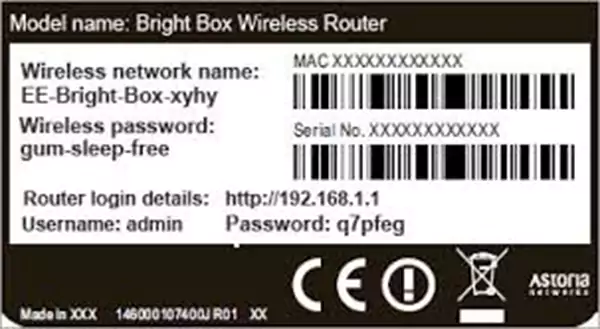
- Take a photo of the router label showing the default admin username and password.
- Keep your ISP login or account details ready (some connections won’t reconnect without this).
- Write your router’s admin address, like 192.168.1.1. You will need this page to reconfigure the router after a reset.
If you complete this checklist, you can reset your router confidently without turning a small issue into a long outage.
Reboot vs Reset: What’s the Difference?
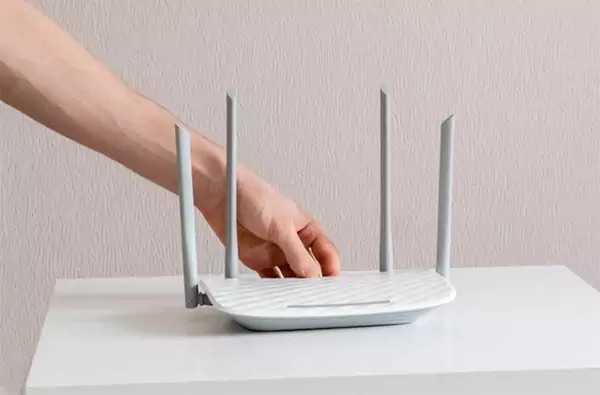
These two terms sound similar, but they solve different problems. Knowing the difference saves you unnecessary resets.
Reboot (Soft Reset)
A reboot is the classic unplug-and-plug-back-in process to restart the system. It clears the temporary memory and cached data, fixes small glitches and slowdowns, and keeps your Wi-Fi name, password, and settings intact.
You should use it when your internet feels slow or the network behaves oddly. Think of a reboot as refreshing your router’s brain without touching its identity.
Reset (Hard Reset)
A factory reset takes your router back to day one. It erases Wi-Fi name, password, and custom settings. It also removes firewall rules, parental controls, and configurations, and restores factory defaults.
It is similar to factory resetting a PC or laptop. And it can be a great option when you forget the Wi-Fi or admin password, router settings are badly misconfigured, or you suspect malware or serious network issues.
The quick rule to remember is always to try a reboot first. Only use a factory reset when nothing else works. Most people reset too early and create more problems. If you follow this order, you stay in control of your network instead of starting from scratch unnecessarily.
How Do I Reset My Wi-Fi Router?
Learning how to reset a router for Wi-Fi is not one single action. It also involves deciding because choosing the wrong one can wipe your settings for no reason.
There are two ways to reset a router, and each solves a different kind of problem.
How to Perform a Soft Reset on a Router (Reboot)?
Most Wi-Fi issues are temporary, and I recommend using a soft reset to clear them out without touching your setup. Here’s what you need to do:
- Unplug the router from the power source. Remove it from both the router and the wall.
- Wait at least 15 to 60 seconds. It allows leftover power to drain properly.
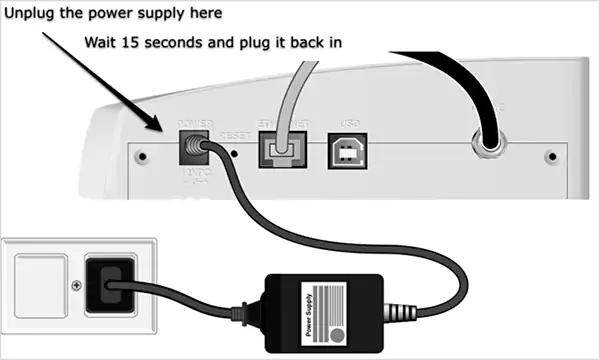
- Next, plug everything back in.
- Now, just wait for the router lights to stabilize. This can take a couple of minutes.
That’s how simple it is. This process refreshes the router’s internal memory and often fixes slow speeds or dropped Wi-Fi without losing your setup. So, if your internet works fine after this, stop here. You are done, and if not, try another process.
How to Factory Reset a Router (Hard Reset)?
Only do the hard reset if rebooting fails, you are locked out of the admin panel, or the router settings are seriously broken. Here’s how to reset routers:
- Keep the router powered on.
- Find the Reset button (usually a small pinhole at the back or bottom).
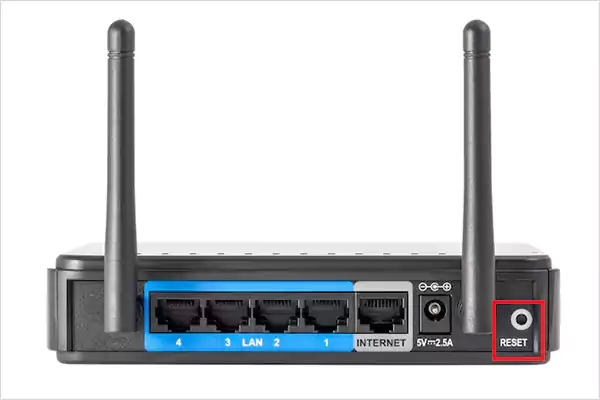
- Use a paper clip or pin to press and hold the Reset button for 15–30 seconds until the lights blink or change.
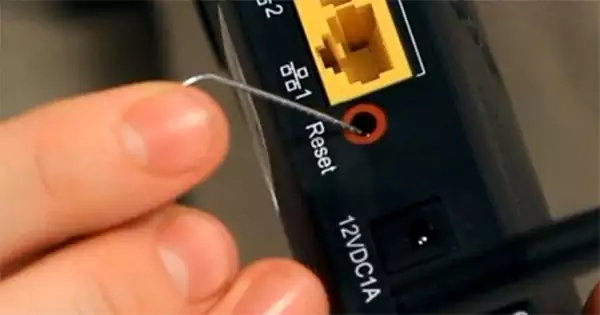
- Now just wait for the router to restart on its own.
You now know how to reset Wi-Fi using the right approach and fix it with confidence. If problems persist after a reset, it might be time to check for the modem, cables, DNS errors, or contact your ISP for further help.
How to Reset Popular Routers (Brand-Specific Notes)?
Reset buttons look similar, but brands behave differently. Hold time and recovery can vary. Use the notes below so you reset correctly.
- How to Reset Netgear Routers?
Most Netgear routers have a small Reset or Restore Factory Settings pinhole on the back. Keep your router powered on. Hold the reset pinhole for 7 to 10 seconds and release when the lights blink. After a reset, the router returns to default settings.
- How to Reset Verizon Routers?
Verizon Fios routers have a recessed reset hole on the back. Press and hold the Reset button for about 15 seconds. And wait for the router to reboot fully. It may take several minutes to reconnect, and do not unplug during this phase.
- How to Reset a Xfinity Router?
You can reset Comcast Xfinity routers with both app-based restarts and physical resets. For a full factory reset, hold the reset pinhole for 10–15 seconds. In some cases, the gateway may need a few minutes to re-sync with services after resetting a Comcast router.
- How To Reset AT&T Routers?
AT&T gateways usually have the reset button on the back or side. Press and hold for 10 seconds or longer, and release. Then, wait for the router to fully restart. Keep in mind that AT&T routers may take longer than others to reconnect, especially after a factory reset.
- How to Reset a TP-Link Router?
TP-Link often combines the reset with the WPS/Reset button. Press and hold the button for 10 seconds or more. Release when the LED lights start flashing rapidly. And if you still have admin access, it also allows a factory reset from the web dashboard under system tools.
The reset buttons are recessed in most routers to prevent accidents. And also, remember that the default Wi-Fi name and password are usually printed on the router.
What to Do After Resetting Your Router?
A reset only clears the problem. It does not fix your network until you set things properly again. Here’s the correct order:
- Reconnect to the Router: Flip your router over and check the sticker at the bottom or back. Use your default SSID, Wi-Fi password, and admin login details to reconnect your phone or laptop to the network.
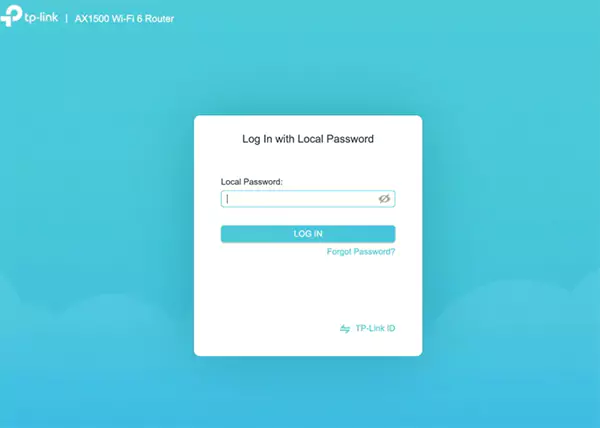
- Set your New Wi-Fi Name and Password: Once connected, log in to the router’s admin page and change the name and password to something secure.
- Restore Important Settings: A factory reset removes all custom settings. Revisit settings like parental controls, guest network access, Quality of Service (QoS), and your firewall or security settings.
Now just reconnect all devices manually and make sure everything works as expected.
Why and When Should You Reset a Router?
You should learn how to reset a router because it can clear corrupted settings, remove unknown or malicious changes, and restore admin access if passwords are lost. A factory reset is powerful, and that’s exactly why it should be used carefully.
- When to Reset?
- Reboots and basic troubleshooting did not work.
- You are locked out of the admin panel.
- You suspect unauthorized access or malware.
- You are selling or giving away the router.
- When is Resetting considered a Bad Idea?
- Every time your Wi-Fi is slow or drops for a moment.
- If your ISP settings are custom, and you don’t have the details backed up.
- You are resetting the same router repeatedly.
If you had to keep resetting your router, the problem is likely something else. Read the next section to know more.
When Should You Upgrade Your Wi-Fi Router?
One thing you need to understand is that resetting won’t fix ageing hardware. Most routers perform well for 3 to 5 years. After that, performance and security start declining. Here are some clear signs when you need an upgrade:
- Wi-Fi drops even after resetting the router.
- Speeds fluctuate with multiple devices.
- The router doesn’t support modern Wi-Fi standards.
- The model is outdated, and firmware updates have stopped.
The upgraded router will offer faster speeds and better coverage. You will experience lower latency for streaming and work calls, better security, and advanced controls without instability.
How to Avoid Frequent Router or Network Resets?
If you are resetting your router often, that is a warning sign. Good networks do not need constant resets. So, here’s how to stop living on the reset button:
- Reboot Instead of Reset: Small issues often require just a restart, not a full factory reset. A quick power cycle clears temporary glitches without wiping settings.
- Fix Router Placement: Router location is very crucial; place it centrally in your home. Keep it away from thick walls, metal objects, and avoid corners and closed cabinets.
- Keep Firmware Updated: An outdated system leads to random drops, poor device handling, and security gaps. Log in to the admin panel occasionally and install updates.
- Monitor Connected Devices: Too many devices can overwhelm some routers. Disconnect unused devices and avoid overloading the network. Older routers struggle with modern smart homes.
- Restart Modem and Router Together: Sometimes the problem is not the router. So, try powering off the modem and router. Wait for 30 to 60 seconds, and then power on the modem and the router, respectively. This refreshes the full internet path.
- Watch for Hardware Red Flags: Regularly check your Ethernet cables and ports. Look for overheating or damaged ports because persistent failures usually point to hardware problems.
Following these steps can help you fix network instability without resorting to frequent resets.
Final Thoughts
Resetting a router is powerful, but it should never be your first reaction. Start with a reboot and understand what the reset button actually does before you jump into resetting routers.
When a reset is necessary, follow it with proper security, firmware updates, and a clean setup. And if the same issues keep coming back, the problem is not the connection. The issue may be your router’s age, placement, or the network itself.
Frequently Asked Questions
What is the difference between a soft router reset and a hard router reset?
Does unplugging a router reset it?
No, unplugging a router won’t reset your router. It will just trigger your router to reboot, which is also known as a soft reset.
Where is the reset button on a router?
You can usually find the reset button as a small, recessed hole or button on the back or bottom of the device.
Is it good to reset your router?
Yes, it is generally good for your router. However, you should only do a full factory reset for serious and persistent issues, as it requires reconfiguration.
What happens if I press the reset button on a router?
A small press might just do nothing or trigger a restart. If you long-press the reset button, it will reset your device and restore it to its original state.
How do you reset a Wi-Fi Router?
Start with a reboot by unplugging the router for 30–60 seconds. If that doesn’t work, perform a factory reset by holding the reset button for 10–30 seconds and then reconfigure the router.
How long does a router reset take?
A router reset usually takes 2 to 5 minutes, but the exact time depends on what kind of reset you do and your router model
What is the lifespan of a Wi-Fi router?
A Wi-Fi router usually lasts 4 to 5 years. Some work longer, but performance and security drop off after that.
How to check if a Wi-Fi router is working properly?
If the lights are normal, wired internet works, and speeds are stable after a restart, your router is working properly. If not, it’s time to troubleshoot, reset, or replace it.
Related Posts
Solar Software Companies: How Platforms Improve Cross Team Collaboration
“If everyone is moving forward together, then success takes care of itself.” — Henry Ford (Industrialist & Business Magnate) Handoffs…
What Healthcare Leaders Expect From Digital Tools
Healthcare executives are under pressure to protect patient safety, clinician time, and data privacy while modernizing the delivery of care.…
How to Reset Android Phone When Locked? (Safe Factory Reset Methods)
Locked out of your Android phone or stuck on the screen? It happens more than you think. A forgotten PIN,…

How to Transfer Contacts from Android to iPhone: 4 Easy Methods
Switching from Android to iPhone should not feel like rebuilding your life from scratch. Restoring contacts on iPhone should be…
White Label Ad Server vs Development From Scratch: What to Choose
Even though the DSP segment is the largest market within AdTech at the moment, an ad server remains a crucial…
How Data Infrastructure Powers Next-Gen Mobile Recognition Apps
Modern digital applications have evolved with time, offering various functionalities to users that weren’t possible or even imaginable before. But…
How Poor Contract Visibility Leads to Revenue Leakage in Growing Companies
Growth is an important factor that determines the success rate of any business. When we witness new operations, partnerships and…

Managing Bitcoin Operations? Here’s How Salesforce Automation Helps
“Digital currency is here to stay, and it’s only a matter of how long before governments embrace it.” — Brad…

Why Modern Organizations Depend on Data Privacy Software
Data growth has significantly accelerated beyond what most compliance teams can manage, with personal records, financial details, contracts, and emails…