
Yes, you can reset it using physical buttons or remotely using your Google account.
How to Reset Android Phone When Locked? (Safe Factory Reset Methods)
 Kartik Wadhwa
Updated on: Apr 07, 2026
Locked out of your Android phone or stuck on the screen? It happens more than you think. A forgotten PIN, too many wrong attempts, or even a small glitch can block access completely,
The good part is that you can unlock an Android phone without being stuck forever. You can factory reset Android without passwords using built-in recovery options or tools like Find Hub (formerly Find My Device).
However, if done wrong, you can hit FRP (Factory Reset Protection) and get locked again. Don’t worry, I will explain how to reset Android phone when locked without creating another problem.
TL;DR: How to Reset a Locked Android?
- Use buttons (Recovery Mode) if you have the phone. Press the Power + Volume Down buttons together, enter Recovery mode, and choose Wipe data/factory reset.
- Use remote reset (Google’s Find Hub) if the phone is online and connected to your Google account. Go to Find Hub > Sign in with your account > Select the device > Choose Factory Reset.
- Samsung owners can also use the SmartThings Find website to reset Android remotely.
- Make sure you know your Google account details, or FRP may lock you out again.
When Should You Reset a Locked Android Phone?
Factory reset is not your first move. It should be the last move when nothing else works to unlock your phone. Use it only in situations like:
- You forgot your PIN, pattern, or password, and recovery is not working.
- Your phone is stuck on the lock screen after too many attempts.
- The device is frozen, glitching, or not responding at all.
- You bought a second-hand phone that is locked.
A factory reset wipes everything. Apps, photos, settings, and all other data will be gone.
So, before you learn how to factory reset a locked phone, ask yourself one simple question: Is there any way I can still recover access? If yes, try that first.
How to Reset Android Phone When Locked?
If you are locked out for good and you want to factory reset Android without passwords. So, here is how to reset Android phone when locked:
- Method 1: Using buttons (Recovery Mode).
- Method 2: Resetting remotely via your account.
Both do the same job. The difference is that the buttons method works offline, and the remote method needs internet and account access. Let’s break it down so you know exactly how to reset a android phone that is locked.
How to Hard Reset Android Phone When Locked Using Buttons?
This is your backup plan that always works. Here’s how to wipe a locked Android phone using buttons via Android Recovery Mode:
- Turn off your phone.
- Press and hold Power + Volume Down (or Volume Up on some phones).
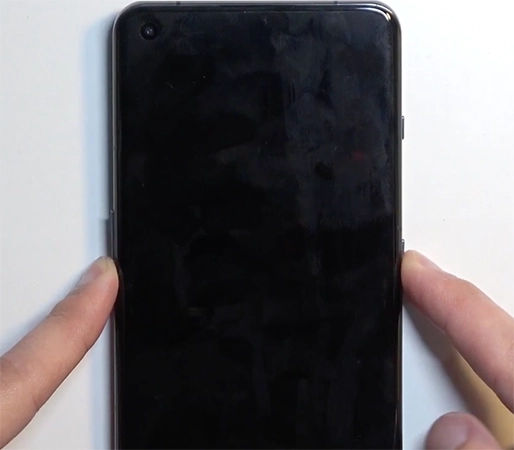
- Now, wait for the boot menu to appear.
- Then, use volume buttons to go to Recovery Mode.
- Press the power button to select.
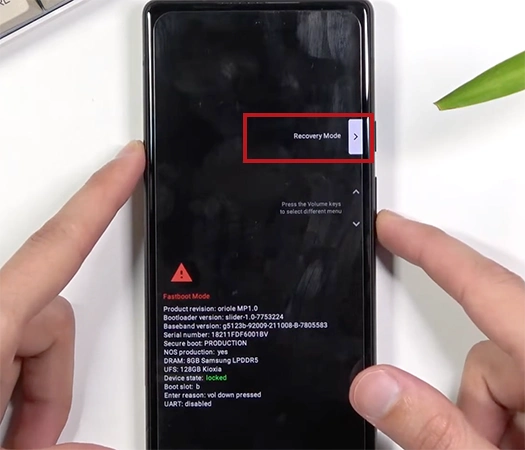
- Next, choose the Wipe data/factory reset option.
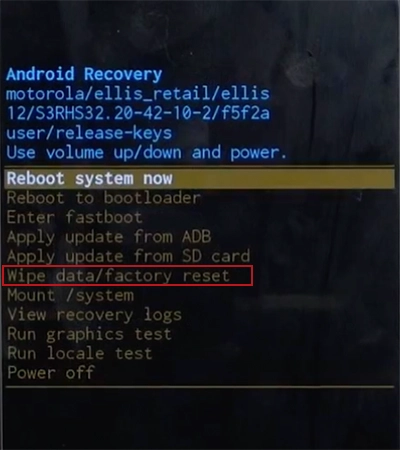
- Confirm your choice and wait.
- Finally, select the Reboot system now.
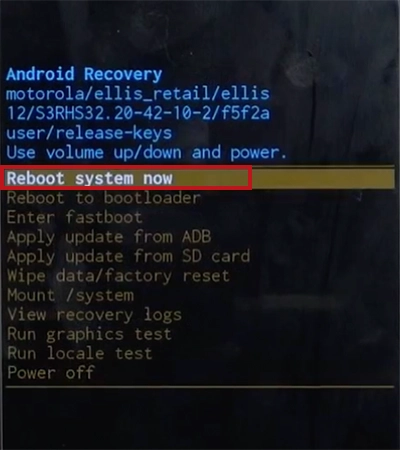
Your phone will restart like a new device. Note that the button combinations change slightly across device manufacturers, but the overall flow stays the same.
How to Factory Reset a Locked Android Phone Remotely?
If your phone is online, you can reset it from anywhere. Here, I will explain how to reset Android phone when locked using two different official methods.
1. Reset Using Google Find Hub
This is Google’s official system to locate, lock, or erase your phone remotely. It works on all Android phones. Just make sure that your phone is turned on, the internet is active, your Google account is logged in, and Find Hub is already enabled.
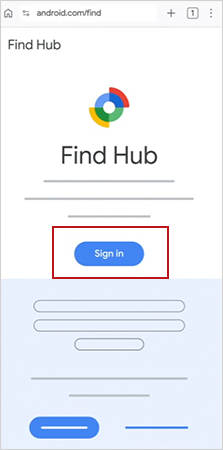
- First, go to android.com/find or use Google’s Find Hub app on another device.
- Log in with your Google account.
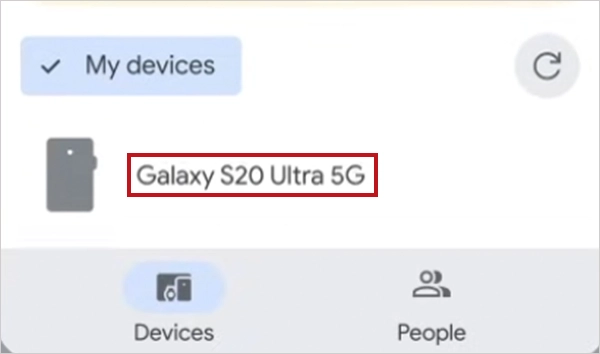
- Then, select the device you want to erase.
- Select Settings and then choose Factory Reset (Device Name).
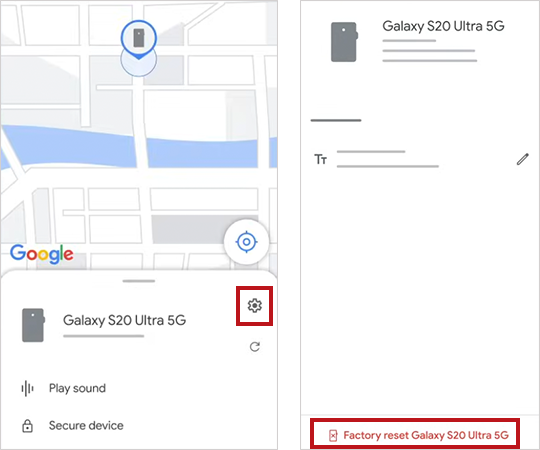
- Finally, confirm by tapping Reset to erase your Android device
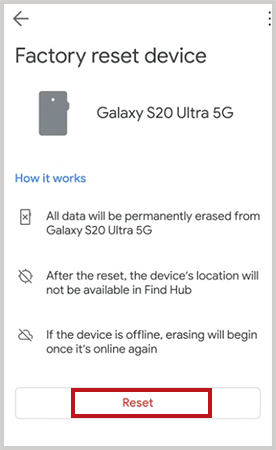
That’s it, your phone will be wiped remotely.
2. Reset Using Samsung SmartThings Find (Only for Samsung Users)
Samsung users get an extra layer of control. You need your Samsung account linked, remote controls enabled and the device connected to the internet.
- Go to the SmartThings Find website from another device.
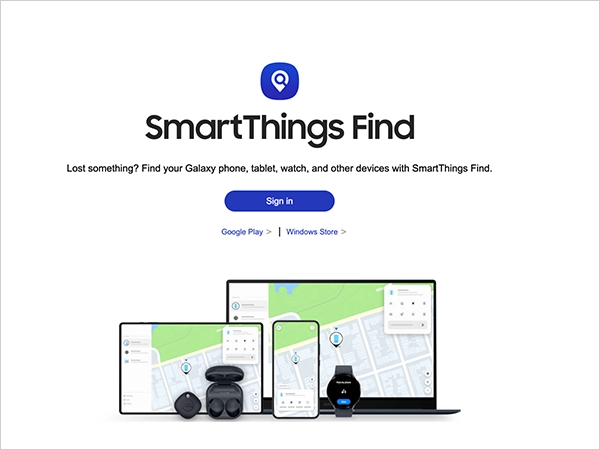
- Sign in to your Samsung account.
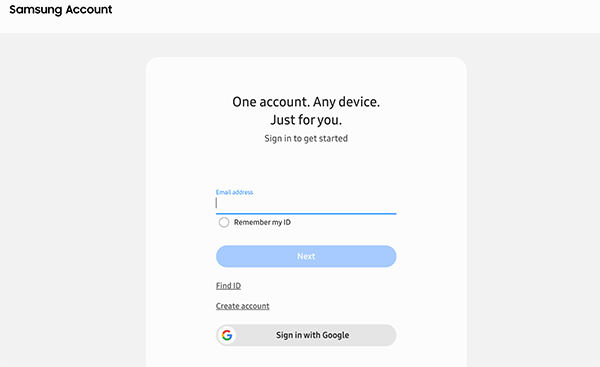
- Next, select your device and click on Erase Data.
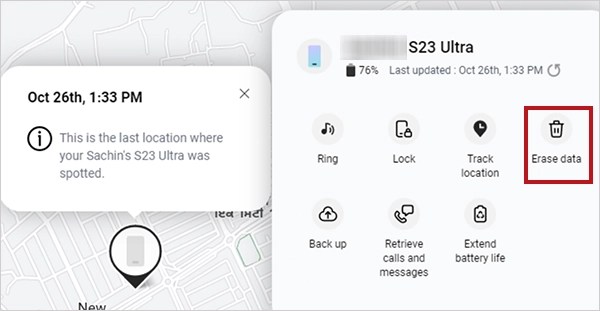
- Finally, confirm by clicking on Erase.
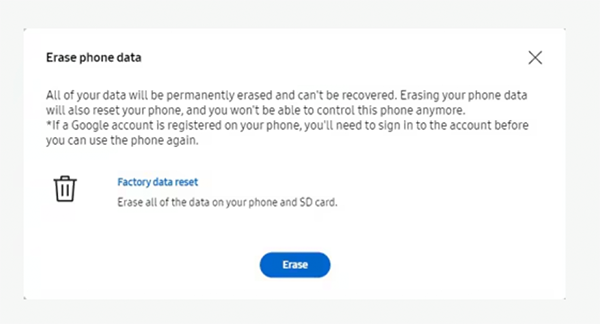
That’s it, your Samsung phone will now reset remotely. However, if your internet is off and your account is not linked. Then, these remote methods won’t work. Your only option will be to use the button reset method.
Things to Check Before You Factory Reset Android (Don’t Skip This)
Most people don’t get stuck during the reset. They struggle after it because they skipped a few basics. So, run through this quickly before you reset:
- Google Account Details
After reset, your phone may ask for the same Google account used earlier. This is Factory Reset Protection (FRP) doing its job.
It prevents others from using your device without permission. If you don’t remember your login, you can lock yourself out again. So, make sure you know your email and password.
- Back Up Your Data
Your photos, apps, messages, settings, and other data will be gone. Check your cloud or use a cable to back up your data to a computer (if possible).
- Charge Your Phone
This sounds basic, but it is where people often mess up. If your phone dies mid-reset, it can lead to boot loops or system errors. So, keep at least 50% battery before starting. - Only Reset as a Last Resort
Sometimes you can still unlock using Google account recovery, smart lock, and backup PIN or pattern. If there’s a way in, take your chances.
Reset should always be your final move, not your first. So, be mindful before jumping into erasing your data.
How to Avoid Getting Locked Out on Android Again?
Now that you know how to factory reset a phone when locked out, you should also understand how to not repeat it. Do these once and forget about the problem:
- Use a password you will actually remember. Don’t try to be overly clever. Security is good, but complicating things is useless.
- Store your Google account credentials properly. This is the real key to your phone. Save it in a password manager, notes, or write it down somewhere safe.
- Turn on the smart lock if available on your device. This small setting can help you in avoiding big inconveniences.
- Set backup recovery options by adding a recovery email, phone number, or a backup PIN. So you always have a chance when locked out.
Furthermore, don’t forget to keep automatic backups on. Even if something goes wrong again, your data will be safe.
Wrapping Up
Getting locked out feels stressful, but the fix is straightforward if you think clearly. You have two solid options that teach how to reset Android phone when locked and get access. You can reset using buttons or remotely using your account. But don’t rush, take a few minutes and check important things before resetting.
Frequently Asked Questions
Can I reset my Android phone when it is locked?
Will a factory reset remove the lock completely?
It removes the data and the screen lock, but your phone may still ask for your Google account due to FRP.
How do I factory reset a locked Android phone without the password?
First, try using the Power and Volume Down buttons to enter the recovery mode and wipe data. You can also use the Find Hub to reset it remotely if the device is connected to the internet.
What is FRP lock on Android?
FRP (Factory Reset Protection) is a security feature that requires the previous Google account after a reset to verify ownership of the Android device.
What happens after the factory reset?
Your phone will be completely wiped and returned to a brand-new state. You will need to set it up again and may need to verify your Google account due to FRP.
Related Posts

8 Best AI Presentation Makers for Business-Ready Slides
Making a presentation doesn’t just mean designing slides. It’s about defining a clear structure, using defined logic, useful visuals, and…

Queue Management Software Troubleshooting Guide: 8 Common Faults and Fixes
The long wait times and ineffective management of customer queues can have a significant impact on customer satisfaction and business…

How to Use Similarweb Website Traffic Data for Competitor Research
Competitor research without traffic data is guesswork. You can guess who your rivals are, guess how big they are, guess…

Choosing the Right Hosting Model for Scalable Digital Platforms
The performance of digital business is directly related to website speed, uptime, and scalability. Slow page performance has a negative…

How Data-Driven Performance Tools Are Transforming Employee Recognition in Tech Companies
“People work for money but go the extra mile for recognition, praise, and rewards.” — Dale Carnegie (Writer & Teacher)…

Why Businesses Struggle to Collect Reliable Data from the Web
Almost every company that depends on data runs into the same problem: although they can find the data they need,…

Why Financial Data Recovery Matters for Businesses
Financial data supports every part of a business, directly affecting cash flow, payroll, tax reports, audits, customer billing, and daily…

CMMC Compliance Is Coming for Manufacturers. Here Is What You Need to Do
“Cybersecurity is much more than a matter of IT.” — Stephane Nappo (Cybersecurity Professional) For manufacturers working within the defense…

How Data-Based Tools Influence Learning Performance
Learning has transformed in the modern age with the integration of new technologies to help students and professionals prosper in…