
Go to Settings > Apps > Choose an app > Storage > Clear Cache. Some phones may also allow you to clear all cache data from Storage settings.
How to Clear Cache on Android: Easy Steps to Speed Up Your Phone
 Kartik Wadhwa
Updated on: Mar 09, 2026
If your Android phone feels slow, apps lag, or random crashes are becoming normal, cache buildup is usually the real culprit. Cache files are meant to help apps load faster, but over time, they pile up and start doing the opposite.
I have seen this happen across budget phones and flagship devices in the same way. In this guide on how to clear cache on Android, I will explain when you actually need to do it, how Android clear cache works, and how to clean it safely without losing important data.
Quick Answer: How to Erase Cache on Android
To clear cache on Android, go to Settings > Apps > Select the App > Storage > Clear Cache.
To clear the cache on the Chrome app, go to the three-dot menu > tap on Delete browsing data > select Cache images and files, and confirm your selection.
When Should You Clear Cache on Android?
The first thing you should understand is that you do not need to clear the cache every week. Do it only when there is a reason, like the following:
- Apps Keep Crashing or Freezing: Old or broken cache files can cause glitches; clearing them often fixes the issue.
- Phone Feels Slow or Laggy: Clearing cache on Windows, Android, iOS, or any other operating system is a quick fix to boost performance. Especially after installing a lot of apps or a big software update.
- Storage is Almost Full: Cache builds up quietly in the background and can eat a lot of space over time.
- Websites Load Wrong or Show Old Pages: Browser cache can show outdated content and trigger HTTP status code errors like 502 Bad Gateway and 500 Internal Server Error.
- Login Issues on Apps or Websites: Clearing the cache can reset small bugs affecting your saved sessions.
For most users, once every 1-2 months is enough. Clearing it too often can slow apps briefly because they rebuild the fresh cache.
How to Clear Cache on Android?
How do you clear the cache on an Android phone or tablet? Android allows you to do this safely. It removes temporary files but keeps your data, accounts, and settings intact. You can clear the app cache, browser cache, and system cache (advanced step).
How to Clear App Cache on Android?
This is the best option when a single app is misbehaving. Here’s what you need to do:
- Open Settings on your device.
- Next, tap on Apps or Apps & Notifications.
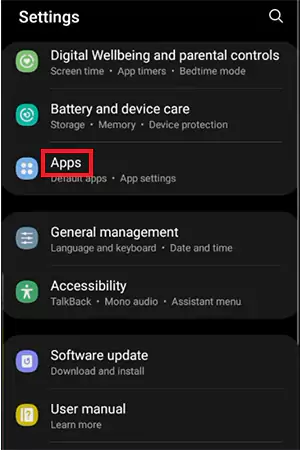
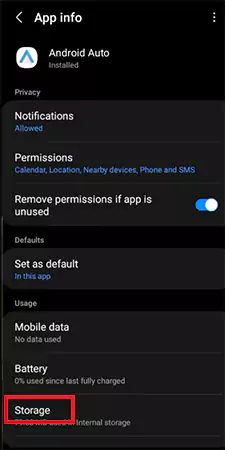
- Select the app, and tap Storage or Storage & Cache.
- Finally, just tap on Clear Cache.
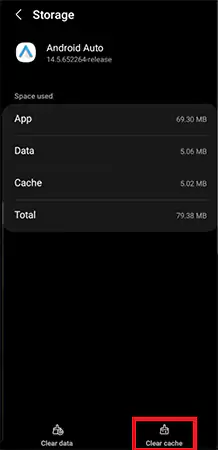
This only removes temporary files of the app. Your login, chats, and saved data stay safe.
How to Clear Cache on Chrome on Android?
If websites load slowly or look broken on a web browser, you can fix it by clearing the cache of that specific browser. Let’s see how to clear the cache on Android Chrome (the process is similar for most browsers on Android):
- Open Chrome on your Android device.
- Tap the three-dot menu on the top right corner.

- Next, tap on Delete browsing data.
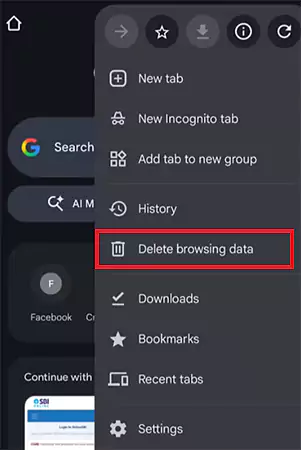
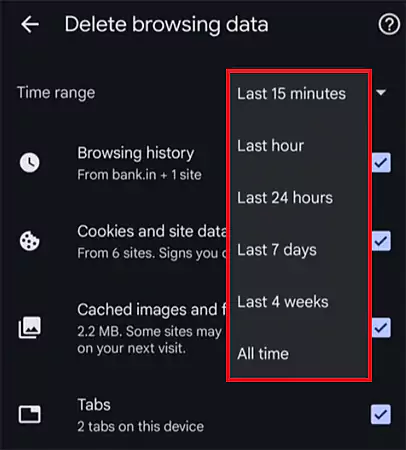
- Now, click on More options and choose the time range (select All time for full cleanup).
- Make sure you have checked the Cached images and files option.
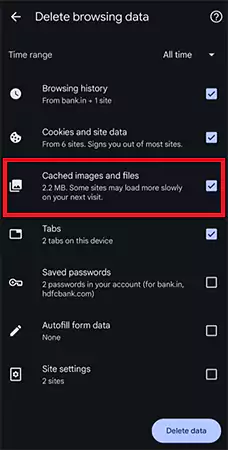
- Tap on Delete Data.
You can also remove cookies, but that will sign you out of websites. If you continue reading, you can understand the difference between cookies and cache in more detail.
How to Clear the System Cache on Android Recovery Mode?
Wiping system cache is different from app cache. Use it only if your phone is slow after a major update, multiple apps are acting weird, or you need to forcefully turn off Safe Mode on Android.
It clears the temporary system files without deleting personal data or factory resetting your device. Here’s how you can wipe the cache partition:
- Turn off the phone.
- Hold Power + Volume Up to enter Android Recovery Mode.

- Use Volume buttons to select the Wipe cache partition.
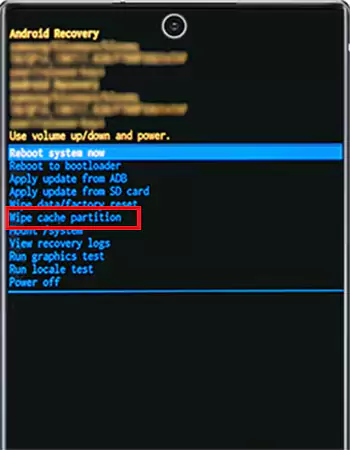
- Confirm with the power button.
- After that, select Reboot system now to exit the recovery mode.
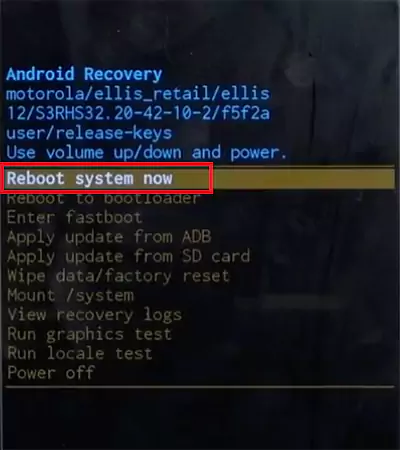
Keep in mind that not every Android phone shows this option, and steps may differ slightly depending on the brand.
Android Clear Cache vs Clear Cookies: What’s the Difference?
People mix these two all the time. They sound similar but solve different problems. So, what is the difference between cookies and cache?
Cache stores temporary files like images, scripts, and app data so things can load faster next time. Cookies, on the other hand, store login sessions, site preferences, and sometimes tracking data.
Clear the cache when your apps are crashing or lagging, phone storage is getting full, or websites are showing old or broken pages. It removes temporary files but keeps your accounts, messages, and settings safe.
Clear cookies when you want more privacy, a website is stuck or not loading properly, or facing login issues. This will sign you out of most sites and remove saved preferences.
When you delete both cache and cookies, you will notice smoother browsing and fewer glitches. The system rebuilds cache over time, so performance also stabilizes quickly.
Final Thoughts
Now that you understand how to clear cache on Android. You should know that it is not a magic speed booster; it is a part of troubleshooting.
If your Android is running smoothly, leave it alone. Cache is doing its job in the background. However, the moment you notice something strange with the apps or websites, clearing the cache becomes one of the fastest and safest fixes you can try.
Use it intentionally, and your Android will stay fast without unnecessary interference.
Frequently Asked Questions
How do I clear all the cache on Android?
Where can I find the cache in settings?
You can find the cache in the App settings of your Android device. You will see the option to clear the cache inside individual app settings.
Is it okay to clear the cache on an Android phone?
Yes, it is safe because it only removes temporary files and can fix some common performance issues.
Does clearing the cache make Android faster?
Yes, it can fix lag or crashes if corrupted files were causing these issues. But cleaning it too often won’t permanently speed up your device.
How do I clean up my Android phone?
Clear app cache, delete unused apps, remove large files, and clean browser data regularly to free space and improve the speed of your Android phone.
Related Posts

8 Best AI Presentation Makers for Business-Ready Slides
Making a presentation doesn’t just mean designing slides. It’s about defining a clear structure, using defined logic, useful visuals, and…

Queue Management Software Troubleshooting Guide: 8 Common Faults and Fixes
The long wait times and ineffective management of customer queues can have a significant impact on customer satisfaction and business…

How to Use Similarweb Website Traffic Data for Competitor Research
Competitor research without traffic data is guesswork. You can guess who your rivals are, guess how big they are, guess…

Choosing the Right Hosting Model for Scalable Digital Platforms
The performance of digital business is directly related to website speed, uptime, and scalability. Slow page performance has a negative…

How Data-Driven Performance Tools Are Transforming Employee Recognition in Tech Companies
“People work for money but go the extra mile for recognition, praise, and rewards.” — Dale Carnegie (Writer & Teacher)…

Why Businesses Struggle to Collect Reliable Data from the Web
Almost every company that depends on data runs into the same problem: although they can find the data they need,…

Why Financial Data Recovery Matters for Businesses
Financial data supports every part of a business, directly affecting cash flow, payroll, tax reports, audits, customer billing, and daily…

CMMC Compliance Is Coming for Manufacturers. Here Is What You Need to Do
“Cybersecurity is much more than a matter of IT.” — Stephane Nappo (Cybersecurity Professional) For manufacturers working within the defense…

How Data-Based Tools Influence Learning Performance
Learning has transformed in the modern age with the integration of new technologies to help students and professionals prosper in…