
Turn the tablet off > Press and hold the Power and Volume Down until the logo appears > Enter Recovery Mode > Choose Wipe data/factory reset > Confirm.
How to Reset Amazon Fire Tablet? (Complete Guide for 2026)
 Upasna Deewan
Updated on: Feb 17, 2026
Table of Contents
- How to Reset Amazon Fire Tablets From Settings?
- How To Factory Reset Amazon Fire Tablets Using Buttons (Recovery Mode Method)?
- Restart vs Factory Reset: Know the Difference
- When Do You Need an Amazon Fire Tablet Factory Reset?
- Quick Tips: Factory Reset Amazon Fire Tablet
- Wrapping Up
- Frequently Asked Questions
A few months ago, my friend called me in panic. He told me that his Fire Tablet is not turning on, and nothing is working out.
In moments like these, you need to know how to reset Amazon Fire tablet using the recovery mode. I walked him through the button combination and the process, and it started working again within 10 minutes.
Situations like this happen often, and most people don’t have any idea about resetting the Fire tablet. In this guide, I will show you the exact approach I use to perform an Amazon Fire factory reset safely.
How to Reset Amazon Fire Tablets From Settings?
Use the method when the tablet turns on, and you can use it. This is the safest and most common option. Here’s how to reset a Fire tablet from Settings:
- Open Settings on your tablet.
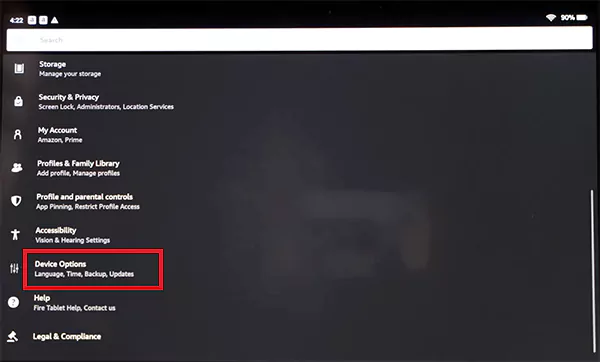
- Next, scroll down and tap Device Options.
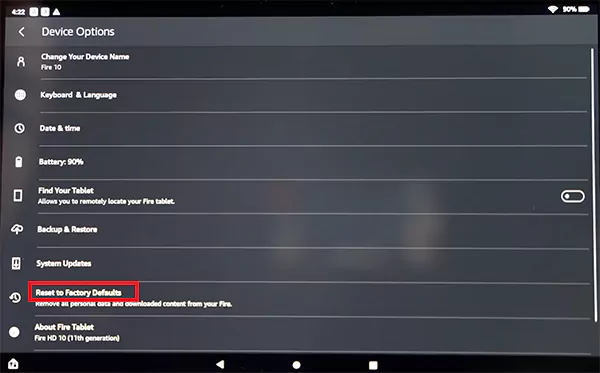
- Select Reset to Factory Defaults.
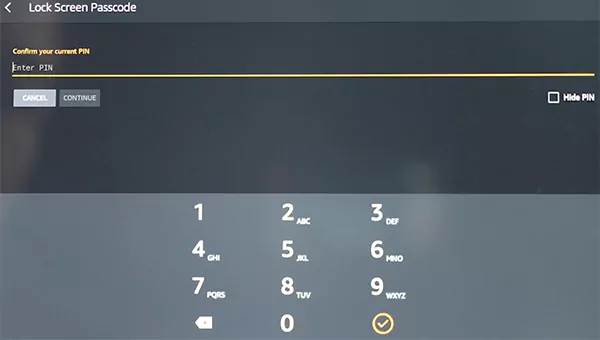
- Enter your lock screen passcode and confirm the reset.
- Wait for a few minutes while the tablet deletes data and restarts.
Once done, you will see the original setup screen. It deregisters the device from your Amazon account. Sign in again if you plan to keep using it.
How To Factory Reset Amazon Fire Tablets Using Buttons (Recovery Mode Method)?
What if the Fire tablet is frozen, stuck on the logo, or you can’t access the Settings? That’s where you are required to know how to factory reset an Amazon Fire tablet using the Android recovery mode:
- Turn the tablet off completely (if not already).
- Then, press and hold the Power + Volume Down buttons together.
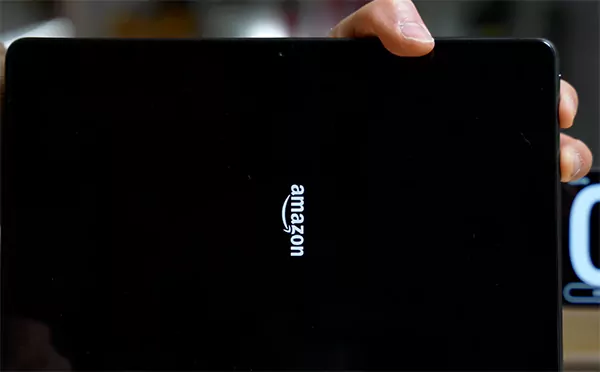
- Release them when you see the Amazon logo on your screen.
- You will enter the Recovery Mode. Here, use volume buttons to move to Wipe data/factory reset.
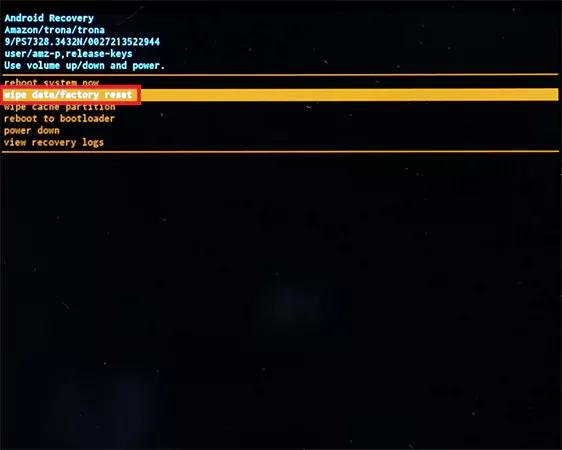
- Now, press the Power button to select.
- Choose Yes to confirm.
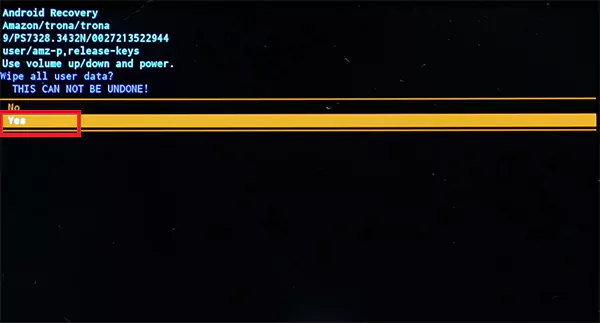
- After the data deletion process is done, you need to select the Reboot system now.
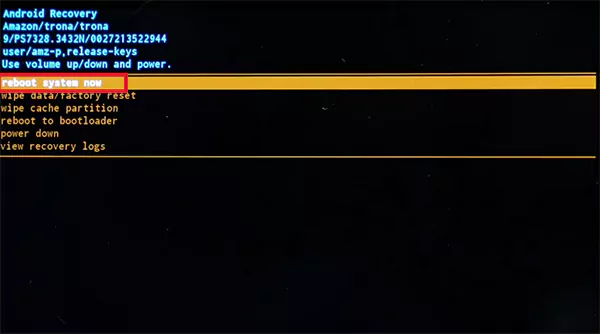
Also, remember that the touchscreen won’t work here. Use the buttons to navigate in the recovery mode.
Expert Tip: If the reset fails, charge the tablet and try again because a low battery can interrupt the process. I have seen this work so many times.
Restart vs Factory Reset: Know the Difference
Now that you know how to reset Kindle Fire to factory settings, you should also understand the difference between a soft reset and a hard reset.
A restart (soft reset) is a quick refresh for your tablet. It turns the tablet off and back on. You should use it when apps crash, the tablet feels slow, or Wi-Fi acts up on your device. It takes under a minute and keeps all your data.
A factory reset (hard reset) deletes everything, including the apps, accounts, downloads, and settings, and restores the tablet to its original state. You need to start from the setup screen again after the reset.
How to Restart Your Fire Tablet?
- Press and hold the Power button on your Amazon Fire tablet until the shutdown request screen appears.
- Tap Ok to turn it off.
- Wait for some time and press and hold the power button to turn the tablet on.
When Do You Need an Amazon Fire Tablet Factory Reset?
A factory reset should not be your first move. Here are some common scenarios where you probably need a reset:
- The tablet is stuck on the logo or freezes often.
- You forgot the lock screen password.
- Apps keep crashing even after updates.
- Storage is full, and the tablet feels unusable.
- You are selling, gifting, or trading the device.
- You want a fresh and clean start.
The simple rule is to try a restart first and use reset when basic fixes stop working or when you are handing the tablet to someone else.
Quick Tips: Factory Reset Amazon Fire Tablet
Here are a few helpful tips to consider before you hit the reset button:
- Back Up Your Data: Photos, files, and downloads stored on the tablet will be erased. Anything linked to your Amazon account and backups can be downloaded again later.
- Remove the SD Card: External storage stays intact during the reset process. However, if you don’t want to take a risk, remove it before resetting.
- Charge the Fire Tablet: Make sure the battery is above 50 percent. If the tablet shuts down mid-reset, it can cause boot issues.
Furthermore, make sure your Amazon account is deregistered from the device to avoid any login issues for the new user. A reset can take several minutes. So, be patient and let it finish and restart completely.
Wrapping Up
You now know how to factory reset Kindle Fire or Amazon Fire tablets. But with great power comes great responsibility. And I want to remind you once again to use it only when necessary.
Follow the right order to troubleshoot, and I am sure you will be able to enjoy using the tablet for many more years.
Frequently Asked Questions
How to do a hard factory reset on a Fire tablet?
Does a factory reset delete everything on a Fire tablet?
Yes, it removes all local data, apps, and downloads. However, the OS stays intact, and items linked to your Amazon account can be downloaded from the cloud again.
How do I reset my child’s Amazon Fire tablet?
You can use the same Settings and Recovery Mode method to reset your child’s tablet. Also, you can go to the Amazon Manage Your Content and Devices page, select the device, and do a remote factory reset.
How to reset a Fire tablet for a new owner?
Deregister your Amazon account, perform a factory reset, remove the SD card, and make sure the device no longer appears in your Amazon account.
How do I reset my Amazon Fire TV?
Go to Settings > My Fire TV > Reset to Factory Defaults > Reset. Or, you can press and hold the back + Right directional button on the remote for around 10 seconds and confirm when the reset screen appears on the TV.
Related Posts

8 Best AI Presentation Makers for Business-Ready Slides
Making a presentation doesn’t just mean designing slides. It’s about defining a clear structure, using defined logic, useful visuals, and…

Queue Management Software Troubleshooting Guide: 8 Common Faults and Fixes
The long wait times and ineffective management of customer queues can have a significant impact on customer satisfaction and business…

How to Use Similarweb Website Traffic Data for Competitor Research
Competitor research without traffic data is guesswork. You can guess who your rivals are, guess how big they are, guess…

Choosing the Right Hosting Model for Scalable Digital Platforms
The performance of digital business is directly related to website speed, uptime, and scalability. Slow page performance has a negative…

How Data-Driven Performance Tools Are Transforming Employee Recognition in Tech Companies
“People work for money but go the extra mile for recognition, praise, and rewards.” — Dale Carnegie (Writer & Teacher)…

Why Businesses Struggle to Collect Reliable Data from the Web
Almost every company that depends on data runs into the same problem: although they can find the data they need,…

Why Financial Data Recovery Matters for Businesses
Financial data supports every part of a business, directly affecting cash flow, payroll, tax reports, audits, customer billing, and daily…

CMMC Compliance Is Coming for Manufacturers. Here Is What You Need to Do
“Cybersecurity is much more than a matter of IT.” — Stephane Nappo (Cybersecurity Professional) For manufacturers working within the defense…

How Data-Based Tools Influence Learning Performance
Learning has transformed in the modern age with the integration of new technologies to help students and professionals prosper in…