Your iPad does not always need to be repaired. Sometimes it needs a full reset, similar to factory resetting an iPhone.
Maybe it is slow, maybe you forgot the passcode, or maybe you are handing it to someone else. Knowing how to factory reset iPad is essential.
In this clear and simple guide, I will walk you through the right reset method based on your exact situation. You will learn how to reset iPad to factory settings without passwords, and also the steps for cases of theft or loss.
Quick Answer: How to Factory Reset an iPad?
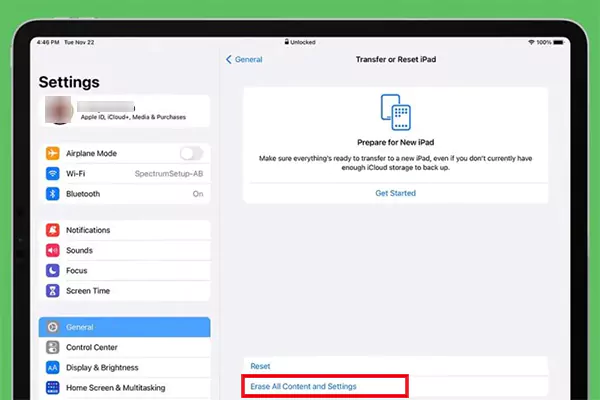
Go to Settings > General > Transfer or Reset iPad > Erase All Content and Settings. Enter your passcode and Apple ID when asked, then confirm. The iPad will erase everything and restart to the setup screen.
If you don’t know the passcode, you can use Recovery Mode with a computer or erase it remotely using Find My.
Things to Know Before You Factory Reset an iPad
Before you hard reset your iPad, pause for one minute. A factory reset is permanent, and there is no undo button after this. Here is what you should know:
All Data Will Be Deleted Permanently: Photos, apps, files, messages, everything stored on the iPad gets deleted. Once you erase the iPad, recovery is only possible through a backup.
Backup is Not Optional: Back up your important data with iCloud or to a computer to ensure you can restore apps, photos, and settings after a reset.
Activation Lock: If “Find My” is enabled, Activation Lock on iPad stays active after reset to prevent unauthorized reuse. You will need your Apple ID and password to set it up again.
Furthermore, if you are selling or giving away the iPad, don’t forget to turn off Find My for your device.
How to Reset iPad to Factory Settings Using Settings?
Let’s start with the safest and fastest method. If you can unlock the iPad and know the password, here’s how to factory reset iPads:
Open the Settings app on your iPad.
Tap on General.
Scroll down and tap Transfer or Reset iPad.
Next, tap Erase All Content and Settings.
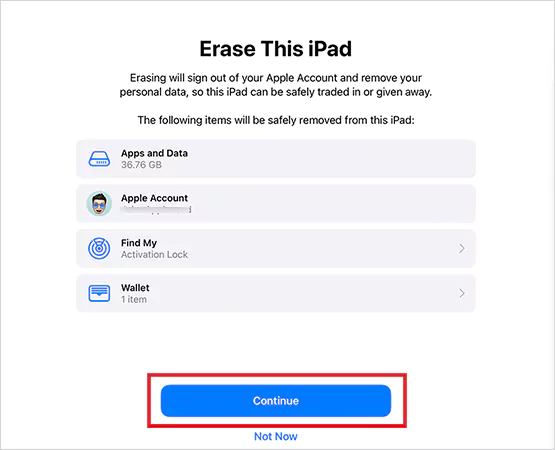
Tap Continue to erase the iPad.
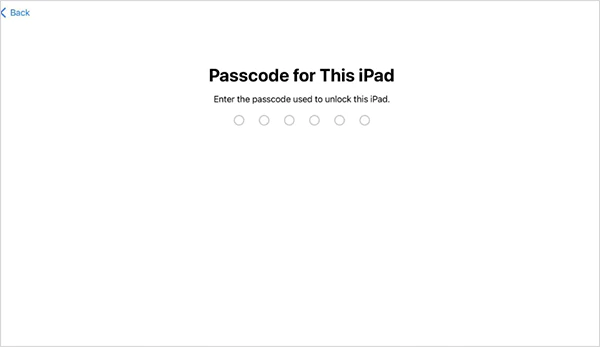
Enter your passcode and Apple ID password (if asked).
Now, just confirm and wait.
The iPad will erase everything and restart to the setup screen. This method uses iPadOS itself, and I would recommend this reset option when access is available.
If you forgot the passcode, Apple does not allow unlocking the device without erasing it. You have two options: Recovery mode using a computer or remote erase using Find My. There is no legal or official way to bypass this without erasing the iPad.
How to Factory Reset an iPad Without Password Using Recovery Mode?
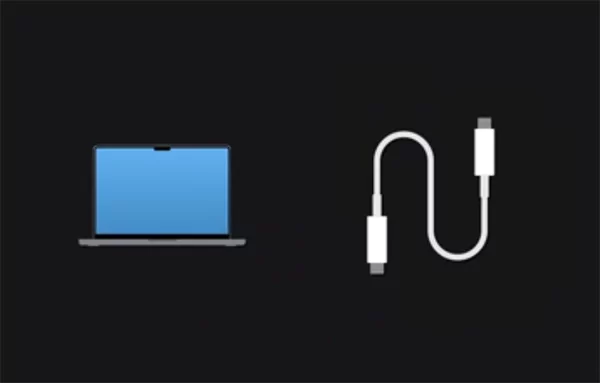
Use this when the iPad is physically with you but locked. You will need a Mac or Windows computer and a USB cable. Here’s how to factory reset iPad with buttons:
Turn off the iPad.
Connect it to the computer.
Open Finder on Mac or iTunes/Apple Devices app on Windows.
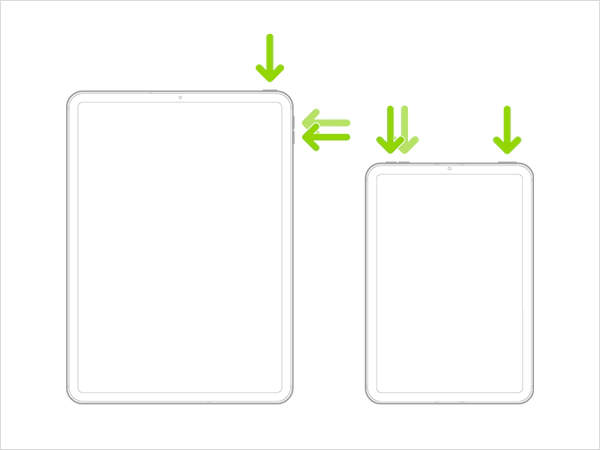
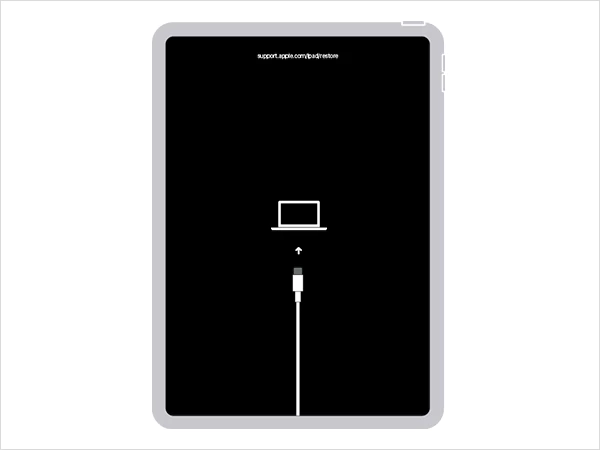
Now, put the iPad into Recovery Mode. Check the following box to learn how to enter Recovery Mode.
1. If your iPad has no Home button:
Press Volume Up once.
Press Volume Down once.
Hold the Top button.
Keep holding until the recovery screen appears.
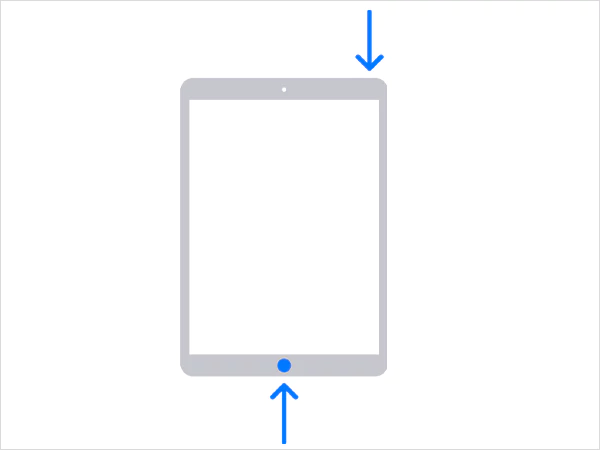
2. If your iPad has a Home button:
Hold Home + Top button together.
Release the top button when the screen goes black.
Keep holding Home until the recovery screen shows.
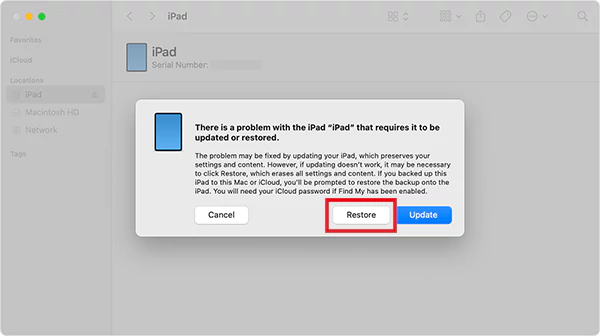
When prompted, choose Restore.
Now, wait for the software download and reset to complete.
This method allows an iPad factory reset without passwords and reinstalls iPadOS completely. After restoring, the iPad starts fresh, but it will still require the previous Apple ID if Find My was enabled.
How to Reset an iPad to Factory Settings Using Find My?
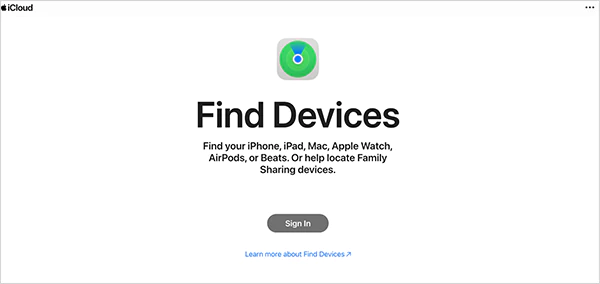
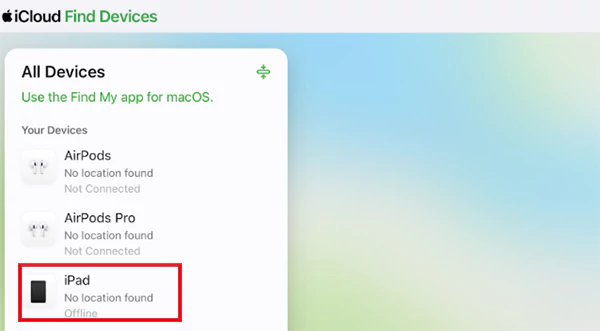
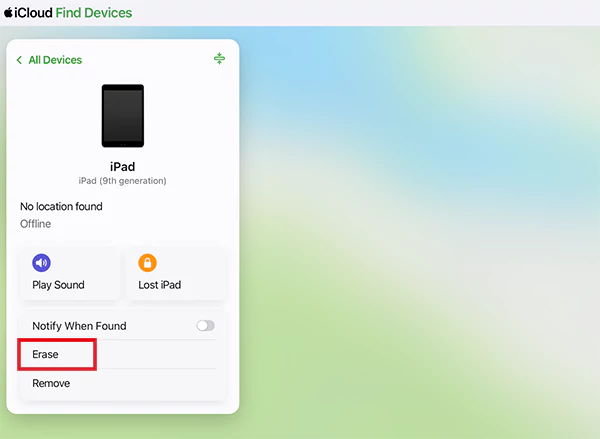
This works only if Find My was already turned on earlier. It is also a great way to reset if your iPad has been stolen. Let’s see how to factory reset iPad without passwords:
The iPad will erase itself once it connects to the internet. This method is useful when the device is stolen, lost, or not physically accessible. Plus, the Activation Lock stays active even after remote erase.
Once the factory reset is finished, the iPad becomes completely blank. All personal data is removed from the device, and only iPadOS remains installed. When you see the ‘Hello’ setup screen, you can choose to set up as new or restore from a backup.
As I already mentioned, if Find My was enabled earlier, the same Apple ID and password will be required to use the iPad again. In simple terms, the device becomes clean, empty, and ready for a fresh setup, but still protected by Apple’s security system.
Final Thoughts
Factory resetting an iPad is not complicated, but it is serious. Once you erase it, the data is gone unless a backup exists. The smart move is choosing the reset method that fits your situation.
Use the normal settings reset when you have the passcode, Recovery Mode with a computer when you don’t, or Find My when the device is not with you. Apple’s systems are designed to protect your privacy, so there’s no secret bypass for a forgotten passcode without erasing the iPad.
Go to Settings > General > Transfer or Reset iPad > Erase All Content and Settings for a normal factory erase.
How do I reset iPad to factory default with passcode?
Put the iPad into Recovery Mode, connect it to a Mac or PC, then use Finder or iTunes to restore the device. Alternatively, if Find My is enabled, you can reset the iPad by visiting iCloud.com/find.
How do I reset my iPad for a new owner?
Back up, sign out of Apple ID, remove the device from your Find My or iCloud, and then erase the iPad using the Settings method. This prevents Activation Lock from blocking the new owner.
How to factory reset a stolen iPad?
Open iCloud.com/find or the Find My app, select the lost device, and choose Erase. Do not remove the device from your Apple ID after erasing. It keeps Activation Lock in place, which prevents thieves from reactivating the device.
Can you factory reset an iPad with just the buttons?
No, buttons can force restart or enter Recovery Mode, but they cannot complete a factory reset by themselves. A computer or iCloud is still required to finish the erase.
How to remove iPad activation lock after factory reset?
You can sign in using the same Apple ID that was previously linked to the iPad, or remove the device from Find My. If you no longer have access, Apple Support may help you with valid proof of purchase.
How to factory reset an iPad using Apple configurator?
Connect the iPad to the Mac, open Apple Configurator, select the device, then choose Actions > Restore. It is mainly used for work, school, or managed devices.

 Prakhar Shivhare