
Overwritten files mean that a newer version of the file has replaced the existing data with the new one in the same physical space.
How to Recover Overwritten Files on Mac?
 Upasna Deewan
Updated on: Dec 01, 2025
Table of Contents
Someone recently emailed me and asked: Can my Mac recover overwritten files? But replying to an email was not enough to answer this query. One needs to have a detailed understanding of Mac files’ behavior to get their replaced files back.
Your Mac secretly remembers more versions of your files than you know. This hidden habit of version-tracking can be the lifeline for most users. I have recovered files on macOS in various situations, and the success rate is higher than you realize.
Below, I will walk you through the most reliable methods to recover overwritten files on Mac.
Quick Glance (If You’re in a Hurry)
- Data recovery software is your best option when no backup exists, but it only works for recent overwrites.
- macOS local snapshots can recover files overwritten within the last 24 hours.
- Check app-level version history first, especially for apps like Word, Excel, Pages, and Preview.
- Time Machine is the most reliable long-term solution because it stores multiple past versions of the same file.
- Immediately stop using your Mac after an update for a higher recovery success rate.
Recover Overwritten Files Mac: What You Need to Know Before Recovery?
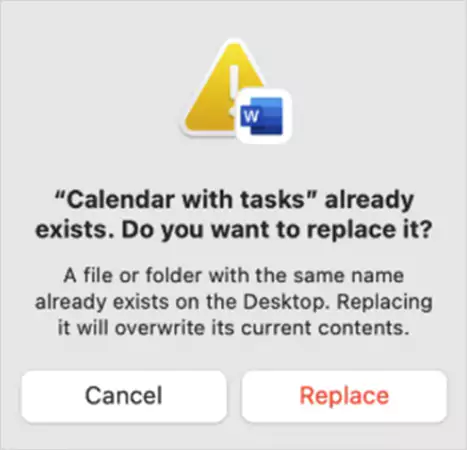
Before I explain how to recover overwritten files, Mac users can rely on, it is crucial to understand what actually happens when a file gets overwritten. It is not the same as deleting a file.
Overwrites usually happen when:
- When you save a new file using the same name in the same folder, and click on Replace. The system swaps your old file with a new one.
- You drop one folder onto another, and Finder replaces matching items.
- When an app autosaves and locks in the new version before you realize it.
No matter the cause, the result is the same. But can you recover overwritten files on macOS X and others?
Yes, it depends on two things: whether the old data still exists physically and whether you have backups. When you overwrite a file, macOS usually writes the new version somewhere else on the disk and simply updates the pointer.
This means the original data can still be recovered using data recovery software for Mac, as long as it has not been physically replaced or erased by SSD TRIM. Otherwise, you are limited to backups only.
How to Recover Overwritten Files on macOS?
Recovering a replaced file on a Mac is not guesswork. It is about checking every place macOS might have quietly stored an older version. I will explain to you 4 simple and reliable methods that can recover overwritten files on Mac.
Check the App’s Built-In Version History
Many macOS apps quietly store older versions in the background. This is a native feature of the operating system, so apps like Page, Word, Excel, Preview, and TextEdit support it by default.
Here’s the quick way to restore files:
- Open the file on your Mac.
- Now, go to File > Revert To > Browse All Versions.
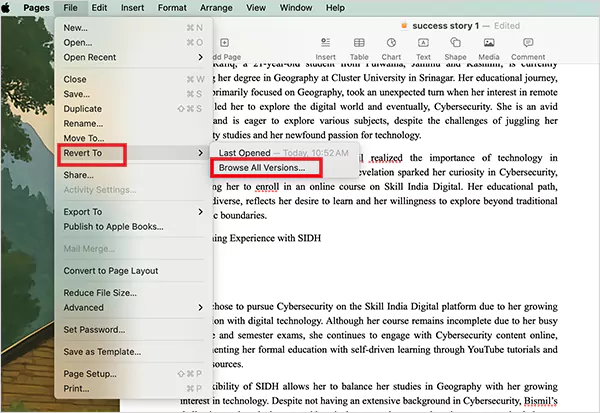
- Use the timeline to inspect earlier versions of the file.
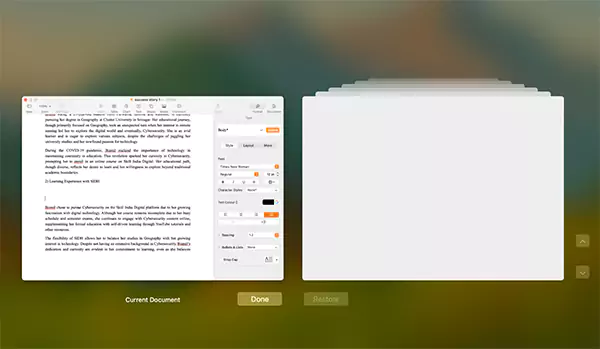
- Finally, just restore the version you want. You can also restore a copy to keep your current version intact.
This is the fastest Mac Overwritten File Recovery path because it works inside the app. You don’t need to depend on any backups or third-party tools.
Restore Overwritten Files Using Time Machine (Backup + Local Snapshots)
Time Machine does not just back up your Mac. It keeps local snapshots of different versions of your file. That means there are high chances of retrieving the older version of an overwritten file if you had Time Machine enabled.
Here’s how to restore from a Time Machine backup:
- Connect the drive you used for the backup to the Mac.
- Now, open the folder where the file originally existed.
- Click on the Time Machine icon and go to Browse Time Machine Backups.
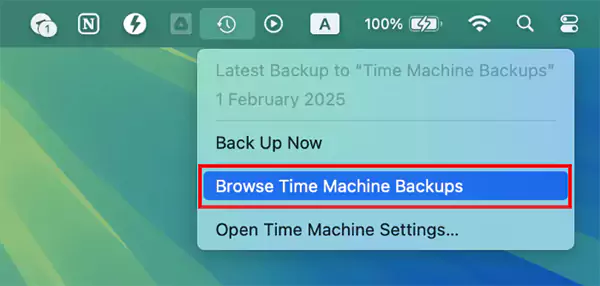
- Scroll through the previous versions of the folder and see if it contains the file you want.
- Select the file and click on Restore.
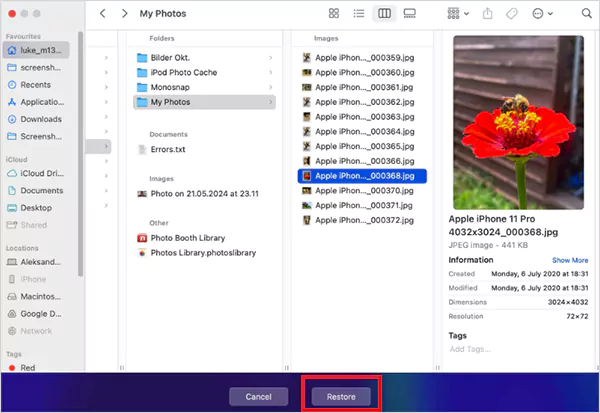
That’s it, you can now find the file using the Apple Finder. But what if your external backup was not connected at the time of overwriting?
Well, you don’t need to panic if you act quickly. macOS still creates local snapshots every hour on your internal storage. These snapshots stay available for roughly 24 hours, or until your Mac needs more free space.
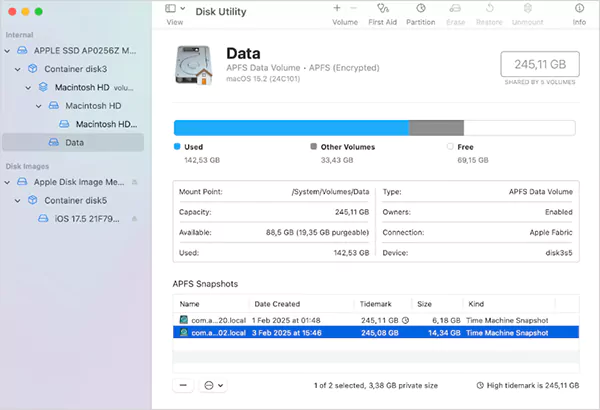
So, if the overwrite happened recently, local snapshots can save the day. You can restore local snapshots the same way as normal Time Machine backups.
Recover Using Cloud Version History
Cloud storage works differently from Time Machine. Instead of whole-system snapshots, cloud apps maintain lightweight version histories. This makes them incredibly useful for overwritten files, especially if you across multiple devices.
Here’s how to recover replaced files using iCloud:
- Visit iCloud.com and log in to your account.
- Go to Account > iCloud Settings > Data Recovery.
- Here, select the Restore Files option.
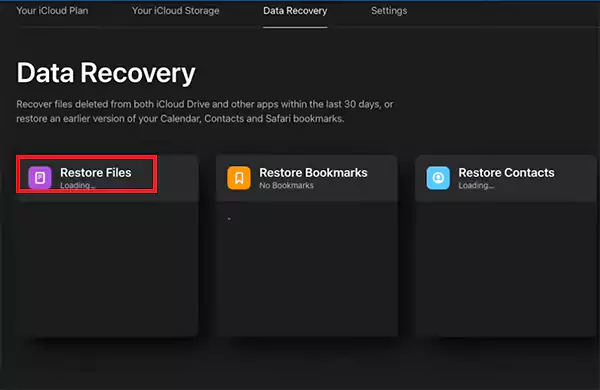
- Now, just pick the versions you want and restore them to their original locations.
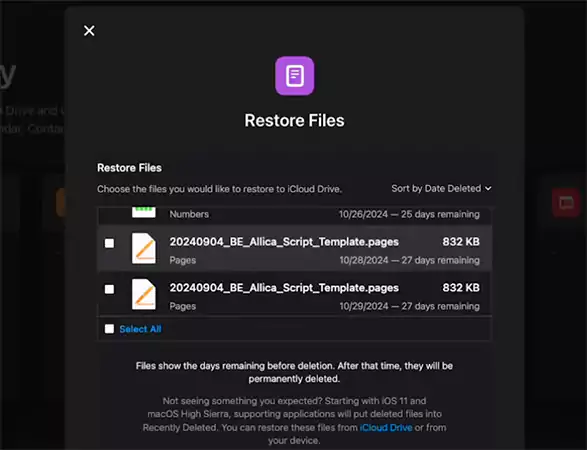
iCloud keeps file versions for 30 days. After that, they disappear permanently. Dropbox keeps up to 180 days of version history (depends on plan), and Google Drive for 30 days or 100 versions (unless you mark a version to keep forever)
Cloud backups are often overlooked, but they are one of the most reliable places to recover overwritten files on Mac or any other device.
Retrieve Replaced Files on Mac with a Data Recovery Software
No backups? If none of the previous options work for you, data recovery software is your final chance. These tools scan the drive for leftover parts of the old file. Recover success of this method depends on:
- Timing: The more you use your Mac after overwriting a file, the higher the risk that macOS replaces the old data blocks.
- Drive Type:
- HDD has a high recovery success
- SSD with TRIM has a small recovery window because TRIM clears deleted blocks quickly
- SSD through a hub has better chances because TRIM commands often don’t pass through hubs.
I have tested multiple tools, and Disk Drill is the best tool I recommend for file and SD card data recovery on Mac. It consistently pulls the most recoverable data, especially on damaged or overwritten files. Here’s what you need to do:
- Download and install Disk Drill.
- Connect any external media if the lost file was stored there.
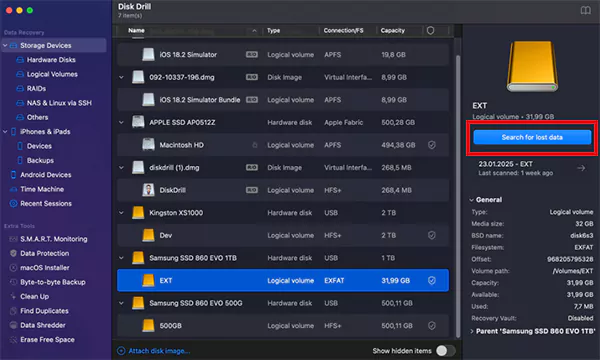
- Open Disk Drill and select the drive with the overwritten file.
- Next, click on Search for lost data.
- After the scan is complete, preview the documents you are looking for.
- When satisfied, select the files you want and click on Recover.
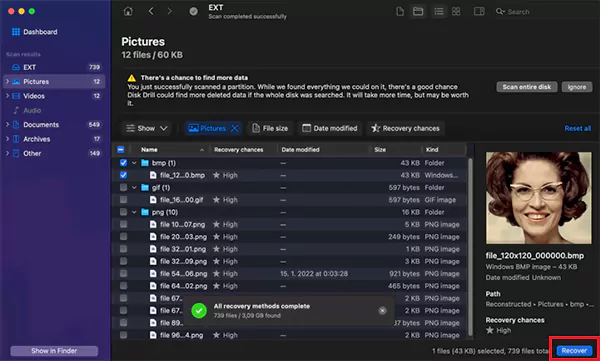
- Save them to a different drive than the one you are restoring from.
Disk Drill’s combination of deep scanning and data protection tools makes it a reliable option when no backups exist. You can also use this method for convenience, even if you have some backup.
EaseUS, PhotoRec, and Stellar data recovery tools are some other reliable third–party solutions you can try.
How to Recover Overwritten Word Documents on Mac?
A replaced Word file is not always gone. macOS, Microsoft 365, and cloud storage systems quietly create multiple safety nets in the background, which makes overwritten Word document recovery on Mac possible.
You can use the same methods I discussed above to recover overwritten Word documents on Mac. If you are still not able to retrieve the unsaved Word file on your device, here is one more option you can try:
- Look in Word’s AutoRecover Folder:
Sometimes, Microsoft Word leaves behind temporary drafts that can be recovered from the AutoRecover folder.
Click on Go from the top menu, and select the Go to Folder option.
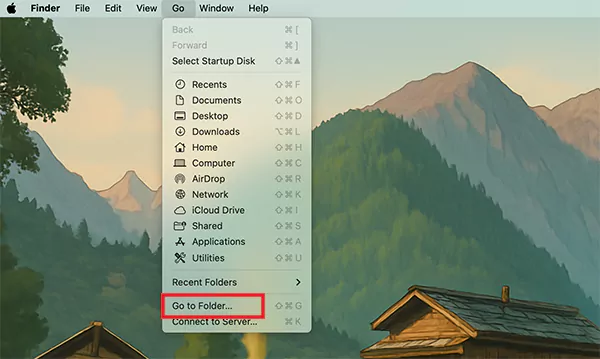
Now, just enter:
~/Library/Containers/com.microsoft.Word/Data/Library/Preferences/AutoRecovery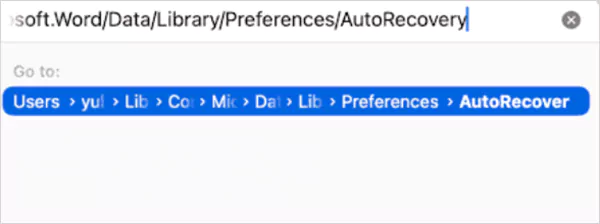
You may find full or partial versions of the replaced file here. Basically, there are two more methods to recover a replace a Word file, when compared to other documents.
How to Recover an Overwritten Excel File on Mac?
Excel’s internal systems behave a bit differently from Word’s, making it trickier. Excel recalculates and rewrites temporary caches more aggressively, and AutoRecover may not store full workbook versions. That is why cloud-synced files and data recovery tools offer the highest chance of recovery.
The methods to recover an overwritten Excel file on your Mac are similar to those for Word files. Just change the AutoRecovery path to: “~/Library/Containers/com.microsoft.Excel/Data/Library/Preferences/AutoRecovery”.
Just try all the methods one by one, and you should be able to safely get your Excel documents back.
How to Prevent Future Overwrites on Mac?
Now you know enough about the Mac Overwritten File Recovery process. But I would recommend you follow a few simple habits that can save hours of recovery work later. Here are the practical tips for real-world use:
- Turn on Time Machine for automatic hourly snapshots.
- Allows iCloud, OneDrive, or Google Drive to sync your files. They will help you restore the older version even if you replace them.
- Enable AutoSave and AutoRecover options in apps like Word and Excel.
- Keep one master copy of the important file, and give proper names to different version files like filename_v1 and filename_v2. This keeps your history clear and prevents accidental overwrites.
- Avoid editing heavy files directly on your internal SSD, which can lower your recovery chances (if required).
Furthermore, avoid blind folder merges on your Mac because it can replace your files without warning.
Wrapping Up
So, one thing should be clear to you: overwriting files is not the end. You can often recover overwritten files on Mac, but only if the older data still exists somewhere in macOS, your cloud history, or your backups. That is why the most reliable long-term strategy is prevention.
Just follow the best practices mentioned in the article and be prepared for any situation. And if you ever need to perform a recovery, you now have all the arrows in your quiver.
Frequently Asked Questions
What are overwritten files?
Can I recover an overwritten file on a Mac?
It depends on how fast you act on recovery and whether you have existing backups or not. In most cases, you can retrieve replaced files easily if you try within a day or two of overwriting.
How do I recover an overwritten file on my Mac?
You can try using the Time Machine backups, local macOS snapshots, app-specific file version history, iCloud backups, and data recovery software.
Where do replaced files on Mac go?
Replaced or overwritten files do not go to the Trash or Bin of your Mac. It just gets replaced by the new data, and the system marks it for deletion.
How to recover overwritten files on Mac with app-specific features?
Open the file and then from the top menu bar, select File > Revert To > Browse All Versions. This will show you all the previous versions of that file. Just select the one you want and restore it.
Related Posts
10 Best Lightroom Preset Alternatives in 2026
“Photography is the story I fail to put into words.” — Destin Sparks (Landscape Photographer) For years, Lightroom presets have…
Elementor Hosting vs SiteGround: Which is Faster in 2026?
A website’s performance is mainly determined by its Speed. Even a slight delay can reduce conversions by a significant margin.…
10 Best Visual UGC Platforms for eCommerce Brands in 2026
“People influence people. Nothing influences people more than a recommendation from a trusted friend.” — Mark Zuckerberg (Meta CEO) That…
The Data Models Powering the Next Creative Revolution in Video Generation
Artificial intelligence has evolved from a mere tool to the cornerstone of advancements in the new era. Over the years,…
Solar Software Companies: How Platforms Improve Cross Team Collaboration
“If everyone is moving forward together, then success takes care of itself.” — Henry Ford (Industrialist & Business Magnate) Handoffs…
What Healthcare Leaders Expect From Digital Tools
Healthcare executives are under pressure to protect patient safety, clinician time, and data privacy while modernizing the delivery of care.…

How to Reset Android Phone When Locked? (Safe Factory Reset Methods)
Locked out of your Android phone or stuck on the screen? It happens more than you think. A forgotten PIN,…
How to Transfer Contacts from Android to iPhone: 4 Easy Methods
Switching from Android to iPhone should not feel like rebuilding your life from scratch. Restoring contacts on iPhone should be…

White Label Ad Server vs Development From Scratch: What to Choose
Even though the DSP segment is the largest market within AdTech at the moment, an ad server remains a crucial…