
Yes, they are safe and built into Windows for troubleshooting and repairing system image corruption.
DISM Commands: How to Check, Repair, and Clean a Windows Image
 Upasna Deewan
Updated on: Mar 18, 2026
Windows can break in strange ways. A Windows update error, a sudden shutdown during installation, or even a faulty driver can quietly corrupt system files. When normal fixes stop working, DISM commands step in.
To help you, I will walk you through the exact Windows DISM commands that professionals use to repair the system. I will explain what these DISM online repair commands actually do, when to use them, and how to run them safely.
Follow the steps in order, and you can often fix deep system corruption without factory resetting your PC.
TL;DR
- DISM (Deployment Image Servicing and Management) is a built-in Windows tool that repairs the core system image.
- It helps fix issues such as Windows Update failures, corrupted system files, crashes, and missing features.
- CheckHealth Command: Quickly checks if the image is corrupted.
- ScanHealth Command: Performs a deeper scan to detect corruption.
- RestoreHealth Command: Repairs the Windows image using clean system files.
- Run DISM first and then “sfc /scannow” to fix remaining system file issues.
What is DISM?
DISM (Deployment Image Servicing and Management) is a built-in Windows command-line tool that repairs and manages the core system files that keep Windows running.
Put simply, DISM checks whether the Windows system image is healthy. This system image is the collection of important files that Windows relies on to operate. If some of these files become corrupted, missing, or damaged, your system can start behaving strangely.
What Does DISM Do and Why It Matters?
DISM commands work at the system-image level, which is why they are often used to fix deeper Windows issues like Error Code 0xc00000f when normal troubleshooting tools fail
The DISM scan command scans the Windows image and replaces broken files with clean versions, usually downloaded from Windows Update or another repair source. Because of this, many technicians use DISM when they see problems like:
- Windows updates are failing repeatedly.
- System crashes or unexpected errors.
- Missing or corrupted system components.
- Windows features are not working properly.
You can think of DISM as a deep repair tool for Windows. While some utilities only fix individual files, DISM repairs the entire Windows image that powers the operating system.
Important DISM Commands You Should Know
There are multiple DISM commands for Windows 10 and Windows 11. But most troubleshooting situations rely on three main ones. Each command checks the Windows image at a different level.
DISM Check Health
DISM /Online /Cleanup-Image /CheckHealth
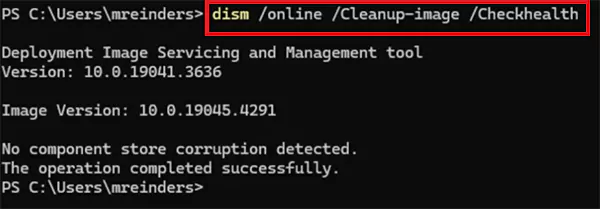
This is the quickest diagnostic command. It checks whether the Windows image has already been marked as corrupted.
This DISM cleanup-image command runs very fast because it does not scan the entire system. Instead, it simply reports whether corruption has been detected before. Use this when you want a quick status check.
DISM Scan Health
DISM /Online /Cleanup-Image /ScanHealth
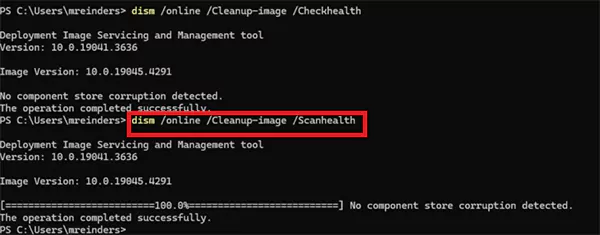
This command performs a full scan of the Windows system image.
Unlike CheckHealth, it carefully analyzes the image to detect hidden corruption or inconsistencies. Because it scans the entire component store, the process may take several minutes. If issues exist, this command will identify them so you know the system needs repair.
DISM Restore Health
DISM /Online /Cleanup-Image /RestoreHealth
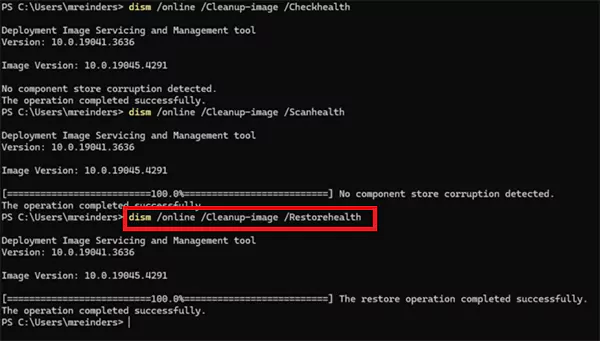
This is the command that actually fixes the problem. The CMD restore health command checks for damaged system components and replaces them with healthy files from Windows update or another repair source.
After running this command, many Windows problems, such as update failures or corrupted files, are resolved. It is usually the most important command during troubleshooting.
How to Run DISM Commands in Windows (Step-by-Step)?
DISM is one of the most important Windows Command Prompt commands, and running it is very simple. Here’s how:
- Click on the Start menu, type Command Prompt, right-click it, and select Run as administrator.
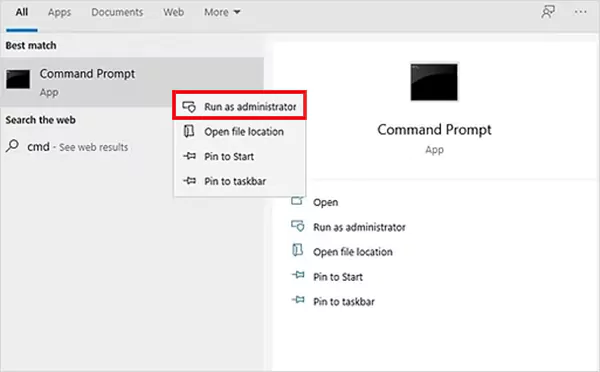
- Then, type DISM /Online /Cleanup-Image /ScanHealth to scan the Windows image.
- If corruption is detected, run: DISM /Online /Cleanup-Image /RestoreHealth.
- The DISM restorehealth command will download clean system files and replace the damaged components automatically.
- After DISM finishes, run: sfc /scannow.
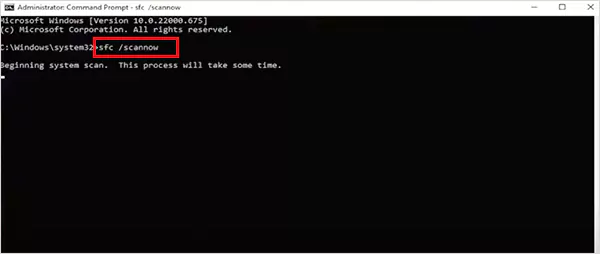
Running the SFC command is crucial because DISM repairs the Windows image, and SFC fixes individual system files using that repaired image.
DISM and SFC together often resolve stubborn Windows issues like Windows Modules Installer Worker, causing high CPU usage without needing a full Windows reinstall.
When Should You Use Windows DISM?
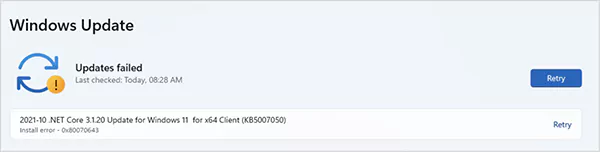
You should run DISM commands when Windows starts showing unusual behavior and basic fixes don’t work. Here are a few situations where DISM becomes useful:
- Windows Update Failures: If updates keep failing to install, the Windows image may be corrupted. DISM can repair the component store that Windows Update relies on.
- System File Corruption: Sometimes the SFC scan detects issues but cannot repair them. DISM fixes the underlying Windows image, allowing SFC to complete the repair.
- Frequent Crashes or Missing Features: A damaged Windows image can cause apps to crash, features to disappear (such as the Windows key not working), or the system to behave unpredictably. DISM can restore those components.
- Before Reinstalling Windows: Many experts recommend running it first because it can resolve deep system issues without reinstalling the OS.
In simple terms, DISM is often the last repair step before a full Windows reinstall or a factory reset.
Best Practices Before Running DISM Commands
DISM commands are safe to use, but following a few simple practices helps in avoiding errors.
- Always open Command Prompt or PowerShell with admin access. Without it, the commands may fail.
- Ensure a stable internet connection because the RestoreHealth command may download replacement files from Windows Update.
- Do not interrupt the scan. It may appear stuck sometimes, but it is usually still processing in the background.
- It is advisable to run DISM before SFC to repair the image on which SFC depends.
- Double-check command syntax because even a small typo can cause command errors.
Following these steps helps the repair process run smoothly.
Conclusion
DISM commands is one of the most powerful troubleshooting tools built into Windows 10 and Windows 11. It allows you to fix stubborn issues, such as the USB device not recognized error, when other basic fixes do not work.
It helps in detecting corruption and replacing damaged components with clean system files. For the best results, run DISM first, then run an SFC scan to repair any remaining system file issues.
Frequently Asked Questions
Is it safe to run DISM commands?
What is the difference between DISM and SFC?
SFC is used to check and repair individual and protected system files. DISM has a wider scope and is used to repair the underlying Windows system image (component store).
Can DISM fix Windows update errors?
Yes, many Windows update issues occur due to corruption in the Windows component store, which DISM can repair.
Should I run SFC or DISM first?
In most cases, you should run DISM first. Once the image is repaired, end troubleshooting with an SFC scan to repair individual system files.
How long does the DISM cleanup take?
The command usually takes 10-30 minutes, depending on the system speed and the level of corruption detected.
Related Posts
The Data Models Powering the Next Creative Revolution in Video Generation
Artificial intelligence has evolved from a mere tool to the cornerstone of advancements in the new era. Over the years,…
Solar Software Companies: How Platforms Improve Cross Team Collaboration
“If everyone is moving forward together, then success takes care of itself.” — Henry Ford (Industrialist & Business Magnate) Handoffs…
What Healthcare Leaders Expect From Digital Tools
Healthcare executives are under pressure to protect patient safety, clinician time, and data privacy while modernizing the delivery of care.…
How to Reset Android Phone When Locked? (Safe Factory Reset Methods)
Locked out of your Android phone or stuck on the screen? It happens more than you think. A forgotten PIN,…

How to Transfer Contacts from Android to iPhone: 4 Easy Methods
Switching from Android to iPhone should not feel like rebuilding your life from scratch. Restoring contacts on iPhone should be…

White Label Ad Server vs Development From Scratch: What to Choose
Even though the DSP segment is the largest market within AdTech at the moment, an ad server remains a crucial…

How Data Infrastructure Powers Next-Gen Mobile Recognition Apps
Modern digital applications have evolved with time, offering various functionalities to users that weren’t possible or even imaginable before. But…

How Poor Contract Visibility Leads to Revenue Leakage in Growing Companies
Growth is an important factor that determines the success rate of any business. When we witness new operations, partnerships and…

Managing Bitcoin Operations? Here’s How Salesforce Automation Helps
“Digital currency is here to stay, and it’s only a matter of how long before governments embrace it.” — Brad…