
It is a crucial tool in your PC that helps Windows automatically look for and install updates. You need it to stay updated without doing anything manually.
Windows Modules Installer Worker High CPU Usage: Causes and Fixes
 Upasna Deewan
Updated on: Mar 21, 2025
It is normal for your computer’s CPU or memory usage to spike during heavy tasks. However, if your system is slowing down, freezing, or becoming unresponsive with 100 disk or CPU usage, something is not right.
One of the most common reasons for this is a background process called Windows Modules Installer Worker. The good news is that this issue is not harmful and can be easily fixed.
In this guide, I will explain what the Windows Installer Worker Module is, why it uses so many resources, and how to fix the issue safely.
Key Takeaways:
- Normal behavior: Short CPU or disk spikes during updates are expected.
- Red flag: Usage above 70–100% for over one hour needs fixing.
- Root cause: Usually, stuck updates or corrupted system files.
- Best fix: Reset Windows Update components and run DISM + SFC.
- Avoid: Permanently disabling the service.
What is Windows Modules Installer Worker?
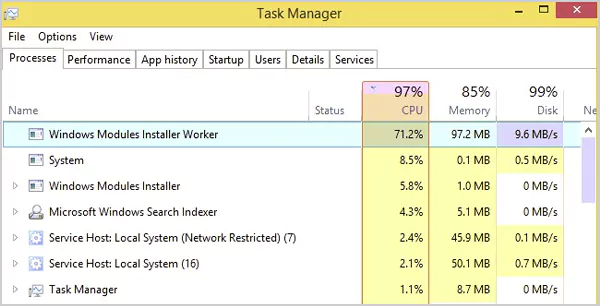
Windows Modules Installer Worker (also called WMIW or TIWorker.exe) is a built-in Windows system process. It runs in the background to check for updates, install new features, fix system files, and keep your operating system up-to-date and secure.
It also handles regular maintenance tasks like deleting temporary files, managing disk space, and optimizing performance. This process usually starts automatically when your system connects to the internet.
Spiked during update checks and installs are normal, but sustained 70-100 percent CPU or disk use after a reboot usually means an update is stuck or Windows Update components are corrupt and need repair.
Why Does Windows Modules Installer Worker Cause High CPU Usage?
Windows Modules Installer Worker is designed to work quietly in the background. When it suddenly consumes your CPU, something specific is happening. Here are the common reasons:
- Windows updates are actively running: When Windows downloads and installs cumulative or feature updates, TiWorker.exe works hard to unpack files, replace system components, and register changes.
- Multiple updates queued together: If your PC was off or paused for days or weeks, Windows may try to install several updates in one session. This stacks CPU usage and causes the issue.
- Post-update cleanup is running: After updates, the system runs background tasks like file cleanup and system optimization, which can temporarily increase CPU load.
- Corrupted updated files force retry loops: If update files inside the SoftwareDistribution folder are damaged or incomplete, Windows keeps retrying the same operation. This pushes CPU usage high with no visible progress.
- System file corruption: When core Windows files are corrupted, the installer worker repeatedly attempts repair during update checks. This usually leads to long-lasting spikes.
- Slow disk or limited hardware resources: On systems with HDDs, low RAM, or older CPUs, update-related tasks become resource-heavy. The process is normal, but the hardware cannot keep up, so CPU usage stays high longer than expected.
- Third-party Software Conflicts: Some antivirus software, disk cleaners, or system optimizers may interfere with the update process. This causes TiWorker.exe to restart tasks or wait on locked files, increasing CPU usage.
There is no fixed duration of the Windows Installer Module Worker High Disk Usage issue. It usually drops after the update, but you should try the following fixes if your CPU stays at 70-100% for over an hour.
How Do I Fix Windows Modules Installer Worker High CPU Usage?
If the Windows Installer Module Worker High CPU issue is affecting your day-to-day work, it is important to fix it. There are several ways to tackle this issue, and we will walk you through them.
Quick Checks Before Doing Anything Advanced
Do these things first; many users won’t even need to go past these basic fixes:
- Restart Your PC: It is simple, but effective because Windows often completes the cleanup on reboot.
- Check Windows Update Status: Go to Settings > Windows Update. If updates are installed, just let them finish first.
- Pause Updates Temporarily: If you urgently need your PC, go to Windows Update settings and pause updates for 7 days. This does not fix the issue but gives short-term relief.
Here are the 6 best ways to fix the Error Windows Installer Running on Windows 10 and Windows 11:
Try the Windows Update Troubleshooter
One of the easiest and quickest things is to run the Windows Update Troubleshooter. This built-in tool is designed to detect and fix problems related to Windows updates. Here’s how to run it:
- Open Settings, go to System, and click on Troubleshoot.

- Then go to Other troubleshooters.

- Find Windows Update in the list and click on Run.

It might take a few minutes, so just let it run. Once it’s done, restart your computer and see if the problem is gone.
Change Windows Installer Startup to Manual
You can reduce your computer’s CPU and disk usage by changing the Windows Installer Modules Worker setting to Manual. This can help your system run more smoothly and save power. But keep in mind that Windows won’t update on its own. Here’s how to do it:
- Press Windows + R on your keyboard.
- Type services.msc and press OK.
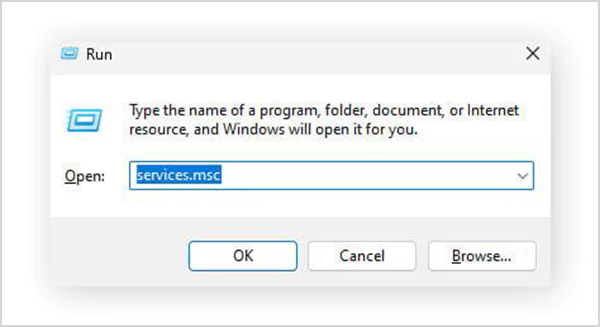
- A list will appear on the screen, look for Windows Modules Installer.
- Right-click it and select Properties.

- Under Startup type, choose Manual from the dropdown menu.

Finally, just click on OK to save the changes and boost your system performance.
End the TiWorker.exe Process
If the Windows Module Installer Worker high disk usage is troubling the system, you can stop the TiWorker.exe process and let it restart cleanly. Let’s take a look at the process:
- Press Ctrl + Shift + Esc to open Task Manager.
- Go to the Details tab, and find TiWorker.exe in the list.
- Right-click on it and select End Task.

Also, other programs like scvhost.exe might be using too many resources. Closing them can help your system breathe easier and feel a bit faster.
Delete the SoftwareDistribution Folder
The SoftwareDistribution folder stores temporary files for Windows updates. Sometimes, a corrupted file inside it can cause errors or high CPU usage.
Deleting this folder is completely safe and Windows will automatically recreate it when it needs to download new updates again. Here’s how you can do it:
- Press Windows + R to launch the Run box.
- Type services.msc and hit Enter.
- Right-click on the Windows Update option and choose Stop to temporarily pause the update.

- Now open File Explorer and go to C:\Windows.

- Find the folder named SoftwareDistribution, right-click on it, and select Delete.

Once that’s done, restart your computer and check if the problem is gone.
Run DISM and SFC Commands
If the Windows Module Installer Worker’s high CPU usage issue is still not fixed, you can try running a System File Check and DISM commands. These commands are known to fix many problems, like 409 Conflict error and USB Device Not Recognized Error on Windows.
Here’s how you can use it:
- Click on the Start menu and type Command Prompt.
- Now, right-click on it and choose Run as administrator.

- Here, type: DISM /Online /Cleanup-Image /RestoreHealth and press Enter.
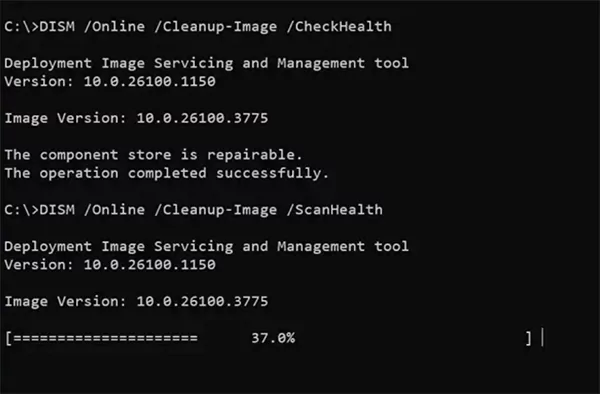
- Now, type the command: sfc /scannow, and press Enter.

Now, sit back and let the tool do its job. It might take around 10-15 minutes. Once the scan is finished, restart your system again and see if the CPU issue is resolved.
Clean Boot Your System
A clean boot starts your computer with only the basic programs and services it needs to run. This helps you check if something running in the background is causing the Windows Modules Installer Worker to use too much CPU.
- Press Windows + R, type msconfig, and hit Enter.

- The System Configuration window will open.
- Go to the Services tab and check the box that says Hide all Microsoft services.

- Now, click on Disable All, this will turn off all non-Microsoft services.

- Next, go to the Startup tab and click on Open Task Manager.
- Here, turn off all the apps listed under the Startup tab. Just right-click on the app and select Disable.

- Now, you will be back on the System Configuration window, and click on OK.
It will now start only essential programs, making it easier to identify any software that might be causing problems. Be mindful while performing these actions, and do not get confused between the startup folder and the startup tab.
If none of these fixes work, you should consider installing a reliable third-party cleanup software or consulting professionals.
When Should You Worry About High CPU or Disk Usage?
Not every CPU or disk usage spike is a problem. If you panic early, you will waste time. And if you ignore it for too long, you will break your system. That is why it is important to use the following rule:
High usage is normal if:
- It happens right after startup or during Windows updates.
- CPU or disk spikes, but slowly come down.
- The system is still usable, just slower.
- Usage drops within 10 to 60 minutes.
High usage is a problem if:
- CPU or disk stays above 70–100% for over one hour.
- The spike happens every time you boot.
- Your PC becomes unresponsive or freezes.
- TiWorker.exe keeps restarting or never settles.
- Updates show as “pending” or “failed” repeatedly.
By following these simple rules, you can handle every situation as per its requirements.
Final Thoughts
By now, you should have a good idea of how to fix the high CPU or disk usage caused by the Windows Modules Installer Worker. Solutions shared above can help you quickly get things back to normal.
If the issue persists, you should try to seek help from a professional or Microsoft support. However, in most cases, you won’t need to reach a tech professional.
Please share this helpful guide with your friends and colleagues to help them boost their computer speed and performance.
Frequently Asked Questions
Do I need a Windows module installer worker?
Can I turn off Windows Modules Installer Worker?
It is not a good idea to stop the process. It is best to keep it on so your system stays protected and up to date.
Why is Windows Modules Installer Worker taking so long?
It may use a lot of time and power due to certain updates, broken files, or software clashing with Windows.
Why is my Windows disk usage at 100%?
It could signal that something is wrong, like a virus, corrupted files, power cuts, or even damage to the drive itself.
Is TiWorker.exe a virus?
It is a legitimate Windows process. If you suspect malware, verify the file path is C:\Windows\System32 and run a full malware scan.
How long should high CPU usage last?
During normal updates, it can run from a few minutes to a couple of hours. If it stays above 70% for more than one hour after a reboot, run the advanced fixes.
Related Posts

8 Best AI Presentation Makers for Business-Ready Slides
Making a presentation doesn’t just mean designing slides. It’s about defining a clear structure, using defined logic, useful visuals, and…

Queue Management Software Troubleshooting Guide: 8 Common Faults and Fixes
The long wait times and ineffective management of customer queues can have a significant impact on customer satisfaction and business…

How to Use Similarweb Website Traffic Data for Competitor Research
Competitor research without traffic data is guesswork. You can guess who your rivals are, guess how big they are, guess…

Choosing the Right Hosting Model for Scalable Digital Platforms
The performance of digital business is directly related to website speed, uptime, and scalability. Slow page performance has a negative…

How Data-Driven Performance Tools Are Transforming Employee Recognition in Tech Companies
“People work for money but go the extra mile for recognition, praise, and rewards.” — Dale Carnegie (Writer & Teacher)…

Why Businesses Struggle to Collect Reliable Data from the Web
Almost every company that depends on data runs into the same problem: although they can find the data they need,…

Why Financial Data Recovery Matters for Businesses
Financial data supports every part of a business, directly affecting cash flow, payroll, tax reports, audits, customer billing, and daily…

CMMC Compliance Is Coming for Manufacturers. Here Is What You Need to Do
“Cybersecurity is much more than a matter of IT.” — Stephane Nappo (Cybersecurity Professional) For manufacturers working within the defense…

How Data-Based Tools Influence Learning Performance
Learning has transformed in the modern age with the integration of new technologies to help students and professionals prosper in…