
Depending upon the size of the update, you must wait for a maximum of 2–3 hours for the process to complete.
How to Fix Getting Windows Ready Stuck Screen? 10 Effective Methods for Windows Worth a Try
 Mahima Dave
Updated on: Oct 18, 2024
Table of Contents
- Wait for a While
- Check the Internet Connection
- Perform a Power Reset
- Use the Startup Repair Tool in WinRE
- Perform a System Restore
- Uninstall Quality and Features Updates
- Uninstall Windows Updates in Safe Mode
- Perform a System File Check
- Delete Problematic Files
- Reset Your PC and Reinstall Windows
- Frequently Asked Questions
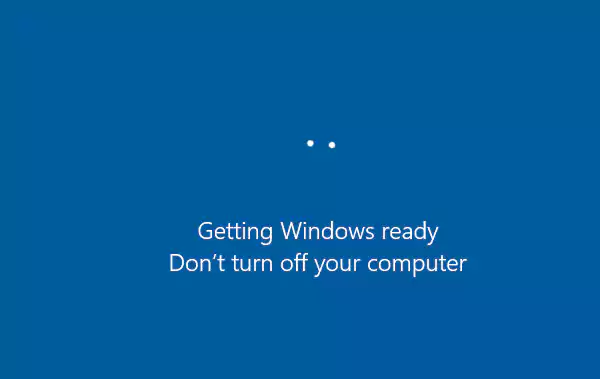
Whenever you start installing an update on Windows, you see a screen that says, “Getting Windows Ready: Don’t Turn off Your Computer.”
It may sound surprising, but many users have stumbled upon the situation when they see Getting Windows Ready stuck and won’t proceed further.
If you’ve come across this problem, you should know that this error differs from other issues, like the blue screen error, and may require various measures to get fixed.
That said, let’s take a look at the options you have to get rid of this problem.
Wait for a While
Windows updates usually require more time than they do as multiple processes are running in the background. So, instead of worrying about your screen getting stuck on getting Windows ready, the first thing you need to do is wait for a while.
Even if it seems like 2 or 3 hours, you must keep patience and wait for Windows to complete the procedure. You can check if the hard disk LED light is blinking or not on your CPU to confirm that Windows is not stuck.
Check the Internet Connection
Installing updates requires a steady internet connection, and the screen may get stuck on “Getting Windows Ready” if there’s an issue with your internet connection.
Check if the cables are connected well, and if you’re connected via a wireless setup, check the ping and find a solution for the issues interfering with the update.
Perform a Power Reset
Despite the fact that you must not shut down your PC while it’s installing the updates, you may have to perform a power reset if the process is stuck. So, for a power reset, follow these steps:
- Disconnect all the peripheral devices, including the mouse, keyboard, USB drives, or external hard drives.
- Disconnect the power cable.
- Reconnect the power cable, then press and hold the power cable for at least 10 seconds to shut down the computer.
- Turn your computer on again.
Use the Startup Repair Tool in WinRE
Windows Recovery Environment (WinRE) is a built-in program in Windows (every version) that helps eliminate boot issues. You’ll have to carry out the process in two parts, as mentioned below:
Part 1: Access WinRE
There are two different ways to access WinRE, take a look:
- Turn off your computer and turn it on again.
- During the process, press the Shift key and the power button simultaneously.
- Hold on to the Shift key until the system turns on.
If your Windows version doesn’t support this method, follow these steps:
- Press and hold the power button to turn off your device.
- Turn on the PC.
- When the PC is loading Windows (you’ll see the manufacturer’s logo), press and hold the power button again for 10 seconds to turn off the PC.
- Repeat this process at least three times until you enter WinRE.
Even if these two methods won’t work, you can use Windows Installation Media to enter WinRE. Download the software from Microsoft’s official site and create Windows installation media on a separate USB drive or disk. Use it to boot the computer.
Part 2: Use the Startup Repair Tool
The Startup Repair Tool checks for any issues with the startup log files and then tries to find the solution. So, following the steps given in Part 1, you’ve already entered WinRE. You’ll have to follow these steps:
- Under the “Choose an option” section, click Troubleshoot.
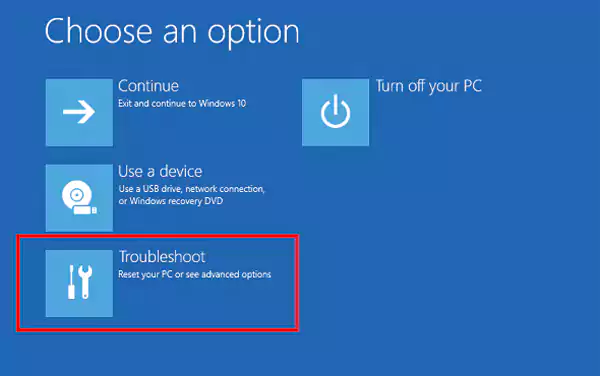
- Then, go to Advanced options.
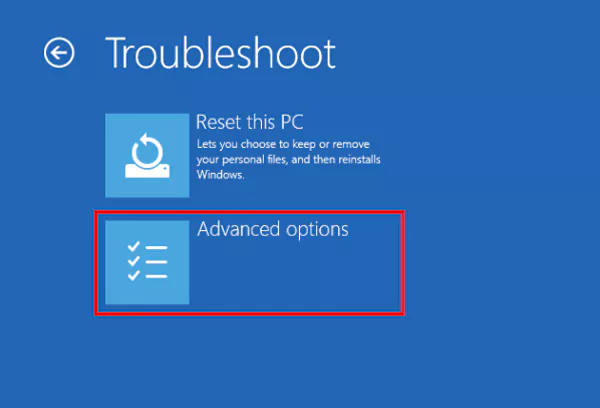
- Open Startup Repair.
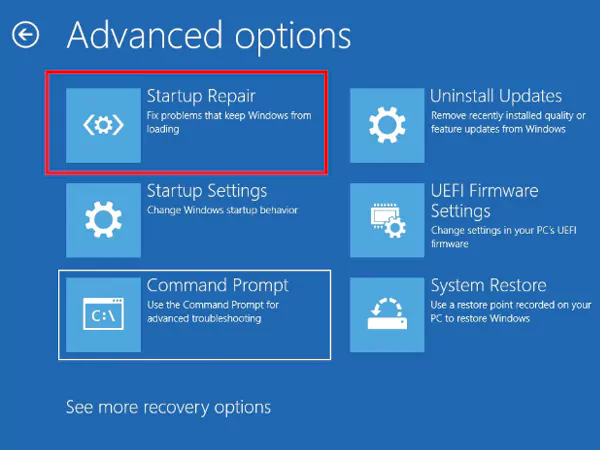
- Choose the account from the Startup Repair list with admin privileges and enter the password.
- Click Continue to begin the process.
- Leave the tool for a few minutes and let it do its job.
- You’ll get a notification that the process is finished. Restart your computer.
If you still find Windows getting ready stuck on the screen even after restarting your PC, try the other methods.
Perform a System Restore
WinRE also allows you to restore your OS to a system restore point if you’ve created one recently. Nevertheless, System Restore automatically creates restore points when you install new apps and drivers or update the OS.
So, to create a system restore, enter WinRE and go to Troubleshoot >> Advanced Options >> System Restore.
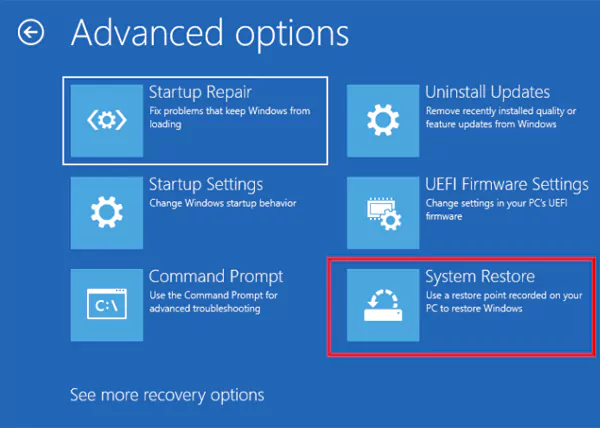
Select a restore point and follow the onscreen instructions to restore.
Moreover, you can also restore your system using Windows Installation Media. Download the utility from Microsoft into a USB drive and use it to boot your computer. Go to System Restore again and run the software installation wizard.
Uninstall Quality and Features Updates
Windows Updates are meant to fix bugs and improve the overall performance of your PC, but sometimes they can create complications. These complications occur when a specific update is not compatible with existing software or hardware or has issues with drivers.
This is another reason for a computer stuck on Getting Windows Ready. To fix it, you’ll have to uninstall the updates from WinRE. Go to Troubleshoot >> Advanced Options >> Uninstall Updates.
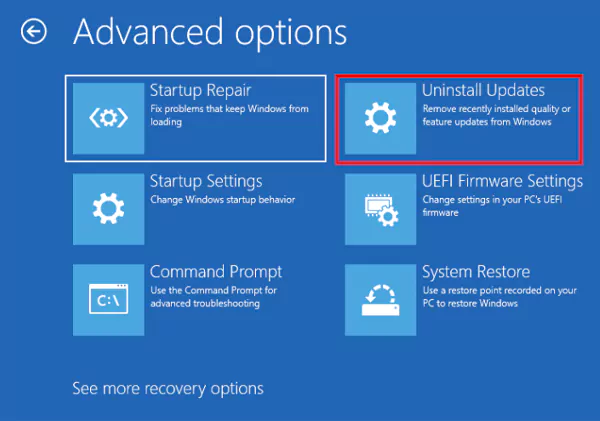
From there, uninstall the latest updates and restart your computer.
Uninstall Windows Updates in Safe Mode
Starting your system in Safe Mode and uninstalling Windows Updates can help you fix common problems related to the OS, including Getting Windows Ready stuck. Follow these steps:
- After successfully booting your computer in Safe Mode, enter WinRE, and go to Troubleshoot >> Advanced Options >> Startup Settings >> Restart.
- From the list, choose one of the Safe Mode Start options and press F4.
- Once you’re able to boot in Safe Mode, open Control Panel >> Programs and Features.
- Select the recent updates and uninstall them.
- Restart your computer.
Perform a System File Check
Performing a system file check will scan the protected system files and replace the corrupt files with cached working copies. This often fixes operational issues, including the one in which Windows 10 is stuck restarting. Follow these steps:
- Open WinRE and go to Troubleshoot >> Advanced Options >> Command Prompt.
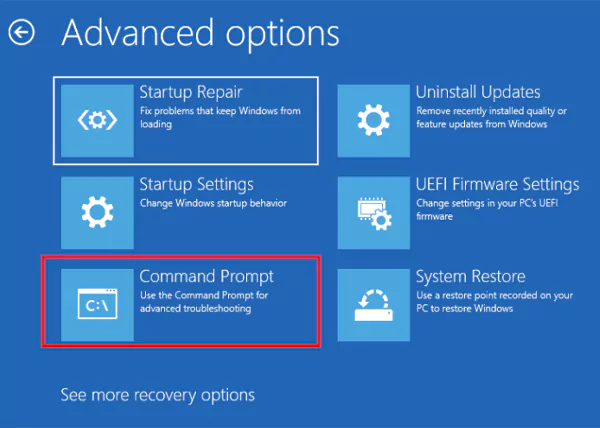
- Now, in the Command Prompt, run the command “sfc /scannow.”
- After the scan is finished, run the command “chkdsk / f c:” (Here “c” stands for the C drive in which Windows is installed.) \
- Once the scan is complete, reboot the computer.
Delete Problematic Files
Several problematic and corrupt files on your PC may result in Windows Getting Ready stuck on the screen. You can eliminate these files with the help of the command prompt with these steps:
- Restart your PC and get to the Windows Boot Options page.
- From the page, go to Troubleshoot >> Advanced Options >> Command Prompt.
- Run the command, “C: cd Windows\System32\LogFiles\Srt. SrtTrail.txt.”
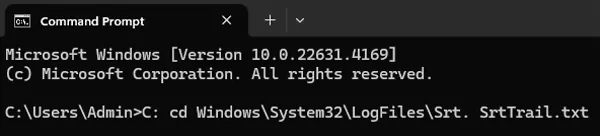
- Then, if you get a message like this “Boot critical file c:\windows\system32\drivers\vsock.sys is corrupt,” get to the specified location using the Command Prompt only and delete the file using the Del command.
Reset Your PC and Reinstall Windows
When none of the methods mentioned above work in your favor, resetting your PC and reinstalling Windows is the last resort. But, remember, before you reset the PC, create a backup of all essential files.
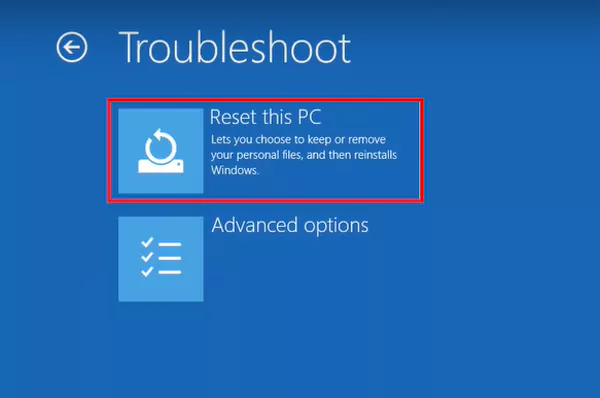
- Restart the computer and go to Troubleshoot >> Reset this PC.
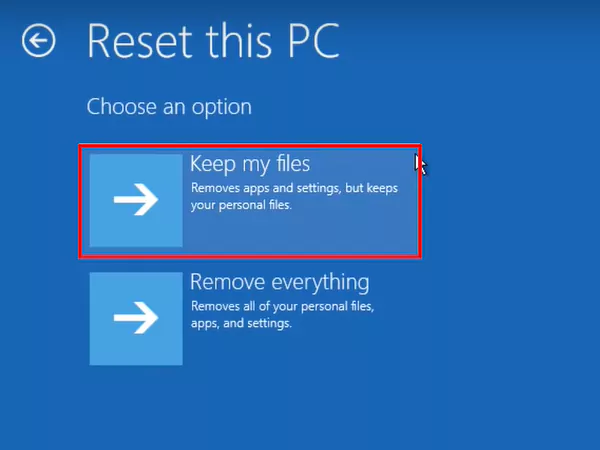
- Now, decide from the two options available, “Keep My Files” or “Remove Everything.” However, you’ll still lose some data if you choose the former.
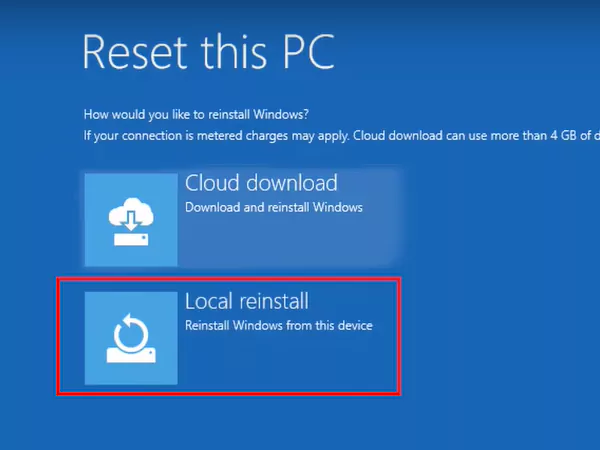
- Then, click “Local reinstall” and follow the instructions appearing on the screen.
Once you reinstall Windows, you can install the updates without encountering any errors.
Frequently Asked Questions
How long should I wait to get Windows Ready stuck?
What happens if I shut down while getting Windows ready?
An abrupt shutdown during Windows updates can corrupt some critical system files on your PC.
How long should a fresh Windows install take?
A clean installation can take around 20–30 minutes, but a repair installation may take a couple of hours to complete.
Related Posts

8 Best AI Presentation Makers for Business-Ready Slides
Making a presentation doesn’t just mean designing slides. It’s about defining a clear structure, using defined logic, useful visuals, and…

Queue Management Software Troubleshooting Guide: 8 Common Faults and Fixes
The long wait times and ineffective management of customer queues can have a significant impact on customer satisfaction and business…

How to Use Similarweb Website Traffic Data for Competitor Research
Competitor research without traffic data is guesswork. You can guess who your rivals are, guess how big they are, guess…

Choosing the Right Hosting Model for Scalable Digital Platforms
The performance of digital business is directly related to website speed, uptime, and scalability. Slow page performance has a negative…

How Data-Driven Performance Tools Are Transforming Employee Recognition in Tech Companies
“People work for money but go the extra mile for recognition, praise, and rewards.” — Dale Carnegie (Writer & Teacher)…

Why Businesses Struggle to Collect Reliable Data from the Web
Almost every company that depends on data runs into the same problem: although they can find the data they need,…

Why Financial Data Recovery Matters for Businesses
Financial data supports every part of a business, directly affecting cash flow, payroll, tax reports, audits, customer billing, and daily…

CMMC Compliance Is Coming for Manufacturers. Here Is What You Need to Do
“Cybersecurity is much more than a matter of IT.” — Stephane Nappo (Cybersecurity Professional) For manufacturers working within the defense…

How Data-Based Tools Influence Learning Performance
Learning has transformed in the modern age with the integration of new technologies to help students and professionals prosper in…