Archived an email in Gmail and can’t find it? Gmail does not store archived emails in a visible folder, which is why they feel missing when you need them again.
So, how do I retrieve archived emails on Gmail? Well, those emails still exist inside your account, just outside the Inbox. The key is knowing where to look and how to pull them back quickly.
I will explain how to retrieve archived emails in Gmail using search, All Mail, and mobile apps. By the end, you will know how archiving works and how to avoid losing important messages again.
How to Retrieve an Archived Email on Gmail: Quick Answer
To retrieve an archived email in Gmail, open All Mail, find the email, and click on Move to Inbox.
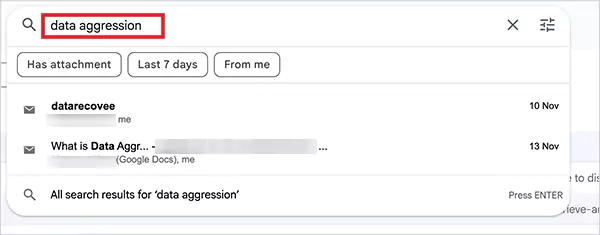
You can also use Gmail’s search bar to locate the email by sender, subject, or keywords.
Archived emails are not deleted, so they remain searchable and recoverable unless you manually remove them.
What Does Archive Mean in Gmail?
Archiving in Gmail simply means removing an email from your inbox without deleting it. When you archive an email:
It stays safely inside your Gmail account.
It disappears from your inbox view.
You can still search it, open it, reply to it, or forward it.
Attachment remains safe and untouched.
There is no expiry date, and all the archived emails can stay there forever unless you delete them manually.
Gmail does not have a traditional Archive folder. Instead, archived emails live under All Mail, mixed with inbox messages, sent emails, and labeled conversations.
So, when you archive something and later check only your Inbox, it feels like the email disappeared. But in reality, Gmail just stopped letting it interrupt your day. That’s why people with a crowded inbox (I am one of those) love it. You can clear visual clutter without deleting useful information.
But do you know that not all emails get archived on purpose? Confused? Let’s understand this in the following section.
Common Reasons Why Emails Get Archived in Gmail?
Before I answer, how do you retrieve archived mail in Gmail? You need to understand that most archived emails are not archived on purpose. They happen because Gmail makes archiving very easy.
Here are some common ways emails get archived:
Clicking Archive instead of Delete while cleaning up the inbox.
Swiping an email from left to right on the mobile app without noticing (this is the biggest accidental trigger).
Using keyboard shortcuts like pressing E on the desktop.
Gmail filters can auto-archive newsletters or system emails.
Speed-cleaning habits when you are not paying full attention are also a major reason.
People forget how easily they can archive emails. That is why it becomes important to learn how to retrieve archived Gmail emails.
Expert Tip: If you never want a conversation to return to your inbox, even when someone replies, use the Mute option (not Archive). Mute keeps the thread out of the inbox permanently unless you manually search for it.
How Do I Retrieve Archived Emails on Gmail Using All Mail?
All Mail is Gmail’s master list. If an email is not in your Inbox, Spam, or Trash, you can almost always find it here. Here’s how to retrieve archived mail on Gmail’s browser version:
Open Gmail in your browser.
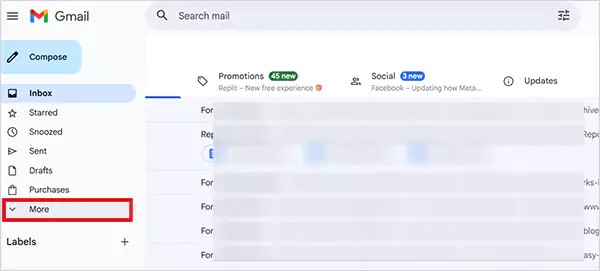
Click on More in the left sidebar to expand labels.
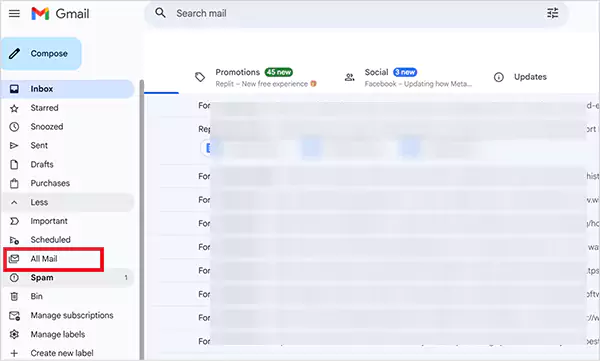
Now click on All Mail.
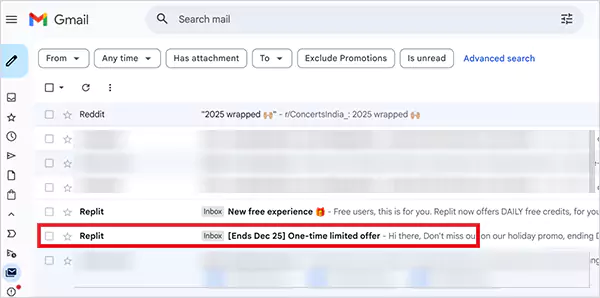
Scroll or use the mini search option at the top of the list.
Next, open the email you were looking for.
Finally, click on the Move to Inbox button to restore it.
The All Mail method works best when you want to visually browse old conversations, and you are not sure about the keywords to search. It is also the best option if you want to restore multiple emails together.
How Do I Retrieve Archived Emails in Gmail Using Search?
Using the direct search option is the fastest method. You do not even need to open any folder. Let’s take a look at different approaches to using it.
Basic Search Approach:
Open Gmail on a web browser.
Now, type a keyword (like sender name, subject phrase, or a unique word) from the email in the search bar.
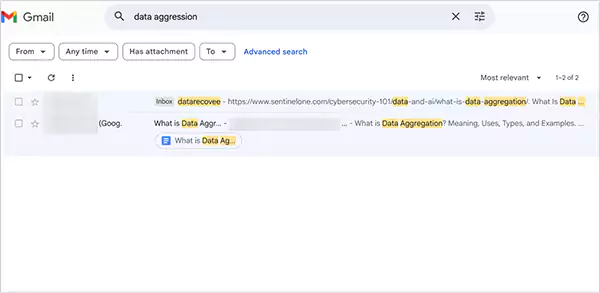
Press Enter, and you will be able to see the archived messages in search results.
Now, just open the desired email and click on Move to Inbox.
High Impact Search Approach:
To use Gmail search in a better way, you can filter the search results by using the following queries:
By sender – from:example@domain.com
With attachment – has:attachment
Date range – after:2025/01/01 before:2025/12/31
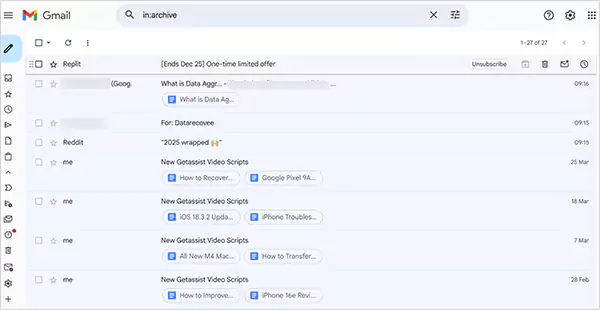
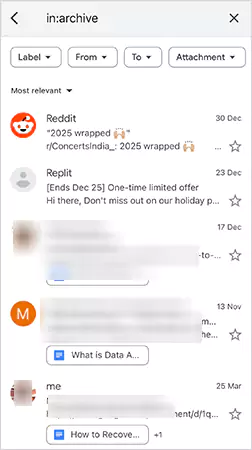
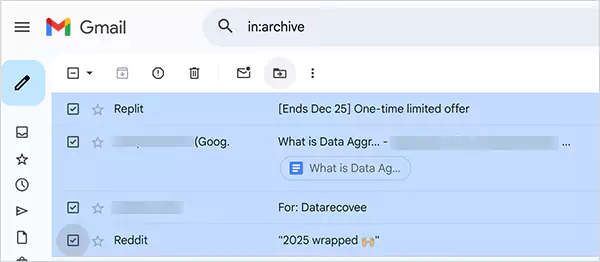
Shows archived emails – in:archive
Show messages that are not in Inbox, Spam, or Trash (likely archived) – -in:inbox -in:trash -in:spam
The search method to retrieve archived emails in Gmail is better if you want to find emails in seconds. And you can even use filters to narrow results and make the process efficient.
If the search result gives nothing, try to confirm that you are logged into the correct account. Remove strict filters, expand the date range, and try to check the Trash and Spam folders manually.
How to Retrieve Multiple Archived Emails in Gmail?
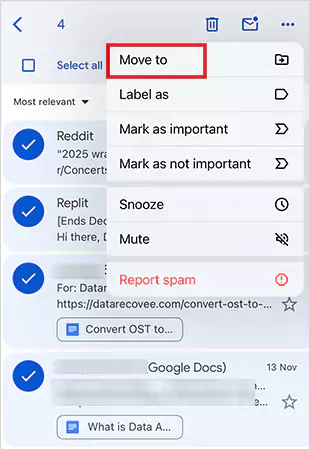
Use the All Mail or Search option and select all the emails you want to unarchive using checkboxes. Then, move them to the Inbox in one go. It is much faster if you want to restore in bulk.
How Do I Retrieve Archived Mail From Gmail Mobile Apps?
The Android and iOS Gmail app hides things a bit differently, but the logic stays the same. Here’s how to retrieve an archived email on Gmail’s mobile app:
Open the Gmail app.
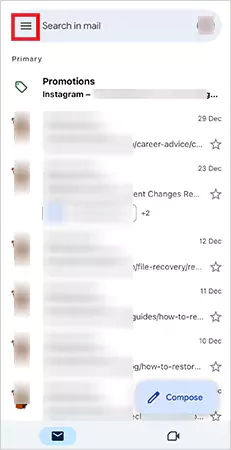
Tap the three-line menu icon in the top-left corner.
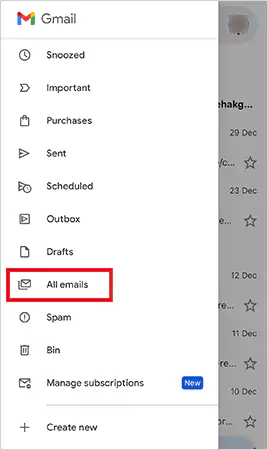
Now, scroll and tap on the All emails option.
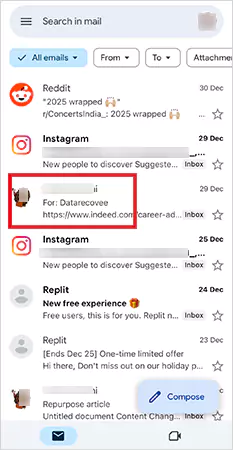
Open the email you want to restore.
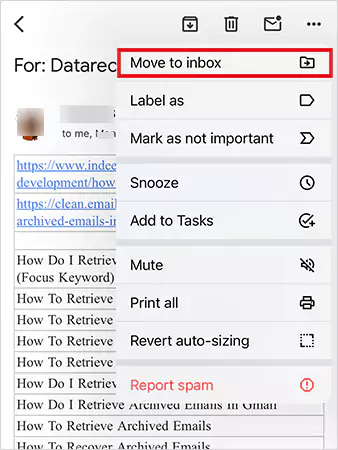
Here, tap the three-dot menu (top one) inside the message.
Finally, choose Move to Inbox or Add to Inbox.
You can also use the search bar at the top of the app using the same approach as desktop.
If you want to restore multiple emails on the app. You can long-press one message to enable multi-select, then tap the Move to Inbox icon. However, desktop Gmail is still the better tool for bulk action.
Expert Tip: Disable swipe-to-archive from Gmail app settings if you keep archiving by mistake.
Archived vs Deleted Emails in Gmail: What is the Difference?
This confusion causes more “lost emails issues” than any Gmail bug ever did. Here’s the truth: Archive hides the email on purpose, and Delete removes the email from the Inbox and schedules it for permanent deletion.
When You Archive an Email:
Gmail removes it from your Inbox only. The email still exists, and it remains searchable inside All Mail for as long as your account exists. You can bring it back to the inbox anytime. There is no deadline.
When You Delete an Email:
Gmail moves it to the Trash, and it has a time limit. Once that window passes (30 days), the email is permanently gone.
The bottom line is that archiving is reversible forever. On the other hand, deleting is reversible only for a short time.
How to Recover Archived Emails That Were Deleted?
If an archived email was later deleted, act fast. Here’s a clear recovery path:
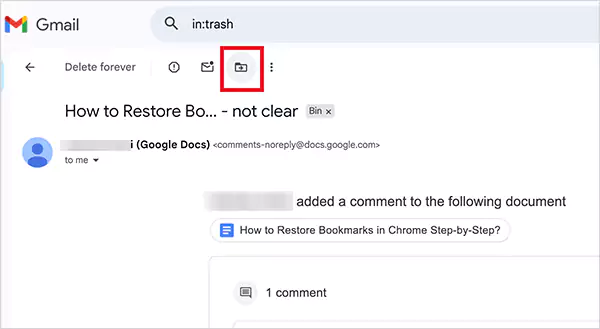
Check Trash Immediately: If the email is in Trash, you are safe. Just select it and move it back to the Inbox or apply a label. The email returns to All Mail and behaves like normal again.
However, messages in Trash are automatically removed after the retention period. If you find nothing in Trash, the message may already be permanently deleted.
Check Every Gmail Account: If you use Outlook, Apple Mail, or an IMAP client, check the client’s Trash and the server’s All Mail folder. Some clients delete on the server differently.
Google Workspace Users: If your email is managed by a company or institution, contact the admin immediately. Admins sometimes have a short recovery window using internal tools.
Also, don’t forget to check out the shared mailbox in Outlook or other clients. But if the email is not in the Trash and not recoverable by an admin, then it cannot be restored. At that point, your only hope is old exports, backups, or copies held by recipients or the sender.
Most people do not need better memory; they just need better systems. Here are some practical tips that can help you:
Use Labels Before Archiving: Labels make intent clear and help you organize and archive email properly. You can archive it after labeling if required.
Never Auto-Archive Without a Label: Your Gmail filters should label first, and then archive the emails.
Fix Swipe Actions on Mobile: If the swipe-to-archive option keeps troubling you with accidental archives, change it to Delete or None in Gmail settings.
Star or Pin High-Value Emails: This will help you cut through clutter and access important messages instantly.
Save Search Shortcuts: Keep a short cheat sheet of queries you can copy, like “in:archive from:client@example.com and in:inbox -in:trash subject:”invoice”.
Limit Aggressive Cleanup Rules: Avoid aggressive auto-delete or auto-archive rules that act without creating labels or copies.
Backup Important Mailboxes: Use Google Takeoutor a backup tool to export important mailboxes on a schedule. This will protect you against accidental permanent deletion.
So, whether you are looking for an individual conversation or something from email groups in Outlook, Gmail, or Mail. These small habits can help you save hours of recovery and avoid permanent deletion of important messages.
How to Delete Archived Emails in Gmail? (If You Want to)
Deleting archived emails is easy once you know where they live. Archived emails can be deleted from the All Mail folder. Here’s how:
Open Gmail and click on More.
Now, select All Mail.
Here, select the email you want to delete.
Click on the trash icon, and you are done.
As I told you earlier, the email will go to the Bin/Trash first and stay there for 30 days. If you want to delete it permanently, you need to remove it from the Trash. Only delete it when you are certain, because Archive gives you flexibility.
Conclusion
Archiving in Gmail is often misunderstood. It doesn’t erase emails. It simply clears your Inbox and stores messages quietly in All Mail.
Once you know how All Mail and search work, retrieving archived emails becomes quick and predictable. You can find them, move them back to the Inbox, delete them if needed, or organize them with labels so they never disappear again.
Where can I find accidentally archived emails in Gmail?
Archived emails don’t go to a separate “Archive” folder. Gmail removes them from your Inbox and shows them in All Mail. You can open All Mail from the left sidebar or use search to filter archived messages.
How do I search for my archived emails?
Use the Gmail search bar at the top. Type keywords, sender name, or use ‘in:archive’ to narrow results to archived messages. This works on both desktop and mobile.
How do I recover archived mail in Gmail?
Once you find an archived email, open it and click Move to Inbox (desktop) or select Move to Inbox from the three-dot menu (mobile).
How do I retrieve archived emails in bulk?
On a desktop browser, go to All Mail or filter through search, use the checkboxes to select multiple messages, and then click Move to Inbox to restore them all at once. Bulk actions are limited in the mobile app.
How to archive emails in Gmail?
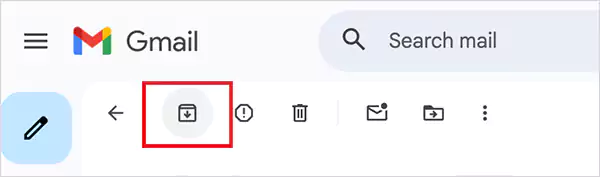
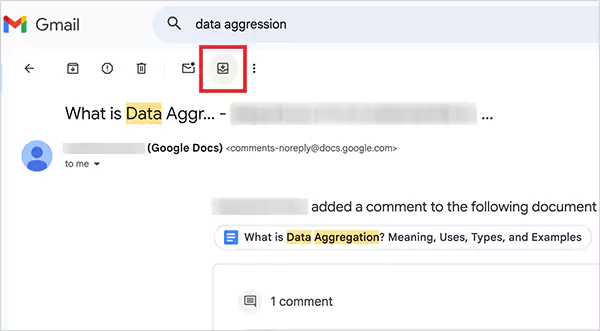
On the desktop, select the email and click the Archive icon (box with down arrow). On your mobile, swipe the email or use the Archive option in the menu
How do I retrieve an email I accidentally archived?
Open All Mail or use search, find the archived email, and click or tap Move to Inbox. If you just archived it, you might also see an Undo option at the bottom for a few seconds.
Are archived emails permanently deleted?
No, archiving does not delete an email. It removes it from your Inbox but keeps it in All Mail, where it stays until you delete it manually.
Is it possible to recover permanently deleted emails from Gmail?
If a message is permanently deleted from Trash (after about 30 days), it typically cannot be recovered by users. Workspace admins may have limited recovery tools, but there’s no guaranteed user-level recovery for permanently deleted mail without backup.
Why might you need to retrieve archived emails?
You might archive by mistake, need reference to an old conversation, or want to act on a message that isn’t visible in the Inbox anymore. Retrieving archived mail brings it back where you can easily find or respond to it.
Data growth has significantly accelerated beyond what most compliance teams can manage, with personal records, financial details, contracts, and emails…

 Prakhar Shivhare