
The safest method is to go to System Properties > User Profiles > Settings > Delete. It removes the profile properly without any complicated steps.
How to Delete User Profile in Windows 10: Step-by-Step Guide
 Kartik Wadhwa
Updated on: Mar 31, 2026
You don’t notice user profiles until one starts causing problems. A profile gets corrupted, a login error pops up, or old accounts just sit there creating clutter. Then, you start wondering about deleting Windows user profiles.
A user profile is not just a folder you can drag and drop. Delete it the wrong way, and you will leave behind broken traces. This guide explains how to delete user profile in Windows 10 properly.
Whether you are cleaning up your PC or managing multiple users, you will learn to remove profile form registry, settings, and system properties.
Quick Summary
- Always use System Properties first to delete the profile safely and cleanly. Press Windows + R > Type sysdm.cpl > Advanced > User Profiles > Settings > Select Profile > Delete.
- Use the Settings method only when you need to remove the entire user account.
- Try the registry method only if profiles are corrupted or not deleted properly.
- Never delete just the folder; it leaves broken system references behind.
- Always check admin access, inactive status, correct profile, and take a proper backup.
What is a Windows User Profile?

A Windows user profile is your personal setup on a computer. It loads everything the way you left it every time you log in.
This includes desktop layout, files and folders, app settings, Windows Startup folder, saved passwords, and system preferences. You will find these profiles inside C:\Users, where each folder represents one user.
What most people don’t realize is that a user profile is not just a folder. It is also linked to the Windows registry (system-level data). That’s why if you delete it the wrong way, you can end up with broken profiles, login errors, and temporary user sessions.
How to Delete User Profile in Windows 10?
There is no single way to delete a user profile. Windows gives you multiple methods, depending on the situation you are in. Start with the safest method, and move to Windows 10 delete user profile registry option only if needed.
Method 1: Delete User Profiles in Windows 10 Using System Properties (Safest Way)
This is the cleanest and most reliable method. It removes both the profile folder and its system links. You can do it in two different ways. Let’s see how to delete a Windows user profile safely.
Option 1: Use Run Command
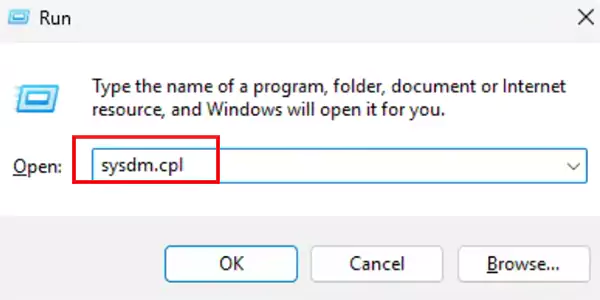
- Press Windows + R.
- Type sysdm.cpl and hit Enter.
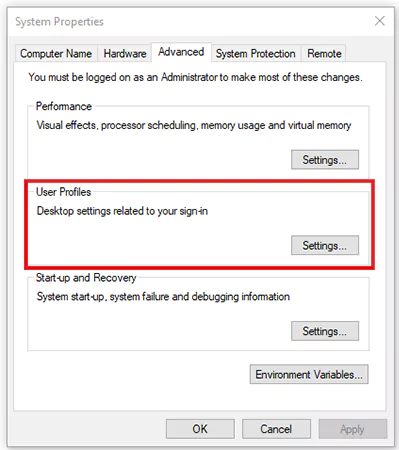
- Now, go to the Advanced tab.
- Here, under User Profiles, click on Settings.
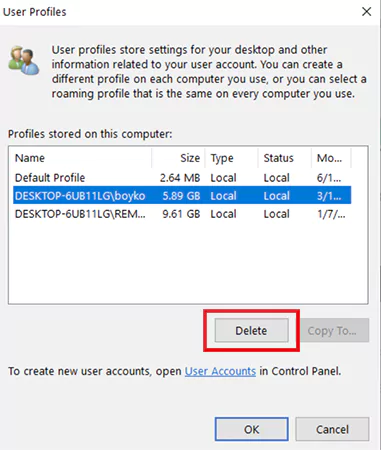
- Select the profile and click Delete.
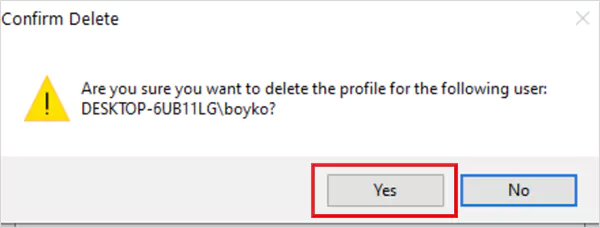
- Finally, click Yes to confirm.
Option 2: Use Control Panel
- Open the Control Panel on your computer.
- Then, go to System.
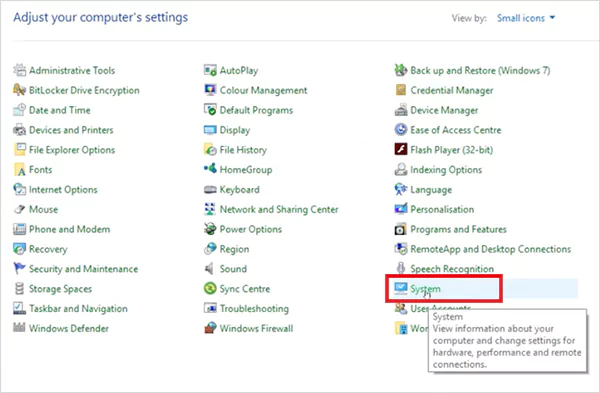
- Click on Advanced system settings.
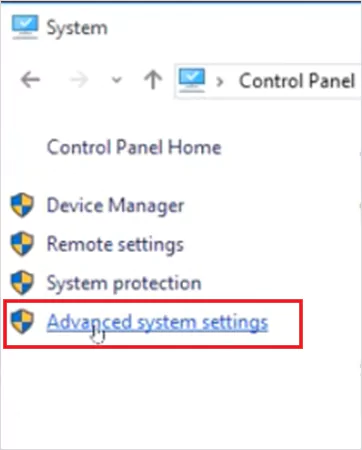
- Now, similar to the above option, go to User Profiles > Settings > Select the profile > Delete.
Both options lead to the same Window. The Control Panel does not have a separate delete option on Windows 10 Home or Pro; it just redirects you to the advanced system settings.
Method 2: Delete User Profile from Windows Settings
Before you start deleting the user profile from the registry, you have another option. This method removes the entire user account along with its profile. Here’s how to remove a user from Windows 10:
- Open Settings by pressing Windows + I.
- Go to Accounts > Family & others.
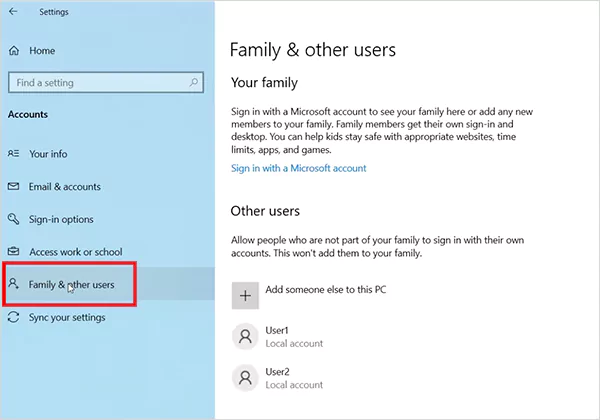
- Now, select the user you want to delete and click on Remove.
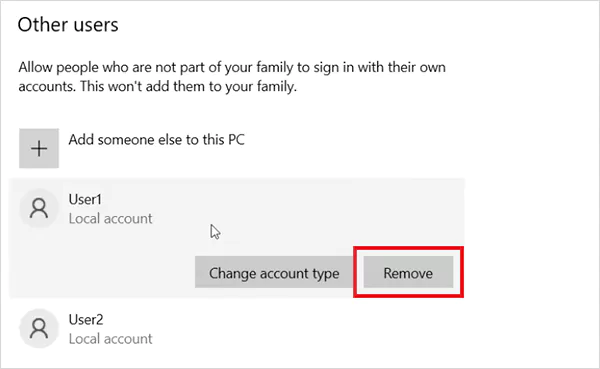
- Choose Delete account and data to confirm.
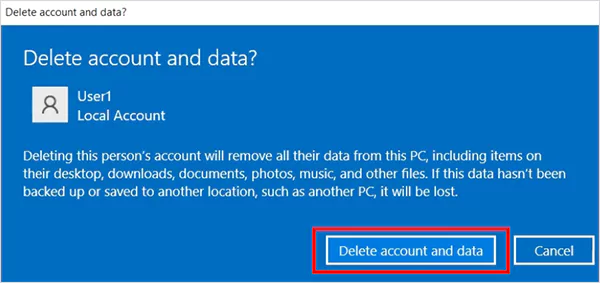
Use this when you no longer need the user account. This is not just profile cleanup, but a complete account removal.
Method 3: Remove User Profile from Registry (Advanced Option)
Use the Regedit delete user profile option only when other methods fail. This is for those situations where profiles are corrupted, stuck, or partially deleted. Here’s how to remove the profile registry:
- Press Windows + R and run “regedit”.
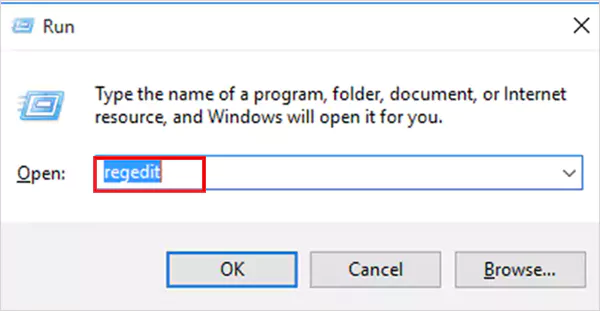
- Then, go to:
HKEY_LOCAL_MACHINE\SOFTWARE\Microsoft\Windows NT\CurrentVersion\ProfileList.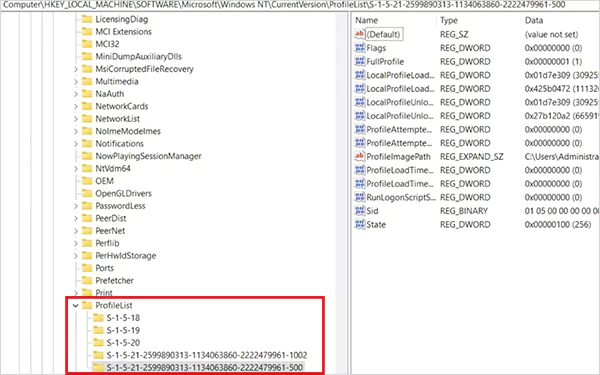
- Now, find the correct profile using the ProfileImagePath value (like C:\Users\Username).
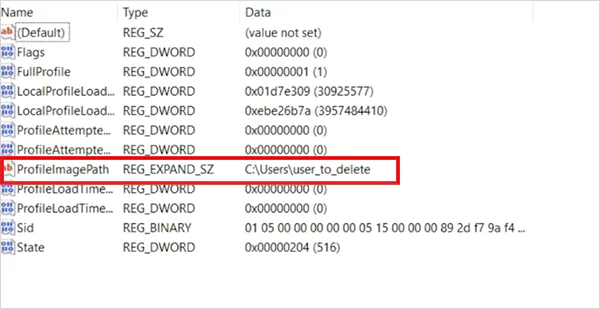
- Right-click the matching SID and delete it.
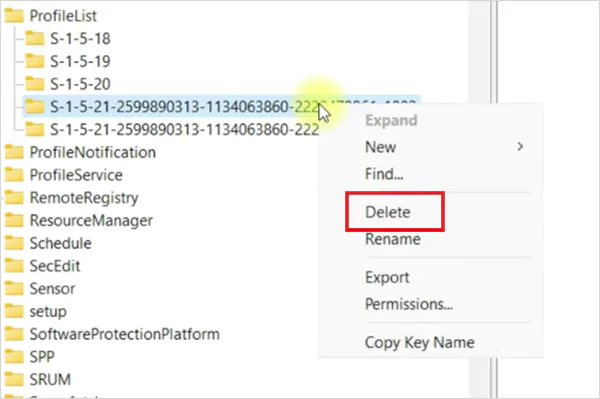
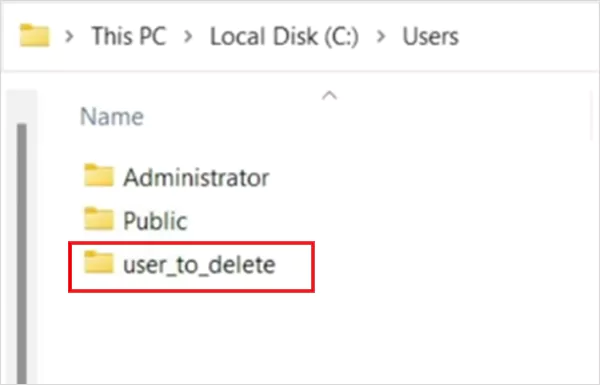
- Next, you need to open File Explorer and go to C:\Users.
- Find the folder linked to the deleted profile.
- Finally, right-click and delete it as well.
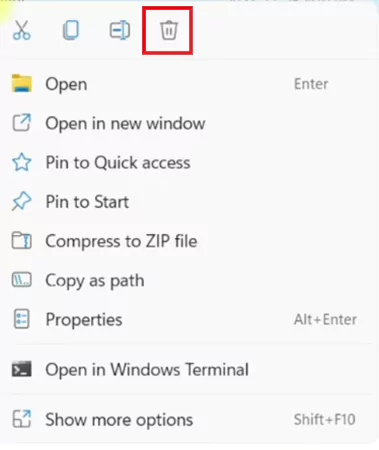
Both deleting the registry and deleting the folder are crucial. Otherwise, Windows still keeps the registry reference, which can cause errors.
Important Things to Check Before You Delete Windows 10 Profile
This is the part where most people mess up. If you skip this, you risk losing data or breaking the system. Here’s what you need to know before you delete a user profile in Windows 10:
- You need an administrator account to delete any profile. It is a non-negotiable requirement.
- Make sure the profile is not active. If the user is logged in, Windows locks the profile. Log them out, restart the PC, and use Safe Mode if needed.
- Backup more than just files. A profile also stores other important data, like browser data and sessions, saved Wi-Fi, and login information, and hidden app settings. Once deleted, all of this will be gone permanently.
- Identify the correct profile using the folder name in C:\Users and ProfileImagePath in the registry. Deleting the wrong one can mess up another user’s setup.
- Profile may keep coming back if you do not delete the match SID from the Registry Editor.
Furthermore, if you are deleting the profile in a work environment, the risk is higher. Make sure all data is synced to the server before deleting.
Why You Might Need to Remove a Profile from Windows 10?
Nobody wants to delete profiles randomly. There is always a reason behind it. Here are the real situations where it actually makes sense:
- Corrupted Profile: If you see login errors, missing files, or Windows losing a temporary profile, it might be corrupted. The best solution is to delete it and create a fresh one.
- Storage Cleanup: Old profiles sit inside your system and take up space. On shared systems, this builds up fast and slows everything down.
- Performance Issues: Too many profiles can increase login time and reduce overall system performance, especially on older machines.
- Security and Privacy: Old profiles still hold saved passwords, cache data, and personal files. Removing them ensures no leftover or sensitive data.
- Resetting a User Environment: Sometimes apps break, settings get messy, or things just stop working. Instead of fixing everything one by one, removing the profile gives you a clean start.
- IT or Shared System Management: In offices or shared PCs, removing inactive profiles is standard practice. It keeps the system stable, clean, and easier to manage.
Conclusion
If you learnt how to delete user profile in Windows 10 then let me tell you deleting a user profile is not just about removing a folder. You are removing a complete user setup linked to the system. So, if you stick to built-in methods, everything will be clean and stable.
And if you jump into manual or registry changes without clarity, that is where you start facing issues. Follow the simple approach: start safe and go advanced only if required.
Frequently Asked Questions
What is the safest way to delete a user profile in Windows 10?
Where are user profiles stored in Windows 10?
Windows user profiles are stored in the C:\ folder, with each user having a separate directory.
What happens after you delete a user profile in Windows 10?
Windows removes that user’s personal settings, files, and configurations from the system. If the user logs in again, a fresh profile is created from scratch.
How to find the correct user profile location in the registry?
Check each SID under ProfileList and match its ProfileImagePath (like C:\Users\Username) to identify the correct user profile.
Why can’t I delete a user profile in Windows 10?
Most of the time, it is because the profile is currently in use, or you don’t have admin permissions on the system.
Related Posts

8 Best AI Presentation Makers for Business-Ready Slides
Making a presentation doesn’t just mean designing slides. It’s about defining a clear structure, using defined logic, useful visuals, and…

Queue Management Software Troubleshooting Guide: 8 Common Faults and Fixes
The long wait times and ineffective management of customer queues can have a significant impact on customer satisfaction and business…

How to Use Similarweb Website Traffic Data for Competitor Research
Competitor research without traffic data is guesswork. You can guess who your rivals are, guess how big they are, guess…

Choosing the Right Hosting Model for Scalable Digital Platforms
The performance of digital business is directly related to website speed, uptime, and scalability. Slow page performance has a negative…

How Data-Driven Performance Tools Are Transforming Employee Recognition in Tech Companies
“People work for money but go the extra mile for recognition, praise, and rewards.” — Dale Carnegie (Writer & Teacher)…

Why Businesses Struggle to Collect Reliable Data from the Web
Almost every company that depends on data runs into the same problem: although they can find the data they need,…

Why Financial Data Recovery Matters for Businesses
Financial data supports every part of a business, directly affecting cash flow, payroll, tax reports, audits, customer billing, and daily…

CMMC Compliance Is Coming for Manufacturers. Here Is What You Need to Do
“Cybersecurity is much more than a matter of IT.” — Stephane Nappo (Cybersecurity Professional) For manufacturers working within the defense…

How Data-Based Tools Influence Learning Performance
Learning has transformed in the modern age with the integration of new technologies to help students and professionals prosper in…