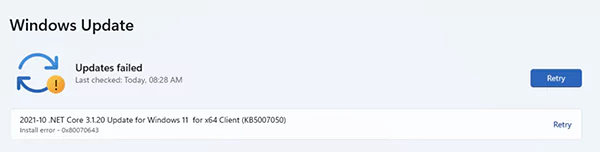
Windows Update keeps your Windows system secure, fast, and packed with the latest features. But let’s be honest, sometimes Windows update fails and gets stuck at 0%, 99%, or throws some random error code like 0x80070643.
Frustrating, right? I have dealt with this more times than I would like to admit. The good news is, most of these issues are not as complicated as they look.
In this guide, I will explain how to fix Windows update errors through simple and proven fixes that actually work to get your Windows updates working again.
Quick Look: How to Fix Windows Update Problems?
If you are in a hurry, start here to fix the update error:
Restart Your PC
Run the Windows Update Troubleshooter
Fix Internet Issues and Disable VPN
Free Up Storage Space
Disconnect External Devices
Restart Windows Update Services
Clear Windows Update Cache
Repair System Files (SFC + DISM)
Fix Problematic Drivers
Install the Update Manually
Why Windows Update Keeps Failing?
Why won’t Windows update? Well, Windows Update failures usually look random, but they are not. In most cases, the problem falls into two buckets:
If you understand this split, troubleshooting becomes much faster. So, let’s try to understand why your PC won’t install Windows updates:
Not Enough Storage Space: Updates are not just downloads. They also need space to unpack and install. If your C drive is almost full, the update can fail midway.
Corrupted Update or System Files: If Windows tries to install broken files, it either crashes or keeps retrying the same failed update.
Unstable Internet Connection: This is one of the key causes of many problems, like update issues and DNS errors. Even small interruptions can corrupt downloads.
Too Many Updates Queued Together: Windows sometimes stacks multiple updates. If one fails, it blocks the rest.
Conflicts with Hardware or External Devices: USB drives, printers, or external disks can interfere with driver validation during updates.
Broken Windows Update Services: These background services handle downloading and installing updates. If they get stuck, Windows update fails.
Outdated or Incompatible Drivers: Your system may block updates if a driver could cause system crashes after installation.
It is very important to learn how to get rid of Windows update errors. Skipping updates increases your risk of security vulnerabilities, malware exposure, system crashes, and compatibility issues with apps.
How to Fix Windows Update Errors?
Windows update not working? Don’t panic or jump to factory resetting your PC or reinstalling Windows. Here are the 10 proven solutions you need to try to fix Windows update problems:
Restart Your PC
Yes, this may sound pretty obvious. Still, it solves more issues than most advanced fixes. It clears stuck update processes, completes pending installations, and resets background services.
So, just reboot your computer, and try updating again. If this works, you just saved yourself 30 minutes.
Run the Windows Update Troubleshooter
Windows Update Troubleshooter is Microsoft’s own repair tool, and it is more useful than people think. It automatically checks broken update services, missing or corrupted files, and incorrect settings.
Here’s how to fix Windows update error using this tool:
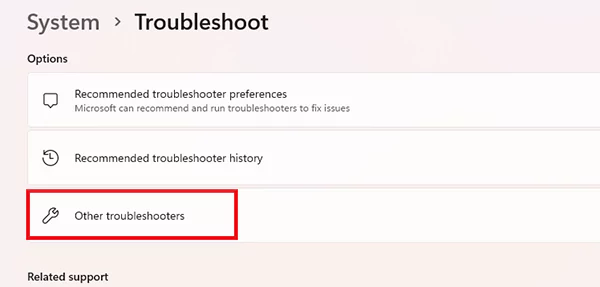
Go to Settings > System > Troubleshoot > Other troubleshooters.
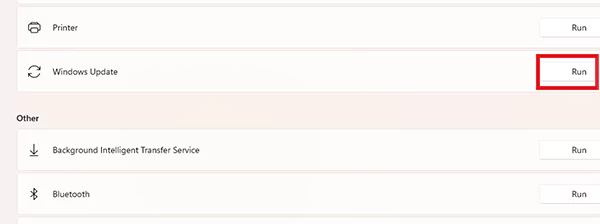
Now, next to Windows Update, click on Run.
Let it complete, then restart your PC and try updating again.
This is always recommended as the first official solution by Microsoft when your Windows update fails.
Fix Internet Issues and Disable VPN
Windows updates need a stable connection. Even a small interruption can corrupt downloads and cause Windows 10 or Windows 11 installation errors. VPNs make it worse by blocking and rerouting servers.
Use stable Wi-Fi or wired internet, turn off VPN, and avoid hotspots for large updates. If your update is stuck at downloading, this will likely fix the issue.
Free Up Storage Space
Focus on areas that free up real and usable system space. Here’s what you should do:
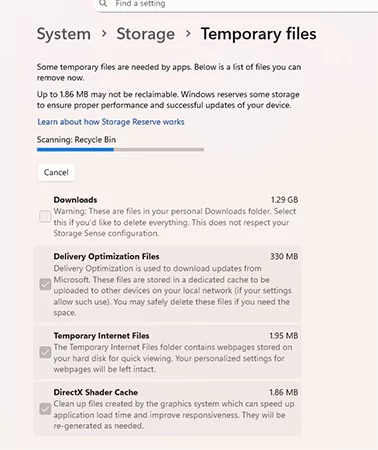
Go toSettings > Storage and delete temporary files. This alone can free up several GB.
Empty recycle bin.
Remove unused apps and games.
Check the downloads folder and delete old installers, videos, or duplicate files.
It is important to keep at least 15-20 GB of space free.
Disconnect External Devices
This is often ignored, but important to fix the Windows update not working issue. Unplug everything except keyboard and mouse, restart your PC, and try the update again. This is a common troubleshooting step that you should definitely try.
Restart Windows Update Services
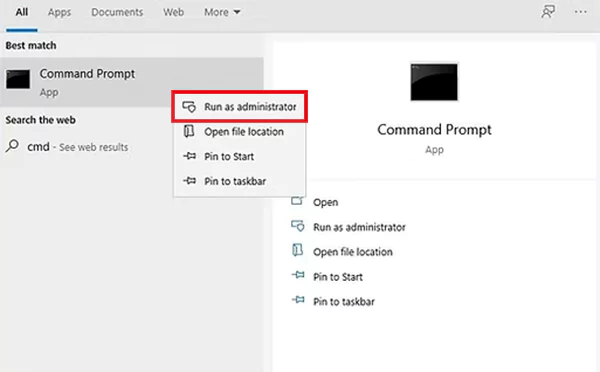
If update services are stuck, nothing will work. You need to restart them using Command Prompt:
Click on Command Prompt and choose Run as administrator.
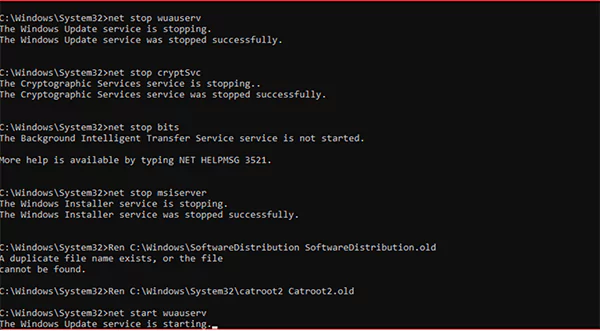
Now type the following commands one by one:
net stop wuauserv net stop cryptSvc net stop bits net stop missever ren C:\Windows\SoftwareDistribution SoftwareDistribution.old ren C:\Windows\System32\catroot2 catroot2.old net start wuauserv net start cryptSvc net start bits net start missever
This resets the connection between your system and the update servers.
Clear Windows Update Cache
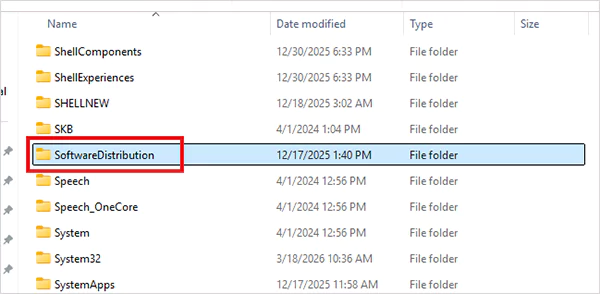
If updates keep failing again and again, try this fix. Windows stores update files in a folder called SoftwareDistribution. If those files get corrupted, every new update fails too. Clearing the cache forces Windows to download fresh files.
Just access your FileExplorer.
Go to C: Drive, select Windows, and click on the SoftwareDistribution folder.
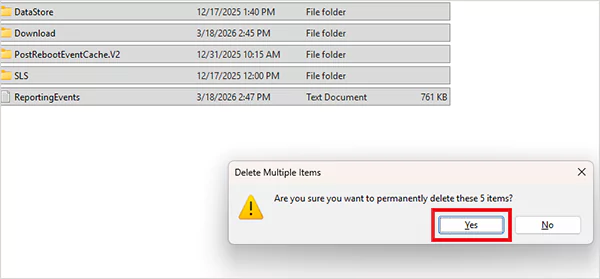
Now, press Ctrl + A, then Shift + Delete. Confirm Yes in the pop-up dialog boxto remove everything.
After this, Windows rebuilds the cache automatically. This is one of the most reliable fixes for repeated Windows update failures.
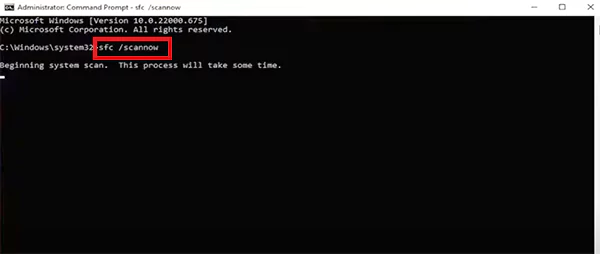
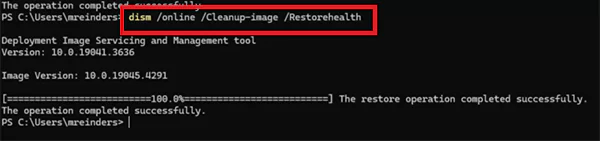
Repair System Files (SFC + DISM)
If core system files are damaged, no updates will install properly. That’s where these tools come in:
Drivers can silently block updates. If a driver is outdated or incompatible, Windows may stop the update to avoid crashes. So, open your Device Manager, look for warning icons, and update or remove problematic drivers.
Install the Update Manually
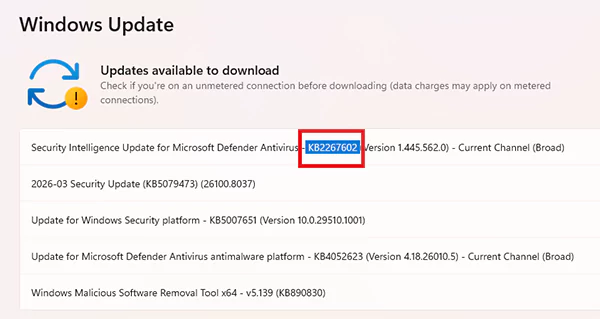
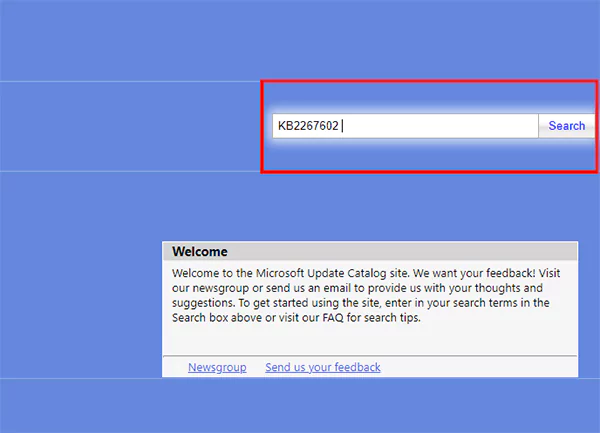
If nothing works for you, it is time to skip the automatic process. You can install updates manually using the Microsoft Update Catalog.
Go to Windows Update settings, and note the KB number.
Search the KB on Microsoft Update Catalog.
Finally, click on the download button and install it manually.
This bypasses broken update services, cache issues, and download failures. It is a reliable last-step solution before considering a system repair or contacting customer support.
Quick Checks Before You Fix Windows Update Install Errors
Windows update failed? A lot of update failures are caused by small and ignored setup issues. Before trying any advanced fixes, do this, and you might not need anything else.
Check Power: Windows may pause updates to avoid system damage in low battery conditions. Plug in your charger before trying.
Close Heavy Background Apps: Editing apps or games can slow downloads and interrupt installation. Close everything unnecessary before updating.
Fix Date and Time Settings: This is underrated but critical. Wrong system time may lead to a security mismatch with Microsoft servers. Turn on “Set time automatically” in settings.
Check if Microsoft Servers are the Issue: Sometimes, it is not your fault. Check if the servers are down in your region, wait a few hours, and retry.
If these basic things are off, your update will fail no matter what fix you try. So, fix these first and then move to the following solutions.
What are the Most Common Windows Update Error Codes?
Windows error codes look complex, but they usually point to just three core problems: corrupted files, network issues, and service failures. Let’s take a quick look at some of the common Windows update error codes and what they mean:
Most Windows update errors look technical. But instead of memorizing codes, ask if it is a file issue (run SFC/DISM), a network issue (fix the internet and VPN), or a service issue (restart services or clear cache).
There is no need to overcomplicate troubleshooting. If you follow the right order, you will be able to fix most issues without stress and crack How to fix Windows update error. And if nothing works, go for the manual update process.
Frequently Asked Questions
What is Windows Update Error?
It is a failure that happens when Windows can’t download or install updates due to file issues, network issues, or service issues.
Why is my Windows Update showing an error?
It happens due to poor internet, corrupted files, low storage, or broken update services.
How to fix the Windows 10 update error?
Start by restarting your PC, checking your internet connection, freeing up space, and running the Windows Update Troubleshooter. If needed, reset the update cache or repair system files.
How long should a Windows update take?
It depends on update size and internet speed, but usually takes 10 minutes to 1 hour.
Why can’t my computer check for updates?
This usually happens due to network issues, disabled update services, or incorrect system settings like date and time.

 Upasna Deewan