
Yes, Apple’s privacy tools allow you to permanently delete your Apple Account and the data associated with it.
How to Delete iCloud Account? Complete Guide for 2026
 Saipansab Nadaf
Updated on: Apr 01, 2026
Table of Contents
- What to Do Before You Delete iCloud Accounts?
- How to Delete iCloud Account Permanently?
- How Do You Deactivate iCloud Accounts?
- How to Sign Out of iCloud on Your Devices?
- How Do You Cancel iCloud+ Plans?
- What Happens After You Delete or Remove an iCloud/Apple Account?
- Final Thoughts
- Frequently Asked Questions
Thinking, how can I delete iCloud or Apple account? It is not just about removing an account; it is about taking full control of your data.
Apple allows you to permanently delete your account anytime, but once it is gone, there is no way back. Before learning how to delete iCloud accounts, you should know that all your photos, purchases, and data will be erased.
If you are switching away from Apple or just cleaning up an old account to reduce digital footprints and protect your privacy online. I will guide you on how to do it the right way.
Key Takeaways
- Always back up your data first, and sign out of all devices before deleting your Apple Account.
- You can delete or deactivate your iCloud account by visiting the Data and Privacy page of Apple and selecting the Delete or Deactivate option.
- Deactivation is a safer middle ground if you are unsure.
- Signing out removes data only from the device, not from iCloud.
- Once deleted, you lose access to all Apple services, purchases, and data with no recovery option.
What to Do Before You Delete iCloud Accounts?
Before you delete your iCloud account, slow down for a minute. This is a one-way decision. Once done, there is no recovery possible (not even with the best data recovery software).
- Start by downloading and backing up the data stored in iCloud. Make a copy of everything important, like photos, contacts, files, and app data. If it is not backed up somewhere else, assume it will be lost.
- Next, clean up your account. Sign out of iCloud on all devices to avoid lock or access issues later.
- Remove devices from your Apple account, especially if you plan to sell or factory reset your iPhone or other devices.
- Download apps, music, books, or anything you don’t have offline.
- Cancel active subscriptions like iCloud+, Apple Music, or App Store services.
- End your AppleCare plan if it is active, because you can’t delete your account with it.
- Clear any pending Apple Pay Later payments.
Finally, save anything else linked to your Apple Account that you might need later.
How to Delete iCloud Account Permanently?
Now, how do you remove an iCloud account? Here’s what you need to understand: you can’t delete iCloud separately. You delete your Apple Account, and iCloud goes with it.
Here’s how to delete iCloud account:
- Go to Apple’s Data and Privacy Page.
- Sign in to your Apple Account.
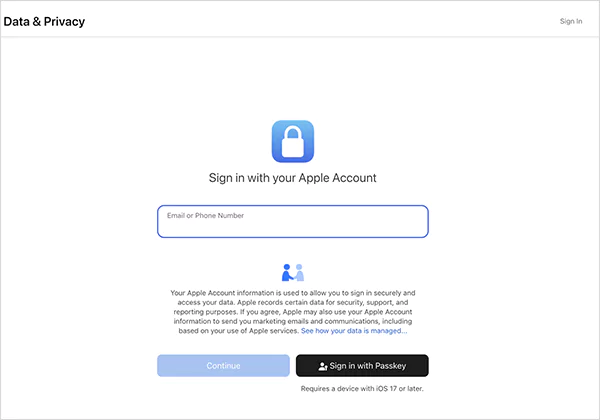
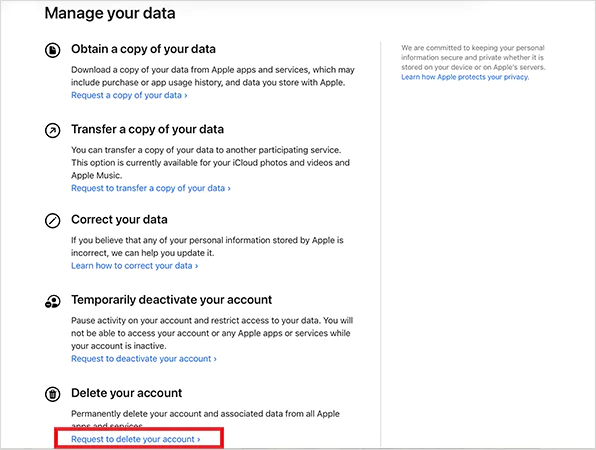
- Then, scroll down and select “ Request to delete your account”.
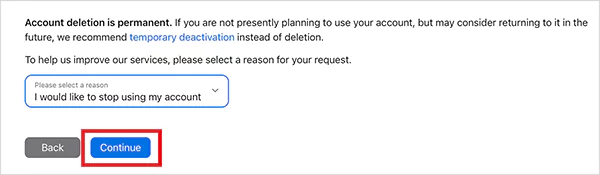
- Next, choose a reason and continue.
- Follow the on-screen steps and confirm.
After this, Apple will verify your request. You will also get a unique access code. Keep it safe because this is your only way to cancel the request if you change your mind during processing.
The deletion process usually takes a few days, sometimes up to a week. Once it is done, your account is permanently gone. So, if you are even slightly unsure, do not rush into this.
How Do You Deactivate iCloud Accounts?
If deleting feels too extreme or you are not sure, deactivation is the smarter option. It allows you to step away without losing your data. Here’s how it works:
- Go to Apple’s Data and Privacy Page.
- Sign in and choose “Request to deactivate your account” (if available in your region).
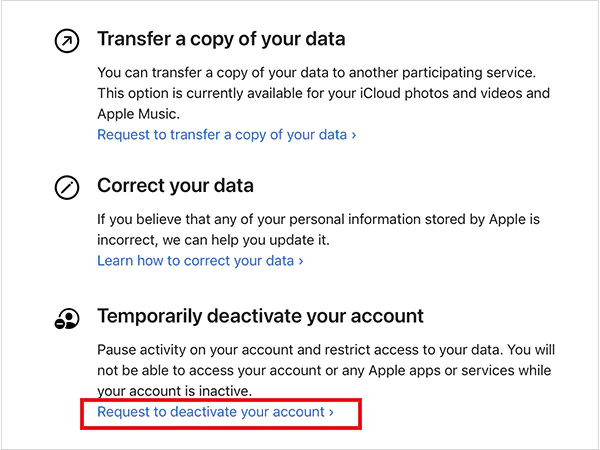
- Then, just follow the steps to confirm your choice.
You will receive an access code that you will need to reactivate your account later. Once deactivated, your account is paused. Your data stays safe, but you can’t access any Apple service until you reactivate.
How to Sign Out of iCloud on Your Devices?
If your goal is just to stop using iCloud on a device, signing out is usually enough. You don’t need to delete your account.
- On iPhone or iPad:
- Open Settings and tap on your name.
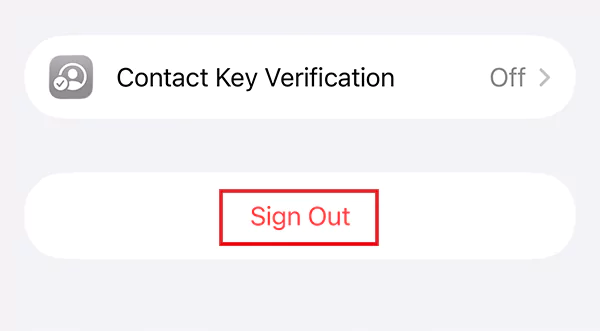
- Scroll down and tap Sign Out.
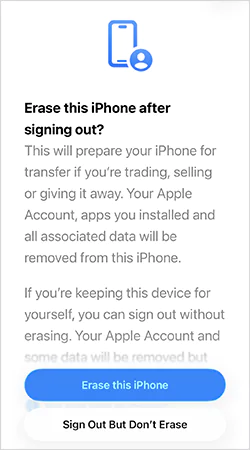
- Next, choose whether to keep a copy of your data on the device.
- Enter your password and confirm.
- On Mac:
- Go to System Settings.
- Then, click on your name.
- Here, scroll down and select Sign Out.

- Choose what data you want to keep locally and confirm.
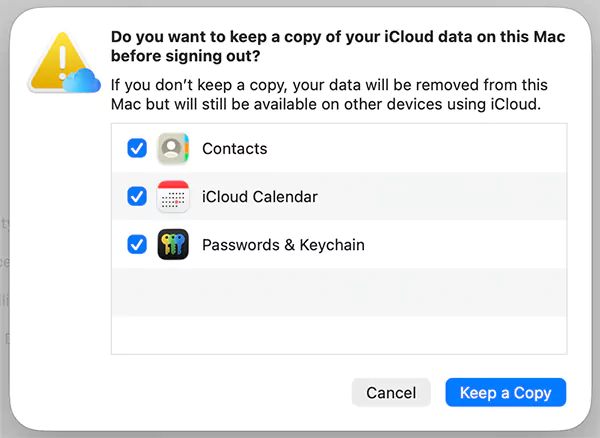
For iCloud users on Windows, just open it on a browser or the iCloud app for Windows and click on Sign Out.
When you sign out, your iCloud data is removed from that device. But it remains safely stored in iCloud. You will also be signed out of services like App Store, iMessage, and FaceTime.
How Do You Cancel iCloud+ Plans?
Cancelling or downgrading iCloud+ is simple, and it only affects your storage plan, not your Apple Account. Here’s how to do it:
- Open Settings on your iPhone or iPad.
- Tap on your Name.
- Then, go to Subscriptions.
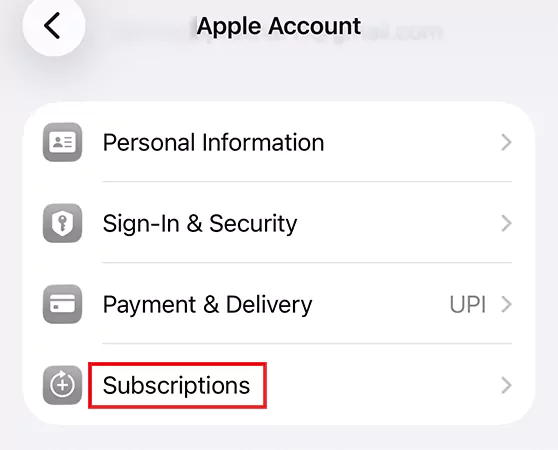
- Select iCloud+ and tap on Cancel Subscription.
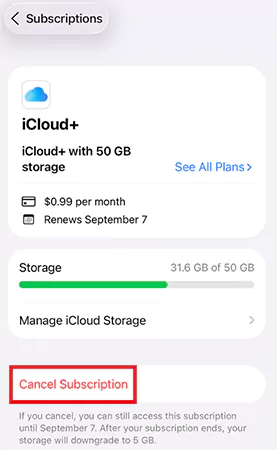
Your plan will stay active until the end of the billing cycle. After that, it automatically downgrades to the free 5GB plan. You can also switch to a lower plan instead of cancelling. Just tap on “See All Plans” and choose a smaller storage option.

If your data is more than your plan, syncing will stop. So, clean up storage or download important files before cancelling. Do not wait until syncing breaks.
What Happens After You Delete or Remove an iCloud/Apple Account?
Now that you know how to delete an iCloud account, it is crucial to know what it does. It is not like logging out. It is a complete wipe. Here’s what gets deleted:
- All photos, videos, documents, and backups are stored in iCloud.
- Messages from iMessage, emails from iCloud Mail, and FaceTime data.
- App Store purchases, subscriptions, and saved content.
- Access to services like iCloud, Apple Pay, Apple Books, and Find My.
You also lose access to your Apple account forever and the ability to recover any data. Plus, if you did not sign out earlier, your device can get stuck due to Activation Lock. That can be a real problem.
Apple deletes your personal data, but may retain transaction records for legal and financial reasons, and a secure version of your email for compliance. However, this is not used for tracking. It is just for legal proof.
Final Thoughts
Deleting your iCloud account is not a small step. It is a full exit from the Apple ecosystem. So, if you are just switching devices, simply sign out. If you are not sure and just want a break, deactivate your account instead. You should delete your account only when you are completely done and know you won’t need anything again.
Frequently Asked Questions
Can you permanently delete iCloud accounts?
How do I permanently delete an iCloud account?
Go to Apple’s Data and Privacy page, sign in, and choose “Request to delete your account”. Then, follow the on-screen prompts to confirm your request. Apple will process the request and delete your data.
How do I remove the previous owner’s iCloud account from my iPhone?
You need to ask the previous owner to sign out of iCloud from the device or remove it from their account remotely. Otherwise, you won’t be able to use the device due to Activation Lock fully.
Can I delete iCloud without deleting my Apple Account?
No, iCloud is part of your Apple Account. If you want to delete it permanently, you must delete the entire account.
What are the common mistakes to avoid before deleting iCloud?
Not backing up important data, forgetting to sign out of all devices, and ignoring active subscriptions or payments are some of the common mistakes that you should avoid.
Related Posts

8 Best AI Presentation Makers for Business-Ready Slides
Making a presentation doesn’t just mean designing slides. It’s about defining a clear structure, using defined logic, useful visuals, and…

Queue Management Software Troubleshooting Guide: 8 Common Faults and Fixes
The long wait times and ineffective management of customer queues can have a significant impact on customer satisfaction and business…

How to Use Similarweb Website Traffic Data for Competitor Research
Competitor research without traffic data is guesswork. You can guess who your rivals are, guess how big they are, guess…

Choosing the Right Hosting Model for Scalable Digital Platforms
The performance of digital business is directly related to website speed, uptime, and scalability. Slow page performance has a negative…

How Data-Driven Performance Tools Are Transforming Employee Recognition in Tech Companies
“People work for money but go the extra mile for recognition, praise, and rewards.” — Dale Carnegie (Writer & Teacher)…

Why Businesses Struggle to Collect Reliable Data from the Web
Almost every company that depends on data runs into the same problem: although they can find the data they need,…

Why Financial Data Recovery Matters for Businesses
Financial data supports every part of a business, directly affecting cash flow, payroll, tax reports, audits, customer billing, and daily…

CMMC Compliance Is Coming for Manufacturers. Here Is What You Need to Do
“Cybersecurity is much more than a matter of IT.” — Stephane Nappo (Cybersecurity Professional) For manufacturers working within the defense…

How Data-Based Tools Influence Learning Performance
Learning has transformed in the modern age with the integration of new technologies to help students and professionals prosper in…