
Open Settings > Apps > Safari > Clear History and Website Data > Confirm. If you use any other browser, open that app and delete browsing history.
How to Clear Cookies on iPhone: Quick Steps for Safari and Chrome
 Upasna Deewan
Updated on: Feb 27, 2026
Web cache and cookies make browsing faster by saving logins, settings, and site data. But over time, they can slow pages, trigger login errors, and track more than you want.
Knowing how to clear cookies on iPhone can help you fix broken websites, boost speed, and protect privacy. In this guide, I will walk you through simple steps to clear cache and cookies on iPhone browsers.
You will also learn the right time to clear them, the steps to clean app cache without losing important data, and tips to improve the overall performance of your iPhone.
Key Takeaways: Clear Cache and Cookies on iPhone
- Clear Safari Cache and Cookies: Go to Settings > Apps > Safari > Clear History and Website Data.
- Clear Chrome Cache and Cookies: Go to Chrome app > More (three dots) > Delete Browsing Data > Select the Data and confirm.
- Clear Cache and Cookies of iPhone Apps: look for an option inside the app or just offload/reinstall them to remove stored files.
How to Clear Cookies on iPhone (Safari)?
Safari stores most of your website data, so this is usually where problems start. If sites won’t load, keep logging you out, or show old pages, clearing cache and cookies helps.
Here’s how to clear browser cache on iPhone:
- Open Settings on your iPhone.
- Scroll down and go to Apps > Safari.
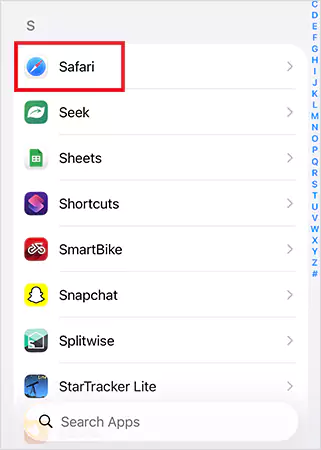
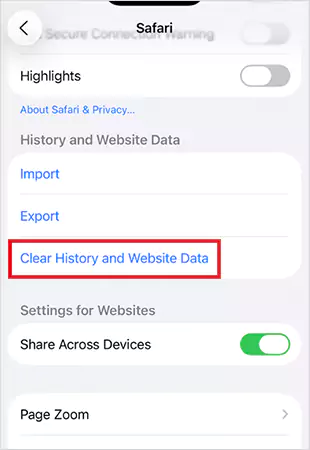
- Next, tap Clear History and Website Data.
- Choose All history and tap Clear History to confirm your choice.
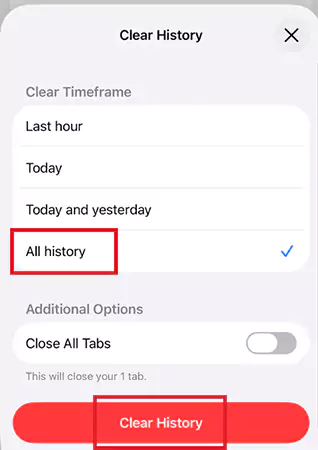
This removes all stored cookies and signs you out of most websites.
Now, let’s see how to delete cookies on iPhone for one site only:
- Go to Settings > Apps > Safari > Advanced > Website Data.
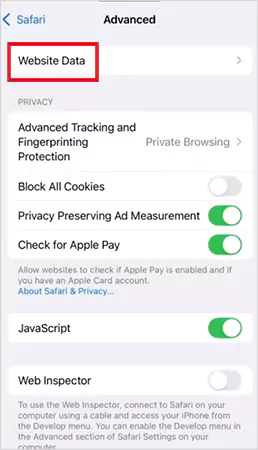
- Find the website you are looking for.
- Now, just swipe left and tap Delete.
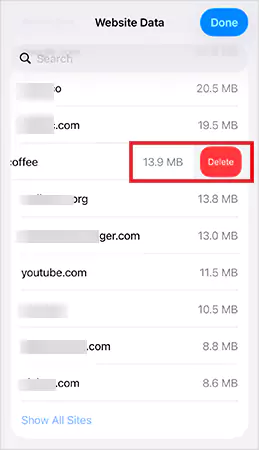
Use this if just one website is causing problems. Your other logins and cache data remain safe.
How to Delete Cookies on iPhone (Google Chrome)?
If you also have Google Chrome on your iPhone, it keeps its own cache and cookies. Cleaning Safari won’t touch Chrome, so you have to do it separately.
Here’s how to clear cache on iPad or iPhone (Chrome):
- Open the Chrome app.
- Tap the three dots at the bottom.

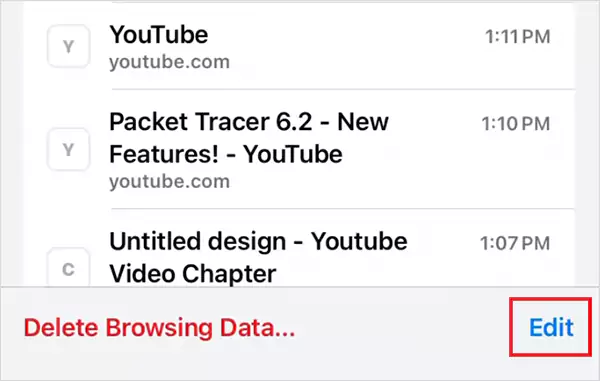
- Select Delete Browsing History.
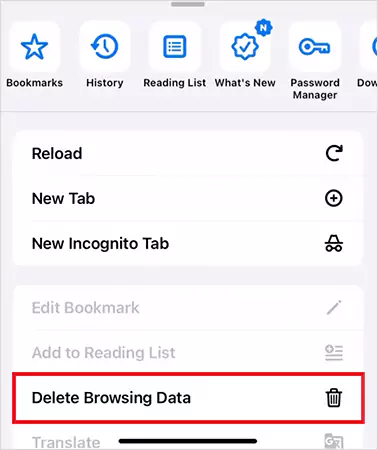
- Now, tap Edit and choose a time range.
- Select “Cookies, Site Data”, “Cached Images and Files”, and any other type of data you want to delete. The, tap Delete Browsing Data.
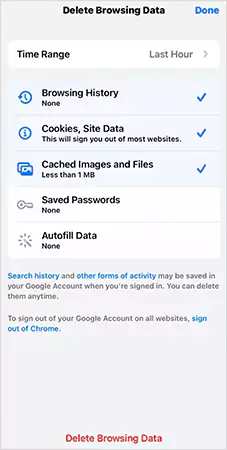
- Tap Delete Browsing Data again to confirm.

If you use any other browser, you need to follow your browser-specific steps to clear cookies on your iPhone.
Quick Tip: If a site works in incognito but not in normal mode, cookies are likely the problem. Clear Chrome cache and cookies, and try to reload the page.
How to Clear Cache on iPhone Apps?
iPhone does not have a single “clear all app cache” button like Android. You have to handle it for individual apps. Here are your options to clear cache and cookies on iPhone apps:
Option 1: Clear Cache Inside the App
Some apps like Instagram, Spotify, or browsers have a built-in clear cache setting. So, check the app’s settings first.
Option 2: Offload the App
It is the best way to free space without losing data. This move also removes temporary files but keeps you logged in and your data.
- Go to Settings > General > iPhone Storage.
- Locate the app and tap on it.
- Tap Offload App.
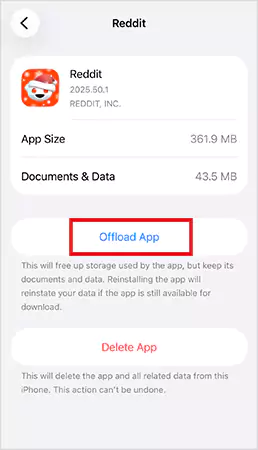
Option 3: Delete and Reinstall
This is the most effective method. This deletes cache files and often fixes performance issues.
- Press and hold the app.
- Tap Delete App.

- Wait for a few minutes, and reinstall it from the App Store.
If the problem is a website, clear the browser cache and cookies. If the problem is an app, try to reinstall or offload it.
When Should You Clear Cache and Cookies on iPhone?
You don’t need to do this daily. Clear data only when something breaks, or you need a privacy reset. Here are some common scenarios when you may need to clear cache and cookies:
- The website won’t load properly.
- You keep getting logged out.
- Pages on your browser show old information, even after refreshing.
- Facing HTTP status code errors like 304 Status Code and Error 400 Bad Request.
- A site works in private mode but not in normal mode.
- You want better privacy on shared devices.
And before you clear browsing data, keep in mind that it removes stored files, permissions, and tracking info.
How to Clean Up an iPhone for Better Performance?
If your iPhone feels slow, cookies are only a small part of the problem. Storage and heavy apps are the main problem. Here are some cleanup tips to improve performance without factory resetting an iPhone:
- Go to Settings > General > iPhone Storage and check what’s eating your device storage. iPhone may suggest you review large attachments and offload unused apps.
- Remove or offload unused apps to gain storage without losing data.
- Clearing browsing history, cache, and cookies removes temporary files and can refresh performance.
- The media usually takes up the most space on iPhones. Deleted duplicate photos and long videos you don’t need, and keep old photos in iCloud.
- iPhones slow down when storage is almost full. Try to keep at least 1 GB free.
Following these practices helps iOS run smoothly and prevents random lag.
Conclusion
Through this blog, I explained how to clear cookies on iPhone. So, clearing cache and cookies on iPhone is a quick and simple fix. It helps with login issues, broken websites, and privacy. I hope you can now easily clear cookies on iPhones.
However, real speed comes from good storage habits. Keep space free, remove heavy files, and clean browser data occasionally. This will keep your iPhone fast, stable, and easy to manage without constant factory resets.
Frequently Asked Questions
How do I clear all cookies on my iPhone?
Does clearing the cache make the iPhone faster?
Yes, cleaning the cache frees temporary files and can fix slow websites or glitchy apps.
How often should I clear cache and cookies on iPhone?
Clear cookies only when websites act strangely. For general maintenance, once a month is enough. Cleaning too often just logs you out and does not improve speed much.
Where are cookie settings on iPhone?
You can find cookie settings by going to Settings > Safari. Chrome and other browsers manage cookies inside their own apps.
Is it better to clear the cache or cookies?
If you are facing website issues or login errors, clear cookies. If slow loading or outdated pages are your problem, clear the cache. For most people, clearing both together works well.
Related Posts
How to See Recently Deleted Apps on iPhone and Recover Them Easily?
Deleted an app on your iPhone and now can’t remember what it was? You are definitely not the only one.…
The Technical Blueprint for Safe Outsourced Infrastructure
In recent times, it seems as if more and more businesses from various industries have turned to infrastructure outsourcing. This…
Simple Ways to Clean Audio Data for Better Model Performance
Most of the machine learning teams do not struggle because their processing systems are not capable—they struggle because their audio…

How to Check for Malware on Mac in 2026?
Can Mac computers get viruses? Macs are not as safe as people think. Yes, macOS has built-in tools like XProtect…

10 Best Lightroom Preset Alternatives in 2026
“Photography is the story I fail to put into words.” — Destin Sparks (Landscape Photographer) For years, Lightroom presets have…

Elementor Hosting vs SiteGround: Which is Faster in 2026?
A website’s performance is mainly determined by its Speed. Even a slight delay can reduce conversions by a significant margin.…

10 Best Visual UGC Platforms for eCommerce Brands in 2026
“People influence people. Nothing influences people more than a recommendation from a trusted friend.” — Mark Zuckerberg (Meta CEO) That…

The Data Models Powering the Next Creative Revolution in Video Generation
Artificial intelligence has evolved from a mere tool to the cornerstone of advancements in the new era. Over the years,…

Solar Software Companies: How Platforms Improve Cross Team Collaboration
“If everyone is moving forward together, then success takes care of itself.” — Henry Ford (Industrialist & Business Magnate) Handoffs…