
Yes, Macs can get viruses and other types of malware. While macOS has built-in protection, it is not immune to threats, especially those that rely on user actions.
How to Check for Malware on Mac in 2026?
 Upasna Deewan
Updated on: Apr 08, 2026
Can Mac computers get viruses? Macs are not as safe as people think. Yes, macOS has built-in tools like XProtect and System Integrity Protection that automatically detect and block known malware, but it doesn’t mean your system is untouchable.
In fact, Mac malware incidents rose by 73% in 2025, showing attackers are getting smarter. And today’s threats don’t look obvious.
This makes it even more important to learn how to check for Malware on Mac and protect your online privacy in 2026. In this guide, you will learn practical and proven ways to find, scan, and remove malware on Mac.
Key Takeaways: How to Scan for Malware on Mac?
- Slow performance, unknown apps, and browser issues together usually signal a problem. Look for patterns, not isolated problems.
- Use Activity Monitor, check installed apps, login items, and inspect browser extensions to find malware on Mac.
- Deleting the suspicious app is not enough. You must also clean login items and extensions. Otherwise, it will come back.
What are the Signs Your Mac Might Have Malware?
Before you learn how to check for malware on MacBooks, here are some common signs you need to look for:
- Your Mac Suddenly Slows Down: If basic tasks feel heavy or your fan is constantly loud, something is likely running in the background and eating CPU.
- You See Apps You Didn’t Install: Malware often hides inside normal-looking apps. If you don’t remember installing it, don’t trust it.
- Browser Starts Acting Weird: If your homepage changes on its own, see too many ads suddenly, or random redirects to unknown sites. This usually means adware or a browser hijacker.
- High CPU or Memory Usage Without Reason: If an unknown process is using a lot of resources, that’s a strong signal.
- New Login Items Appear Automatically: Malware adds itself to the startup, so it runs every time your Mac turns on.
- Strange Activity from Your Accounts: If people receive random messages or spam from you, malware could be using your system to spread.
Mac malware rarely makes noise; it just blends in. So, instead of one obvious sign, you need to spot patterns. If you see 2-3 of these together, you should investigate immediately.
How to Check for Malware on Mac?
Mac does not give you a “Scan Now” button. And that’s actually a good thing. It already uses XProtect and Gatekeeper to scan apps silently.
So, how can you check for viruses on Mac computers? Well, you need to audit your system smartly. Here’s how to do it properly:
Step 1: Trust macOS Warnings
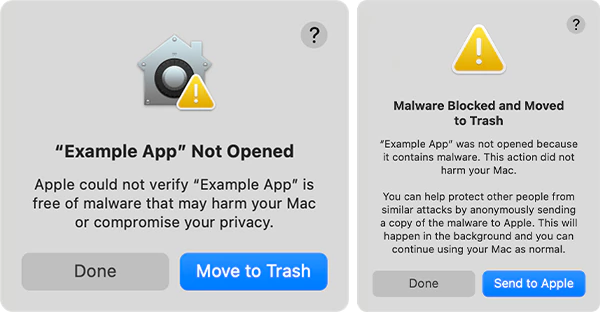
If your Mac has already blocked an app, don’t override. You need to take it seriously because Apple is actively blocking a known threat. It even moves infected files to the Bin and alerts you. That is your first and strongest signal.
Step 2: Use Activity Monitor
Go to Applications > Utilities > Activity Monitor. Then, check properly to find malware on Mac:
- Sort by % CPU.
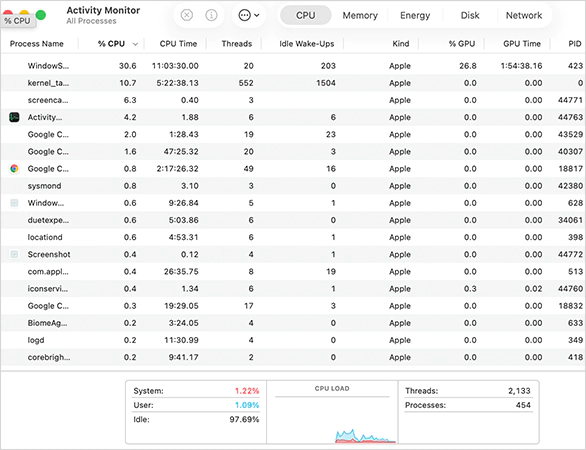
- Look for unknown apps using high resources.
- Check the Network tab for unusual outgoing activity.
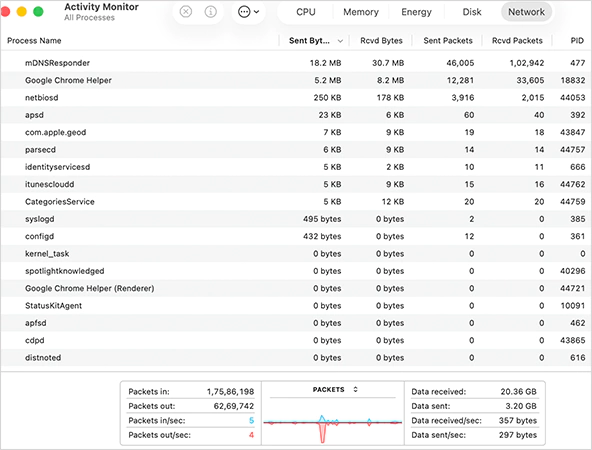
Malware often runs silently but consumes CPU or sends data in the background. Don’t panic if you see weird names. Many system processes look unfamiliar. Only focus on high usage, unknown source, and no clear purpose.
Step 3: Audit Your Applications Folder
This is where most people mess up. Here’s how to check for malicious software on Macs. Go to Applications and scan like a detective. You need to look for:
- Apps you don’t remember installing.
- Fake “Cleaner” or “Optimizer” tools.
- Recently added unknown software.
Malware often disguises itself as flash updates, system optimizers, and free utilities. If you did not install it consciously, it might hurt you a lot more than you think.
Step 4: Check Login Items
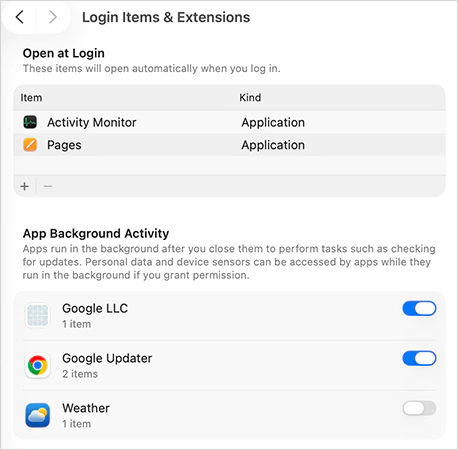
Next, go to System Settings > General > Login Items & Extensions. Look for anything suspicious. Malware uses this to make sure it runs every time you restart your MacBook. If you miss this step, malware can come back even after deletion.
Step 5: Inspect Browser Extensions
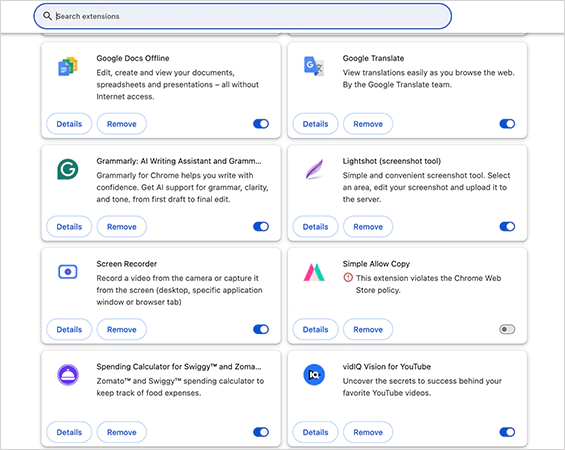
You also need to learn how to search for a virus on Mac browsers. This is where a lot of malware actually lives. Open your browser and check for any unknown extensions, random toolbars, or search engines you did not set. If your browser keeps changing its behavior, this is usually the reason.
Step 6: Check Configuration Profiles
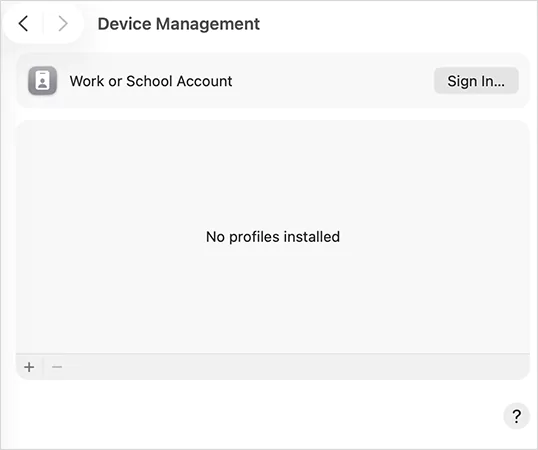
Go to System Settings > General > Device Management. If you see a profile you did not install, that’s a serious red flag. Profiles can control system behavior silently.
You need to spot patterns, and that’s how real detection works on Mac. Once you are sure about the Malware, immediately try to remove it from your device.
How to Eliminate Malware on a Mac Safely?
Most people rush this and fail. And that’s exactly why malware comes back. Here’s the correct way to remove it completely:
- Disconnect from the Internet: Turn off Wi-Fi immediately. It stops data leaks, prevents more downloads, and cuts the connection to attackers.
- Delete the Suspicious App Properly: Go to Applications > Move to Trash > Empty Trash. This deletes the app on Mac properly.
- Remove Login Items: Go back and remove unknown startup apps or anything linked to the malware.
- Kill Active Processes: Open Activity Monitor, find the suspicious process, force quit it, and then delete its source file. This stops malware in real time.
- Clean Your Browser Completely: Remove unwanted extensions, fake search engines, and unknown permissions. Most Mac malware is actually aggressive adware. So, this makes it a very critical step.
- Use Safe Mode (If Needed): Shut down your Mac > Press and hold the Power button > Hold Shift > Continue in Safe Mode. Safe mode on Mac stops unnecessary startup apps and makes hidden malware easier to detect. Use it if your Mac is still slow.
- Restart and Verify: After cleanup, restart your Mac, recheck Activity Monitor, and recheck login items. If everything looks clean, you are done.
If malware still comes back, backup your data, factory reset your Mac, and try reinstalling macOS. This gives you a clean and fresh start.
How to Stay Away from Malware on Mac?
Once you know how to scan a Mac for malware, you understand that Malware on Mac is usually a user decision problem. So, here are simple habits that actually help you in avoiding them:
- Download Apps from Official Sources: Stick to the Mac App Store or the official websites of verified developers. Avoid cracked software, free premium tools, and random download sites.
- Treat macOS Warnings Seriously: If your Mac shows a warning, don’t override it. Clicking “Open Anyway” is the quickest way to mess up.
- Keep macOS Updated: Updates are not just about features. They include security patches, malware detection updates, and background threat blocking. So, try to install the new update as soon as possible.
- Control Your Browser: Watch out for unknown and random activities. Also, treat every extension like software. If you don’t trust it, don’t add it.
- Keep Your Startup Clean: Go to Login items regularly, and check what runs at startup.
Furthermore, don’t fall for fake downloads and phishing. Today’s malware usually tries to trick you. If something creates urgency, slow down and verify first.
Final Take
Macs are secure, but they are not untouchable. Apple has built strong protection into macOS that blocks most threats, checks apps before they run, and updates security quietly in the background.
But all of that can fail if your behavior overrides it. So, it is important to learn how to check for malware on Macs. Stay aware of what you install, don’t ignore system warnings, and question anything that feels off. If you follow these basics, you are already ahead of 90% users.
Frequently Asked Questions
Can Mac computers get viruses?
Do You Need an Antivirus on Mac?
Most users don’t need it because Mac already has strong built-in security systems. But if you download from random sites, use cracked software, or handle sensitive data, an antivirus can act as an extra safety layer.
How do I scan my Mac for malware?
Check Activity Monitor for unusual processes, review installed apps and login items, and inspect browser extensions. You are basically auditing your system for anything suspicious.
How to remove malware from a Mac?
Delete suspicious apps, remove unknown login items, clean browser extensions, and restart your Mac. If the issue continues, use Safe Mode or reinstall macOS.
Is Mac safer than Windows for malware?
Macs are generally more secure due to built-in protections and a smaller attack surface, but they are still targeted.
Related Posts

8 Best AI Presentation Makers for Business-Ready Slides
Making a presentation doesn’t just mean designing slides. It’s about defining a clear structure, using defined logic, useful visuals, and…

Queue Management Software Troubleshooting Guide: 8 Common Faults and Fixes
The long wait times and ineffective management of customer queues can have a significant impact on customer satisfaction and business…

How to Use Similarweb Website Traffic Data for Competitor Research
Competitor research without traffic data is guesswork. You can guess who your rivals are, guess how big they are, guess…

Choosing the Right Hosting Model for Scalable Digital Platforms
The performance of digital business is directly related to website speed, uptime, and scalability. Slow page performance has a negative…

How Data-Driven Performance Tools Are Transforming Employee Recognition in Tech Companies
“People work for money but go the extra mile for recognition, praise, and rewards.” — Dale Carnegie (Writer & Teacher)…

Why Businesses Struggle to Collect Reliable Data from the Web
Almost every company that depends on data runs into the same problem: although they can find the data they need,…

Why Financial Data Recovery Matters for Businesses
Financial data supports every part of a business, directly affecting cash flow, payroll, tax reports, audits, customer billing, and daily…

CMMC Compliance Is Coming for Manufacturers. Here Is What You Need to Do
“Cybersecurity is much more than a matter of IT.” — Stephane Nappo (Cybersecurity Professional) For manufacturers working within the defense…

How Data-Based Tools Influence Learning Performance
Learning has transformed in the modern age with the integration of new technologies to help students and professionals prosper in…