
Open Finder, go to Applications, drag the app to Trash, and confirm the deletion. If the app has its own uninstaller, use that instead for a cleaner removal.
How to Delete Apps on Mac? Safe and Quick Ways to Uninstall Apps
 Mahima Dave
Updated on: Mar 28, 2026
How do you remove applications from a Mac? Most Mac users think there is just one way to delete apps. But that’s not true. macOS offers different uninstall methods based on where the app came from.
Unused software can quietly clutter your system. And here’s the catch: some Mac apps delete instantly, some leave junk, and others refuse to delete at all.
I will show you exactly how to delete apps on Mac the right way. You will also learn why some apps stay stuck and how to remove leftover files without making a mess.
Quick Answer: How to Delete Apps on the Mac?
- Open Finder, go to Applications, and select the app you want to remove. Then, press Command + Delete and confirm the deletion by entering your password. Finish by emptying the Trash to complete the removal.
- For heavy apps (like Adobe or antivirus software), use their built-in uninstaller for proper cleanup.
How to Uninstall Apps on Mac?
Uninstalling apps on a Mac sounds simple. But not all apps uninstall the same way. The method depends on how the app was installed. If you use the wrong method, you will only delete part of it.
Mac apps usually come from three sources: App Store, Internet (DMG files or websites), and Built-in or bundled apps. Each one behaves differently. So, let’s see how to remove applications from Mac devices in different ways.
Method 1: Delete Apps Using Finder (Most Common)
This is now your default method after the updates and works for most apps. Here’s how to uninstall programs on Mac:
- Open Finder and go to Applications.
- Here, select the app you want to remove.
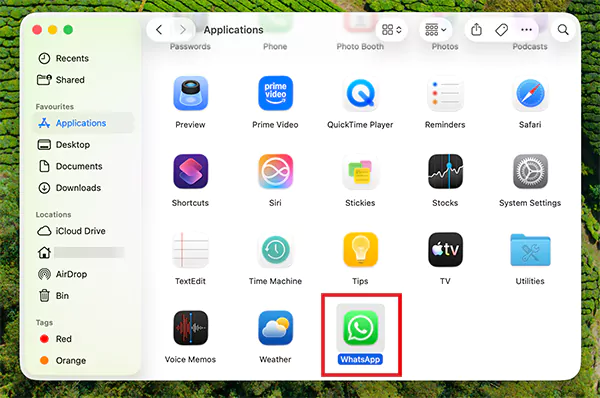
- Next, press the Command + Delete buttons or drag it to the trash or bin.
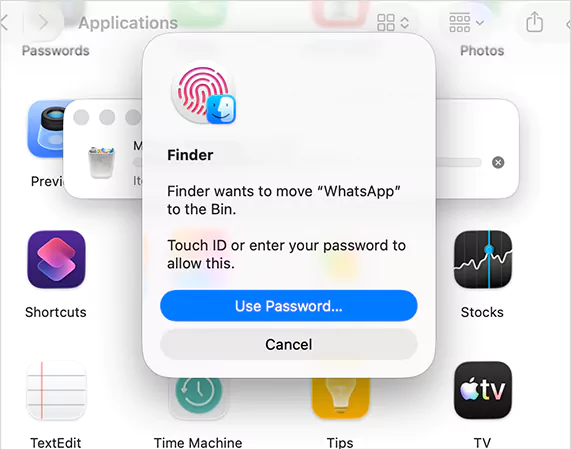
- Confirm it by entering the password or using Touch ID.
- Finally, hit Empty Bin.
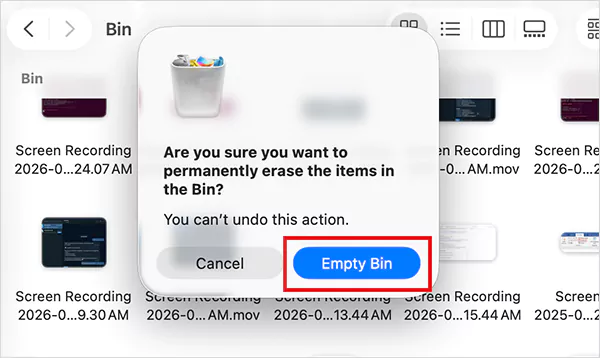
This is best for lightweight apps without installers. This removes the app, but not always its leftover data.
Method 2: Uninstall Apps from Launchpad
Launchpad is not available on newer macOS versions. But if you are on an older version, here’s how to delete an app on Mac devices with Launchpad:
- Open Launchpad from the dock.
- Now, click and hold the app.
- Then, click on the “x” icon and confirm your choice.
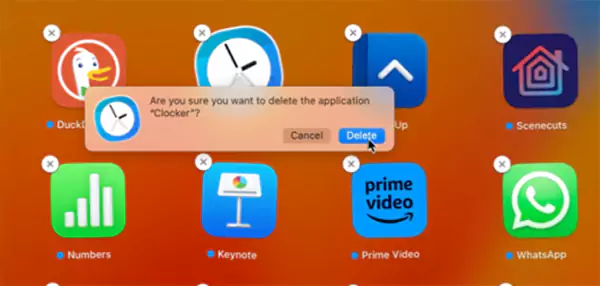
It works best for apps in the app store, games, and small utilities.
Method 3: Use System Settings
This is the smart way to remove apps when your goal is to free up space, not just uninstall them.
- Go to System Settings > General > Storage.
- Open Applications by clicking on the “i” button.
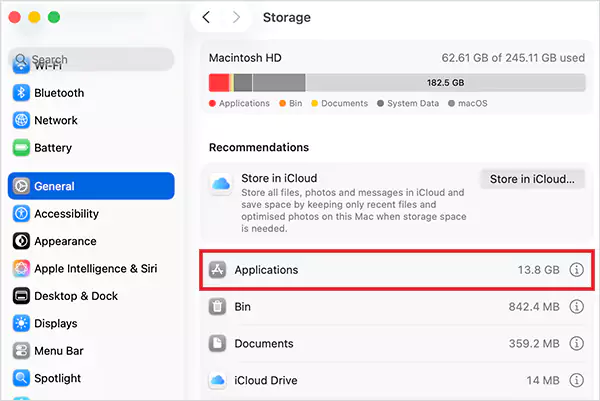
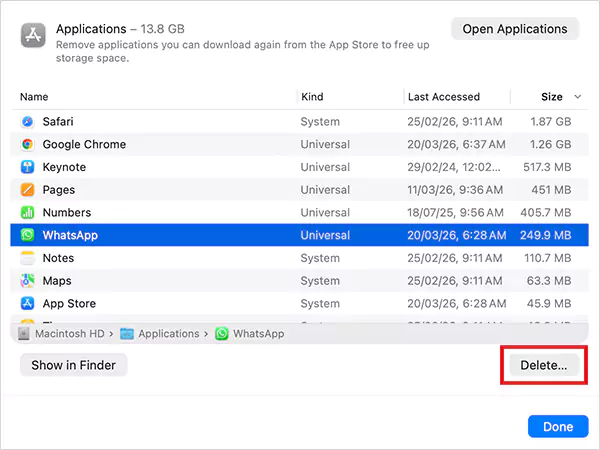
- Here, you will see all the applications sorted by size.
- Now, select the app and click on Delete.
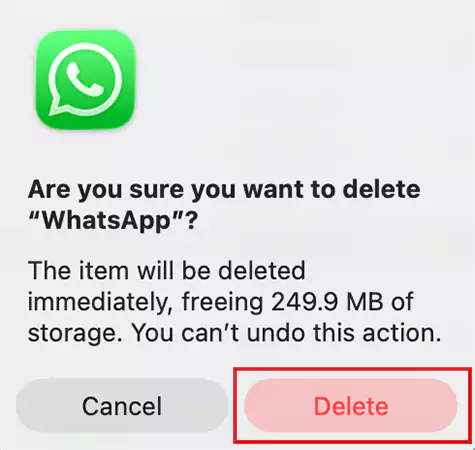
- Then, click on Delete again to confirm.
This method helps you identify heavy apps instantly and makes bulk cleanup faster. It gives a clear view of what is actually taking up space.
Use this when your Mac feels full. It is not just about uninstalling; it is about making decisions based on storage impact.
Method 4: Use the App’s Built-in Uninstaller (For Heavy Apps)
Some apps install more deeply into macOS and include additional files, services, or background processes. If you delete them in Finder, parts of the app will remain. Let’s see how to erase an app on Mac systems:
- Open the Applications folder.
- Look for “Uninstall [App Name]” or a dedicated folder.
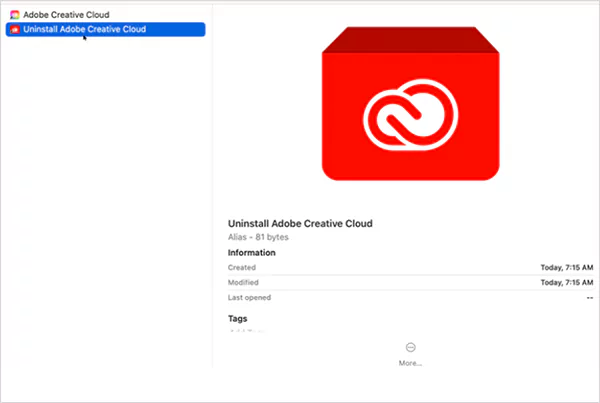
- Run the uninstaller and follow the instructions to delete the app.
This is best for Adobe apps, antivirus software, cloud sync tools, and other developer tools. If an app asks for permissions, runs at startup, or installs plugins, always look for an uninstaller first.
So, if you are confused, use Finder. For heavy or complex apps, use the Uninstaller method, and for cleaning storage, use System Settings.
How to Delete Apps on Mac Downloaded from the Internet or a Disc?
This is where most users mess up. Apps installed from websites look simple, but behave differently behind the scenes. They create hidden files in the Library and may run background processes. So when you delete them normally, you are only removing the visible part.
Here’s how to delete an application on Mac devices downloaded from the internet or disk:
- First, check for an uninstaller file and delete it as explained earlier.
- If there’s no uninstaller, simply delete the app using Finder.
- If the app reopens, it means something is still running. Close it from Activity Monitor before moving ahead.
- Finally, remove the leftover files to remove the app completely.
Wondering how to remove the leftovers? I won’t leave you guessing; read the following section to find out.
How to Delete Applications on Mac Completely?
So, if your goal is a clean and optimized system, it is important to follow the structured process. Here’s how to remove apps from Mac completely:
- First, use the correct uninstall methods.
- Then, go to these folders one by one:
~/Library/Application Support
~/Library/Application Support/CrashReporter
~/Library/Caches
~/Library/Containers
~/Library/Cookies
~/Library/Internet Plug-Ins
~/Library/Logs
~/Library/Preferences
~/Library/Saved Application State
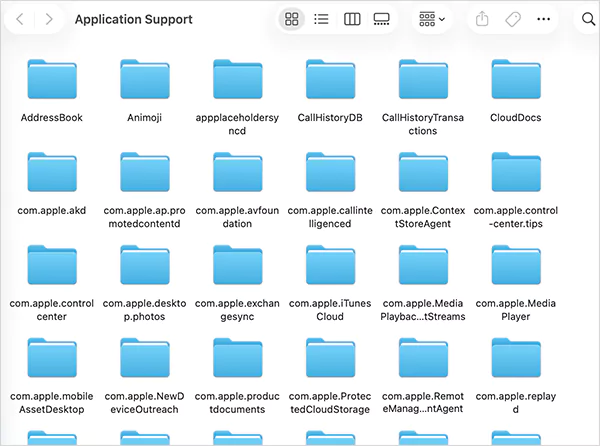
- Search the app name inside these folders and delete related files.
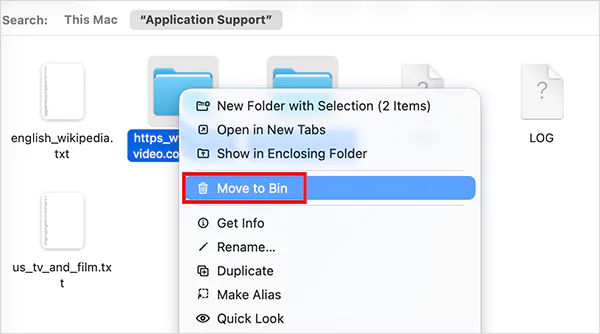
- Remove login items, background processes, or anything linked to the app.
- Next, empty the Trash if you are sure that you won’t need to retrieve deleted files from the Bin.
- Finally, restart your Mac to clear memory and stop hidden processes.
Dragging an app to Trash is just surface-level cleanup. A complete uninstall is what actually improves performance.
Why Can’t You Delete Some Apps on Mac?
You might face a situation when you just can’t delete an app. There is always a reason. Let’s understand why:
- The App is Still Running: Mac blocks deletion if the app is open. Try to quit the app or use the Activity Monitor to remove it.
- Built-in macOS App: Apps like Safari, Mail, Music, and others are protected. You cannot remove them at all.
- You Don’t Have Permission: Some apps need admin access to uninstall. Try to log in as admin before deleting them.
- macOS Security (SIP): Mac protects system files using System Integrity Protection. That’s why some apps feel locked.
An advanced user can use Terminal to remove the app that won’t delete. I would advise you to completely close or force quit it first, and then try to remove it normally. And remember, you cannot delete the built-in Mac apps.
How to Free Up Storage After Uninstalling Apps on Mac?
Deleting apps is not enough. If you want to improve performance and need more space, manage your storage smartly. Here are a few things to consider:
- Check what is actually taking up space by going to System Settings > General > Storage. Focus on the biggest categories instead of deleting randomly.
- Sort files by size in Finder and remove what you don’t use.
- Downloads often hold unnecessary files. Delete old installers, PDFs, and duplicates regularly.
- Use built-in storage recommendations to review large files and reduce clutter. They are quick and effective.
- Shift old files to iCloud or an external drive. Keep only what you actively need on your Mac.
Also, don’t forget to restart your Mac occasionally. This clears temporary files and helps your system reflect actual free space.
Conclusion
Hrow to delete apps on mac? Uninstalling or deleting apps on Mac is easy. But removing them properly is what most people get wrong. If you only drag apps to Trash, you are doing half the job.
You need to remove the app, clear leftover files, and stop any background processes. Do this right and your Mac will feel faster, cleaner, and more stable.
Frequently Asked Questions
How do I uninstall an app from my Mac?
Does deleting an app on Mac remove everything?
No, most apps leave behind cache, preferences, and support files. You need to manually remove those for a complete removal.
How to fully remove leftover files from Mac?
Go to the cache, temporary files, and preferences Library folder one by one. Then, search the app name and delete anything related to it.
What should I do if an app won’t uninstall?
Quit the app completely, use the Activity Monitor, restart your Mac, and try to delete it using the Uninstaller file or Terminal. If it is a system app, it cannot be removed.
Can I uninstall apps on Mac using Launchpad?
Yes, but only on earlier macOS versions. New updates have removed the Launchpad option from the system.
Related Posts
How to Open Control Panel in Windows? (All Methods Explained)
The control panel in Windows is a collection of tiny programs. It is used to configure the various aspects of…
Why Proxy Servers Are Popular
Many tech platforms, ad networks, SaaS tools, and online stores in the world have critical traffic and infrastructure that require…
Data Loss vs. Data Strategy: Why One Conversation Matters More Than the Other
In the corporate conversation around information, most of the firms are scared of losing data. That’s understandable, as most of…
How to Turn Off Touchscreen on Chromebook? Step-by-Step Guide
Touchscreen on a Chromebook sounds great until it starts getting in the way. Accidental taps while typing, smudges, and random…

How to See Blocked Messages on iPhone? (What Actually Works)
Ever blocked someone on your iPhone and later found yourself wondering if you can see blocked texts on iPhone? It…
The 5 Architecture Decisions That Haunt SaaS Founders Two Years Later
Architecture decisions are fundamental to ensuring steady growth in any business or technical step, especially when the topic is laying…

Database Scaling: How to Manage 10,000+ Political Volunteers
Every small business or growing team needs to deal with a common issue—the database that was working perfectly for the…

What Structured Cabling Systems Include and Why Businesses Still Need Them
Nowadays, IT conversations jump straight to cloud apps, wireless coverage, and cybersecurity tools. While these are visible and easy to…

Top 10 Web Development Companies to Partner with in 2026
In today’s fast-growing digital world, every business needs a strong online presence to stay competitive. A well-designed website not only…