
iPhone does not store blocked messages in any folder or system. You simply won’t receive any messages from the blocked contact.
How to See Blocked Messages on iPhone? (What Actually Works)
 Kartik Wadhwa
Updated on: Mar 27, 2026
Ever blocked someone on your iPhone and later found yourself wondering if you can see blocked texts on iPhone? It is a common occurrence. You block a number in the moment, then later get curious. Did they reply? Did you miss something important?
In this guide, I will tell you if it is possible to learn how to see blocked messages on iPhones. You will learn what actually happens to blocked messages, whether you can access them, and what options you realistically have if you want to see them again.
Key Takeaways: How to View Blocked Messages on iPhone?
- You cannot see blocked messages on an iPhone.
- They are never delivered or stored. Even after unblocking a contact, messages sent during the blocked period are permanently lost.
- The only reliable solution is to simply unblock and ask the sender to resend the message.
- Most recovery tools are misleading. They cannot retrieve messages that never reached your device.
Can You See Blocked Messages on iPhone?
No, you cannot view blocked texts on iPhones. Here’s what actually happens when you block someone on an iPhone:
- Their messages are never delivered to you.
- They are not stored anywhere.
- There is no hidden folder.
- You cannot recover them later.
Even if you unblock the contact, those messages are gone. This is where many people get confused. On some Android phones, blocked messages may sit in a separate folder. On iOS, Apple simply stops the message from reaching your device at all.
iOS is designed to protect your space completely. Blocking is not just muting someone; it is cutting communication entirely. I know it might not be what you want to hear. But technically, you cannot learn how to view block messages on iPhones.
How to See Blocked Messages on iPhone?
Let’s be honest, there is no way to see blocked messages on iPhones. Since those messages never arrive, the only way forward is to handle the situation smartly.
Here are the only methods that actually make sense and may help you in some cases:
Ask the Sender to Resend the Message (Best Option)
If the message matters to you, keep it simple and first unblock the contact. Then, ask them to send the message again. This is the best way to read blocked messages on iPhones.
You won’t lose any data, and it requires no technical steps. Most people ignore this and waste time on complicated fixes.
Check Other Apple Devices
If you use the same Apple ID on your MacBook or iPad. And, if the syncing was not fully active earlier, there is a very small chance that you may find the message there. It is rare, but worth a quick check.
Restore an Older Backup
This method to see blocked texts on iPhone works only if the message existed before you blocked the contact, and you have a backup from that time.
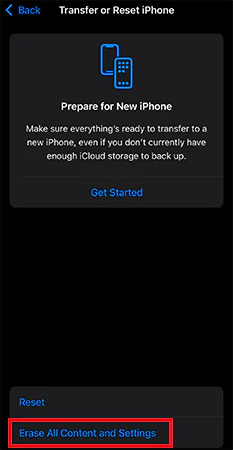
- Just go to Settings > General > Transfer or Reset iPhone > Erase All Content and Settings.
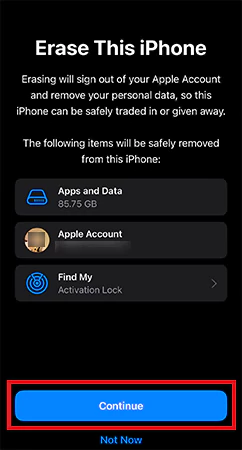
- Then, tap on Continue to factory reset your iPhone.
- Finally, just restore your data from iCloud backup while setting up the device.
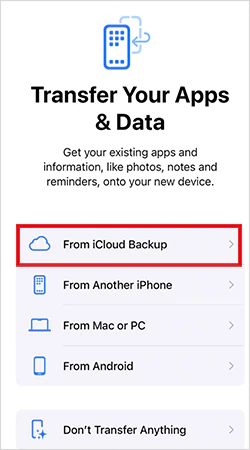
Your current data will be replaced, and you may lose recent chats, apps, or files. So, before trying this, ask yourself: Is this message worth resetting your iPhone?
Don’t trust recovery apps claiming to recover undelivered messages. They can only help you retrieve deleted text messages on an iPhone.
Also, do not confuse blocked messages with filtered messages on newer iOS. An unknown sender’s message goes to a separate folder. But blocked messages will never appear there.
How to Unblock Messages on iPhone?
If you want to read blocked messages on iPhones again, you will need to unblock the contact. Here’s how to do that:
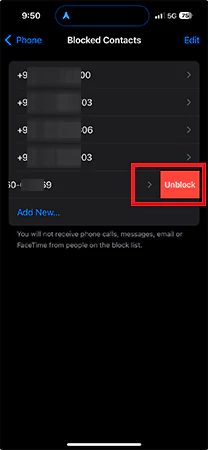
- Open Settings on your iPhone.
- Go to Phone > Blocked Contacts.
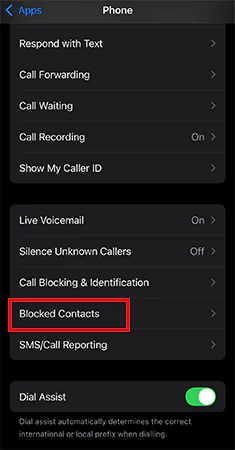
- Find the contact you want to unblock.
- Finally, swipe left and tap Unblock.
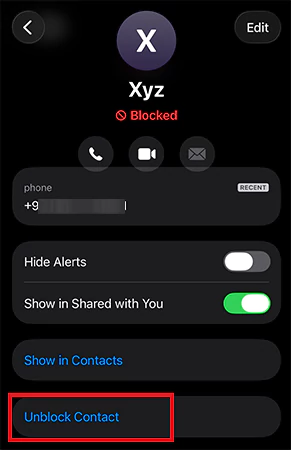
You can also unblock from the Messages or Phone app. Just open a conversation or a recent call with the contact, tap the contact name, and select Unblock Contact.
Unblocking only works going forward. You will receive new messages, but you cannot see old messages sent while blocked.
Final Verdict
So, let’s keep it real. There is no way to learn how to see blocked messages on iPhone. You did not receive it, you can’t search for it, and you can’t get it back later.
If you really want to check blocked messages on iPhone, just unblock and ask the sender to resend. Do not overcomplicate things. Once a contact is blocked, you can’t access their messages.
Frequently Asked Questions
Where do blocked messages go on iPhones?
How do you view blocked messages on iPhones?
You cannot view blocked messages on your iPhone. The only possible way is to unblock the person and ask them to resend the message.
Can I recover blocked messages using iCloud backup?
Only if the message existed before you blocked the contact and is included in that backup.
Is there any app that can show blocked messages?
No, there is no app that can show you messages from a blocked contact. Most tools cannot recover messages that were never delivered in the first place.
Can I see messages after unblocking someone on iPhone?
No, you will only receive new messages after unblocking. All the messages that you received during the blocked phase cannot be recovered, even after unblocking someone.
Related Posts

8 Best AI Presentation Makers for Business-Ready Slides
Making a presentation doesn’t just mean designing slides. It’s about defining a clear structure, using defined logic, useful visuals, and…

Queue Management Software Troubleshooting Guide: 8 Common Faults and Fixes
The long wait times and ineffective management of customer queues can have a significant impact on customer satisfaction and business…

How to Use Similarweb Website Traffic Data for Competitor Research
Competitor research without traffic data is guesswork. You can guess who your rivals are, guess how big they are, guess…

Choosing the Right Hosting Model for Scalable Digital Platforms
The performance of digital business is directly related to website speed, uptime, and scalability. Slow page performance has a negative…

How Data-Driven Performance Tools Are Transforming Employee Recognition in Tech Companies
“People work for money but go the extra mile for recognition, praise, and rewards.” — Dale Carnegie (Writer & Teacher)…

Why Businesses Struggle to Collect Reliable Data from the Web
Almost every company that depends on data runs into the same problem: although they can find the data they need,…

Why Financial Data Recovery Matters for Businesses
Financial data supports every part of a business, directly affecting cash flow, payroll, tax reports, audits, customer billing, and daily…

CMMC Compliance Is Coming for Manufacturers. Here Is What You Need to Do
“Cybersecurity is much more than a matter of IT.” — Stephane Nappo (Cybersecurity Professional) For manufacturers working within the defense…

How Data-Based Tools Influence Learning Performance
Learning has transformed in the modern age with the integration of new technologies to help students and professionals prosper in…