
The command to open control panel is “control.” It can be used in Run, CMD, and PowerShell.
How to Open Control Panel in Windows? (All Methods Explained)
 Upasna Deewan
Updated on: Mar 28, 2026
The control panel in Windows is a collection of tiny programs. It is used to configure the various aspects of system settings within Windows.
For example, one tiny program in the control panel lets you configure the Internet settings. Another program lets you configure the storage settings.
However, you will need to reach the control panel before changing all these settings.
So, how to open control panel?
If you are not sure about the command to open the Control Panel, this guide is for you. Here, we will give you every working method to open the control panel in the Windows system.
Let’s get started!
How to Open Control Panel in Windows (8 Quick Methods)
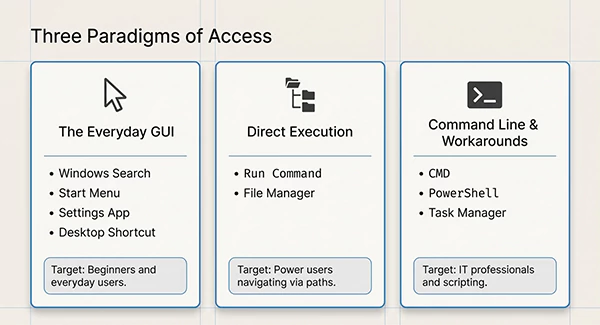
How to open control panel in Windows?
Here, we will explore various methods to open the control panel in the Windows system. I will list shortcuts, commands, and interface options as well. You can also check out Microsoft’s official documentation for Windows and its functionality.
Through Windows Search
The best way for beginners and everyday users to open the control panel is by using Windows search.
- Press Windows + S.
- Type Control Panel in the search field.
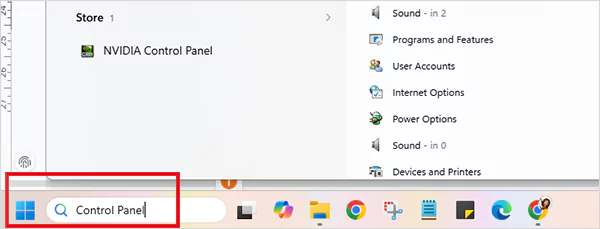
- The Control Panel will pop up.
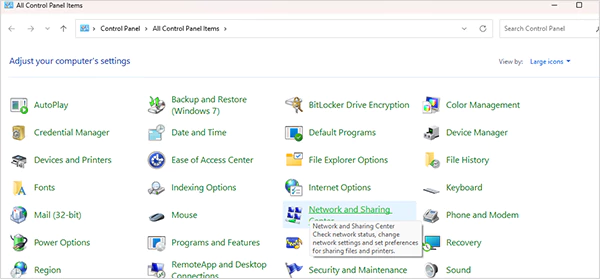
Through Run Command
The command to open the Control Panel through Run is as follows.
- Press Windows + R, and Run as Administrator will appear.
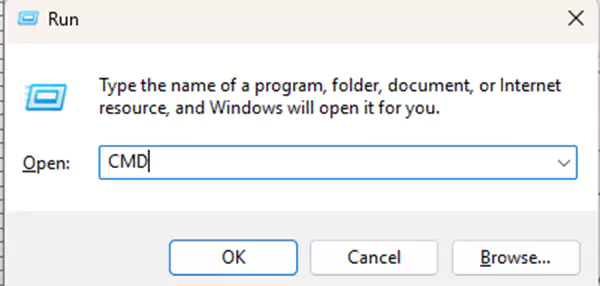
- Now, type Control.
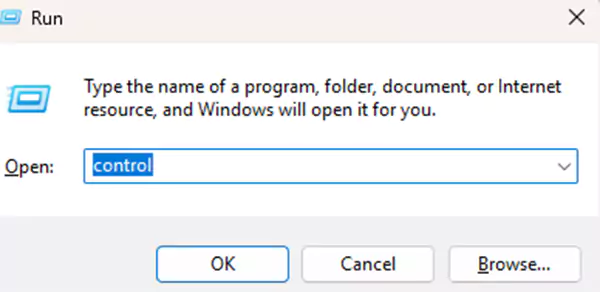
- Then, hit OK, and the control panel’s run command instantly opens it.
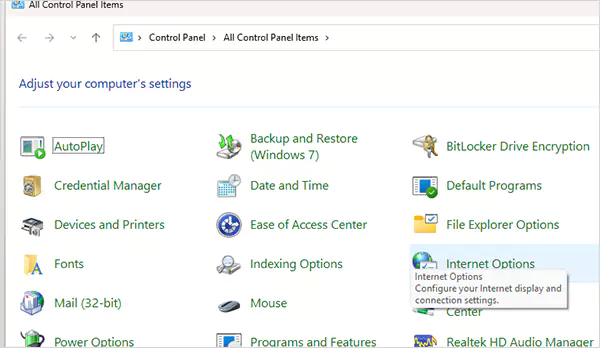
Open the Control Panel from CMD
If you are familiar with command-line tools, you can use Command Prompt to open it. Let’s look at how you can open Control Panel from CMD.
CMD command for open control panel: Control
To open Control Panel in CMD, first, you need to open the CMD.
- Press Windows + R.
- Type CMD and press Enter.
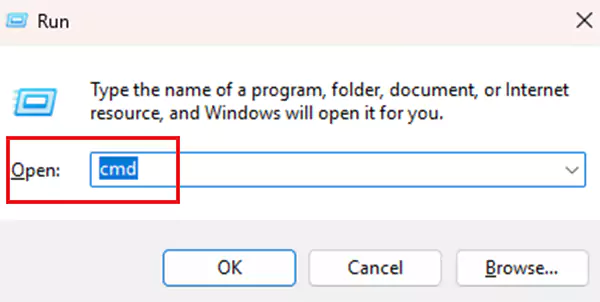
- Now type “control” in the command prompt.
- Hit Enter, and the Control Panel will flash on your screen.
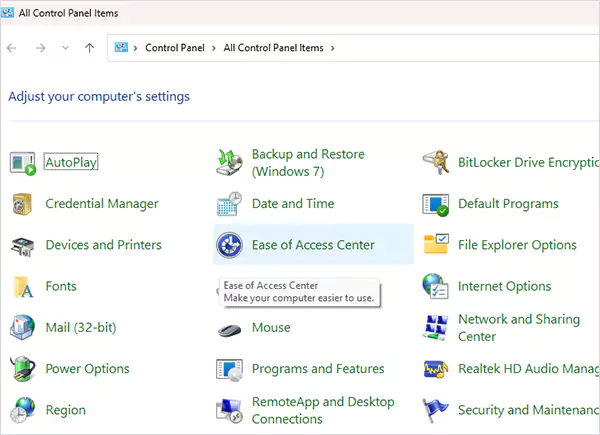
See, opening the control panel from CMD was pretty easy. This method to open the control panel is often used by IT professionals. It also comes in handy for scripting tasks.
Windows PowerShell
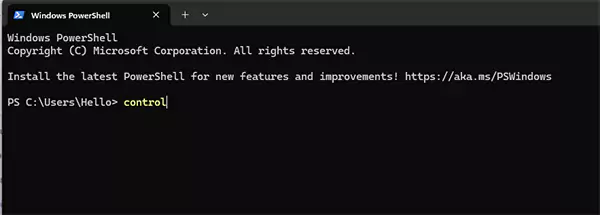
You can also use PowerShell for this task. Here is how to open control panel.
- Open Windows PowerShell from the search bar.
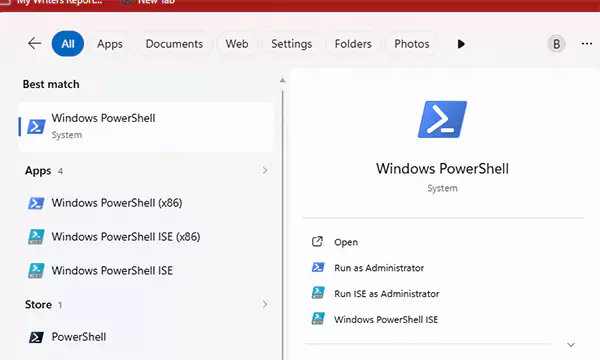
- Now, type “control” and hit Enter. The control panel will appear on your screen.
Through Task Manager
If you want to know how to open the Control Panel from Task Manager, read this.
Task Manager is not just for monitoring purposes. You can do many things with it, even open the control panel.
- Press Ctrl + Shift + Esc.
- After that, click on File and select the “Run new task” option.
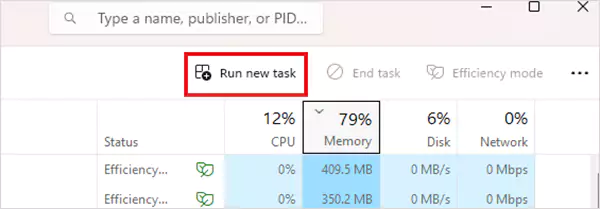
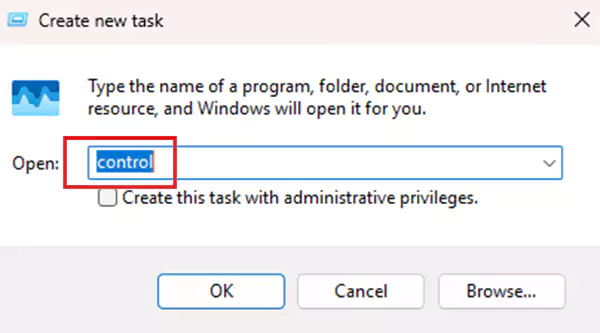
- Now, type “control” and hit Enter to open the control panel.
Using the Start Menu
Did you know: Start Menu can also be used to open the Control Panel in Windows?
- Press the Windows button to open the Start Menu.
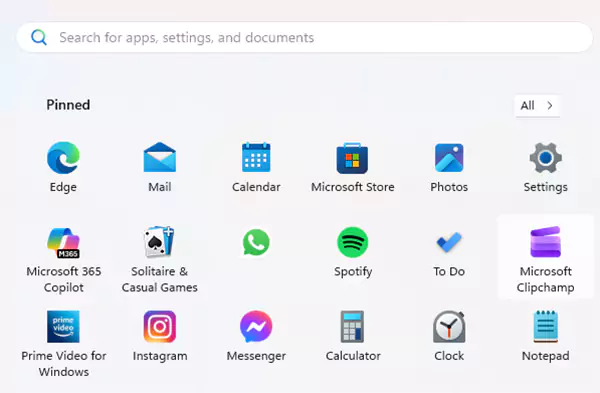
- Type Control Panel in the search bar.
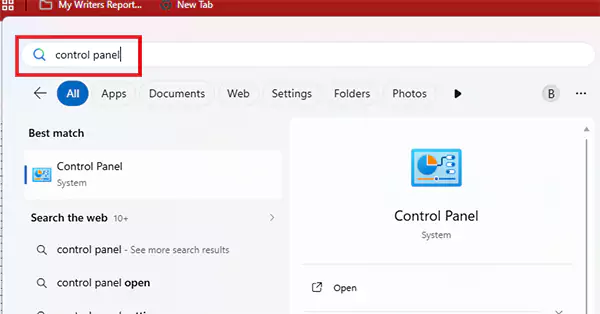
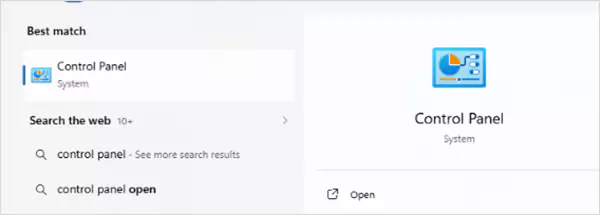
- Now, select Control Panel from it.
Through the Settings
Users can also access the Control Panel through the Settings. All they need to do is follow these steps.
- Press Windows + I, and it will open the Settings.
- Go to the search bar in the app and type “Control Panel and select the results to open it.

Create Desktop Shortcut
There is also an option of creating a desktop shortcut for the Control Panel.
- Go to your Desktop and right-click on it.
- Now, select New and then the Shortcut option.
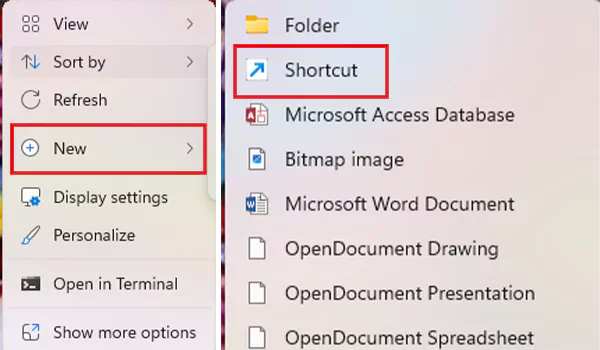
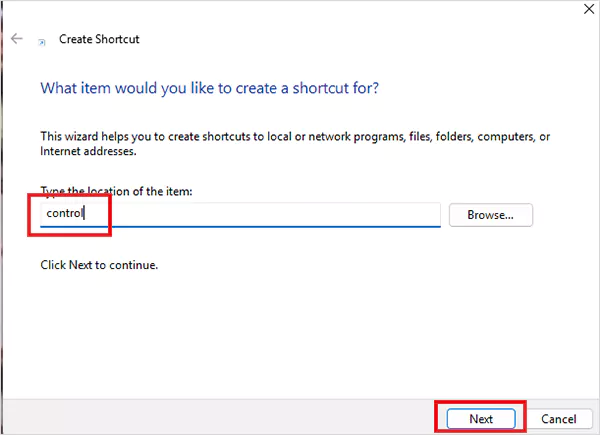
- Type “control” in the location box and click on Next.
- Then, name it “control panel” and click on the Finish option.
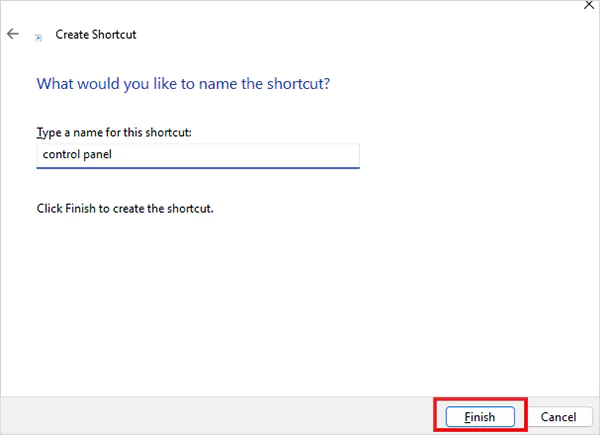
That’s it! You now have a shortcut on the Desktop to open the Control Panel.
Where is the Control Panel on My Computer?
I’ve noticed that people on the internet often ask, “Where is the control panel on my computer?”
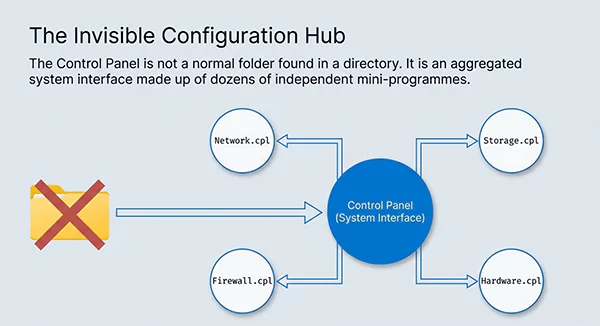
If you’ve asked the same question, you must know that it is not a normal folder that can be found in a directory.
The Control Panel is a system interface that is made up of many mini tools/programs. To access it, you have to use search, commands, or shortcuts.
Microsoft has made an effort to make it less visible in the modern version of Windows; however, it is still available and fully functional.
Control Panel vs Settings App
Microsoft is migrating most of the basic stuff to the Settings app from the last two versions of Windows.
However, Control Panel remains an important app for most advanced tasks or configurations in Windows.
Have a look at the comparison chart.
| Feature | Control Panel | Settings App |
| Advanced options | Yes | Limited |
| Ease of use | Moderate | Easy |
| Automation | Supported | Limited |
| Use case | IT/admin tasks | General settings |
Wrap Up!
If you want to become a proficient Windows user, you must know the ins and outs of the Windows system. The first step of that is knowing how to open control panel.
It is an essential skill for IT professionals and normal users. The newer version of Windows includes the Settings app, but the Control Panel still has many uses.
Frequently Asked Questions
What is the command to open Control Panel?
How to open the Control Panel from CMD?
Go ahead and open the command prompt, type “control” and then hit Enter.
Why can’t I find Control Panel?
It is possible that it is hidden in the system or replaced by the Settings app. However, it still exists, and you can open it through commands.
Related Posts

8 Best AI Presentation Makers for Business-Ready Slides
Making a presentation doesn’t just mean designing slides. It’s about defining a clear structure, using defined logic, useful visuals, and…

Queue Management Software Troubleshooting Guide: 8 Common Faults and Fixes
The long wait times and ineffective management of customer queues can have a significant impact on customer satisfaction and business…

How to Use Similarweb Website Traffic Data for Competitor Research
Competitor research without traffic data is guesswork. You can guess who your rivals are, guess how big they are, guess…

Choosing the Right Hosting Model for Scalable Digital Platforms
The performance of digital business is directly related to website speed, uptime, and scalability. Slow page performance has a negative…

How Data-Driven Performance Tools Are Transforming Employee Recognition in Tech Companies
“People work for money but go the extra mile for recognition, praise, and rewards.” — Dale Carnegie (Writer & Teacher)…

Why Businesses Struggle to Collect Reliable Data from the Web
Almost every company that depends on data runs into the same problem: although they can find the data they need,…

Why Financial Data Recovery Matters for Businesses
Financial data supports every part of a business, directly affecting cash flow, payroll, tax reports, audits, customer billing, and daily…

CMMC Compliance Is Coming for Manufacturers. Here Is What You Need to Do
“Cybersecurity is much more than a matter of IT.” — Stephane Nappo (Cybersecurity Professional) For manufacturers working within the defense…

How Data-Based Tools Influence Learning Performance
Learning has transformed in the modern age with the integration of new technologies to help students and professionals prosper in…