
Press the Search + Shift + T buttons together after enabling debugging keyboard shortcuts in Chrome flags. This instantly disables the touch screen.
How to Turn Off Touchscreen on Chromebook? Step-by-Step Guide
 Mahima Dave
Updated on: Mar 27, 2026
Table of Contents
- How to Turn Off Touchscreen on Chromebooks?
- How to Disable Touchscreen on Chromebook Using Terminal?
- How to Turn Off Touch Screen on Chromebook (Additional Methods)?
- Why You Might Want to Disable Touchscreen on Chromebook?
- How to Enable Touch Screen on Chromebook?
- Final Thoughts
- Frequently Asked Questions
Touchscreen on a Chromebook sounds great until it starts getting in the way. Accidental taps while typing, smudges, and random inputs can quickly become frustrating. And not every model gives you a simple Chromebook Disable Touchscreen option in settings.
So, how to turn off touchscreen on Chromebook? Well, if you do not want to use touch, the fix is simple once you know where to look. In this guide, you will learn to disable the touch screen on a Chromebook using hidden settings, so you can use your laptop without distractions.
Key Takeaways: How to Turn the Touchscreen Off on Chromebooks?
- ChromeOS does not offer a universal toggle to turn off the touchscreen.
- The fastest and most reliable option is to use the Search + Shift + T shortcut after adjusting the settings via Chrome Flags.
- You can turn the touchscreen back on instantly using the same shortcut.
- Use other workarounds only when the shortcut method does not work, and disabling touch is extremely important.
How to Turn Off Touchscreen on Chromebooks?
Most ChromeOS computers don’t have a simple “Chromebook turn off touch screen” button. So, if you are looking for the most reliable way, here’s how to turn off touch on Chromebooks:
- Open Chrome, type “chrome://flags”, and press Enter.
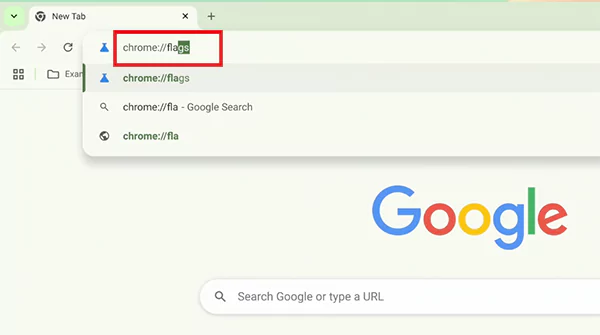
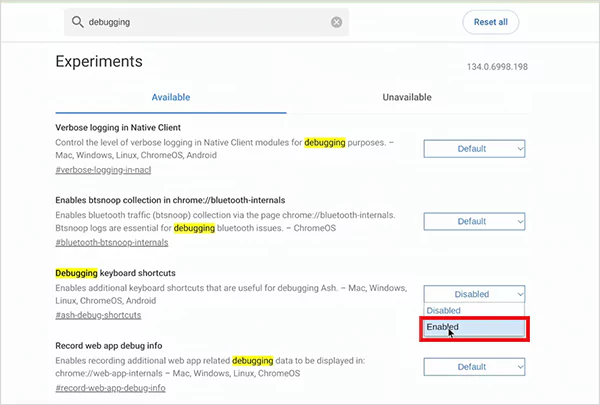
- Then, search for Debugging keyboard shortcuts and set it to Enabled.
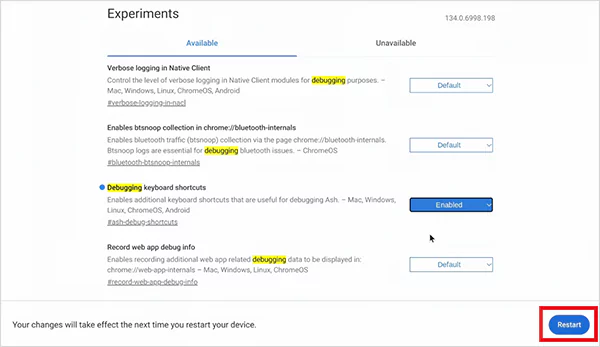
- Now, just click on Restart.
- After rebooting the computer, press Search + Shift + T to turn the touchscreen on or off.
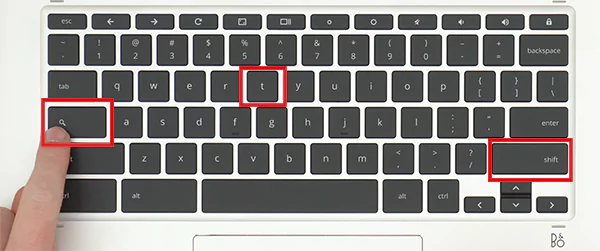
Note that the Search key is where Caps Lock usually is. You can also disable the touchpad on a Chromebook by pressing Search + Shift + P.
This is an experimental feature, so it may change in the future. Plus, most school or work devices may block this option. So, you cannot use this Chrome Flags method on a managed device.
How to Disable Touchscreen on Chromebook Using Terminal?
Moving on, this is an advanced method. Use it only if the shortcut does not work on your device. There is no official command for this. You are basically forcing it through system-level controls. Let’s see how to disable touch on Chromebook:
- Press Ctrl + Alt +T to open the Crosh (Chrome OS Terminal).
- Type “shell” and press Enter. This gives you deeper system access (only works in Developer Mode).
- Next, type “xinput list”. This will show a list of all input devices connected to your Chromebook.
- Now, look carefully for your touchscreen device. It is usually named something like Elan Touchscreen, Atmel maXTouch, or anything with Touchscreen in the name.
- Each device will have an ID number next to it.
- Once you find it, run this command (replace ID with the actual number):
Xinput disable [ID]
This method is temporary and resets after reboot. So, it is not better, just more aggressive. For most users, the shortcut method is the most reliable option.
How to Turn Off Touch Screen on Chromebook (Additional Methods)?
If the above two methods don’t work, you still have a few alternatives. However, not all will work on every device, but they are worth trying.
Method 1: Check Chromebook Settings (Limited Support)
Some newer Chromebooks include this option. Here’s what you need to do:
- Click the time at the bottom-right corner.
- Then, open Settings and go to Advanced > Accessibility.
- Here, look for the touchscreen setting, and turn it off (if available).
This is the cleanest method, but it is rare. Some brands, like Acer, may include a native toggle menu on Chromebooks.
Method 2: Temporary Physical Workarounds
If software methods fail, physical tricks may help you. Try it only if it is too important for you. Here’s how to make your Chromebook touchscreen stop working:
- Use a thick screen protector to block touch.
- Add a plastic overlay to reduce sensitivity.
- Contact a technician to disconnect the touchscreen ribbon cable. However, you won’t be able to enable touch by yourself.
Keep in mind that these workarounds can affect screen clarity and brightness. Plus, they are not always fully effective and not ideal for long-term use.
Why You Might Want to Disable Touchscreen on Chromebook?
Touchscreens were made to improve your experience. But in real use, it often gets in the way more than it helps on computers. Here’s when turning it off actually improves your experience:
- Accidental Touches: Your palms or fingers trigger random action, which breaks your flow and slows you down.
- More Control and Precision: Keyboard and trackpad give you cleaner and more intentional input with fewer mistakes.
- Cleaner Screen and Less Maintenance: Say no to constant fingerprints, smudges, or wiping every few minutes.
- Slight Battery Boost: Touch sensors stay active in the background. So, turning them off cuts that extra usage.
- Better for Kids’ Devices: It prevents random clicks, unwanted changes, and distractions.
If the touchscreen is adding friction instead of value, turning it off makes your Chromebook feel faster, cleaner, and more controlled.
How to Enable Touch Screen on Chromebook?
Once you have set up your device with the shortcut method, you can easily switch back to the touch mode whenever you want. Here’s how to turn on the touch screen on Chromebook again:
- Just press Search + Shift + T.
- And, your touchscreen will be enabled instantly.
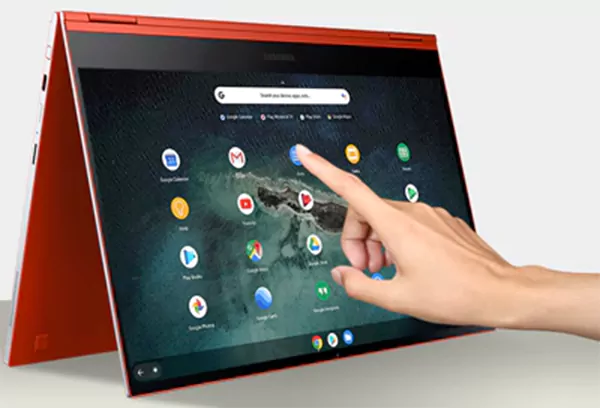
The same shortcut works both ways. If the touchscreen does not respond, do not overthink it. First, restart your device, then clean the screen properly, and check for any pending ChromeOS updates.
Final Thoughts
Turning off the touchscreen is not about removing a feature. It is about using your Chromebook the way that works best for you. Mostly, the shortcut method is enough. Keep it simple and don’t overcomplicate it.
Once set up, you can switch between touchscreen and non-touch mode in seconds. That flexibility is what actually matters.
Frequently Asked Questions
How do I turn off the touch screen on my Chromebook?
Does turning off the touchscreen save battery?
Yes, it reduces background touch input activity, which can improve the battery to some extent.
How do I shut down Chromebook?
Click on the time section, then click the Power icon, and shut down. You can also press and hold the power button for a few seconds until the device turns off.
How to freeze the screen on Chromebooks?
You can freeze the screen by locking the screen using Search + L or closing the lid to pause activity.
How to fix the touchpad on Chromebooks?
Press Search + Shift + P to enable the touchpad. If it does not work, restart your device, check for system updates, and try again.
Related Posts

8 Best AI Presentation Makers for Business-Ready Slides
Making a presentation doesn’t just mean designing slides. It’s about defining a clear structure, using defined logic, useful visuals, and…

Queue Management Software Troubleshooting Guide: 8 Common Faults and Fixes
The long wait times and ineffective management of customer queues can have a significant impact on customer satisfaction and business…

How to Use Similarweb Website Traffic Data for Competitor Research
Competitor research without traffic data is guesswork. You can guess who your rivals are, guess how big they are, guess…

Choosing the Right Hosting Model for Scalable Digital Platforms
The performance of digital business is directly related to website speed, uptime, and scalability. Slow page performance has a negative…

How Data-Driven Performance Tools Are Transforming Employee Recognition in Tech Companies
“People work for money but go the extra mile for recognition, praise, and rewards.” — Dale Carnegie (Writer & Teacher)…

Why Businesses Struggle to Collect Reliable Data from the Web
Almost every company that depends on data runs into the same problem: although they can find the data they need,…

Why Financial Data Recovery Matters for Businesses
Financial data supports every part of a business, directly affecting cash flow, payroll, tax reports, audits, customer billing, and daily…

CMMC Compliance Is Coming for Manufacturers. Here Is What You Need to Do
“Cybersecurity is much more than a matter of IT.” — Stephane Nappo (Cybersecurity Professional) For manufacturers working within the defense…

How Data-Based Tools Influence Learning Performance
Learning has transformed in the modern age with the integration of new technologies to help students and professionals prosper in…