
It deletes all personal data and settings from the device, except the Activation Lock (if Find My is enabled). The phone cannot be activated without the linked Apple ID and password.
How to Factory Reset an iPhone (With or Without Passcode)
 Mahima Dave
Updated on: Jan 22, 2026
Table of Contents
- What Does iPhone Factory Reset Mean?
- Things to Check Before You Reset Your iPhone
- How to Factory Reset an iPhone Using Settings (Passcode Required)?
- How to Factory Reset iPhone Without Passcode?
- Soft Reset vs Factory Reset vs Hard Reset iPhone: What’s the Difference?
- How to Force Reset iPhones (Does Not Erase Data)?
- Final Takeaway
- Frequently Asked Questions
If your iPhone is frozen, locked, misbehaving, or you are preparing to sell it, a factory reset usually fixes the problem. So, it is crucial to know how to factory reset an iPhone.
However, the confusion starts with terms like hard reset, force reset, and factory reset. They sound similar but do very different things.
I will break down every safe and official way to reset an iPhone. You will learn how to reset an iPhone without passwords, which method to use, what buttons can do, and what really happens after a reset.
TL;DR: How to Factory Reset iPhones?
- If you know the passcode:
Go to Settings > General > Transfer or Reset iPhone > Erase All Content and Settings.
- If you forgot the passcode:
Erase the iPhone using recovery mode with a computer, Find My, or the Erase option on the lock screen.
- Before resetting:
Back up your data, sign out of Apple ID if possible, and decide whether to keep or erase your eSIM.
- After resetting:
iOS stays installed, personal data is erased, and Activation Lock may still require your Apple ID. Set up your iPhone from a previous backup.
What Does iPhone Factory Reset Mean?
A factory reset wipes your iPhone completely and takes it back to its original state. Everything you added is erased, including photos, videos, apps, messages, accounts, files, and personal settings. What stays is the current version of iOS.
It is like pressing a hard reset button on your entire digital life inside the phone. The iPhone factory reset button deletes everything and prepares the device for a fresh setup.
But why do you need to factory reset your iPhone?
- To sell or trade in your iPhone.
- To give it to someone else.
- To resolve a serious issue that normal troubleshooting cannot solve.
- To regain access after you forgot the passcode.
However, I would advise you that this should be your last resort, not the first.
Things to Check Before You Reset Your iPhone
Before you learn how to reset iPhones, take a moment to do a few checks so you don’t lose anything important or get stuck later:
- Back Up Your Data:
Back up using iCloud or a computer so you can restore your photos, messages, apps, and settings later.
- Check Your Passcode and Apple ID Password:
You will be asked for them during the reset. If you don’t know them, stop and try to recover access first.
- Sign Out of Apple ID and Turn Off Find My (When Selling or Giving Away):
This removes Activation Lock, which can prevent reuse by a new owner. If you skip this step, the phone may still ask for your Apple ID after reset.
- Decide What to Do With Your eSIM:
During reset, iOS may ask whether to erase your eSIM. Make up your mind in advance, especially if you are selling the phone.
Another optional thing you can do is to update iOS once. If the phone is glitchy, an update can sometimes fix issues without a full reset.
Doing these checks ensures your reset goes smoothly, and you don’t lose access to accounts, backups, or network features later.
How to Factory Reset an iPhone Using Settings (Passcode Required)?
If your phone is working and you remember the passcode, this is the safest and fastest method. Here’s how to reset a Phone to factory settings:
- Open Settings and tap General.
- Scroll down and tap Transfer or Reset iPhone.
- Tap Erase All Content and Settings.
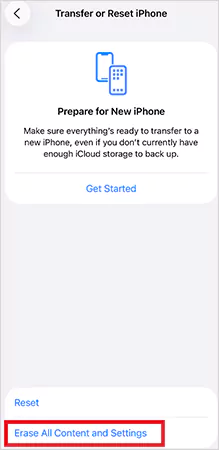
- Enter your device passcode when prompted.
- If asked, enter your Apple ID password and continue.
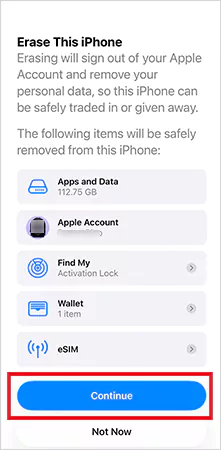
- Confirm to erase and wait for the process to finish.
The iPhone will restart, erase everything, and show the setup screen. You can then set it up as new or restore from a backup.
How to Factory Reset iPhone Without Passcode?
There is no shortcut for an iPhone factory reset without passwords. The passcode protects encrypted data, and removing it means erasing everything. Here are the only official ways:
Method 1: Use Recovery Mode with a Computer
This is the most common method to reset an iPhone without passwords when you are dealing with a locked or disabled iPhone:
- Turn off the iPhone, then connect it to a MacBook or Windows computer.

- Quickly hold the side button (iPhone with Face ID) or the correct button for your model to enter recovery mode.

- Now, open Finder (Mac) or iTunes (Windows) and select your iPhone.
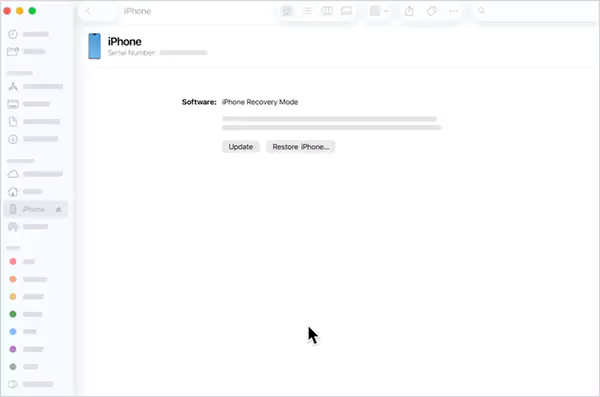
- Here, choose Restore. This erases the phone and installs the latest iOS.
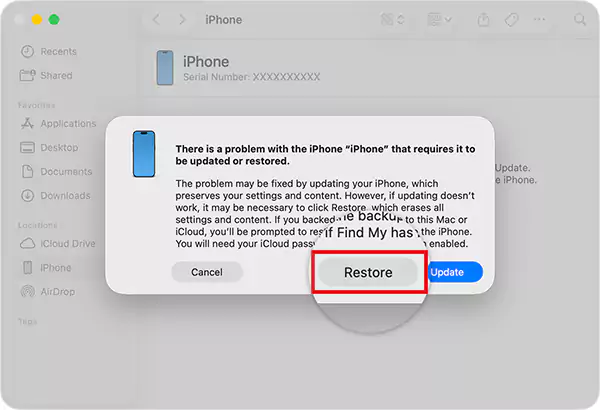
After restoring, you’ll see the setup screen and can restore from a backup if available.
Method 2: Erase Using Find My iPhone (No Computer Needed)
If Find My is enabled, and you know your Apple ID credentials, you can erase the iPhone remotely. Here’s how to factory reset iPhones without passwords:
- Go to iCloud.com or use the Find My app on another Apple device.
- Select your iPhone from the list and choose Erase.
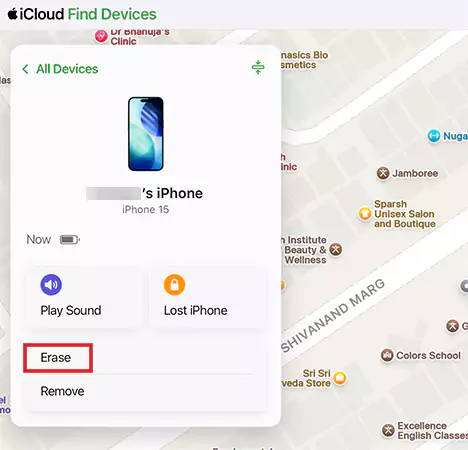
- This wipes all data and removes the passcode so you can set it up again.
Furthermore, on newer iOS versions (iOS 15.2 and later), after multiple wrong passcode attempts, you may see an option to erase the iPhone on the screen. You can confirm with your Apple ID to erase the device.
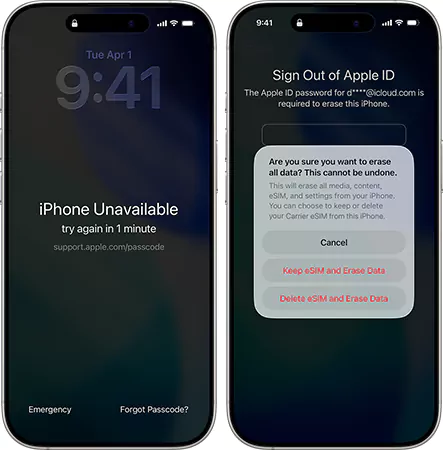
There’s no official way to keep data intact while removing the passcode. Do it only when you are prepared, backed up, and clear on what you are erasing.
Soft Reset vs Factory Reset vs Hard Reset iPhone: What’s the Difference?
When people say “reset my iPhone”, they usually mean different things. And choosing the wrong one can either waste time or erase your phone unnecessarily. Here’s the clean breakdown:
- Soft Reset: This is simply restarting your iPhone by turning it off and on again. It does not erase any apps, settings, or data. It is useful for fixing minor slowdowns or app crashes.
- Hard Reset: Also called a force restart, this forces the iPhone to reboot when it’s unresponsive or frozen. Like a soft reset, it does not delete any personal data or settings. It is just a deeper restart when a normal reboot won’t work.
- Factory Reset: This deletes everything on the iPhone and the phone goes back to a fresh setup screen, just like day one. Use this when you are selling or giving away the iPhone, forgot the passcode, or want a completely clean start.
In short, soft and hard resets are about restarts without data loss. A factory reset is about erasing everything and starting fresh.
How to Force Reset iPhones (Does Not Erase Data)?
If your iPhone is frozen and won’t respond, a force restart usually fixes it. Here’s how to hard reset iPhones:
- Quickly press and release the Volume Up button.
- Quickly press and release the Volume Down button.
- Press and hold the Side button.
- Release when the Apple logo appears
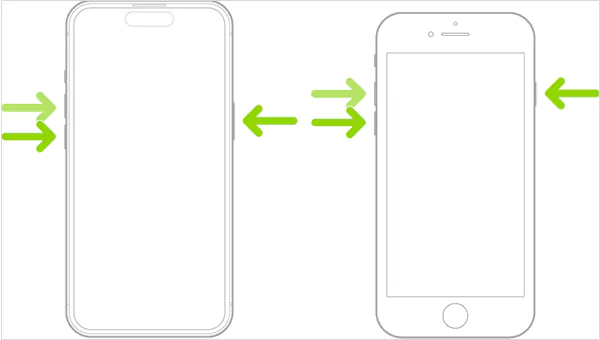
Timing is important in this case. If it does not work the first time, pause for a second and try again from step one. If the phone still does not turn on after this, the issue is likely deeper than a simple restart.
Final Takeaway
One thing you need to remember is that not every problem needs a factory reset. So, use a soft reset for small issues, a hard reset for frozen screens, and a factory reset only as a last resort or when you truly need a clean slate.
Know the difference, pick the right method for your situation, and always back up before erasing. A reset should solve problems, not create new ones.
Frequently Asked Questions
Does a factory reset completely wipe an iPhone?
How to do a factory reset on an iPhone that is locked?
Connect the iPhone to a computer and put it into recovery mode, then choose Restore in Finder or iTunes. You can also use the Erase iPhone option on the lock screen (iOS 15.2 or later), or Find My.
How to do a hard factory reset on iPhone without a password?
If you cannot provide the passcode, put the iPhone into recovery mode and restore it from a Mac or PC using Finder or iTunes. You can also reset it using the Find My app.
Can I force a factory reset on an iPhone?
Yes, using recovery mode or DFU mode with a computer forces a restore, which is effectively a factory reset. Use DFU only if recovery mode fails, as it reinstalls deeper system firmware.
Will a factory reset remove Activation Lock?
No, Activation Lock stays until the original Apple ID is entered or the device is removed from the account manually.
Does a factory reset on iPhone delete the eSIM?
Usually, iOS gives you a choice to keep or erase the eSIM during reset. If you erase it, you will need to reactivate your plan with your carrier.
Related Posts
How to Open Control Panel in Windows? (All Methods Explained)
The control panel in Windows is a collection of tiny programs. It is used to configure the various aspects of…
How to Delete Apps on Mac? Safe and Quick Ways to Uninstall Apps
How do you remove applications from a Mac? Most Mac users think there is just one way to delete apps.…
Why Proxy Servers Are Popular
Many tech platforms, ad networks, SaaS tools, and online stores in the world have critical traffic and infrastructure that require…
Data Loss vs. Data Strategy: Why One Conversation Matters More Than the Other
In the corporate conversation around information, most of the firms are scared of losing data. That’s understandable, as most of…

How to Turn Off Touchscreen on Chromebook? Step-by-Step Guide
Touchscreen on a Chromebook sounds great until it starts getting in the way. Accidental taps while typing, smudges, and random…

How to See Blocked Messages on iPhone? (What Actually Works)
Ever blocked someone on your iPhone and later found yourself wondering if you can see blocked texts on iPhone? It…
The 5 Architecture Decisions That Haunt SaaS Founders Two Years Later
Architecture decisions are fundamental to ensuring steady growth in any business or technical step, especially when the topic is laying…

Database Scaling: How to Manage 10,000+ Political Volunteers
Every small business or growing team needs to deal with a common issue—the database that was working perfectly for the…

What Structured Cabling Systems Include and Why Businesses Still Need Them
Nowadays, IT conversations jump straight to cloud apps, wireless coverage, and cybersecurity tools. While these are visible and easy to…