
Only some Intel or AMD Chromebooks can potentially run Windows. Most models generally cannot support standard Windows installations.
How to Install Windows on Chromebook: A Practical Guide
 Mahima Dave
Updated on: Mar 18, 2026
Table of Contents
- Can You Install Windows on a Chromebook?
- What You Should Know Before Installing Windows on a Chromebook?
- How to Install Windows on Chromebook?
- How to Use Windows on a Chromebook (Easy Alternatives)?
- Pros and Cons of Installing Windows on a Chromebook
- Final Thoughts: Should You Install Windows on Chromebooks?
- Frequently Asked Questions
Chromebooks are loved for a reason. They are affordable, lightweight, boot fast, and the battery easily lasts a full day. But the moment you need a Windows-only app, things get tricky. That’s when many people start asking: Can I run Windows on Chromebooks?
The short answer is yes, but it is not always simple. Firmware locks, limited drivers, and hardware restrictions can make the process complicated.
Here, I will explain how to install Windows on Chromebooks and walk you through the realistic ways to use Windows on ChromeOS, requirements, risks, and benefits for your device.
Quick Answer: How to Install Windows OS on Chromebook?
- Check if your Chromebook model supports Windows.
- Back up your data and enable Developer Mode.
- Install custom UEFI firmware (via the MrChromebox).
- Create a bootable Windows USB installer on another computer.
- Boot the Chromebook from the USB drive.
- Follow the Windows setup process and install the necessary drivers.
Can You Install Windows on a Chromebook?
Yes, installing Windows on a Chromebook is possible, but only in specific cases. Chromebooks are built to run ChromeOS, so Windows is not officially supported on most models.
Still, some users manage to run Windows using methods like custom firmware, virtual machines, or compatibility tools. Whether this works or not mainly depends on your Chromebook’s hardware and processor.
So, can you use Windows on a Chromebook? Well, Intel or AMD Chromebooks may support Windows with the right setup. ARM-based Chromebooks (MediaTek, Snapdragon, etc.) usually cannot run standard Windows at all.
What You Should Know Before Installing Windows on a Chromebook?
Installing Windows on a Chromebook is very different from installing Windows on a regular PC. Here are the most important things to know before I tell you how to get Windows on Chromebooks:
- Not Every Chromebook Supports Windows: Many Chromebooks run on ARM processors, which cannot boot standard Windows. Only some Intel or AMD devices have a realistic chance of working.
- Custom Firmware is Usually Required: Chromebooks use firmware designed for ChromeOS. To install Windows, users often replace it with custom UEFI firmware, which allows the device to boot another operating system.
- Your Data Will Be Erased: Enabling developer mode and modifying firmware will usually wipe everything stored locally. Always back up your important files before starting.
- Some Hardware May Not Work Properly: Even if Windows installs successfully, features like touchpad, audio, Wi-Fi, or brightness controls may need manual drivers or not work completely.
- Warranty May Be Voided: Changing firmware or bypassing system protections is considered an unsupported modification, which can void your warranty.
In simple terms, it can work, but it is more of a technical workaround than a standard setup.
How to Install Windows on Chromebook?
Quick Checklist: Things You Need Before Installing
Before I answer “How can you get Windows on Chromebooks?”, quickly confirm these essential requirements:
- Intel or AMD Chromebook.
- At least 4GB RAM and 64GB storage (8GB RAM and 128GB storage recommended).
- Check whether your model supports custom firmware.
- Write protection is disabled on the motherboard.
- USB drive (8GB or larger).
- Windows 11, Windows 10, or Windows 10 Pro ISO file.
- Second computer to create the bootable USB.
- Stable internet connection and backup of all important files.
Having these ready will make the installation process smoother and prevent common setup issues.
If your device is compatible and you have all the necessary things, here’s how to instal Windows on a Chromebook:
Step 1: Enable Developer Mode
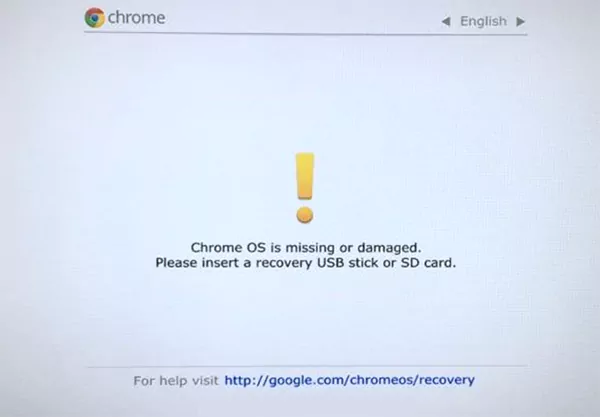
Restart your Chromebook and enter recovery mode using the Esc + Refresh + Power buttons. From there, enable developer mode by pressing Ctrl + D to allow system-level changes. Confirm and let it reboot. Remember that this step factory resets your device.
Step 2: Install Custom Firmware
Chromebooks use locked firmware for ChromeOS. Installing UEFI custom firmware allows the device to boot other operating systems like Windows. Here’s how to do it:
- Open the ChromeOS Developer Shell using Ctrl + Alt + T.
- Type shell and press Enter.
- Run the MrChromebox firmware utility script from the official website.
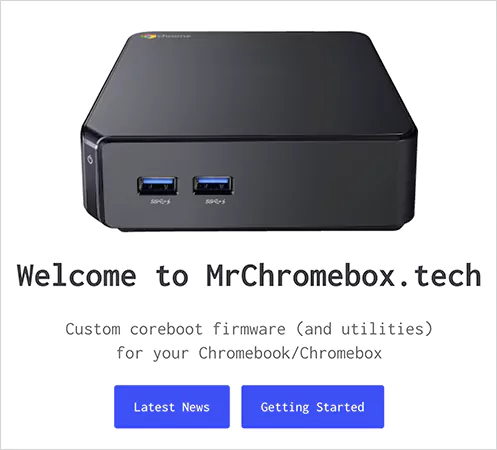
- Flash the UEFI-compatible firmware.
This step allows the device to boot an operating system other than ChromeOS.
Step 3: Create a Bootable Windows USB
Now, use another computer to prepare the installation drive.
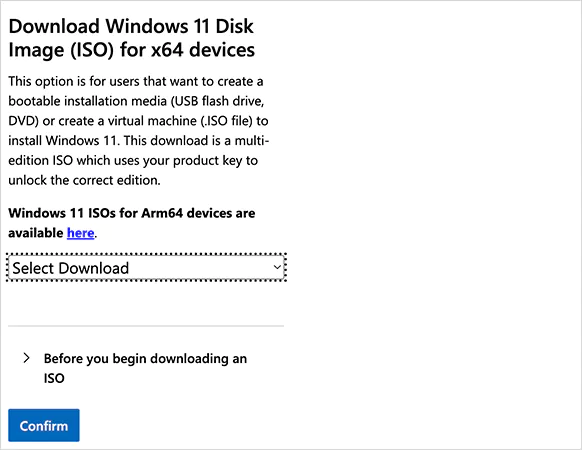
- Download the Windows ISO from Microsoft.
- Use Rufus or Balena Etcher to create a bootable USB.
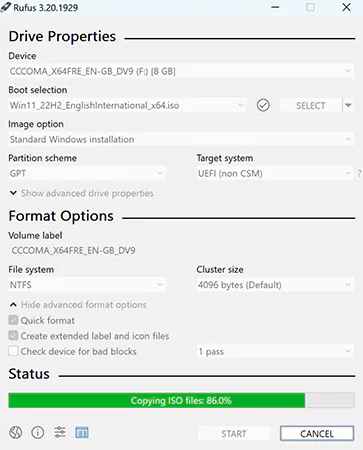
- Select the GPT partition scheme and the UEFI target system.
Once ready, connect the USB drive to your Chromebook.
Step 4: Complete Windows Installation
Next, turn on the Chromebook and open the boot menu using Esc or Ctrl + L. After that:
- Select the USB drive.
- Follow the Windows setup instructions.
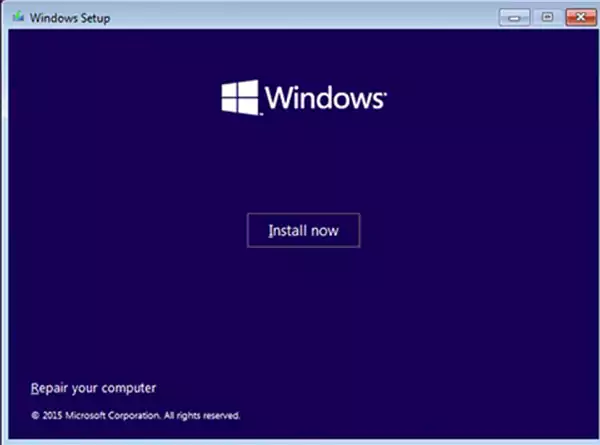
- Remove ChromeOS partitions and install Windows on the available space.
Step 5: Install Drives
After installation, some hardware may not work immediately. Common issues include:
- Wi-Fi drivers.
- Trackpad support.
- Audio drivers.
Most solutions come from community driver packs on GitHub or Chromebook forums. Just check them for your model’s drive pack. Also, keeping a USB Ethernet adapter nearby helps you connect to the internet if Wi-Fi does not work initially.
How to Use Windows on a Chromebook (Easy Alternatives)?
How can you load Windows on a Chromebook without a USB? Well, you cannot. But installing Windows is not always necessary. In many cases, you can run Windows software on a Chromebook using simpler methods.
Use Linux and Wine
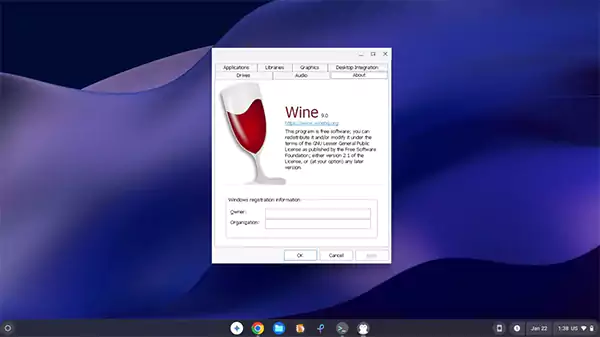
Chromebooks support a Linux environment called Crostini. Inside it, you can install Wine, which allows many Windows apps to run on Linux. This works well for lightweight tools like editors or productivity apps.
Use CrossOver
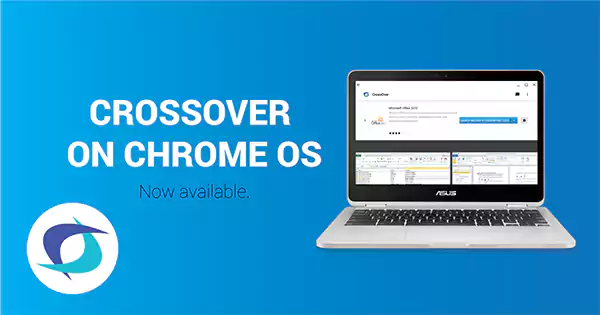
CrossOver is a compatibility tool that runs Windows apps directly on ChromeOS. It simplifies the process compared to manual Wine setups. Many users run Microsoft Office or even Steam with this method.
Use Remote Desktop or Cloud Windows
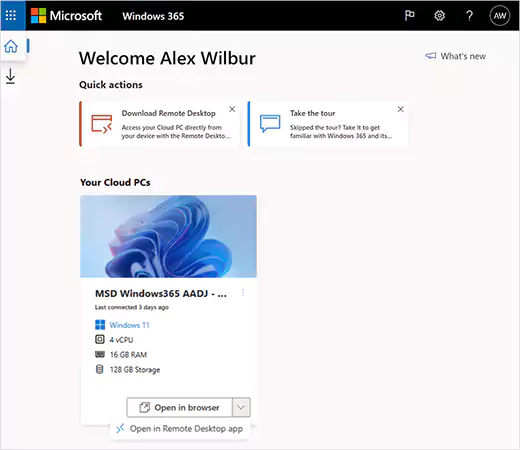
You can access a remote Windows PC using cloud services or remote desktop tools. This allows you to run Windows software without changing the Chromebook’s operating system.
Use a Virtual Machine
If your Chromebook supports Linux, you may run Windows inside a virtual machine. Performance depends on your device’s RAM and processor, so this works best on higher-end models.
For most users, these options are faster, safer, and easier than installing Windows directly.
Pros and Cons of Installing Windows on a Chromebook
You now know how to install Windows on a Chromebook. It can expand what your Chromebook can do, but it also comes with trade-offs. Let’s quickly look into its pros and cons:
Pros
- Run Windows-only software and enterprise.
- Install full desktop apps like Microsoft Office or development tools.
- Greater flexibility compared to ChromeOS.
- Better compatibility with legacy business software.
- Can extend the usefulness of an older Chromebook.
Cons
- Not all Chromebooks support Windows installation.
- Some hardware drivers may not work properly.
- Firmware modification can cause system errors.
- May void warranty and reduce system stability.
Final Thoughts: Should You Install Windows on Chromebooks?
Can I install Windows on a Chromebook? Yes. Would I recommend you do that? No. It is not as straightforward as installing Windows on a regular laptop.
For most people, simple options like Linux apps, CrossOver, Windows emulator for Chromebooks, or cloud-based Windows systems are the smarter choice. They let you use Windows software without modifying your device.
However, if you enjoy experimenting with technology, it can be an interesting way to unlock more flexibility from the device. Now, if you know how to install Windows on Chromebook, the real question is whether the extra effort is worth it for how you actually use your laptop.
Frequently Asked Questions
Can I install Windows on a Chromebook?
Is it safe to install Windows on a Chromebook?
It can be safe if done correctly, but the process involves firmware changes and can cause driver or compatibility issues.
How to install Windows 10 on Chromebooks?
Enable Developer Mode, install UEFI custom firmware, boot from a Windows 10 USB installer, and follow the setup process.
Can I run Windows apps on a Chromebook without installing Windows?
Yes, tools like Wine, CrossOver, and remote desktop solutions allow various Windows apps to run on ChromeOS.
Can you put Microsoft Office on a Chromebook?
Yes, you can use Microsoft Office through the web version, Android apps, or compatibility tools that run Windows applications.
Related Posts

8 Best AI Presentation Makers for Business-Ready Slides
Making a presentation doesn’t just mean designing slides. It’s about defining a clear structure, using defined logic, useful visuals, and…

Queue Management Software Troubleshooting Guide: 8 Common Faults and Fixes
The long wait times and ineffective management of customer queues can have a significant impact on customer satisfaction and business…

How to Use Similarweb Website Traffic Data for Competitor Research
Competitor research without traffic data is guesswork. You can guess who your rivals are, guess how big they are, guess…

Choosing the Right Hosting Model for Scalable Digital Platforms
The performance of digital business is directly related to website speed, uptime, and scalability. Slow page performance has a negative…

How Data-Driven Performance Tools Are Transforming Employee Recognition in Tech Companies
“People work for money but go the extra mile for recognition, praise, and rewards.” — Dale Carnegie (Writer & Teacher)…

Why Businesses Struggle to Collect Reliable Data from the Web
Almost every company that depends on data runs into the same problem: although they can find the data they need,…

Why Financial Data Recovery Matters for Businesses
Financial data supports every part of a business, directly affecting cash flow, payroll, tax reports, audits, customer billing, and daily…

CMMC Compliance Is Coming for Manufacturers. Here Is What You Need to Do
“Cybersecurity is much more than a matter of IT.” — Stephane Nappo (Cybersecurity Professional) For manufacturers working within the defense…

How Data-Based Tools Influence Learning Performance
Learning has transformed in the modern age with the integration of new technologies to help students and professionals prosper in…