
Open the folder, then select emails in bulk. You can select all emails, select a range, or select specific emails. Once selected, press delete to move them to the Deleted Items folder.
How to Mass Delete Emails on Outlook (Fast and Safe Bulk Cleanup)
 Mahima Dave
Updated on: Mar 11, 2026
Table of Contents
- How to Mass Delete Emails in Outlook?
- How to Mass Delete Emails on Outlook Using Search Filters?
- How to Delete Multiple Emails in Outlook Using Sweep?
- How to Delete All Emails in Outlook on the Web?
- How to Delete Multiple Emails on Outlook Automatically?
- How to Delete Emails in Outlook Permanently?
- Wrapping Up
- Frequently Asked Questions
Stressed by too many emails in Outlook? Fix that properly by learning how to mass delete emails on Outlook.
A messy inbox does not just look bad; it slows you down, hides what actually matters, and makes simple tasks feel heavier. The good news is that Outlook gives you powerful tools to organize your inbox and clean up fast, without risking important emails.
In this guide, I will explain how to delete mass emails in Outlook using smart methods like search filters, Sweep, and Rules. You will also learn about the common mistakes to avoid while mass-deleting.
TL;DR: How to Mass Delete Outlook Emails
- Use Ctrl + A to delete all emails from a folder in Outlook.
- Use search filters “from:” or “received:<date” to remove specific emails safely.
- For newsletters and recurring emails, use Sweep in Outlook Web.
- Emails are not permanently deleted until you empty the Deleted Items folder.
How to Mass Delete Emails in Outlook?
How do I delete multiple emails in Outlook? Well, if my mailbox feels heavy, I don’t randomly start deleting things. It is important to clean it with intent. Here’s how to delete emails in bulk:
Delete Everything in A Folder (Fastest Way)
This is the best option if you want a full reset:
- Open the folder, such as the Inbox or Sent.
- Click on any email.
- Then, press Ctrl + A (Windows) or Cmd + A (Mac).
- Finally, hit Delete.
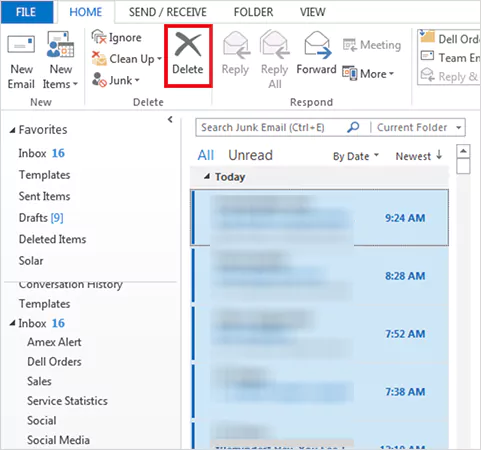
- You can even empty the folder directly. Just right-click the folder, select Delete All or Empty Folder, and confirm.
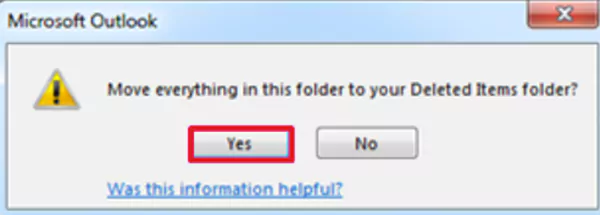
All emails will move to Deleted items. Use this only if you are 100 percent sure you don’t need anything inside the folder.
Delete Only Specific Emails in Bulk
This is smarter than deleting everything. This method gives you control to remove what you don’t need without touching important threads.
- If you want to delete consecutive emails:
- Click on the first email.
- Hold Shift.
- Click the last email.
- Press Delete.
Everything between those two emails gets selected instantly.
- If you want to delete non-consecutive emails:
- Hold the Ctrl button.
- Click on each email you want to remove.
- Press Delete.
This allows you to handpick emails without disturbing unread, flagged, or important messages. If you accidentally select something important, hold Ctrl and click it again to deselect.
Delete Emails Across All Folders
There is no one-click option to wipe everything in every folder. Here’s how to select all emails in Outlook:
- Right-click on each folder manually.
- Next, select Delete All.
If you are cleaning for storage space, you will also need to empty the Deleted Items folder in Outlook, which I will show you later.
How to Mass Delete Emails on Outlook Using Search Filters?
This is where experts clean smarter. Instead of deleting everything, you can use search filters to narrow down what you need. Here’s how to bulk delete emails in Outlook smartly:
- Open the folder you want to clean.
- Click on the search bar, and use filters like:
- from:example@email.com (emails from a specific sender)
- received:<2022-06-01 (emails before a date)
- hasattachments:yes (emails with attachments)
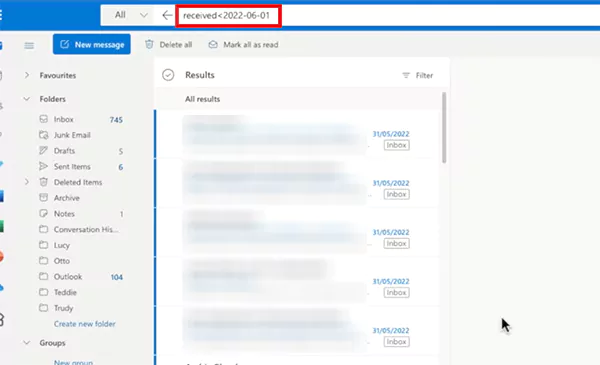
- Press Enter.
- Then, press Ctrl + A to select all results.
- Finally, click on Delete.
Only filtered emails are removed in this method without any hassle. Your other emails stay untouched.
How to Delete Multiple Emails in Outlook Using Sweep?
If you use Outlook on the Web, Sweep is useful to deal with newsletters, promotions, and repeated senders. Here’s how to delete bulk emails in Outlook Web using the Sweep feature:
- Open Outlook on the web.
- Now, select one email from the sender.
- Next, click Sweep from the top toolbar.

- Here, choose a suitable option and click on OK.
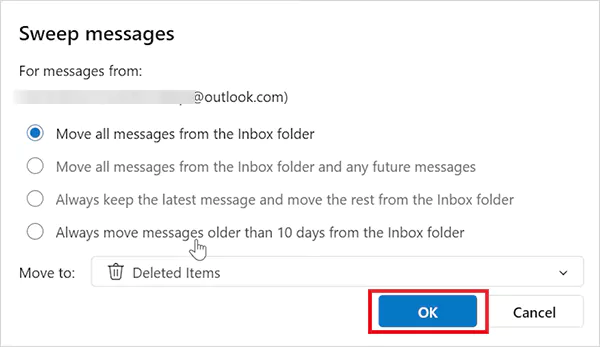
- Finally, confirm your selection.
That’s how easy it is to use Sweep for recurring emails. You can use it for brands, alerts, and subscriptions.
How to Delete All Emails in Outlook on the Web?
Let’s see how to clear the entire inbox on the web version of the outlook:
- Sign in to Outlook on the web.
- Hover over Inbox in the left panel.
- Click on the three dots or More option.
- Select Empty and confirm the action.
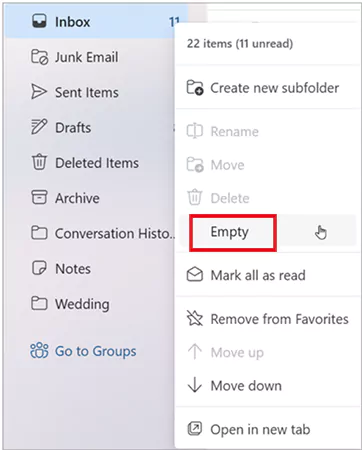
Now, all emails from your Outlook Inbox will move to the Deleted Items folder.
How to Delete Multiple Emails on Outlook Automatically?
If you repeatedly delete emails from the same sender, stop doing it manually. Here’s how you can create a Rule to delete them automatically:
- Open Outlook and go to Settings or Rules (depending on your version).
- Now, click on Create New Rule.
- Here, choose a condition such as emails from a specific sender.
- Select the action to Delete.
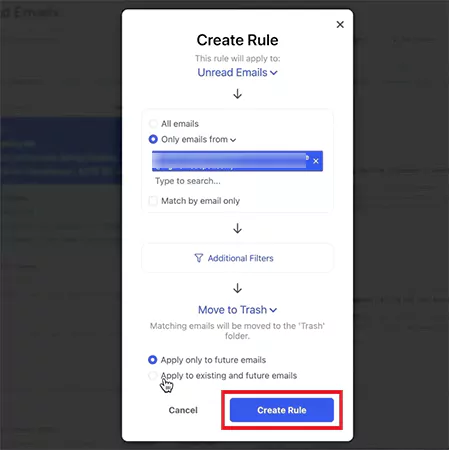
- Finally, just save the rule by clicking on Create Rule.
From now on, Outlook will delete matching emails automatically. This is a great way to manage your Inbox for the long-term.
How to Delete Emails in Outlook Permanently?
Deleting emails in Outlook normally just moves them to the Deleted Items folder. If you want to clean up storage, it is important to remove them completely. Here’s how to delete multiple emails from Outlook Deleted Items:
- Right-click the Deleted Items folder.
- Next, select Empty.
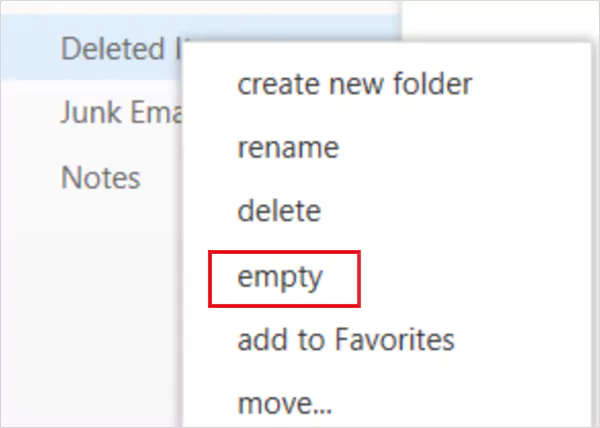
- Finally, click Yes to confirm your action.
After emptying Deleted Items, if you are sure that you won’t need to recover deleted emails in Outlook, go to Deleted Items > Recover items deleted from this folder and permanently delete messages from there.
Plus, if you want more storage, you can also try to clear the Outlook cache.
Wrapping Up
Deleting multiple emails in Outlook is simple when you follow a structure. Start with a clear plan, use filters to target what you want to remove, and always empty the Deleted Items folder if you want free storage.
Learning how to mass delete emails on Outlook is not about deleting everything. It is about removing what no longer serves you. Do it properly, and your mailbox stays lighter, faster, and easier to manage.
Frequently Asked Questions
How do I delete multiple emails from Outlook?
How do I delete multiple emails on Outlook from a specific sender?
Type “from:email@address.com” in the search bar, select the emails you want to delete, and then click on Delete. You can also use the sweep option in the web version.
How do I quickly clean out my Outlook mailbox?
Use search filters to delete old or large emails, or use the Mailbox cleanup tool to trim the size of your mailbox.
Can I recover deleted emails in Outlook?
Yes, start by checking the Deleted Items folder. If you can’t find the email, use the recover deleted items option from the same folder.
Does deleting emails in Outlook free up storage immediately?
No, you must empty the Deleted Items folder to actually reclaim storage space.
Related Posts
What Key Adjustments Enhance Visual Appeal Across Web Pages
Attractive web pages form the roots of any appealing website. For instance, imagine looking for content on Google, and you…
When is it Time to Consider IT Support Services for Your Business?
Every business needs to ensure smooth operations for a successful business. But despite trying hard to avoid barriers, technical issues…

How to Delete User Profile in Windows 10: Step-by-Step Guide
You don’t notice user profiles until one starts causing problems. A profile gets corrupted, a login error pops up, or…

How AI Can Help Students Take Notes and Check Their Work
Artificial Intelligence is transforming how students learn, study, and manage their academic work. From automating note-taking to checking assignments, AI…
How to Stop Windows Update: Pause, Disable, or Uninstall Safely
Imagine that face when Windows starts updating with a deadline looming and your screen freezes. Frustrating is an understatement, and…

How to Open Control Panel in Windows? (All Methods Explained)
The control panel in Windows is a collection of tiny programs. It is used to configure the various aspects of…
How to Delete Apps on Mac? Safe and Quick Ways to Uninstall Apps
How do you remove applications from a Mac? Most Mac users think there is just one way to delete apps.…

Why Proxy Servers Are Popular
Many tech platforms, ad networks, SaaS tools, and online stores in the world have critical traffic and infrastructure that require…
Data Loss vs. Data Strategy: Why One Conversation Matters More Than the Other
In the corporate conversation around information, most of the firms are scared of losing data. That’s understandable, as most of…