
Yes, you can disable updates using Windows Services, Group Policy Editor, or the Metered Connection.
How to Stop Windows Update: Pause, Disable, or Uninstall Safely
 Mahima Dave
Updated on: Mar 30, 2026
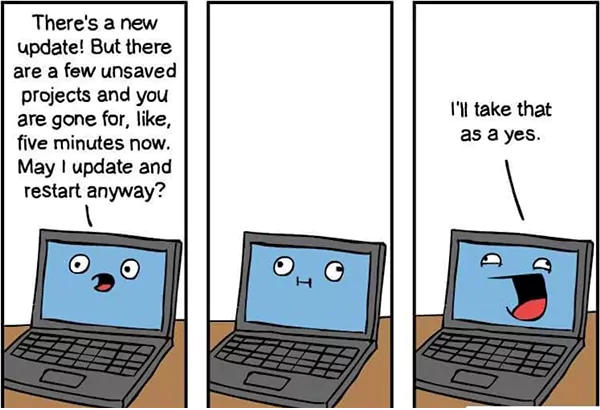
Imagine that face when Windows starts updating with a deadline looming and your screen freezes. Frustrating is an understatement, and knowing how to stop Windows updates can save you from a lot of hassle.
Windows updates keep your system secure. But sometimes an update starts at the worst possible moment. So, how can I stop Windows updates?
In this guide, I will walk you through simple and safe ways to manage updates. You will learn how to stop updating Windows, pause updates, uninstall a problematic patch, and keep your data safe.
TL;DR
- Pause updates from Settings if you only need a temporary break.
- Disable automatic updates using Windows Services, Group Policy Editor, or the Registry if you want stronger control.
- Use a metered connection to prevent large updates from downloading automatically.
- Uninstall recent updates if a new patch causes crashes, performance issues, or compatibility issues.
- Clear Windows update files when updates get stuck or fail to install.
Why You May Want to Stop Windows Updates?
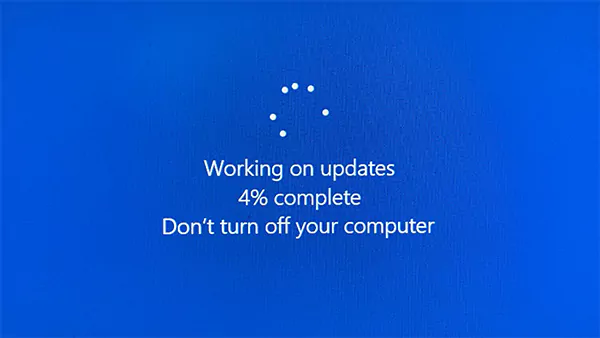
Regular updates are designed to improve security, fix bugs, and avoid many issues like the Windows blue screen of death and Error 0x80004005.
But in some situations, users prefer to pause or delay them. Before I tell you “How do I stop a Windows update?”, here are the most common reasons people cancel Windows updates:
- To Avoid Workflow Interruptions: Updates often require a system restart. If this happens during an important task or deadline, it can interrupt your work and slow productivity.
- To Prevent Unexpected Restarts: Sometimes Windows installs updates in the background and schedules a restart automatically. This can be frustrating if you are actively using the system.
- To Avoid Compatibility Problems: Certain updates may not work well with older applications, drivers, or hardware. If you rely on legacy software for work, delaying updates can help keep your system stable.
- To Avoid Buggy Updates: While Microsoft tests updates carefully, some patches may still introduce issues such as crashes or performance problems on specific hardware setups.
- To Save Internet Data: Updates can be several gigabytes in size. On limited data plans, automatic downloads can quickly consume your available bandwidth.
- To Gain More Control: Some users prefer reviewing updates before installing them. Pausing updates allows you to decide when your system should update.
How to Stop Windows Update?
If you want to learn how to turn off Windows updates, there are two main approaches:
- Pause updates temporarily if you only need a short break.
- Disable automatic updates if you want stronger control over when updates install.
Below are the most practical methods you should rely on.
How to Stop a Windows Update (Temporarily Pause)?
Pausing them through settings is the easiest option. Let’s see how to cancel Windows 11 updates:
- Press Windows + I to open Settings.
- Click on Windows Update from the left menu.
- Now, find the Pause updates option.
- Choose Pause for 1 week or select a longer period.
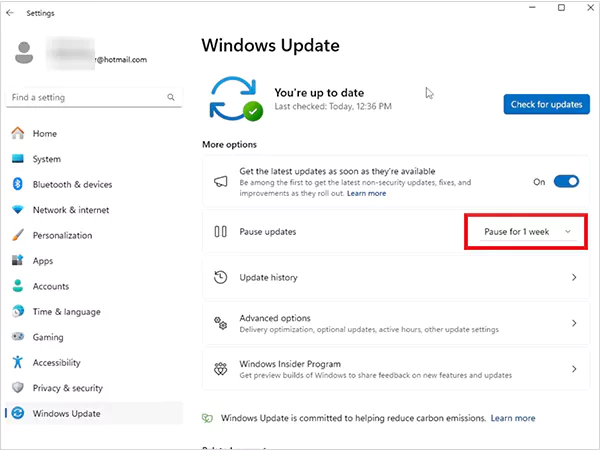
Pausing or cancelling an update in progress is generally safer because Windows will automatically resume updates after the selected period. This method works best if you are working on an important project.
How to Disable Windows Update?
If you need stronger control, Windows allows you to disable automatic updates using system tools. These methods stop updates from running in the background.
Method 1: Using Windows Services
This is one of the quickest ways to stop automatic updates. Here’s how to turn off auto update on Windows 11:
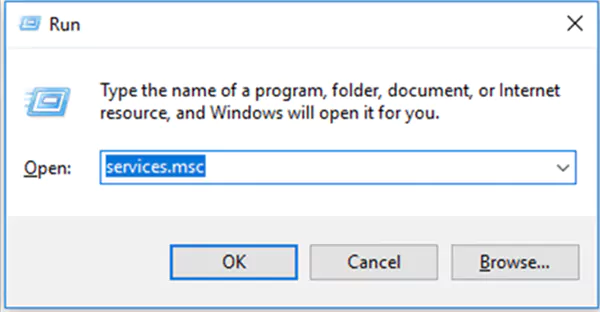
- Press Windows + R, type services.msc, and press Enter.
- Scroll down and find Windows Update.
- Now, double-click it to open the properties.
- Change Startup type to Disabled.
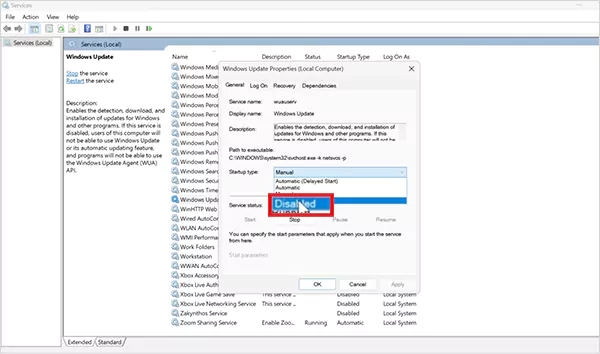
- Click Stop, then Apply, and OK.
This stops the Windows Update service, preventing automatic downloads.
Method 2: Using Group Policy Editor
This method works on Windows 11 Pro, Enterprise, and Education editions. Here’s how to disable Windows automatic updates:
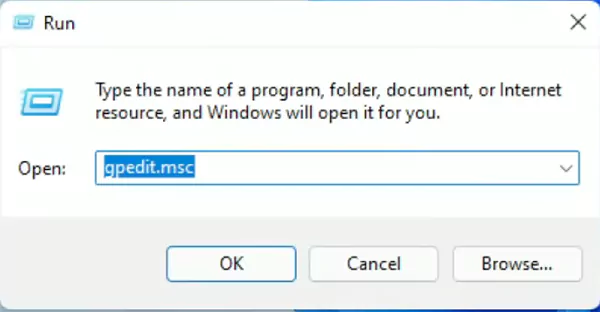
- Press Windows + R, type gpedit.msc, and press Enter.
- Go to: Computer Configuration > Administrative Templates > Windows Components > Windows Update.
- Next, open Configure Automatic Updates.
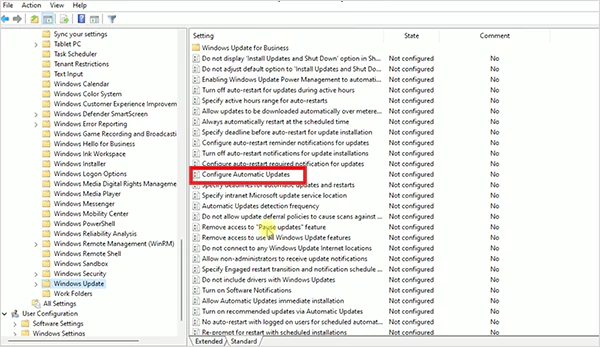
- Select Disabled, then click Apply and OK.
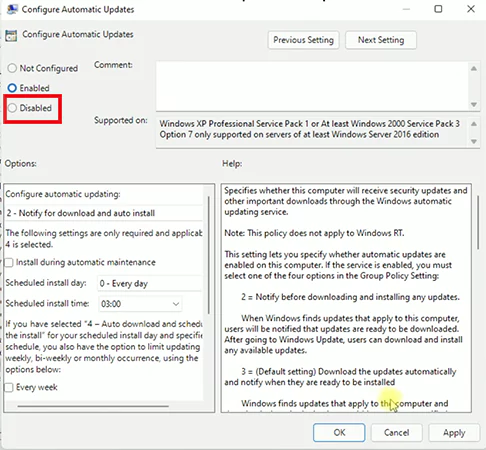
- Finally, restart your computer.
Group Policy is commonly used in organizations to control update behavior across multiple systems.
Method 3: Using Registry Editor
This method works on most Windows editions but should be used carefully. Always back up the registry before making changes.
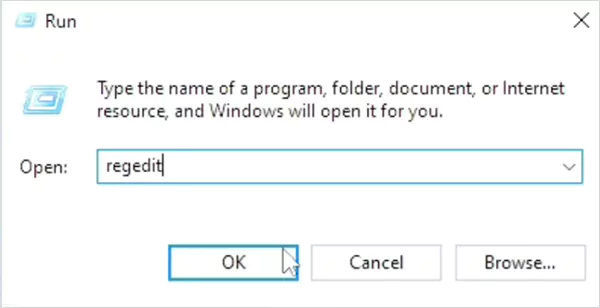
- Press Windows + R, type regedit, and press Enter.
- Navigate to: HKEY_LOCAL_MACHINE\SOFTWARE\Policies\Microsoft\Windows\WindowsUpdate\AU
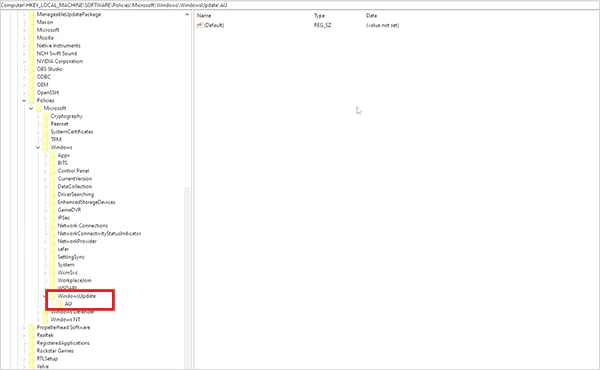
- If WindowsUpdate or AU keys don’t exist, create them.
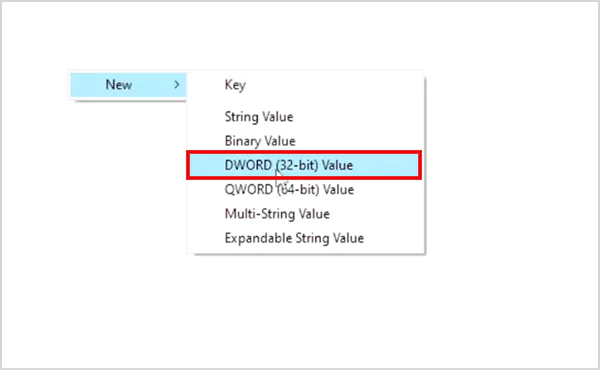
- Create a new DWORD (32-bit) Value named NoAutoUpdate.
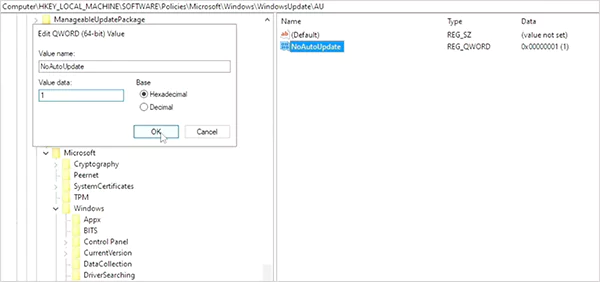
- Set its value to 1.
- Restart your PC.
This change prevents Windows from automatically downloading or installing updates.
Method 4: Using a Metered Connection
If you do not want to completely disable updates, you can limit them by setting your internet connection to metered. Here’s how:
- Press Windows + I to open Settings.
- Now, go to Network & Internet.
- Select your connected Wi-Fi or Ethernet network.
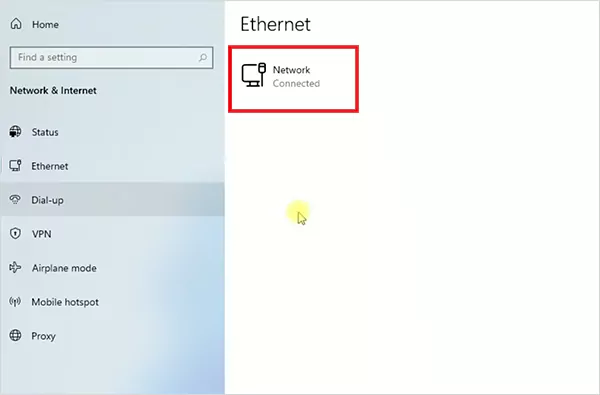
- Turn on Metered connection.
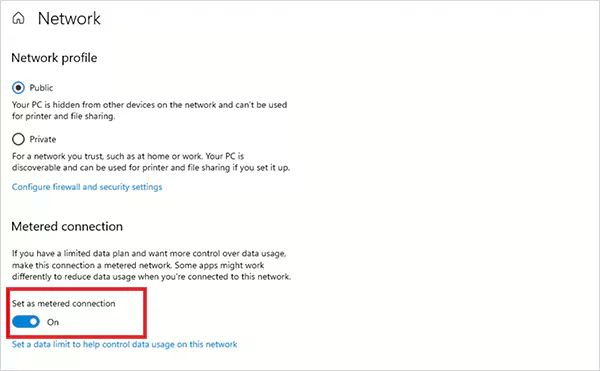
When a network is marked as metered, Windows usually avoids downloading large updates automatically. For most users, pausing updates or using a metered connection is safer than disabling them completely.
How to Uninstall Windows Updates?
If a recent update causes crashes, slow performance, or compatibility issues, you can remove it and return to the previous one. Here’s how:
Method 1: Uninstall Updates from Settings
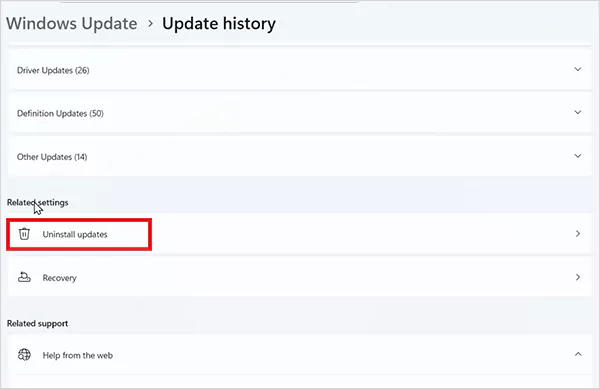
- Open Settings and go to Windows Update.
- Click on Update History.
- Next, select Uninstall updates.
- Choose the update you want to remove and click Uninstall.
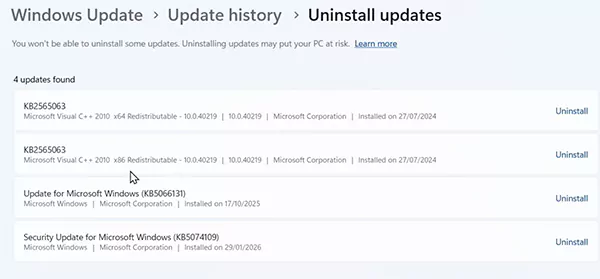
- Finally, click on Uninstall again.
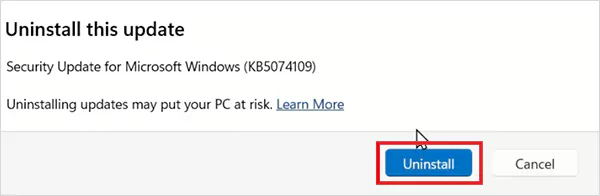
Restart your computer after the process is complete.
Method 2: Uninstall Updates from Control Panel
- Open Control Panel.
- Go to Programs and Features.
- Click on View installed updates.
- Here, select the update you want to remove and click Uninstall.
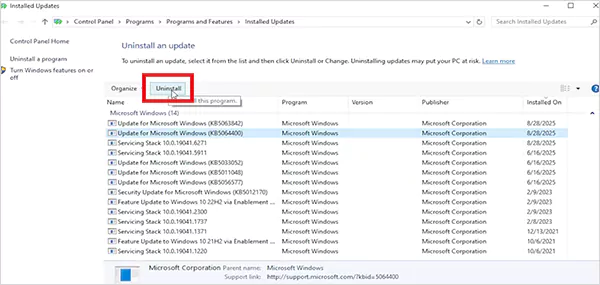
Removing a problematic update can fix system crashes, driver conflicts, or performance issues.
How to Remove Windows Update Files?
Windows stores downloaded updates in temporary system folders. Sometimes, these files remain even after an update fails or is cancelled. Deleting them can free up disk space and fix stuck updates like Windows update error 0x80070643.
- First, stop the Windows Update service (as explained earlier in the guide).
- Press Windows + E to open the File Explorer.
- Now, navigate to: C:\Windows\SoftwareDistribution\Download.
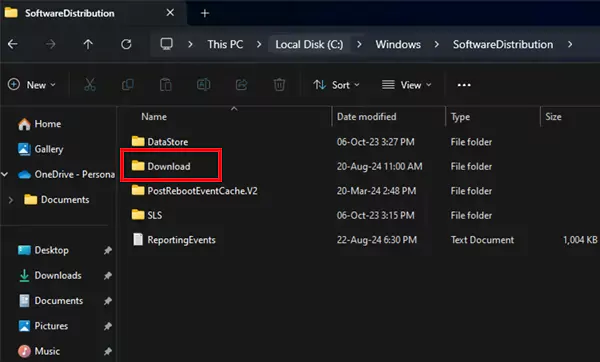
- Delete all files inside the Download folder.
- Restart the Windows Update service.
These files are temporary and safe to remove if you are stuck on Windows update.
Things to Know Before You Disable Windows Updates
Now, it is important to also understand the risks. Here are a few things to keep in mind before turning off updates completely:
- Security Risk Increase: Without updates, your system stops receiving updates for newly discovered vulnerabilities.
- System Stability May Decline: Updates often fix bugs. Skipping them for long periods can lead to crashes or performance issues.
- Apps and Drivers May Stop Working Properly: Some software requires the latest Windows updates to run smoothly.
- Microsoft Support May Be Limited: Older or unsupported versions of Windows may not receive future improvements or technical support.
In short, disabling updates should only be a temporary workaround.
Final Thoughts
Windows updates can sometimes feel inconvenient, especially when they restart your system or introduce unexpected changes. But they also play a critical role in keeping your computer secure and running smoothly.
Although you know how to stop Windows updates, the smartest approach is to balance. Delay updates when necessary, but install them regularly to keep your system protected and stable.
Frequently Asked Questions
Can I permanently disable Windows updates?
Is it safe to disable Windows updates?
It is not recommended for long-term use because your system will miss important security patches. So, it is better to pause updates temporarily instead.
How to cancel the Windows update?
You can cancel the update by pausing updates in Settings or stopping the Windows Update services through the Services Manager.
How long does a Windows 11 update take?
Most Windows 11 updates take 30 minutes to 1 hour, depending on your device’s speed and the size of the update.
How can I cancel Windows updates that are already installed?
You can remove installed updates by going to Settings > Windows Update > Update history > Uninstall updates.
Related Posts

8 Best AI Presentation Makers for Business-Ready Slides
Making a presentation doesn’t just mean designing slides. It’s about defining a clear structure, using defined logic, useful visuals, and…

Queue Management Software Troubleshooting Guide: 8 Common Faults and Fixes
The long wait times and ineffective management of customer queues can have a significant impact on customer satisfaction and business…

How to Use Similarweb Website Traffic Data for Competitor Research
Competitor research without traffic data is guesswork. You can guess who your rivals are, guess how big they are, guess…

Choosing the Right Hosting Model for Scalable Digital Platforms
The performance of digital business is directly related to website speed, uptime, and scalability. Slow page performance has a negative…

How Data-Driven Performance Tools Are Transforming Employee Recognition in Tech Companies
“People work for money but go the extra mile for recognition, praise, and rewards.” — Dale Carnegie (Writer & Teacher)…

Why Businesses Struggle to Collect Reliable Data from the Web
Almost every company that depends on data runs into the same problem: although they can find the data they need,…

Why Financial Data Recovery Matters for Businesses
Financial data supports every part of a business, directly affecting cash flow, payroll, tax reports, audits, customer billing, and daily…

CMMC Compliance Is Coming for Manufacturers. Here Is What You Need to Do
“Cybersecurity is much more than a matter of IT.” — Stephane Nappo (Cybersecurity Professional) For manufacturers working within the defense…

How Data-Based Tools Influence Learning Performance
Learning has transformed in the modern age with the integration of new technologies to help students and professionals prosper in…