
Windows updates sometimes reassign drive letters, modify partition tables, or create conflicts with existing storage configs, making it seem like your partition got deleted or lost.
Partition Lost After a Windows Update? How to Restore a Missing Drive and Recover Data Safely
 Reviewed By Brijesh Kumar Singh
  Upasna Deewan
Updated on: May 06, 2026
Table of Contents
- Why Windows Updates Sometimes "Lose" Partitions
- Step 1: Check Disk Management First
- Step 2: Use Command Prompt for Deeper Diagnostics
- Step 3: Deploy Partition Recovery Software
- Step 4: Recover Files When Partition Restoration Fails
- Preventing Future Partition Loss
- Protecting Your Business Data Beyond Local Storage
- Moving Forward With Confidence
- Frequently Asked Questions
Few things derail your workday quite like starting up your computer after a Windows update, only to discover that an entire drive has disappeared. That feeling when your D: or E: drive can’t be located is more common than you’d think.
Especially for e-commerce businesses depending on stored customer data, marketing assets, and product images, this can be a catastrophic loss. But there is a way to recover your files safely, and without losing your momentum.
This guide highlights the ways in which you can recover your lost files and prevent future partition loss.
Key Takeaways
- Windows tends to reassign drive letters, modify tables, or create conflicts with existing storage configurations after major updates
- Disk management allows you to run diagnostics on your system to identify unallocated space, RAW partitions, and volumes without an assigned letter
- The command prompt enables the user to run deeper diagnostics for the lost files in an attempt to locate and recover them
- Partition recovery software offers many functionalities that can easily recover lost partitions of a drive
Why Windows Updates Sometimes “Lose” Partitions
Windows updates occasionally reassign drive letters, modify partition tables, or create conflicts with existing storage configurations. This doesn’t mean your data was deleted. Instead, the system simply can’t locate or display the partition correctly.
Common causes include:
- Drive letter conflicts where the update reassigns letters
- Partition table corruption during the update process
- Hidden partitions that Windows no longer recognizes
- Driver incompatibilities affecting storage controllers
Hardware failure remains the leading cause at 40-44%, followed by human error at 29-32%, according to DataNumen’s 2024 report.
Understanding the root cause helps determine the right recovery approach. Most situations require straightforward fixes rather than complex data recovery procedures.
Step 1: Check Disk Management First
Before considering the worst, open Windows Disk Management on your device to run diagnostics.
Press Windows + X and select Disk Management. Look for your missing drive. You might see it listed as:
- Unallocated space (the partition lost its file system reference)
- RAW partition (file system corruption)
- A volume without a drive letter (simple reassignment issue)
If your partition is displayed without a letter, right-click that, select Change Drive Letter and Paths, and assign a new letter to it. This straightforward fix resolves most of the post-update issues instantly.
For partitions showing as RAW or unallocated, proceed to the next steps, and remember not to format anything yet, as it may delete all the data permanently.
Step 2: Use Command Prompt for Deeper Diagnostics
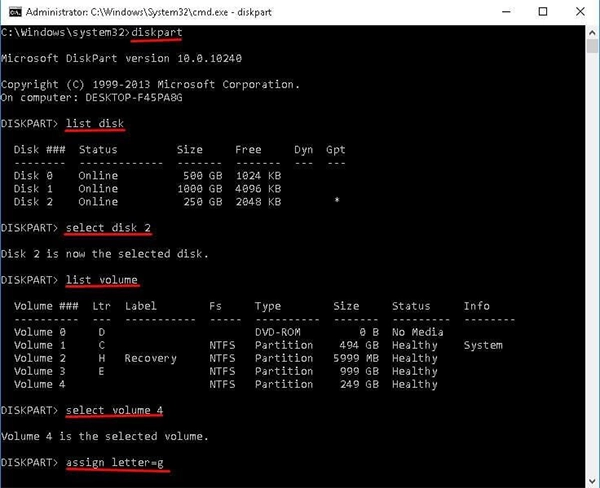
When Disk Management doesn’t show your partition, Command Prompt provides much detailed information.
Open Command Prompt as Administrator and type:
- diskpart
- list disk
- select disk [number]
- list partition
This displays all the partitions, including hidden ones that Disk Management might not show. If your partition appears here, you can try to assign a letter using:
select partition [number]
assign letter=[letter]
For partitions that don’t appear at all, the partition table itself may need repair, which brings us to recovery software.
Step 3: Deploy Partition Recovery Software
When built-in Windows tools don’t solve the problem, dedicated recovery software becomes essential. Reliable partition recovery tools scan the entire drive at the sector level, searching for partition structures that Windows can no longer identify.
Look for software that offers:
- Deep scanning capabilities for severely corrupted partition tables
- Preview functionality before committing to recovery
- Multiple file system support (NTFS, FAT32, exFAT)
- Non-destructive recovery that doesn’t overwrite existing data
The recovery process usually involves scanning the affected disk, identifying lost partitions, and either rebuilding the partition table or extracting files to a safe location.
Fun Fact In many cases of lost partitions, your data is still present and intact, but the system can’t simply locate it because the file’s metadata is damaged, making it a logical issue rather than a physical one.
Step 4: Recover Files When Partition Restoration Fails
Most of the time, the partition structure is too damaged to attempt restoration. In these cases, file-level recovery becomes the priority.
Data recovery software scans the raw disk for file signatures and recognizable patterns that locate documents, images, databases, and other file types.
This approach bypasses the corrupted table entirely, extracting files based on their internal content rather than their location in the file system.
For e-commerce businesses, this means recovering:
- Product photography and marketing assets
- Customer databases and order histories
- Email archives and communication records
- Financial documents and inventory spreadsheets
Always recover files to a different drive than the one you’re recovering from. Writing recovered data to the same disk increases the risk of overwriting the files that you’re trying to save.
Preventing Future Partition Loss
Once you’ve recovered your data, implement safeguards against future incidents:
Create system restore points before major updates. Windows offers this functionality, but many users usually disable it to save space, a decision that proves to be costly later.
Maintain regular backups using the 3-2-1 rule: three copies of important data, on two different media types, with one stored offsite or in the cloud, since only 57% of backup jobs complete successfully according to Backblaze’s 2024 State of the Backup Survey.
Document your partition layout by taking screenshots of Disk Management when everything works correctly. This reference proves invaluable during troubleshooting.
Consider delaying major Windows updates by a few days. Let early adopters discover issues before they affect your business systems.
Protecting Your Business Data Beyond Local Storage

For e-commerce operations, local storage represents just one piece of your data in the whole ecosystem. Customer information, marketing campaigns, and sales data often live across multiple platforms and tools.
This is where integrated systems prove their value. When your marketing data is synced across all platforms automatically, a local drive failure doesn’t mean losing all your customer segments, campaign histories, or workflows.
A mass email service with cloud-based storage makes sure that your marketing assets and customer data remain accessible in case of what happens to your individual systems.
The lesson extends beyond drive recovery, as distributed, cloud-synced systems provide resilience that local storage cannot match.
Moving Forward With Confidence
Losing a partition feels like a disaster in the moment, but many situations are resolved with patience and by applying the right approach. Start with simple solutions, such as checking Disk Management and reassigning drive letters, before proceeding to recovery software.
Document what happened and what fixed it. These notes become invaluable when similar issues arise or when helping colleagues troubleshoot their own storage problems.—particularly important since 27% of companies have no documented backup or disaster recovery policy.
Most importantly, let this experience motivate better backup practices. The time invested in proper data protection pays dividends every time disaster threatens—and ultimately doesn’t strike.
Your data is recoverable. Your business continuity is protectable. Take action today.
Frequently Asked Questions
Why does Windows Update lose partitions?
What does Disk Management do?
Disk Management is a diagnostic tool offered by Windows to help check for unallocated space, RAW partitions, or a volume drive without a letter.
What does file-level recovery do?
It bypasses the corrupted table, extracting files based on their internal content rather than their location in the file system.
How do I prevent this from happening again?
Ans: The following are the ways to ensure this never happens again:
- Create system restore points before major updates
- Maintain regular backups using the 3-2-1 rule
- Document your partition layout
- Consider delaying major Windows updates
Related Posts

8 Best AI Presentation Makers for Business-Ready Slides
Making a presentation doesn’t just mean designing slides. It’s about defining a clear structure, using defined logic, useful visuals, and…

Queue Management Software Troubleshooting Guide: 8 Common Faults and Fixes
The long wait times and ineffective management of customer queues can have a significant impact on customer satisfaction and business…

How to Use Similarweb Website Traffic Data for Competitor Research
Competitor research without traffic data is guesswork. You can guess who your rivals are, guess how big they are, guess…

Choosing the Right Hosting Model for Scalable Digital Platforms
The performance of digital business is directly related to website speed, uptime, and scalability. Slow page performance has a negative…

How Data-Driven Performance Tools Are Transforming Employee Recognition in Tech Companies
“People work for money but go the extra mile for recognition, praise, and rewards.” — Dale Carnegie (Writer & Teacher)…

Why Businesses Struggle to Collect Reliable Data from the Web
Almost every company that depends on data runs into the same problem: although they can find the data they need,…

Why Financial Data Recovery Matters for Businesses
Financial data supports every part of a business, directly affecting cash flow, payroll, tax reports, audits, customer billing, and daily…

CMMC Compliance Is Coming for Manufacturers. Here Is What You Need to Do
“Cybersecurity is much more than a matter of IT.” — Stephane Nappo (Cybersecurity Professional) For manufacturers working within the defense…

How Data-Based Tools Influence Learning Performance
Learning has transformed in the modern age with the integration of new technologies to help students and professionals prosper in…