
The command to open control panel is “control.” It can be used in Run, CMD, and PowerShell.
How to Open Control Panel in Windows? (All Methods Explained)
 Upasna Deewan
Updated on: Mar 28, 2026
The control panel in Windows is a collection of tiny programs. It is used to configure the various aspects of system settings within Windows.
For example, one tiny program in the control panel lets you configure the Internet settings. Another program lets you configure the storage settings.
However, you will need to reach the control panel before changing all these settings.
So, how to open control panel?
If you are not sure about the command to open the Control Panel, this guide is for you. Here, we will give you every working method to open the control panel in the Windows system.
Let’s get started!
How to Open Control Panel in Windows (8 Quick Methods)
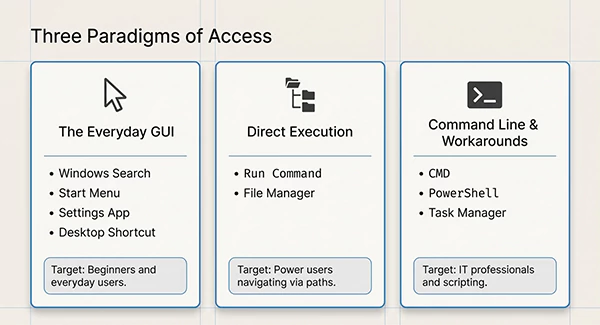
How to open control panel in Windows?
Here, we will explore various methods to open the control panel in the Windows system. I will list shortcuts, commands, and interface options as well. You can also check out Microsoft’s official documentation for Windows and its functionality.
Through Windows Search
The best way for beginners and everyday users to open the control panel is by using Windows search.
- Press Windows + S.
- Type Control Panel in the search field.
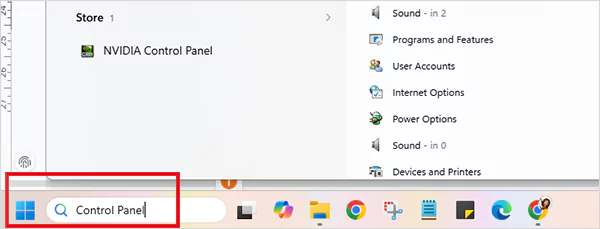
- The Control Panel will pop up.
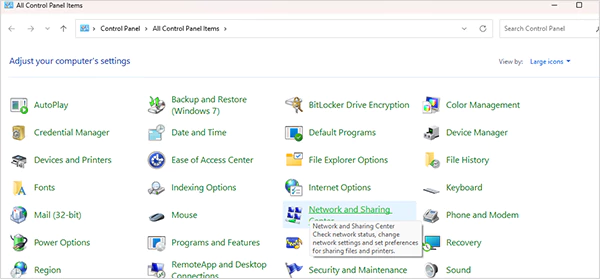
Through Run Command
The command to open the Control Panel through Run is as follows.
- Press Windows + R, and Run as Administrator will appear.
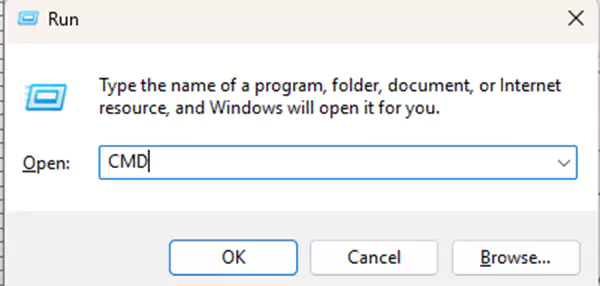
- Now, type Control.
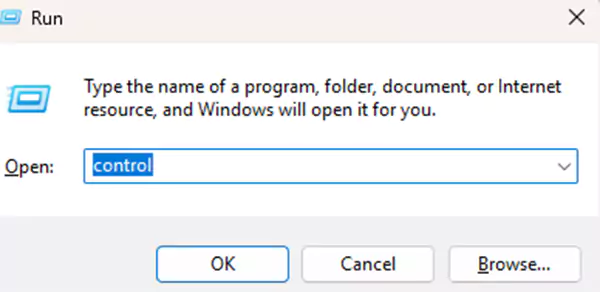
- Then, hit OK, and the control panel’s run command instantly opens it.
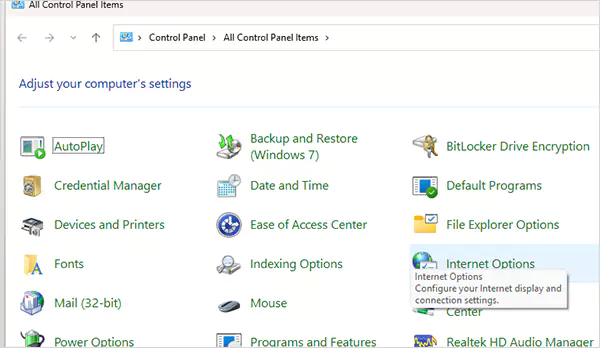
Open the Control Panel from CMD
If you are familiar with command-line tools, you can use Command Prompt to open it. Let’s look at how you can open Control Panel from CMD.
CMD command for open control panel: Control
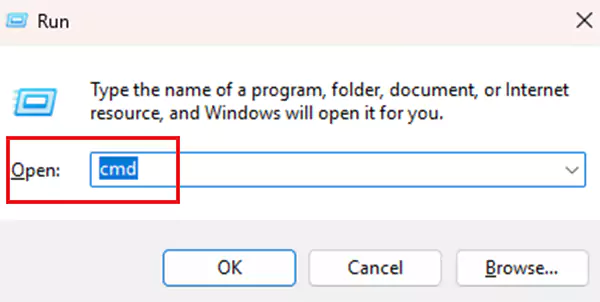
To open Control Panel in CMD, first, you need to open the CMD.
- Press Windows + R.
- Type CMD and press Enter.
- Now type “control” in the command prompt.
- Hit Enter, and the Control Panel will flash on your screen.
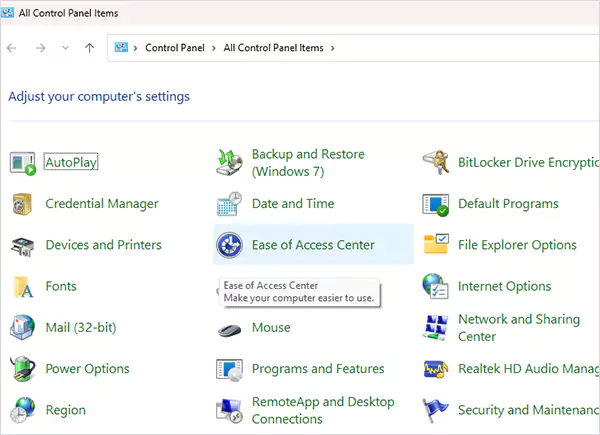
See, opening the control panel from CMD was pretty easy. This method to open the control panel is often used by IT professionals. It also comes in handy for scripting tasks.
Windows PowerShell
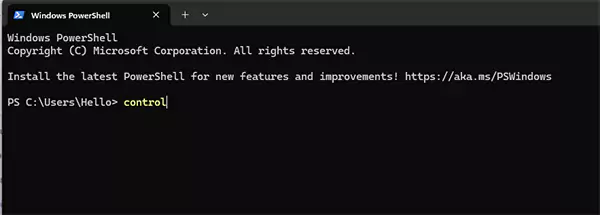
You can also use PowerShell for this task. Here is how to open control panel.
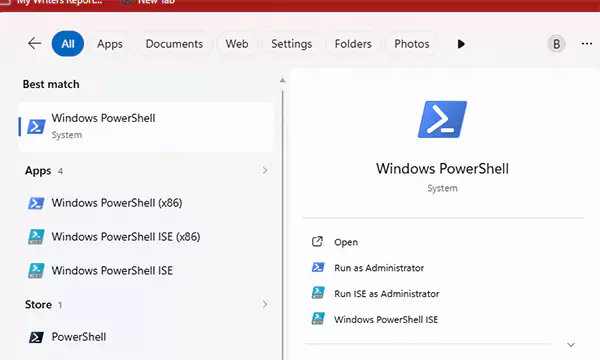
- Open Windows PowerShell from the search bar.
- Now, type “control” and hit Enter. The control panel will appear on your screen.
Through Task Manager
If you want to know how to open the Control Panel from Task Manager, read this.
Task Manager is not just for monitoring purposes. You can do many things with it, even open the control panel.
- Press Ctrl + Shift + Esc.
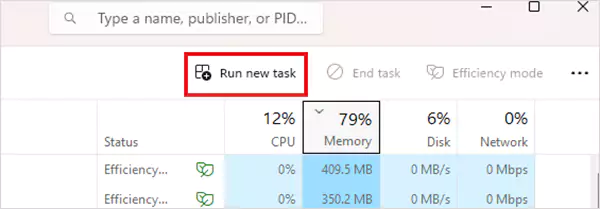
- After that, click on File and select the “Run new task” option.
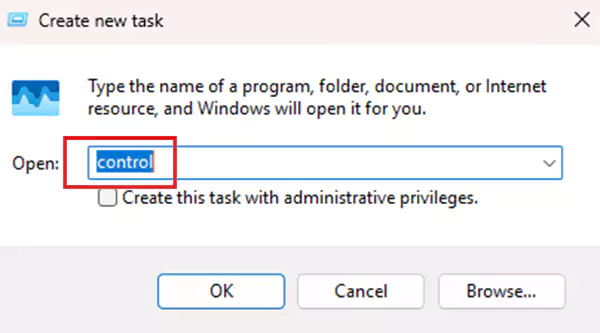
- Now, type “control” and hit Enter to open the control panel.
Using the Start Menu
Did you know: Start Menu can also be used to open the Control Panel in Windows?
- Press the Windows button to open the Start Menu.
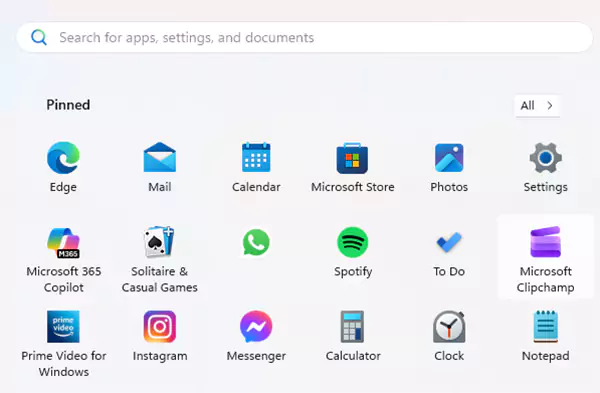
- Type Control Panel in the search bar.
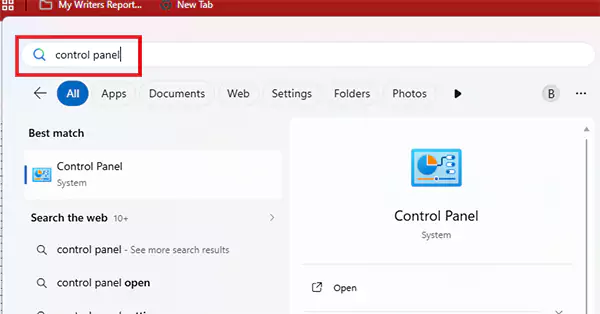
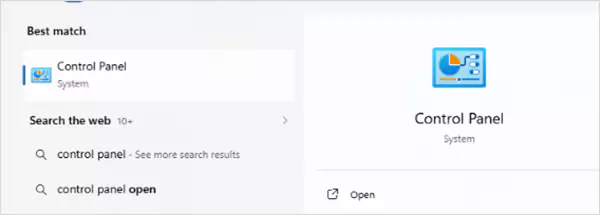
- Now, select Control Panel from it.
Through the Settings
Users can also access the Control Panel through the Settings. All they need to do is follow these steps.
- Press Windows + I, and it will open the Settings.
- Go to the search bar in the app and type “Control Panel and select the results to open it.

Create Desktop Shortcut
There is also an option of creating a desktop shortcut for the Control Panel.
- Go to your Desktop and right-click on it.
- Now, select New and then the Shortcut option.
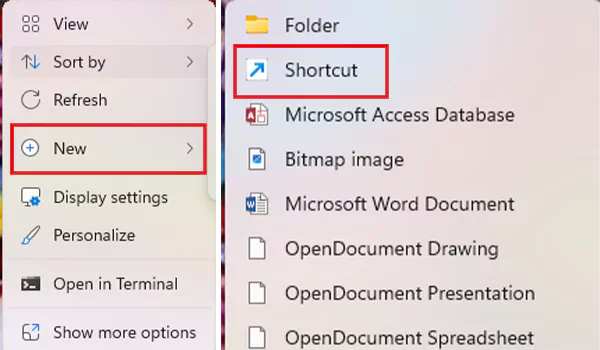
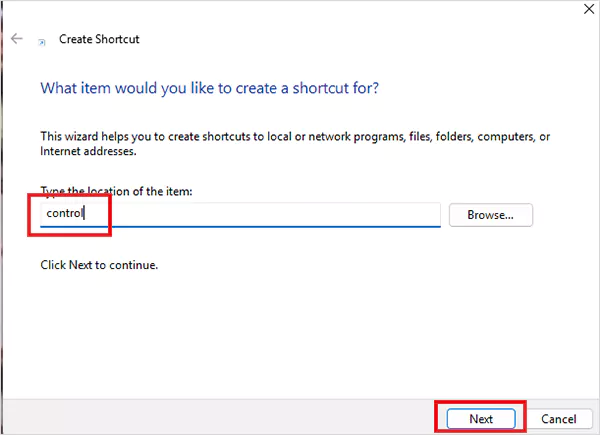
- Type “control” in the location box and click on Next.
- Then, name it “control panel” and click on the Finish option.
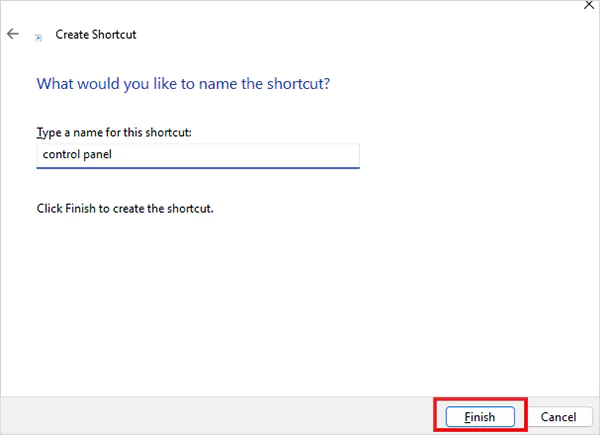
That’s it! You now have a shortcut on the Desktop to open the Control Panel.
Where is the Control Panel on My Computer?
I’ve noticed that people on the internet often ask, “Where is the control panel on my computer?”
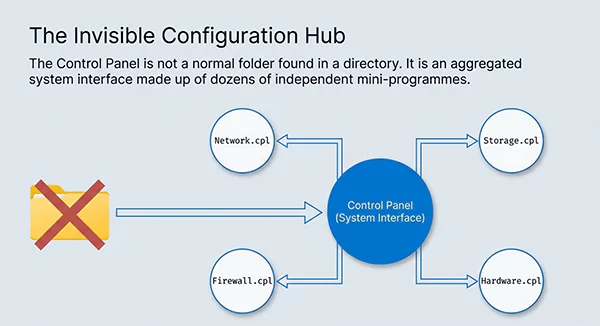
If you’ve asked the same question, you must know that it is not a normal folder that can be found in a directory.
The Control Panel is a system interface that is made up of many mini tools/programs. To access it, you have to use search, commands, or shortcuts.
Microsoft has made an effort to make it less visible in the modern version of Windows; however, it is still available and fully functional.
Control Panel vs Settings App
Microsoft is migrating most of the basic stuff to the Settings app from the last two versions of Windows.
However, Control Panel remains an important app for most advanced tasks or configurations in Windows.
Have a look at the comparison chart.
| Feature | Control Panel | Settings App |
| Advanced options | Yes | Limited |
| Ease of use | Moderate | Easy |
| Automation | Supported | Limited |
| Use case | IT/admin tasks | General settings |
Wrap Up!
If you want to become a proficient Windows user, you must know the ins and outs of the Windows system. The first step of that is knowing how to open control panel.
It is an essential skill for IT professionals and normal users. The newer version of Windows includes the Settings app, but the Control Panel still has many uses.
Frequently Asked Questions
What is the command to open Control Panel?
How to open the Control Panel from CMD?
Go ahead and open the command prompt, type “control” and then hit Enter.
Why can’t I find Control Panel?
It is possible that it is hidden in the system or replaced by the Settings app. However, it still exists, and you can open it through commands.
Related Posts
How to Delete Apps on Mac? Safe and Quick Ways to Uninstall Apps
How do you remove applications from a Mac? Most Mac users think there is just one way to delete apps.…
Why Proxy Servers Are Popular
Many tech platforms, ad networks, SaaS tools, and online stores in the world have critical traffic and infrastructure that require…
Data Loss vs. Data Strategy: Why One Conversation Matters More Than the Other
In the corporate conversation around information, most of the firms are scared of losing data. That’s understandable, as most of…
How to Turn Off Touchscreen on Chromebook? Step-by-Step Guide
Touchscreen on a Chromebook sounds great until it starts getting in the way. Accidental taps while typing, smudges, and random…

How to See Blocked Messages on iPhone? (What Actually Works)
Ever blocked someone on your iPhone and later found yourself wondering if you can see blocked texts on iPhone? It…
The 5 Architecture Decisions That Haunt SaaS Founders Two Years Later
Architecture decisions are fundamental to ensuring steady growth in any business or technical step, especially when the topic is laying…

Database Scaling: How to Manage 10,000+ Political Volunteers
Every small business or growing team needs to deal with a common issue—the database that was working perfectly for the…

What Structured Cabling Systems Include and Why Businesses Still Need Them
Nowadays, IT conversations jump straight to cloud apps, wireless coverage, and cybersecurity tools. While these are visible and easy to…

Top 10 Web Development Companies to Partner with in 2026
In today’s fast-growing digital world, every business needs a strong online presence to stay competitive. A well-designed website not only…