
Yes, the Recently Deleted folder on the Notes app works as the recycle bin. Deleted notes stay there for around 30 days before permanent deletion.
How to Recover Deleted Notes on iPhone: All Methods Covered
 Mahima Dave
Updated on: Jan 13, 2026
Losing an iPhone note is not just about missing a file. It is a loss of ideas or work you actually needed. But is it possible to recover deleted notes on iPhone?
Here’s what most people do not realise. Apple has built-in safety layers across iCloud, backups, and device sync, but most users never check them the right way.
I will go beyond basic advice and explain how to recover deleted notes on iPhones in detail. If your notes matter, and you want to stop guessing and start fixing the problem properly, you are in the right place.
Key Takeaways: Restore Notes on iPhone
- Recently Deleted should always be your first stop. It is the safest and easiest recovery option.
- Check other Apple devices immediately. Sync delays can save notes that are gone from the iPhone.
- iCloud.com is another safe and fast option that you should try before jumping into the backups.
- Restoring from iCloud, iTunes, or Finder backups brings notes back and replaces current data.
- No backup? Recovery software is your last option and works best before data gets overwritten.
Can You Get Deleted iPhone Notes Back?
Yes, most of the time, you can. But Apple plays by the rules and time limits. If you miss those, recovery can get tough. Before I explain how to retrieve notes on iPhones, here’s why notes usually disappear:
- Accidental deletion happens more often than people admit.
- Old iOS versions sometimes glitch.
- Logging into a different Apple ID hides existing notes.
No matter the cause, the methods I will share cover every realistic path. Your deleted note first goes to Recently Deleted and stays there for about 30 days. Recovery is easy in this period, but if the note is not there, you may have to check iCloud or iTunes/Finder backups and other options.
The real trick is simple: speed matters in iPhone or Mac data recovery. Overall, the sooner you check, the higher your chances.
How to Recover Deleted Notes on iPhone? 6 Fast & Reliable Methods
Let’s get straight to solutions, which also include methods to recover permanently deleted notes on iPhone. Start from the first method and move down only if needed.
Method 1: How to Retrieve Deleted Notes on iPhone from the Recently Deleted Folder?
This is your fastest and safest option. If the notes were deleted within the last month, this usually works. Apple keeps deleted notes in Recently Deleted for up to 30 days and sometimes up to 40 days (but don’t rely on that).
Here’s how to retrieve trashed notes on iPhone:
- Open the Notes app on your iPhone.
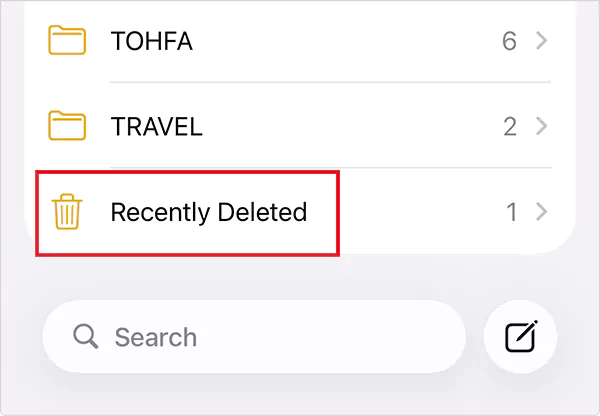
- Scroll down and tap on Recently Deleted.
- Here, tap on Edit.
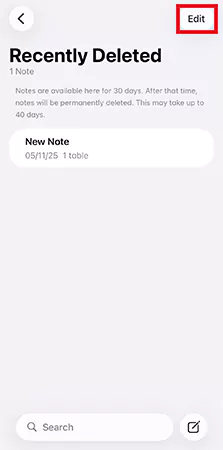
- Select the notes you want, tap on Move, and choose your desired Notes folder.

That’s it, no data loss and no reset. This should always be your first move.
Method 2: How Can I Recover a Deleted Note on iPhone Using Another Synced Device?
This method is surprisingly powerful and often ignored by most guides. If you use the same Apple ID on multiple devices, such as an iPad or Mac, Notes sync between them. Sync is not always instant, and that delay can save you.
Here’s how to recover a deleted note on iPhones using another Apple device:
- On your iPad, Mac, or another iPhone.
- Open Notes and check all folders, including Recently Deleted.
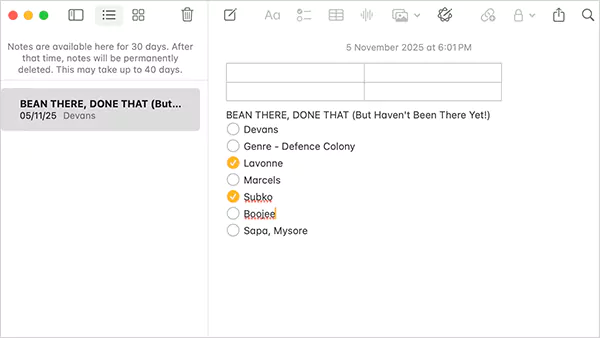
- If you find it, immediately copy it into a new note or export it and then paste it back on your iPhone.
This works because there is often a small window where one device still holds the data. Remember, I told you speed is the key?
Method 3: How Do I Recover Lost Notes on iPhone via iCloud.com?
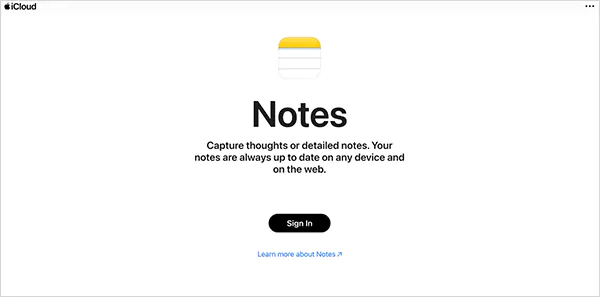
If you use iCloud Notes, this method can recover notes deleted within the last 30 days from a browser and move them back to active folders. Let’s see how to recover lost notes on iPhone using iCloud.com:
- Go to iCloud.com and sign in with your Apple ID.

- Open Notes and select Recently Deleted.

- Choose the desired note and click on Recover.

If you don’t see anything in the Recently Deleted folder, there are no recoverable notes left. One limitation of this method is that if the note was shared, and you were not the owner, it won’t appear here.
Method 4: How Do I Recover Deleted Notes on iPhone from iCloud Backup?
Do iPhone Notes get backed up? Yes, if your iCloud backup was enabled for Notes. This is a good option if the note is permanently deleted from the app. If the backup was created before the note was deleted, recovery is possible.
Here’s how to restore deleted notes on iPhone using iCloud backup:
- Check the last backup data by going to Settings > Apple ID > iCloud > iCloud Backup.
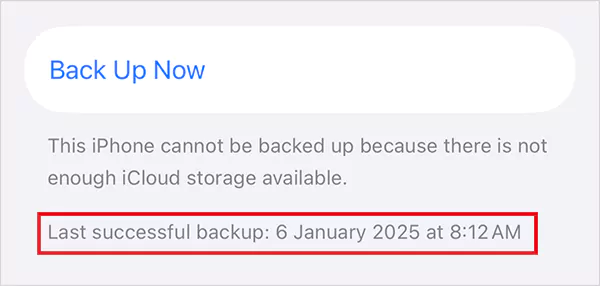
- If the date is from before the deletion happened, you now need to reset your iPhone before moving on.
- Go to Settings > General > Transfer or Reset > Erase All Content and Settings.
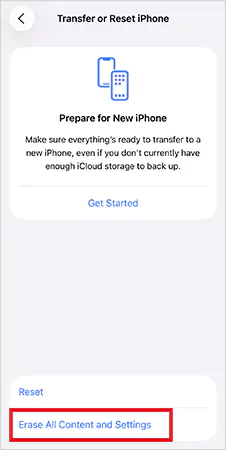
- Restart your iPhone and, during setup, choose Restore from iCloud backup.
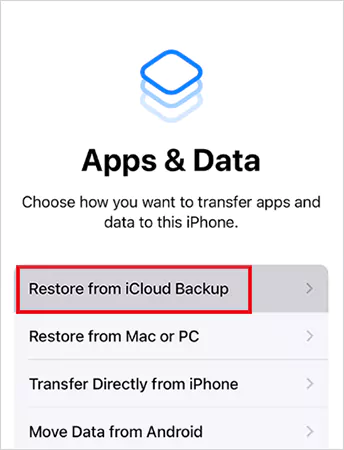
- Select the backup that contains your notes and wait for the system to restore it.
This method works fine, but there is a cost you should be aware of. Additionally, this replaces all your current data with old data. Anything created after that backup will be lost.
So, use this method only when the note is critical and worth the reset. Also, make sure you make a backup (other than iCloud) for your current important files.
Method 5: How Do I Retrieve Lost Notes on iPhone Using iTunes/Finder Backup?
If the above four methods don’t work for you, this is your last native option. iTunes on Windows and older macOS versions, and Finder on newer Macs, create full device backups.
These backups may contain your deleted notes if they were created before the notes disappeared. Follow the given steps to recover:
- Connect your iPhone to your computer using a cable.
- Open Finder or iTunes and select your iPhone from the sidebar.
- Under Backups, choose the Restore Backup option.
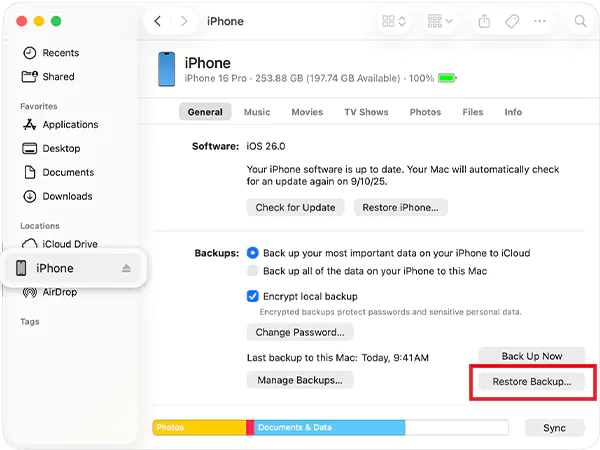
- Now, pick a backup created before your notes were deleted and click on Restore.
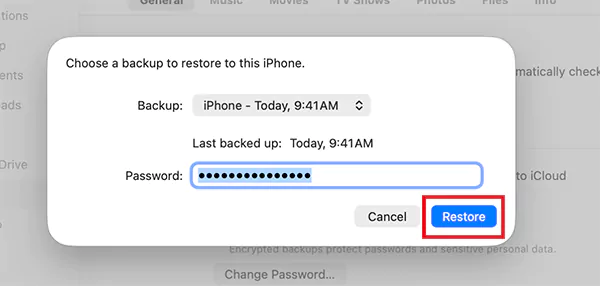
- Enter the backup password (if required) and keep your iPhone connected until the restore finishes.
This has the same issue as the iCloud backup method. Furthermore, this restores everything, not just notes. So, only use this option when you are okay with a complete reset.
Method 6: How to Restore Notes on iPhone Without Any Backup?
If there is no backup and the note is missing from everywhere, using a data recovery tool is your last line of defence. Third-party recovery tools can scan your iPhone’s internal storage or linked Apple ID data to locate deleted note fragments that are not visible anymore.
What makes this approach different is that you can recover specific notes only, and no factory reset is required. Most reliable iPhone data recovery software, like Datarecovee, Disk Drill, Stellar, and EaseUS, work in a similar way. So, here’s how to restore notes on iPhone:
- Install a trusted recovery tool on your computer.
- Connect your iPhone and tap on Trust.
- Scan the device or Apple ID data.
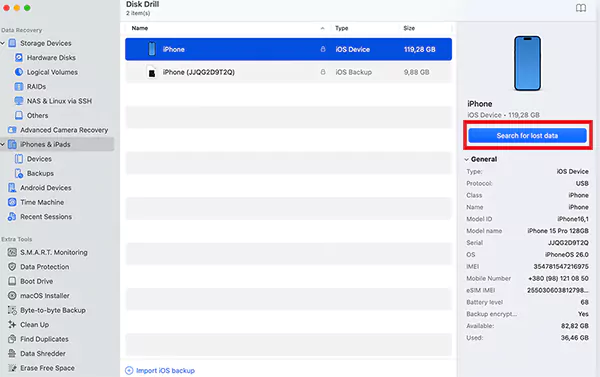
- Now, preview all the recoverable notes to locate the one you want to recover.
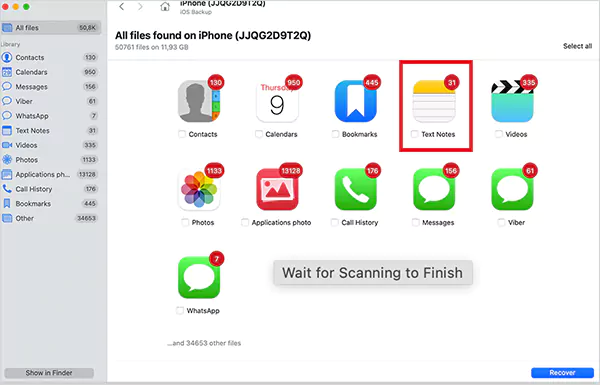
- Select them and click on Restore/Recover.
Most experts recommend this because they offer you selective recovery options. Apple backups are all-or-nothing. So, when you want precision, instead of a full reset, or when nothing else works, this approach can help you in more ways than you can imagine.
Make sure you act quickly because you cannot recover anything (even with advanced recovery software) if the new data overwrites the old data.
Best Practices to Prevent Future Loss and Recover Notes on iPhones
Recovering notes can be stressful, but preventing loss is smarter. Here are some smart tips that actually work in the long term:
- Keep Notes synced with iCloud so that your notes exist beyond your device and sync across the Apple ecosystem.
- Even if Notes sync is on, maintain regular full-device backups to protect local and app-specific data.
- Enabling Notes sync with Gmail or other accounts gives you an additional safety net.
- Export critical notes manually as PDF or text files once in a while.
- Make sure you save your important notes to iCloud. Notes saved in the “On My iPhone” folder behave differently.
Furthermore, organize your notes weekly and act fast when something disappears. Recovery chances drop sharply once new data overwrites old storage.
Wrapping Up
Learning how to recover deleted notes on iPhones is crucial. You now have six practical ways to recover lost notes on iPhone. The smart order is:
- Recently Deleted
- Other synced devices
- iCloud.com
- iCloud backup
- iTunes or Finder backup
- Recovery software
The last thing I want you to understand is the importance of backup and sync. They are boring until the day they save you.
Frequently Asked Questions
Is there a recycle bin for Notes on iPhone?
Why did my notes disappear on my iPhone?
Accidental deletion, software glitch, or syncing with a different account (like Gmail) are some key reasons behind lost notes.
Where do deleted notes go on iPhone?
When you delete a note from your iPhone, it first moves to the Recently Deleted folder inside the Notes app. It stays there for 30 days or until you delete it from there (whichever is earlier).
How to undo a deletion in the Notes app?
You can use the Shake to Undo gesture on iPhone or use the back arrow if you want to undo text within a note. If you want to undo a note deletion, recover it from the Recently Deleted folder.
How do you restore notes on your iPhone?
Start by searching in the Recently Deleted folder, then look in other synced devices, iCloud.com, and explore backup options. If nothing works for you, the last option is to try an advanced and reliable data recovery tool.
How to set up iCloud for Notes on all Apple devices?
Sign in with the same Apple ID on all devices, then go to the settings of each device, tap your name, select iCloud, and turn on the option for Notes.
How to remove deleted notes permanently?
Just locate the note you want to delete forever in the Recently Deleted folder, and choose the Delete or Permanently Delete option.
How to restore a single deleted note?
If you want to restore a single deleted note, you should try the Recently Deleted or the data recovery software method.
How long do notes stay in Recently Deleted on iPhone?
After the deletion, they stay for about 30 days in the Recently Deleted folder in Notes.
How to restore iPhone Notes that disappeared from Recently Deleted?
You can try using iCloud.com, another Apple device, or restore from earlier backups.
Related Posts
Simple Ways to Clean Audio Data for Better Model Performance
Most of the machine learning teams do not struggle because their processing systems are not capable—they struggle because their audio…

How to Check for Malware on Mac in 2026?
Can Mac computers get viruses? Macs are not as safe as people think. Yes, macOS has built-in tools like XProtect…

10 Best Lightroom Preset Alternatives in 2026
“Photography is the story I fail to put into words.” — Destin Sparks (Landscape Photographer) For years, Lightroom presets have…
Elementor Hosting vs SiteGround: Which is Faster in 2026?
A website’s performance is mainly determined by its Speed. Even a slight delay can reduce conversions by a significant margin.…

10 Best Visual UGC Platforms for eCommerce Brands in 2026
“People influence people. Nothing influences people more than a recommendation from a trusted friend.” — Mark Zuckerberg (Meta CEO) That…

The Data Models Powering the Next Creative Revolution in Video Generation
Artificial intelligence has evolved from a mere tool to the cornerstone of advancements in the new era. Over the years,…

Solar Software Companies: How Platforms Improve Cross Team Collaboration
“If everyone is moving forward together, then success takes care of itself.” — Henry Ford (Industrialist & Business Magnate) Handoffs…

What Healthcare Leaders Expect From Digital Tools
Healthcare executives are under pressure to protect patient safety, clinician time, and data privacy while modernizing the delivery of care.…

How to Reset Android Phone When Locked? (Safe Factory Reset Methods)
Locked out of your Android phone or stuck on the screen? It happens more than you think. A forgotten PIN,…