
Press and hold the Windows + Ctrl + Shift + B keys together. The screen may blink or go black for a second, which means Windows is refreshing the driver.
How to Reset Graphics Driver on Windows (Shortcut to Full Fix)
 Upasna Deewan
Updated on: Jan 31, 2026
Table of Contents
- What Happens When You Reset Graphics Drivers?
- How to Reset Graphics Drivers Using Shortcuts (Quick Method)?
- How to Reset Graphics Card Drivers Using Device Manager?
- How to Reset Graphic Drivers (Clean Reinstall Method)?
- How to Reset a Graphic Driver Via PowerShell or Command Prompt?
- NVIDIA, AMD, and Intel Specific Reset Notes
- When Should You Reset a Graphics Driver?
- When a Graphics Driver Reset Won’t Fix the Problem?
- How to Prevent Graphics Driver Reset in the Future?
- Final Takeaway
- Frequently Asked Questions
Does your screen flicker, go black, or do your games suddenly start lagging? Most people assume that their graphics card is broken. In most cases, the graphics driver simply crashes or gets stuck.
This often happens after a Windows update or a system issue. If you know how to reset graphics drivers, you can refresh the connection between Windows and your GPU and fix the issue within seconds.
Sometimes, a graphic driver reset shortcut is enough. Other times, a proper reset or clean reinstall is needed. I will explain everything you need to know about a driver reset and how to avoid one.
TL;DR: How to Reset Graphic Drivers?
- Fastest method: Press Win + Ctrl + Shift + B to instantly refresh the graphics driver.
- If the shortcut fails: Open Device Manager > Display adapters > Disable > Enable your GPU.
- For recurring issue: Uninstall the graphics driver and restart Windows so it installs a fresh version.
- For advanced users: Use PowerShell to disable and re-enable the display driver in one command run.
- If problems continue after reinstall: Check Windows updates, temperatures, BIOS, cables, or possible hardware failure.
What Happens When You Reset Graphics Drivers?
When Windows resets graphics drivers, it refreshes the connection between your GPU and your screen. In simple terms, the system pauses the display driver, clears the temporary, and loads it again. The visual pipeline restarts without shutting down your PC.
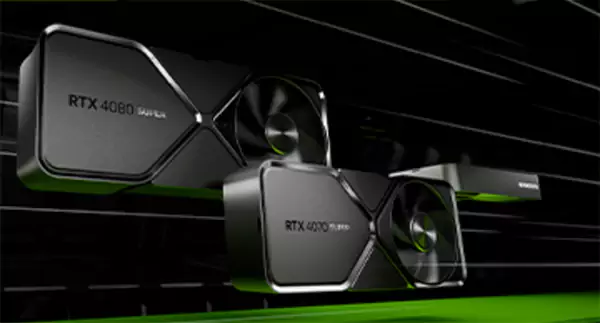
Behind the scenes, Windows uses something called Windows Display Driver Model (WDDM), which constantly monitors GPU activity. If the driver stops responding, Windows can restart it instead of crashing the system.
If your screen looks broken but your system is still alive, using the graphics driver reset keys is usually the first smart move.
How to Reset Graphics Drivers Using Shortcuts (Quick Method)?
Windows has a hidden key combo to reset graphics drivers that instantly refreshes the display driver.
Graphics Driver Reset Shortcut: Press and hold Windows + Ctrl + Shift + B.
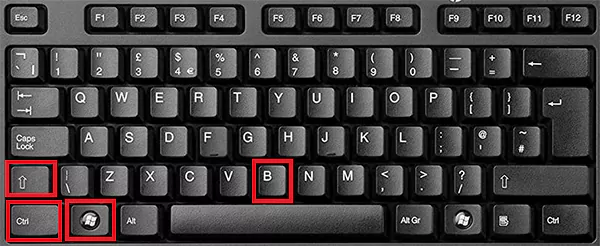
You might notice that your screen goes black for a second, and a short beep sound. What actually happens is Windows reloads the display stack that connects apps, the desktop, and the GPU.
This method works to reset graphics drivers on Windows 11 and Windows 10 and is perfect for simple issues. Use this first, as it can save you a lot of time. If it does not work, move to the advanced methods below.
How to Reset Graphics Card Drivers Using Device Manager?
If the Reset Graphics Driver shortcut fails, Device Manager should be your next move for a stronger reset. Here’s how to do it properly:
- Press Win + X and choose Device Manager.
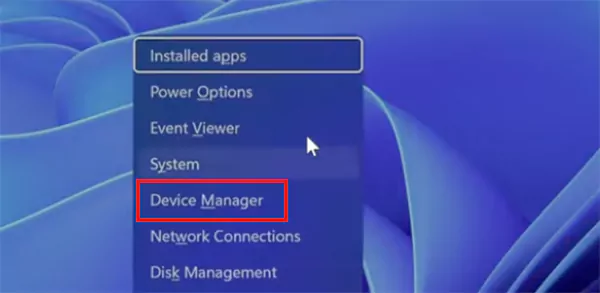
- Expand the Display adapters section.
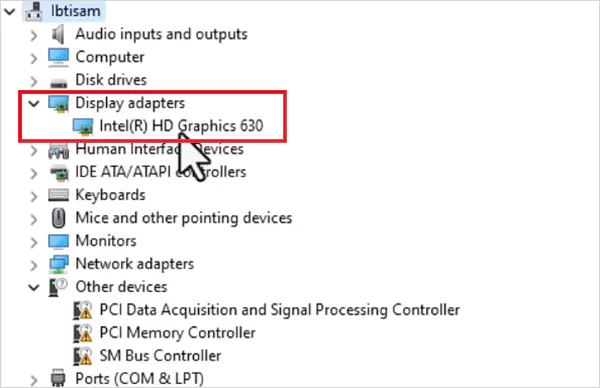
- Right-click your GPU (like NVIDIA, AMD, or Intel).
- Choose Disable device and wait a few seconds.
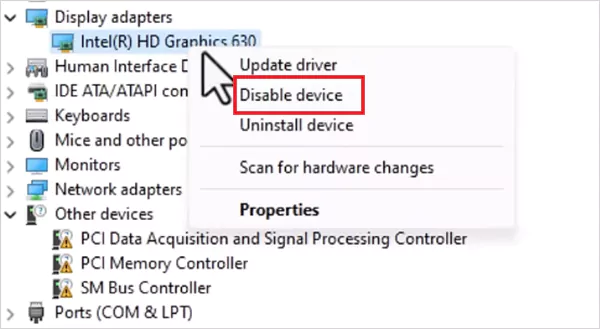
- Right-click again and choose Enable device.
This fully unloads the driver and reloads it fresh. If your display issues feel more persistent, this method usually works better than the shortcut.
If the problem continues, uninstalling and reinstalling the driver is the next step.
How to Reset Graphic Drivers (Clean Reinstall Method)?
When glitches keep coming back, a clean reinstall is the safest fix. This is especially useful after failed updates or corrupted drivers. Here’s how to reset graphics on Windows by reinstalling the driver:
- Open Device Manager.
- Next, go to Display adapters.
- Right-click on your graphics card.
- Now, click on Uninstall device.
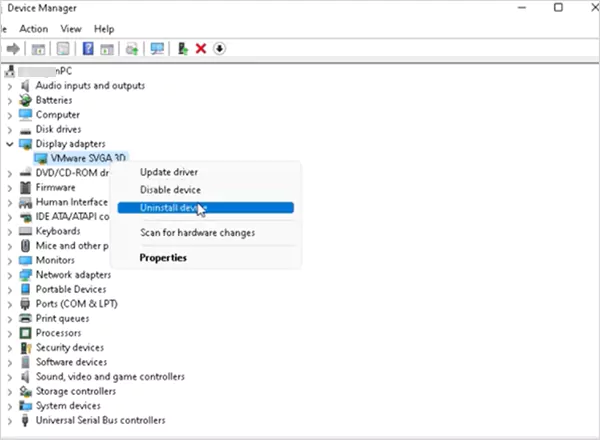
- Finally, just restart your computer.
Once Windows boots again, it automatically installs a fresh compatible driver for your onboard graphics. This method resets everything at the driver level and often fixes VIDEO DXGKRNL FATAL_ERROR in Windows and other stability issues.
If you use NVIDIA or AMD dedicated GPUs, reinstalling the latest official driver afterwards gives the best results.
How to Reset a Graphic Driver Via PowerShell or Command Prompt?
This method is mainly for advanced users and IT professionals, but it works extremely well. PowerShell allows you to disable and enable drivers using commands instead of menus.
It is faster, scriptable, and useful for multiple systems. Here’s what you need to do:
- Run PowerShell as an administrator.
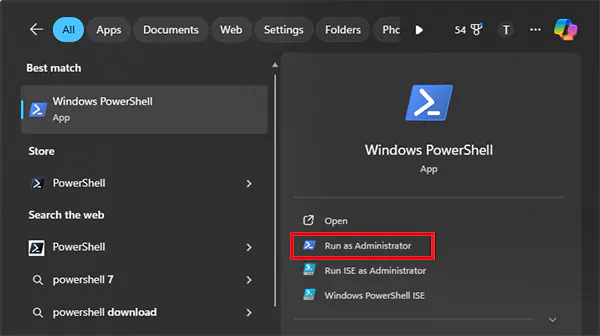
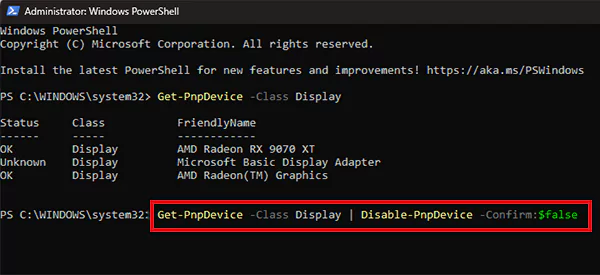
- Then use the following command to disable the driver:
Get-PnpDevice -Class Display | Disable-PnpDevice -Confirm:$false
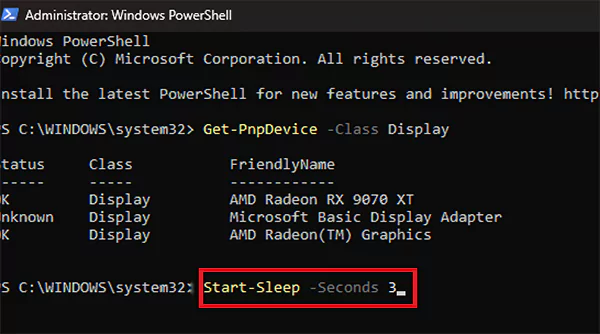
- Next, type: Start-Sleep -Seconds 3, and wait for a few seconds.
- Now, enable the graphics driver by using:
Get-PnpDevice -Class Display | Enable-PnpDevice -Confirm:$false
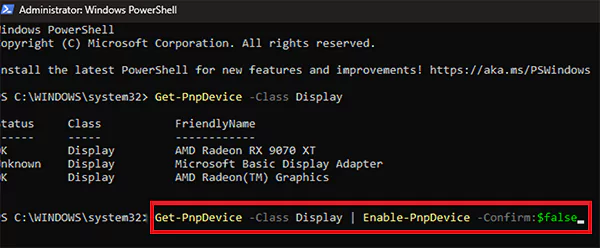
Your screen may flicker or go black for a moment, which is expected. This method behaves almost the same as Device Manager, but without clicking through menus. For power users, PowerShell gives full control.
Which Graphics Driver Reset Method Should You Use?
Use the following order:
- Keyboard shortcut for quick glitches.
- Device Manager disables and enables for deeper issues.
- Uninstall and reinstall the driver for recurring problems.
- PowerShell, if you want precision or automation.
NVIDIA, AMD, and Intel Specific Reset Notes
Each GPU brand handles driver resets a little differently. Knowing this saves you from unnecessary reinstalls and guesswork. These tools mostly reset settings and configurations, not the entire driver itself.
Still, they can solve a surprising number of display problems. So, here are some tips for the 3 most used GPUs:
Intel Graphics
Intel systems usually fail due to misconfigured display settings rather than broken drivers. Here’s how to reset them on Windows:
- Right-click on the desktop.
- Open Intel Graphics Command Center or Graphics Properties.
- Go to the 3D or display section.
- Choose Restore Defaults.
- Apply changes and restart your PC.
This refreshes performances and display rules without touching your files. If the problem continues, uninstalling the driver via Device Manager before reinstalling gives better results.
NVIDIA Graphics
NVIDIA issues often come from altering 3D or performance settings. To reset them:
- Right-click anywhere on the desktop and open the NVIDIA Control Panel.
- Go to Manage 3D Settings.
- Click on Restore Defaults from the top corner.
- Restart the system.
This does not reinstall the driver. It simply clears conflicting configurations. For stubborn problems, NVIDIA’s installer also offers a clean installation option.
AMD Graphics
AMD provides the most aggressive graphics driver reset option. If you have the AMD Software Adrenaline Edition:
- Right-click on the desktop and open the AMD Software.
- Click on the settings icon and choose Factory Reset.
- Then, confirm your selection and restart the PC.
This wipes existing driver profiles and rebuilds them from scratch. If this does not work, you need to go with the clean reinstall method.
When Should You Reset a Graphics Driver?
A reset works best when the issue looks like a software-related problem, not a hardware failure. So, you should use it if you notice:
- Screen flicker or brief black flashes.
- Visual distortion after updates.
- Apps freeze while Windows still works.
- Game graphics are breaking randomly.
Windows may even trigger an automatic reset using its recovery system when the GPU stops responding. That quick flicker you sometimes see is not random. It is Windows trying to save your session without rebooting.
When a Graphics Driver Reset Won’t Fix the Problem?
It is also important to understand that not every display issue is driver-related. A reset will likely fail if:
- You get repeated BSOD (Blue Screen of Death) errors.
- The GPU hardware is damaged, overheated, or failing.
- The power supply cannot support the graphics card.
- Windows system files are damaged.
In cases like these, a simple reset often won’t help, and deeper troubleshooting like hardware tests or Windows system repairs may be needed.
How to Prevent Graphics Driver Reset in the Future?
You now understand how to reset graphics drivers. But you don’t need constant resets if your setup stays stable. Here’s what can actually help you in the long term:
- Use Stable Drivers: Avoid beta releases unless you need a specific fix. Also, stick to official drivers from reliable companies like NVIDIA, AMD, Intel, etc.
- Keep Windows Compatible: Regular Windows updates prevent conflicts between system files and drivers,
- Control Temperature: Poor airflow and overheating cause more GPU issues than bad software.
- Avoid Reckless Overclocking: If the performance tuning is unstable, the driver crashes first.
- Backup Your Last Stable Driver: Before updating drivers, note the version that worked and keep it handy. If a new update causes issues, you can roll back quickly.
These small habits reduce the need to reset and keep your GPU stable.
Final Takeaway
Resetting your graphics driver is one of the fastest fixes for common display problems. Start small with the keyboard shortcut, move to Device Manager or PowerShell if needed, and reinstall only when problems repeat.
Also, GPU brand tools can help reset settings, but deeper problems may need more than just a driver reset.
Frequently Asked Questions
What is the shortcut to reset graphics drivers?
How can I reset my graphics driver?
You can use the keyboard shortcut to refresh, Device Manager or PowerShell to disable and re-enable, and the clean reinstall method to reset your driver.
Is it good to restart the graphics driver?
Yes, it reloads the software that controls how your GPU sends visuals to the screen. It helps you fix temporary glitches without restarting your PC.
Is it safe to reset a GPU?
Yes, resetting is generally safe and won’t delete programs, files, or games.
How to fully clean GPU drivers?
Go to Device Manager > Device Adapters > Uninstall device. Then, just reboot your PC, and the system will automatically reinstall the drivers.
How often should I reset my graphics driver?
Only when you notice issues like flickering, freezes, or display issues. It’s not a kind of routine maintenance.
Can I reset drivers on systems with multiple GPUs?
Yes, but the keyboard shortcut affects all active drivers at once. If you want more control, use Device Manager or PowerShell to target specific GPUs.
Related Posts
10 Best Visual UGC Platforms for eCommerce Brands in 2026
“People influence people. Nothing influences people more than a recommendation from a trusted friend.” — Mark Zuckerberg (Meta CEO) That…
The Data Models Powering the Next Creative Revolution in Video Generation
Artificial intelligence has evolved from a mere tool to the cornerstone of advancements in the new era. Over the years,…
Solar Software Companies: How Platforms Improve Cross Team Collaboration
“If everyone is moving forward together, then success takes care of itself.” — Henry Ford (Industrialist & Business Magnate) Handoffs…
What Healthcare Leaders Expect From Digital Tools
Healthcare executives are under pressure to protect patient safety, clinician time, and data privacy while modernizing the delivery of care.…

How to Reset Android Phone When Locked? (Safe Factory Reset Methods)
Locked out of your Android phone or stuck on the screen? It happens more than you think. A forgotten PIN,…
How to Transfer Contacts from Android to iPhone: 4 Easy Methods
Switching from Android to iPhone should not feel like rebuilding your life from scratch. Restoring contacts on iPhone should be…

White Label Ad Server vs Development From Scratch: What to Choose
Even though the DSP segment is the largest market within AdTech at the moment, an ad server remains a crucial…

How Data Infrastructure Powers Next-Gen Mobile Recognition Apps
Modern digital applications have evolved with time, offering various functionalities to users that weren’t possible or even imaginable before. But…

How Poor Contract Visibility Leads to Revenue Leakage in Growing Companies
Growth is an important factor that determines the success rate of any business. When we witness new operations, partnerships and…