
Turn off the PS5, press the reset button on PS5 controllers for 5 seconds using a paperclip, reconnect via USB, and press the PS button to pair.
How to Reset PS5 Controller (DualSense)?
 Upasna Deewan
Updated on: Jan 19, 2026
Table of Contents
- Soft Reset vs Hard Reset PS5 Controller: What’s the Difference?
- How to Reset PS5 Controllers (Soft Reset)?
- How to Factory Reset a PS5 Controller (Hard Reset)?
- Why You Need to Reset PS5 Controllers?
- What If Resetting the DualSense Controller Does Not Work?
- How to Prevent Future PS5 Controller Issues?
- Key Takeaways: PS5 Controller Reset
- Frequently Asked Questions
If your PS5 DualSense controller is acting strangely, not connecting, lagging, drifting, or responding randomly, you should know how to reset PS5 controller properly. But here’s where most people go wrong. They either reset it the wrong way or expect a reset to fix physical damage, which it cannot.
In this guide, I will explain everything you need to know for resetting PS5 controllers. You will learn which type of reset actually fits your problem, how to do it properly, and what to do if a reset does not fix your issue.
Quick Fix: How to Reset a PS5 Controller in 60 Seconds?
If you just want the fix without reading everything, do this:
- Turn off your PS5 completely.
- Unplug the DualSense controller.
- Use a paperclip to press the PS5 reset button on the back of the controller.
- Hold it for 5 seconds.
- Connect the controller to the PS5 using a USB cable.
- Turn on the PS5 and press the PS button to pair it again.
If the controller connects and works normally, you are done. If not, keep reading.
Soft Reset vs Hard Reset PS5 Controller: What’s the Difference?
When we talk about resetting PS5 controllers, it usually means one of two things. Choosing the right one can save a lot of time and frustration.
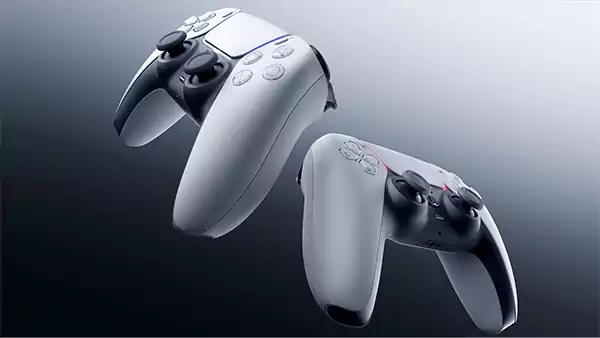
- Soft Reset is like a quick refresh for your DualSense controller. It restarts the controller connection and keeps all pairing and settings intact. This is best for small issues like lag, brief disconnections, or delayed inputs, and should always be your first move.
- Hard Reset or Factory Reset is a complete restoration of the controller’s internal memory. It removes Bluetooth pairing and internal state, forces a fresh connection with the console, and fixes stubborn syncing and firmware-related issues.
So, if the controller is acting weird, start with the soft reset. If it refuses to connect or keeps dropping out, you should know how to hard reset PS5 controllers.
How to Reset PS5 Controllers (Soft Reset)?
A soft reset simply powers the controller off and reconnects it properly. It is fast and safe; here’s how to reset a PlayStation Controller:
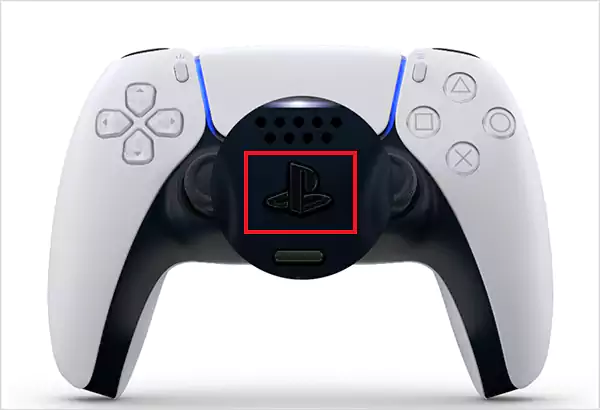
- Press the PS button on the DualSense controller to open the Control Center on your PS5.
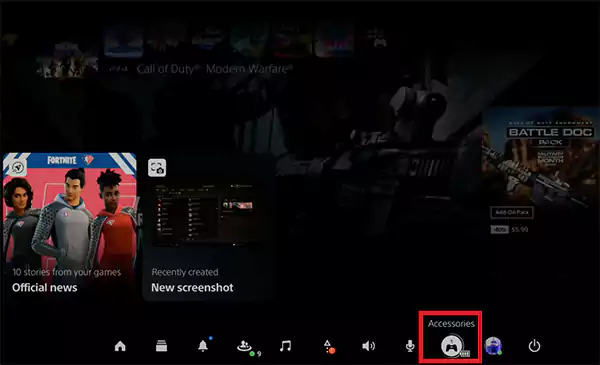
- Here, navigate to Accessories and select the controller you want to reset.
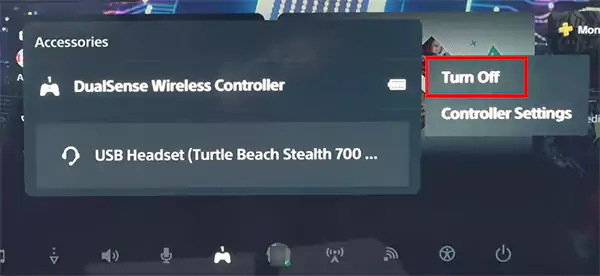
- Choose Turn Off and wait a few seconds.
- Now, press the PS button again to turn it back on and reconnect.
If your issues are fixed, you don’t need to perform a factory reset. But if the issue comes back, you are dealing with something deeper. Move on to the following section to use the PS5 controller reset button.
How to Factory Reset a PS5 Controller (Hard Reset)?
A hard reset removes internal pairing and restores default behavior. Use this only when nothing else works. Here’s how to reset a PlayStation 5 controller to its factory settings:
- Turn off your PS5 console completely (not Rest Mode).

- Unplug the controller.
- Turn the controller over and locate the small reset button inside a tiny hole on the back near the L2 button.
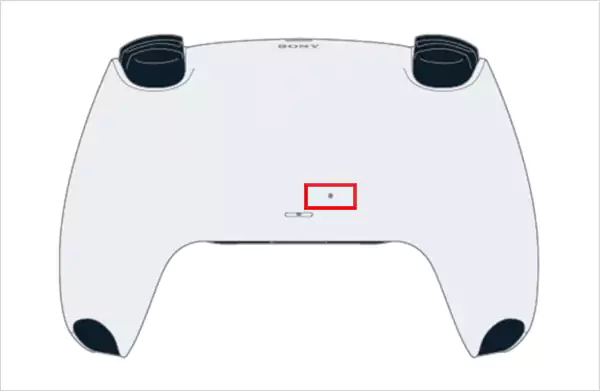
- Insert a paperclip, SIM-eject tool, or similar thin object into the hole and hold the button for about 5 seconds.
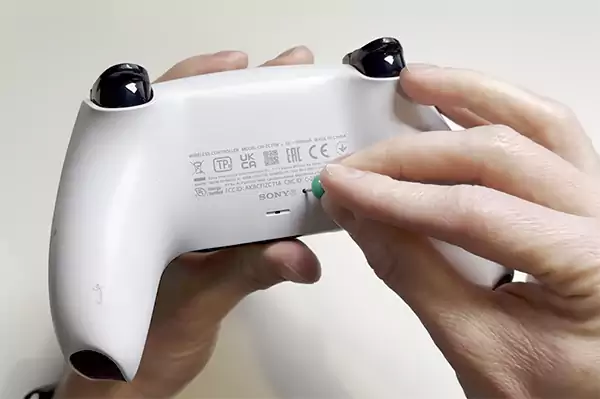
- After pressing, connect the DualSense controller to the PS5 with a USB cable.
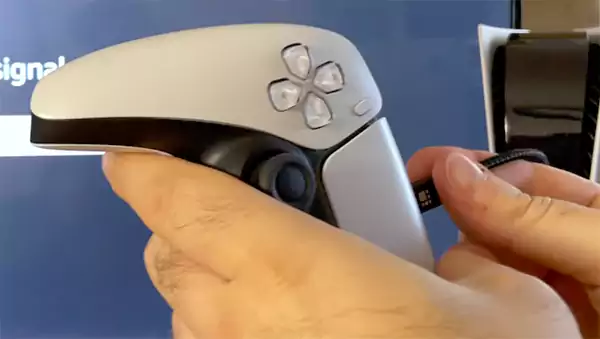
- Turn on the PS5 and press the PS button to re-pair it.
Similar to factory resetting a PC or laptop, it restores the PlayStation to its original state. This forces a clean Bluetooth pairing and removes any hidden pairing conflicts.
Why You Need to Reset PS5 Controllers?
Resetting helps only when the problem is software-related, not physical. So, you should reset your controller if:
- It does not connect to the PS5.
- Input feels delayed or inconsistent.
- The controller keeps disconnecting.
- It connects to the wrong device after being used elsewhere.
- Issues started after a PS5 or controller update.
However, if the stick drift is constant, the button feels loose or worn, or the controller was dropped or exposed to liquid, no reset can fix it. Those are all hardware problems.
What If Resetting the DualSense Controller Does Not Work?
If both soft and hard resets fail, the issue is usually a cable problem, a software mismatch, or hardware wear. Here’s how to diagnose it properly, step-by-step:
- Check the USB-C Cable: Many pairing failures happen because the cable only supplies power and does not transfer data. Use the original PS5 cable or a different data-capable USB-C cable.
- Charge the Controller Before Trying Again: A deeply drained battery can block pairing and make the controller appear dead. Plug it in and let it charge for at least 20 to 30 minutes before trying the reset.
- Update the Controller Firmware: A reset cannot fix outdated firmware. Go to Settings > Accessories > Controller (General) > DualSense Wireless Controller Device Software. If an update is available, install it and restart the console.
- Update the PS5 System Software: Outdated system software can cause controller bugs that resets won’t fix. If possible, go to Settings > System > System Software > System Software Update and update the console using another controller.
- Test the Controller on Another Device: Connect it to another PS5 or a PC. If it works there, the problem is likely your console. If it doesn’t work anywhere, the controller likely has hardware damage.
If none of these steps help, reach out to Controllers Support (PlayStation). In most cases, repair or replacement is the only real solution.
How to Prevent Future PS5 Controller Issues?
Resets should be occasional, not routine. If you are resetting often, something is not right about how you use your controller. So, try to:
- Keep firmware and system software updated because Sony quietly fixes controller bugs through updates.
- Avoid frequent switching between devices. Jumping between PS5, mobile, MacBook, and Windows confuses Bluetooth pairing memory.
- Avoid cheap cables and unstable charging ports. Poor power delivery can cause pairing and charging issues.
- Dust around analog sticks is a major cause of drift; clean the controller regularly. Wipe with a soft cloth and use compressed air around sticks and buttons.
- DualSense controllers have sensitive haptics and adaptive triggers. So, try to handle it with care and reduce aggressive stick pressure.
You cannot make a controller last forever. But with good habits, you can dramatically reduce how often you’ll need resets or repairs.
Key Takeaways: PS5 Controller Reset
To wrap up this guide on how to reset PS5 controllers, here are some takeaways that you should remember:
- Not every issue needs a factory reset. Start with a soft reset and use a hard reset only when the controller refuses to pair consistently.
- A failed reset usually points to cable issues, low battery, or outdated software, not the reset process itself.
- Always use a data-capable USB-C cable.
- Keep both controller firmware and PS5 system software updated.
Resetting a PS5 controller is a tool, not a cure for everything. Use the right reset at the right time, and you can avoid most controller headaches.
Frequently Asked Questions
How do you reset your PS5 controller?
How to reset PS5 controller drift?
A reset can only help if the drift is software-related. However, most drifts are caused by physical damage and require repair or replacement.
Should I reset my PS5 controller?
Yes, if you face connection issues, lag, or random input problems. No, if the issue is physical damage or long-term drift.
Where is the reset button on PS5 Controllers?
You can find the reset button on the back of your controller. It is a tiny hole near the Sony logo, which can be pressed using a small tool like a paper clip or a SIM eject tool.
How to reconnect the PlayStation controller after a reset?
After the reset, connect the controller to the console with a USB-C cable, and press the PS button to pair it again.
How do I do a hard reset on PS5?
To reset the console settings on PS5, go to Settings > System > System Software > Reset Options > Restore Default Settings.
Related Posts

How to Stop Windows Update: Pause, Disable, or Uninstall Safely
Imagine that face when Windows starts updating with a deadline looming and your screen freezes. Frustrating is an understatement, and…
How to Open Control Panel in Windows? (All Methods Explained)
The control panel in Windows is a collection of tiny programs. It is used to configure the various aspects of…
How to Delete Apps on Mac? Safe and Quick Ways to Uninstall Apps
How do you remove applications from a Mac? Most Mac users think there is just one way to delete apps.…
Why Proxy Servers Are Popular
Many tech platforms, ad networks, SaaS tools, and online stores in the world have critical traffic and infrastructure that require…
Data Loss vs. Data Strategy: Why One Conversation Matters More Than the Other
In the corporate conversation around information, most of the firms are scared of losing data. That’s understandable, as most of…
How to Turn Off Touchscreen on Chromebook? Step-by-Step Guide
Touchscreen on a Chromebook sounds great until it starts getting in the way. Accidental taps while typing, smudges, and random…
How to See Blocked Messages on iPhone? (What Actually Works)
Ever blocked someone on your iPhone and later found yourself wondering if you can see blocked texts on iPhone? It…
The 5 Architecture Decisions That Haunt SaaS Founders Two Years Later
Architecture decisions are fundamental to ensuring steady growth in any business or technical step, especially when the topic is laying…

Database Scaling: How to Manage 10,000+ Political Volunteers
Every small business or growing team needs to deal with a common issue—the database that was working perfectly for the…