
Simply click on the Apple menu, click Restart, and then confirm. The Mac would be closed safely, and the system would reboot without damaging any data.
How to Restart MacBook?: 8 Methods Explained
 Prakhar Shivhare
Updated on: Mar 09, 2026
A MacBook can be simply restarted with the restart option in the Apple menu. Another way is to hold the power button for 10 seconds and press it again after waiting a few seconds. But these are not the only ways to restart a MacBook.
When a MacBook is restarted, RAM gets cleared, the system is refreshed, updates are automatically applied, and temporary bugs are fixed. This makes restarting essential. Users often wonder how to restart MacBook, and there are various ways to restart it, and those will be mentioned in this guide.
Quick Answer: How to Restart a MacBook
- Simple Restart: Click Apple Menu > Select Restart > Confirm by Clicking Restart
- Using Power Button: Press and hold the Power Button for about 10 seconds > Wait 3 seconds,> Press the Power Button
- Keyboard Shortcut: Press Control + Command + Power Button
Restart Mac When:
- The system feels slow
- Wi-Fi disconnects repeatedly
- Apps crash often
- Updates require a reboot
- External devices stop responding
A simple restart solves most of the minor macOS glitches.
6 Methods to Restart a MacBook
There are various ways to restart a MacBook; most of them are simple, but some can be a bit complicated or time-consuming. So, here are 6 methods that I use to restart my MacBook:
How to Restart MacBook Normally (Apple Menu)
Steps to Follow:
If Mac is working normally:
- Click the Apple menu in the top left corner of the screen.
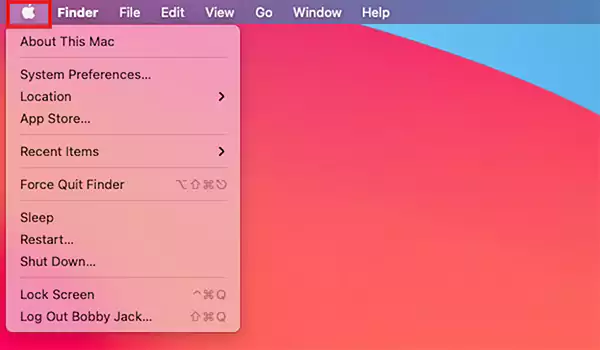
- Select Restart.
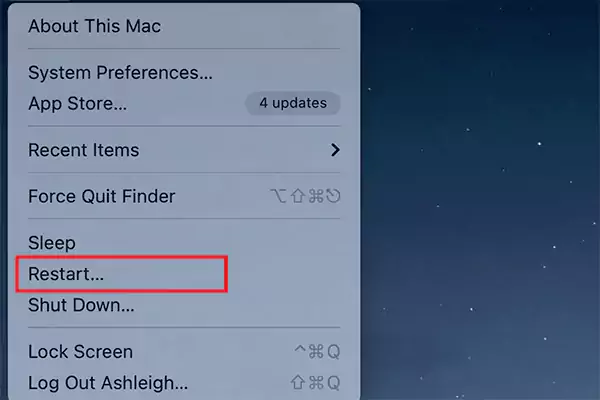
- Confirm by clicking Restart.
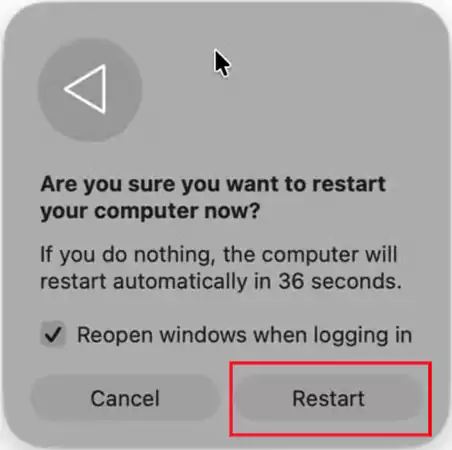
This method works on:
- MacBook Air
- MacBook Pro
- Intel-based Macs
- Apple Silicon Macs
This is a safe way, as it keeps the unsaved data stored.
How to Restart MacBook with Keyboard (Keyboard Shortcut)
There are times when my mouse and trackpad both stop responding, but the system is still responsive to keys. In this case, I use keyboard shortcuts.
- Press Control + Command + Power Button
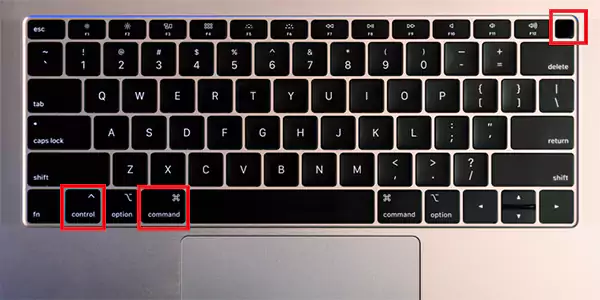
Right after doing this, Mac starts restarting without needing the mouse.
This is useful when:
- The trackpad is frozen.
- External mouse disconnects
- The screen is responsive, but the pointer won’t move.
How to Force Restart MacBook with the Power Button When It Freezes? (Power Button)
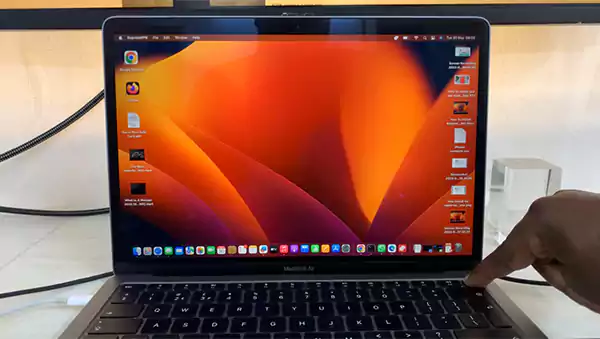
When the Mac is completely unresponsive, I restart it manually with the power button.
- Press and hold the power button for 10 seconds.
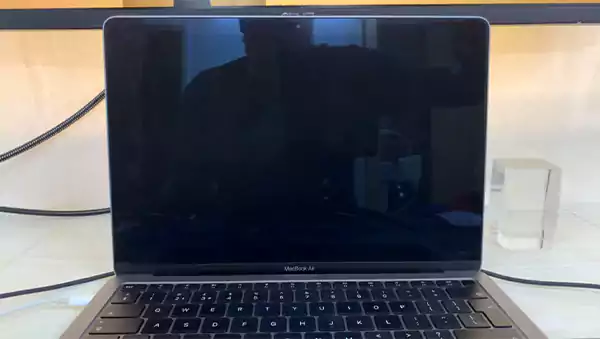
- The screen turns off completely. Wait 5-10 seconds.
- Press the power button again.
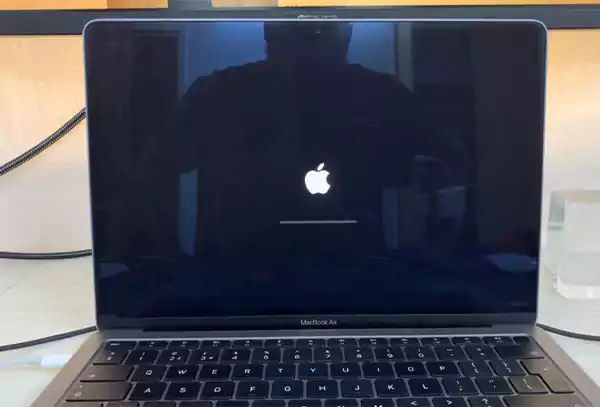
This is highly effective when nothing else is working on my MacBook.
However, I only force restart MacBook when:
- The screen is frozen.
- The spinning beach ball won’t disappear.
- Apps won’t close.
- Keyboard shortcuts don’t respond.
Use this method only when it’s an emergency.
This is like the OG method, which works in 90% of the cases. Simply click the power button for 10 seconds. It’s only for situations when the screen is stuck but is still partially active.
How to Restart MacBook From the Terminal Panel? (Terminal)
If my power button is not responding or I want an alternative method, there are some software-based restart options.
- Go to Finder.
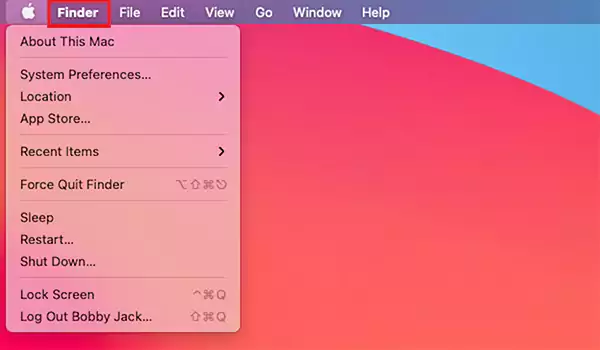
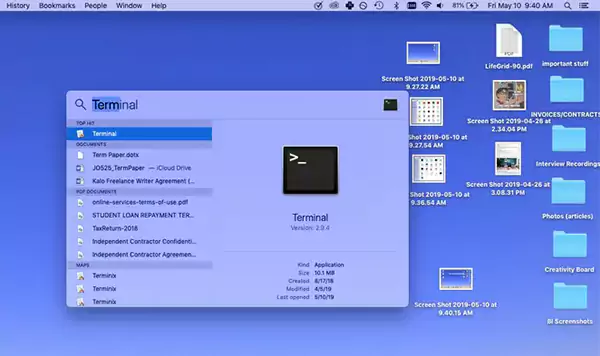
- Search for Terminal and open it.
- Type “sudo shutdown -h now”
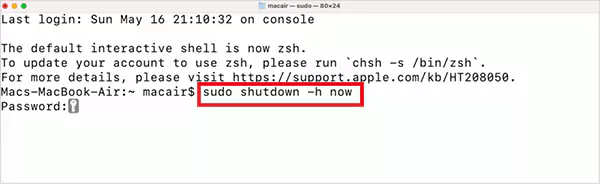
- Press return and return the Mac password.
This immediately restarts my Mac. The terminal is used when there are troubleshooting issues.
How to Restart MacBook in Safe Mode?
If my Mac is still freezing after a reset, I switch to Safe Mode and reboot it. However, MacBook comes in two variations, and it’s important to know whether you are using a Silicon or Intel.
To determine if you have Silicon or Intel:
- Go to the Apple menu.
- Select “About This Mac.”
- If “Chip” is labeled along with the name of the chip, it’s Silicon.
- If “Processor” is labeled as one of the items along with the processor name, it’s Intel.
1. How to return Safe Mode in Silicon
- Shut down the Mac.
- Turn it on.
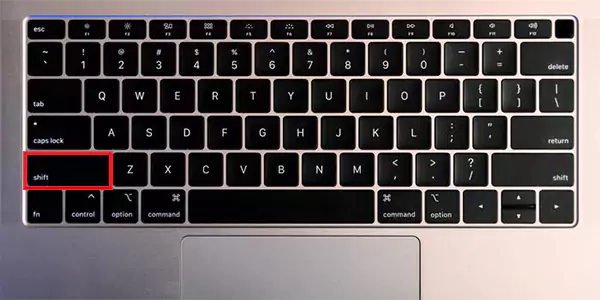
- Immediately hold the Shift key.
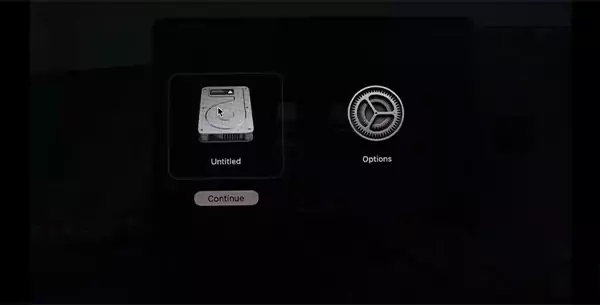
- Select Continue in Safe Mode.
2. How to return Safe Mode in Intel
- Restart your Mac.
- Press Shift immediately until you see the login window.
- Log in.

- In one of these windows, Safe Boot will appear at the top.

After that, log in and test if the issue continues. If the Mac works fine in Safe Mode, the issue is most likely to be software-related.
Safe Mode helps by:
- Disabling startup items.
- Running disk checks.
- Preventing third-party apps from loading.
How to Restart Maс Using Remote Access (Remote Method)
This is a complicated process, but if there are major issues, it is very helpful and can make the Mac as good as new again. Start by enabling Remote Login in System Settings. After that, connect the external monitor to the same network and issue a restart command through Terminal.
Remote Restart Should Only Be Used When:
- Both the Mac and the other device are in different rooms.
- It is being managed as a server.
- The display is not working, but the system is still running
- I need to reboot it without physically accessing it.
Step 1: Enable Remote Login on My Mac
- Click the Apple icon in the menu bar.
- Open System Settings (or System Preferences on older macOS versions).
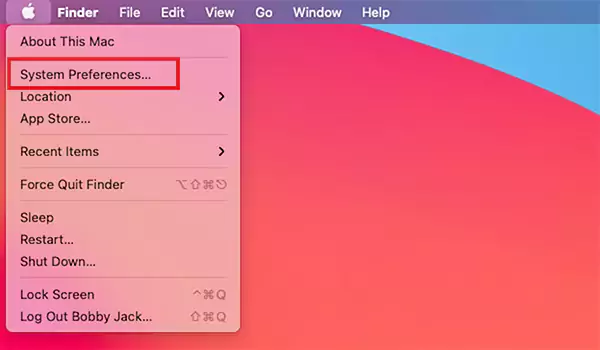
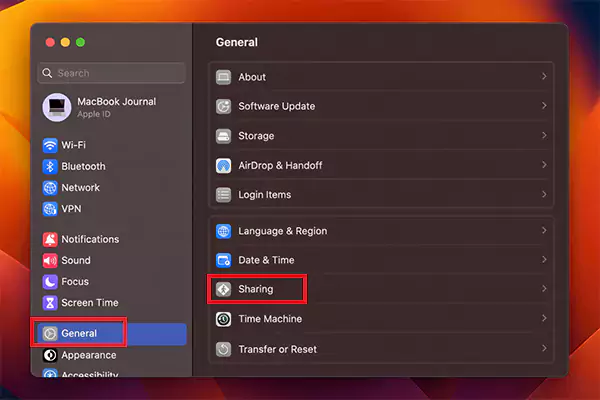
- Go to General and select sharing.
- Turn on Remote Login.
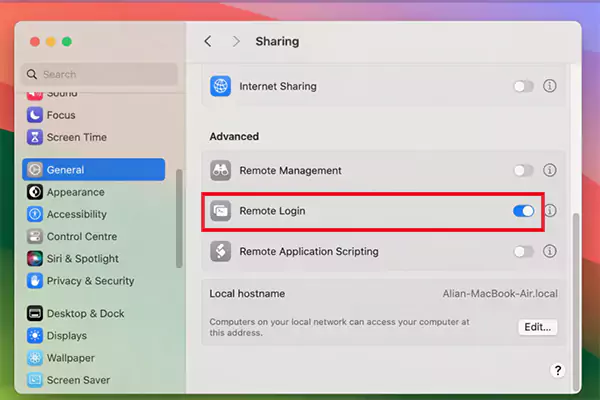
- Make sure the user account has permission to access the Mac.
With this, the Mac accepts secure remote connections.
Step 2: Find My Mac’s IP Address
- Open a web browser.
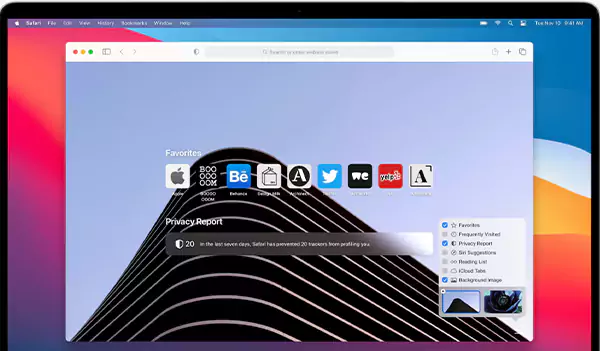
- Type “what is my IP” in the search bar.

- Copy the IP address displayed at the top of the results.

Alternatively, it can be checked through System Settings under the Network option.
Step 3: Use Another Computer on the Same Network
Get another Mac, Windows, or Linux computer connected to the same network as the Mac.
Step 4: Open a Terminal Window
- Open the Terminal application on Mac or Linux.
- On Windows, open Command Prompt or PowerShell.
Step 5: Connect to My Mac
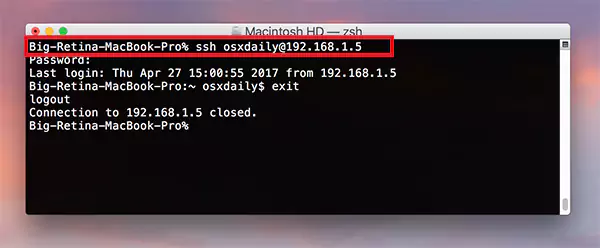
- Type SSH connection format using the Mac’s username and IP address.
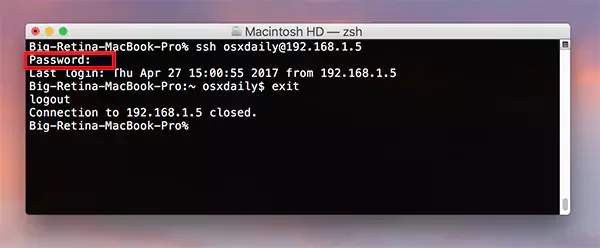
- When prompted, enter Mac’s administrator password.
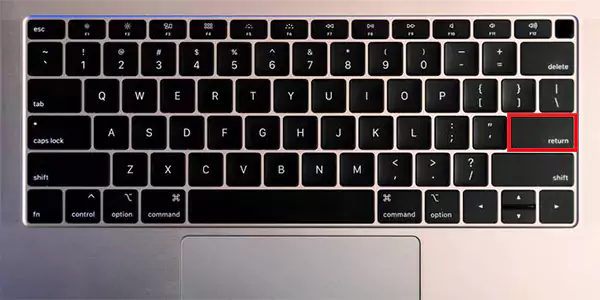
- Press the return key.
After a successful login, Mac can be controlled remotely through the command line.
Step 6: Restart the Mac Remotely
- Once connected, type the restart command and press return.
Mac would immediately start rebooting.
Mistakes to Avoid:
- Force restarting repeatedly
- Restarting during macOS update
- Ignoring disk warnings
- Shutting the lid instead of properly restarting
These are 9 methods that I use to restart my MacBook. Based on the issue I’m facing, one of these methods solves my problem. But in case I have any other issues, I opt for some other routes.
2 Miscellaneous Methods to Fix Your MacBook Issue
Sometimes Mac issues are not resolved by simply restarting. In such cases, you have to use a few other methods. These are not simple, but when nothing else works, these can be helpful. These methods include:
Resetting NVRAM
If the display, startup disk, or sound acts strangely after a restart, I start to reset NVRAM.
- Shut down Mac.
- Turn it on.
- Immediately press and hold: Option + Command + P + R.
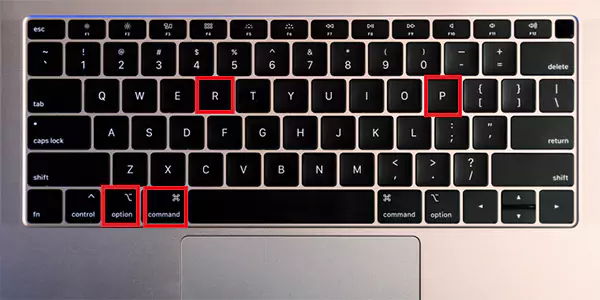
- Hold for about 20 seconds.
- Release the keys.
With this method, the system-level memory settings are reset.
How I Reset SMC (If Power Issues Occur)
If the Mac:
- Won’t turn on
- Doesn’t charge
- Fans run loudly
- Shuts down randomly
Reset the SMC (System Management Controller). SMC reset steps are different in every Mac model, but they generally involve:
- Shutting down.
- Holding Shift + Control + Option + Power Button for about 10 seconds.
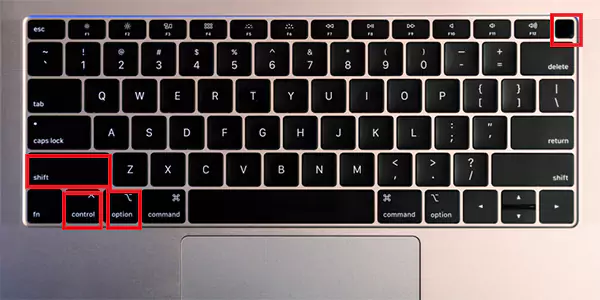
- Releasing and turning Mac back on.
This should only be done when a restart alone doesn’t.
Restart vs. Force Restart vs. Reset—What I’ve Learned
| Method | When to Use It | Risk Level |
| Normal Restart | Routine reboot | Very Safe |
| Keyword Restart | Mouse not working | Safe |
| Force Restart | System frozen | Medium |
| Safe Mode Restart | Troubleshooting | Safe |
| NVRAM Reset | Display/Sound errors | Safe |
| SMC Reset | Power/Battery issues | Safe (if done correctly) |
Never jump directly to advanced rests. Because if they are not done correctly, it can further damage the system.
Conclusion
Overall, summarizing how to restart macbook. Always start with the Apple menu method because it safely closes apps and protects data. If the Mac becomes unresponsive, use keyboard shortcuts or force a restart using the power button. For more profound issues like black screen or power failure, Safe Mode and system resets are great ways to restore stability.
If the right reset method is followed, it keeps the Mac running efficiently and prevents unnecessary system damage.
Frequently Asked Questions
How do I restart my MacBook manually?
How do I force a reset on my Mac?
Just press the power button for 10 seconds when the system shuts off, wait a few more seconds, and restart it using the power button.
Can you restart the Mac using the keyboard?
Yes, Press Control + Command + Power button together, and the Mac will start restarting without the mouse or the touchpad.
Why is my MacBook restarting repeatedly?
Frequent restarts can happen because of software bugs, outdated macOS, failing hardware, or problematic third-party applications.
Related Posts

How to Stop Windows Update: Pause, Disable, or Uninstall Safely
Imagine that face when Windows starts updating with a deadline looming and your screen freezes. Frustrating is an understatement, and…
How to Open Control Panel in Windows? (All Methods Explained)
The control panel in Windows is a collection of tiny programs. It is used to configure the various aspects of…
How to Delete Apps on Mac? Safe and Quick Ways to Uninstall Apps
How do you remove applications from a Mac? Most Mac users think there is just one way to delete apps.…
Why Proxy Servers Are Popular
Many tech platforms, ad networks, SaaS tools, and online stores in the world have critical traffic and infrastructure that require…
Data Loss vs. Data Strategy: Why One Conversation Matters More Than the Other
In the corporate conversation around information, most of the firms are scared of losing data. That’s understandable, as most of…
How to Turn Off Touchscreen on Chromebook? Step-by-Step Guide
Touchscreen on a Chromebook sounds great until it starts getting in the way. Accidental taps while typing, smudges, and random…

How to See Blocked Messages on iPhone? (What Actually Works)
Ever blocked someone on your iPhone and later found yourself wondering if you can see blocked texts on iPhone? It…
The 5 Architecture Decisions That Haunt SaaS Founders Two Years Later
Architecture decisions are fundamental to ensuring steady growth in any business or technical step, especially when the topic is laying…

Database Scaling: How to Manage 10,000+ Political Volunteers
Every small business or growing team needs to deal with a common issue—the database that was working perfectly for the…