
Faulty apps, stuck buttons, malware, or a system glitch usually trigger Safe Mode automatically on Android.
How to Turn Off Safe Mode on Android: A Quick Guide
 Kartik Wadhwa
Updated on: Feb 18, 2026
If your Android suddenly shows Safe Mode, or you just want to undo Safe Mode after finishing your task, you are at the right place.
It is a built-in diagnostic state that temporarily disables third-party apps so you can spot what is causing glitches, crashes, or lag. The phone usually enters Safe Mode after a restart issue, a faulty app, or stuck buttons.
I will show you how to turn off Safe Mode on Android safely, using basic methods and advanced fixes. The guide also covers safe tips to avoid such issues in the future.
Quick Answer: How Do You Turn Off Safe Mode on Android
- Try to restart your phone first. A normal reboot usually disables Safe Mode.
- If it stays, try a forced restart by using the Power + Volume Down buttons.
- Remove any app you installed right before the issue started and try restarting again.
- Install pending system updates, clear cache using the recovery mode, or factory reset only if nothing else works.
What is Safe Mode on My Phone?
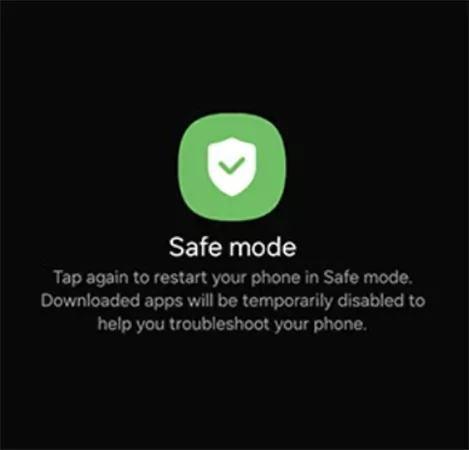
Safe Mode is Android’s built-in troubleshooting mode. When your phone enters it, only core system apps run. Every app you installed gets paused for a while. This gives you a clean space to check what is actually causing issues on your device.
You can still call, test, use the camera, and open Settings. But social apps, games, and most downloads do not function. In short, Safe Mode helps you confirm whether the problem is coming from software, an app, or the device itself.
It is not meant for daily use, but as a quick diagnostic tool. But how can I take safe mode off my Android device? Move on to the next section to find out.
How to Turn Off Safe Mode on Android?
In most cases, a normal restart gets your phone or tablet out of Safe Mode. Here are a few simple options to turn safety mode off:
- Restart Normally:
- Press and hold the power button.
- Tap Restart.
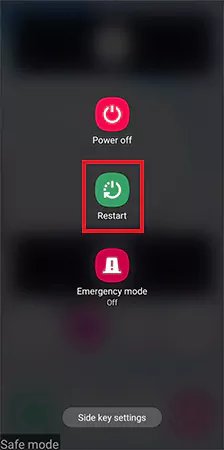
- Let the phone boot normally.
That’s it for most users. If your device still shows Safe Mode after restarting, try the following in order.
- Forced Restart with Buttons:
- Press and hold the Power + Volume Down buttons together for a few seconds.

- Release when the screen turns back on.
This helps many devices to return to normal mode.
- Press and hold the Power + Volume Down buttons together for a few seconds.
- Use the Safe Mode Notification:
Some Android devices show a “Safe Mode Is On” alert in the notification panel. Here is how to turn off Safe Mode on tablets and phones using the notification panel:
- Go to your notifications by swiping down from the top of your screen.
- Tap on the “Safe Mode Is On” alert.
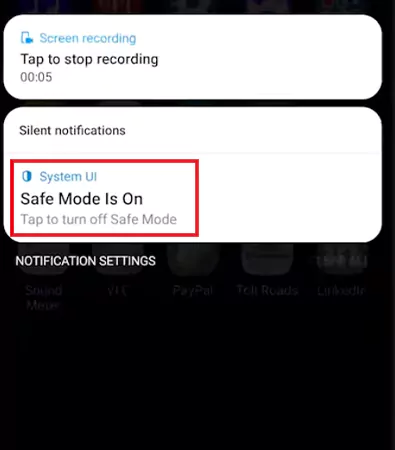
- Select the Turn off option to confirm.
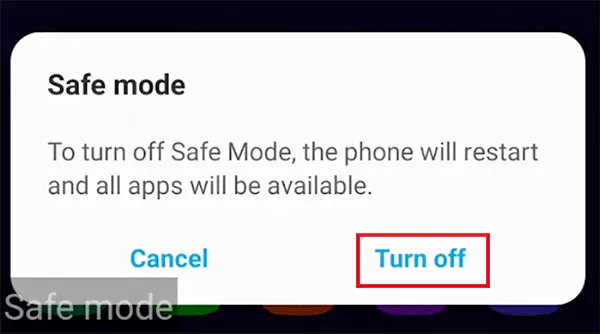
Just go through these steps one by one. A clean restart can solve most Safe Mode issues within a minute.
Why Your Device is Stuck in Safe Mode?
If Safe Mode keeps returning after every restart, something is triggering it. Here are some of the most common reasons:
- A Recently Installed App is Crashing: Android may boot into Safe Mode when an app fails at startup.
- A Button is Stuck: The mode can activate if the volume or power buttons are pressed during boot. Dust, damage, or a tight case can cause this.
- Software Glitch or Incomplete Update: If an update did not finish properly, the system may stay in Safe Mode until it stabilizes.
- Corrupt Cache or System Files: Broken temporary files can force Android into Safe Mode to prevent crashes.
- Work Profile or Parental Controls: Some managed devices restrict normal boot behavior through admin settings.
Once you identify the cause, fixing this issue becomes too simple. Random resets are not required. Just use the troubleshooting steps given in the next section.
How Do You Disable Safe Mode on Android (Advanced Fixes)?
How do I take my phone out of safe mode? Well, if a simple restart did not work, I go a level deeper. Follow these fixes in order to fix the Android stuck in Safe Mode issue:
- Remove Recently Installed Apps: If the issue occurred after installing or updating an app, that app is our top suspect in the case. Just uninstall it and try to restart your phone. Most Safe Mode loops end right here.
- Check for Stuck Buttons: Remove your case and press each button once to ensure nothing is stuck. Then, restart your device.
- Clear Cache Partition: This wipes temporary system files that can break startup, but keeps your data intact.
- Turn your device off.
- Now, press and hold the Power + Volume Down button and boot into Android Recovery Mode.
- Here, choose Wipe cache partition.
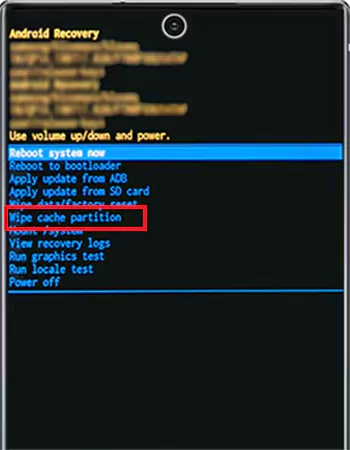
- Then, restart normally.
This often fixes stubborn issues without deleting anything important.
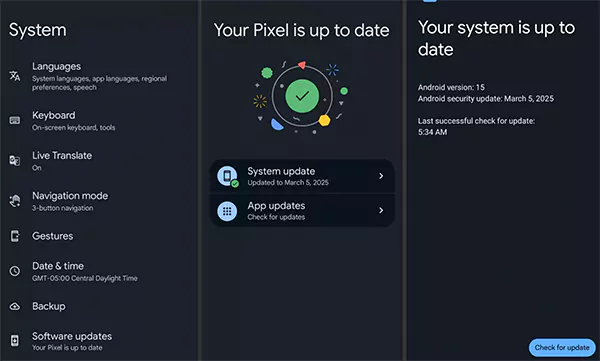
- Check for Android Updates: Open Settings > System > Software Updates, and install any pending update. Some devices stay in Safe Mode due to a bug that gets fixed in the next patch.
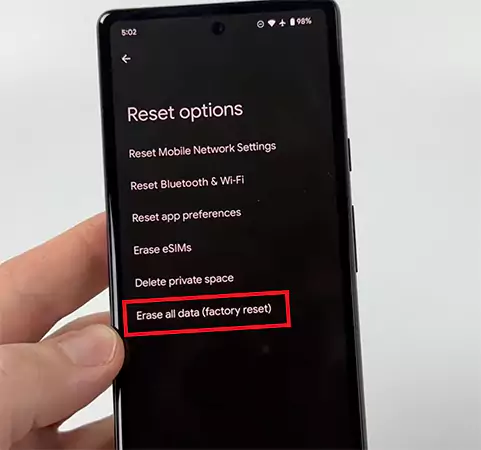
- Factory Reset (Last Resort): Back up your photos, files, and contacts first. A factory reset clears all apps and restores the phone to its default state.
Go to Settings > System > Reset options > Erase all data (factory reset) > Confirm. Use this only when the issue keeps coming back after every restart (soft reset).
- Check for Hardware Issues: If Safe Mode returns even after a reset, the issue may not be software. At this stage, a service center check makes more sense than attempting more resets.
Start simple, and move step by step. Most of you will be able to undo Safe Mode after removing one faulty app or clearing the cache.
Best Practice to Follow After You Turn the Safe Mode Off
Getting out of Safe Mode is step one. Preventing it from coming back unexpectedly is step two. Here’s how you can stabilize your phone like a pro:
- Delete any faulty apps and always install apps only from an official app store or trusted developers. Third-party app stores are a common source of unstable apps.
- Keep your Android and all apps updated. Outdated apps and unfinished updates are common triggers.
- Review app permissions by checking which apps have access to storage, microphone, or system settings. Remove anything that feels unnecessary or suspicious.
- Make sure all the device buttons work properly in your case.
Furthermore, always keep a recent backup of your important data. If the issue returns later, you can reset without stress.
Final Thoughts
Safe Mode itself is not the problem. It is an important safety net, and Android switches to it when something interferes with normal startup.
Once you understand why it appeared in the first place, you will know how to turn off Safe Mode on Android effectively. In most cases, a simple restart will do the job. And remember to use the factory reset only when nothing else works.
Frequently Asked Questions
Why is my phone stuck in Safe Mode?
How to return to normal mode from Safe Mode?
Restart the phone using the power menu. If it still boots into Safe Mode, uninstall recently installed apps and check for stuck volume buttons.
How to turn off Samsung Safe Mode?
Simply restart your Samsung device to exit Safe Mode. You can also turn it off by tapping the notification alert.
How to turn on Android in Safe Mode?
Press and hold the Power button, tap and hold Power off or Restart until you see Reboot to Safe Mode, and confirm. Your device will restart in Safe Mode.
Can Safe Mode turn on by itself?
Yes, Android can enter Safe Mode automatically when it detects crashes, app conflicts, or system instability during startup.
Related Posts
When is it Time to Consider IT Support Services for Your Business?
Every business needs to ensure smooth operations for a successful business. But despite trying hard to avoid barriers, technical issues…

How to Delete User Profile in Windows 10: Step-by-Step Guide
You don’t notice user profiles until one starts causing problems. A profile gets corrupted, a login error pops up, or…
How AI Can Help Students Take Notes and Check Their Work
Artificial Intelligence is transforming how students learn, study, and manage their academic work. From automating note-taking to checking assignments, AI…

How to Stop Windows Update: Pause, Disable, or Uninstall Safely
Imagine that face when Windows starts updating with a deadline looming and your screen freezes. Frustrating is an understatement, and…

How to Open Control Panel in Windows? (All Methods Explained)
The control panel in Windows is a collection of tiny programs. It is used to configure the various aspects of…

How to Delete Apps on Mac? Safe and Quick Ways to Uninstall Apps
How do you remove applications from a Mac? Most Mac users think there is just one way to delete apps.…
Why Proxy Servers Are Popular
Many tech platforms, ad networks, SaaS tools, and online stores in the world have critical traffic and infrastructure that require…
Data Loss vs. Data Strategy: Why One Conversation Matters More Than the Other
In the corporate conversation around information, most of the firms are scared of losing data. That’s understandable, as most of…

How to Turn Off Touchscreen on Chromebook? Step-by-Step Guide
Touchscreen on a Chromebook sounds great until it starts getting in the way. Accidental taps while typing, smudges, and random…