
Go to PlayStation Account Management > Trouble Signing In? > Recover Your Account. Enter your registered email ID and use the secure link from the email. If you are already signed in on a console, you can change the password directly.
PlayStation Password Reset: A Clear Guide to PSN Account Recovery
 Kartik Wadhwa
Updated on: Jan 13, 2026
Table of Contents
- Quick Checklist: PlayStation Password Reset
- How Do I Reset PlayStation Password Using the Official Website?
- How Do I Reset My PlayStation Password on PS5?
- How to Reset PSN Password on PS4?
- Can You Recover a PSN Account Without Email Or Password?
- How to Change Your PlayStation Password (If You Can Sign In)?
- How to Secure Your PSN Account After Recovery?
- Final Takeaway
- Frequently Asked Questions
Getting locked out of your PlayStation account can kill the mood instantly. You sit down to play, and suddenly, your password does not work. This PlayStation password reset guide will help you fix that in minutes.
Whether you forgot your PlayStation Network password, lost access to your email, or need to reset it on PS5 or PS4, I will explain in simple steps. By the end, you will not only learn how to retrieve PSN passwords but also know how to secure them properly so this problem does not repeat.
Continue reading till the end for uninterrupted gaming.
Key Takeaways: How to Reset PlayStation Password?
- If you have access to your registered email, a PlayStation password reset takes just a few minutes using the official website or console.
- If you have lost email access, account recovery is possible, but requires proof like purchase history, transaction IDs, or console details.
- If you are already signed in, always change your password instead of resetting it. It is faster and avoids recovery checks.
- Securing the account after recovery matters more than the reset itself. Enable two-step verification and set up a passkey.
Quick Checklist: PlayStation Password Reset
Before you start to retrieve PSN accounts, you need to understand that most failures happen because people start unprepared. Here’s what you actually need to reset PSN Network passwords:
- Access to the email linked to your PSN account.
- A phone or laptop to open reset links.
- Your PSN Online ID or sign-in email.
- Your PS5 or PS4, if you are already logged in.
- Recent purchase details or transaction ID if you need to recover using official support.
If you don’t have access to your registered email, stop retrying the password reset on PlayStation. Guessing will only slow things down. I would recommend that you jump straight to account recovery through official support.
Use this list before you start. It saves time and keeps you from getting stuck mid-process.
How Do I Reset PlayStation Password Using the Official Website?
This is the fastest and most reliable method if you have email access. Here’s how to reset the password for PSN online:
- Open the PlayStation Account Management sign-in page.
- Click on “Trouble Signing In?”.
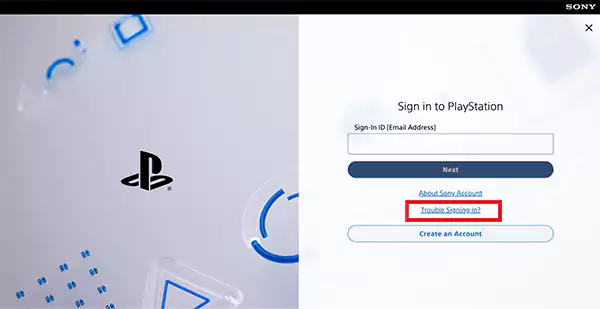
- Select Recover your account.
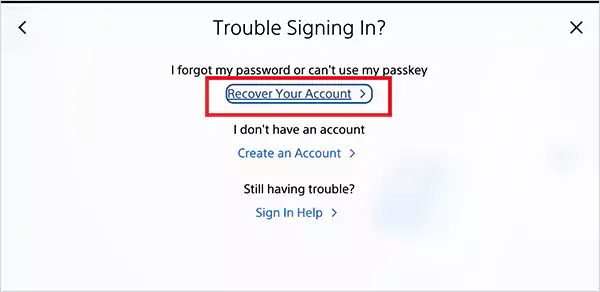
- Enter your registered email address.
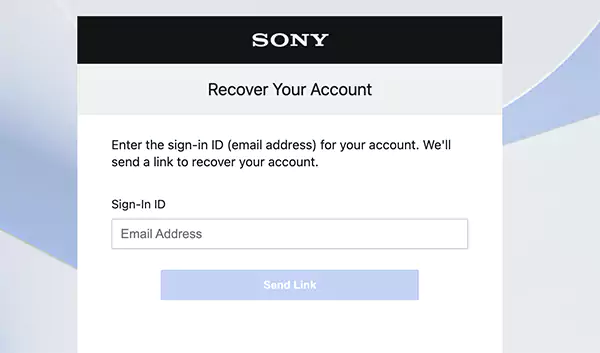
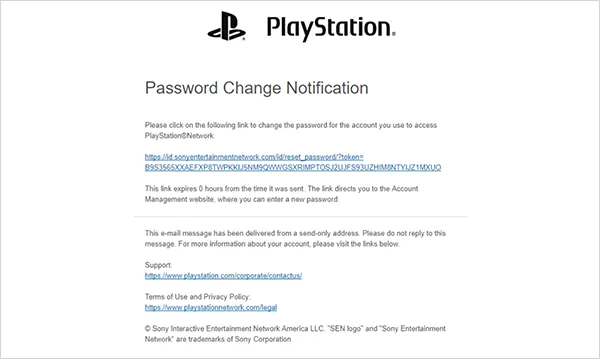
- Now, open the reset email and follow the secure link.
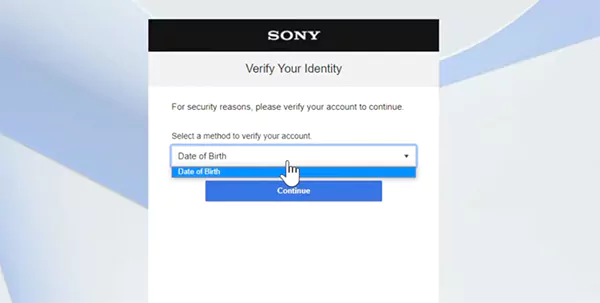
- Verify your identity by providing your date of birth.
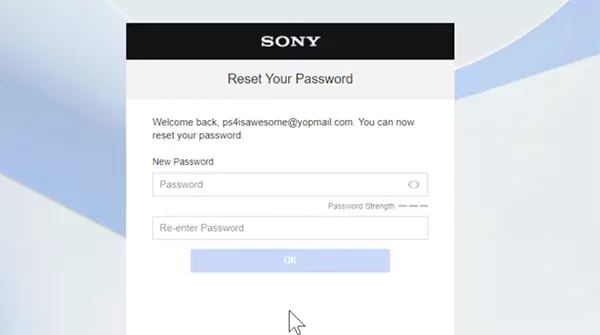
- Finally, just create a new strong password and confirm.
Once reset, sign back in and secure the account immediately. Do not stop at just resetting the password.
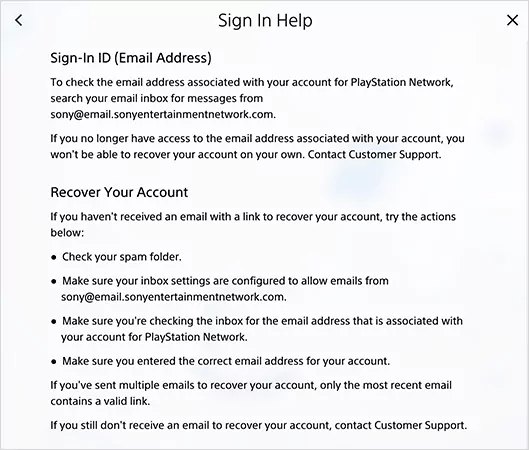
If the email does not show up within a few minutes, check the spam and promotions folders of your mail provider. If you still have nothing, either the email on the account is different, or the account needs manual recovery.
How Do I Reset My PlayStation Password on PS5?
If you are locked out of your PS5, the console can also help you recover PlayStation accounts. Here’s what you need to do:
- On your PS5, go to Settings > Users and Accounts > Account > Sign In.
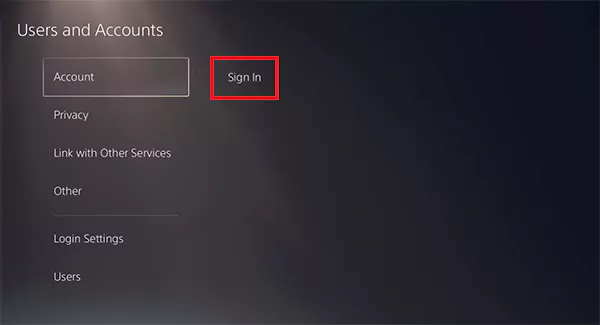
- On the sign-in screen, press the triangle button to click on “Forgot Password?”.
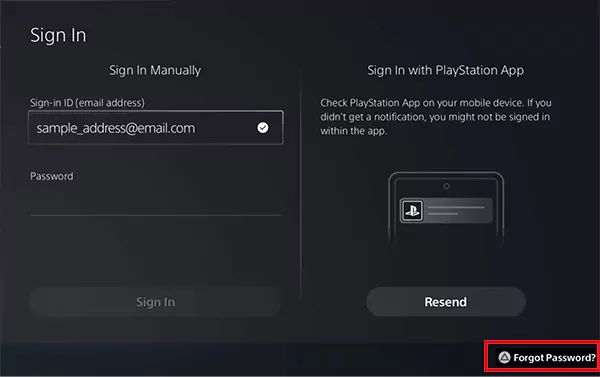
- Now, enter the email linked to your PSN and follow prompts to send a reset link.
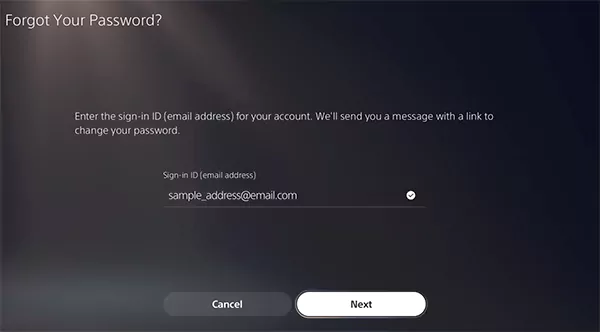
- Check the reset email on your phone or browser, including the spam folder, and open the reset link.
- Next, you need to verify your Date of Birth.
- Create a new password, and confirm it to finish the PSN password resetting process.
If you own a PS4, follow the step-by-step process to recover your PSN ID, given in the following section.
How to Reset PSN Password on PS4?
The PS4 process to recover PSN IDs is simple and works fast if email access is available. Here are the steps involved:
- Turn on your PS4 and go to Settings > Account Management > Sign In.
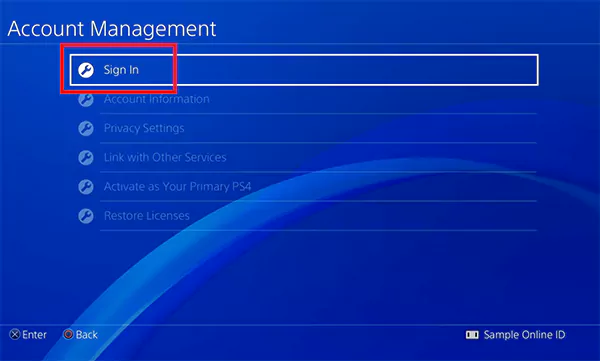
- Next, select “Forgot Your Password?” by pressing the triangle button on your remote.
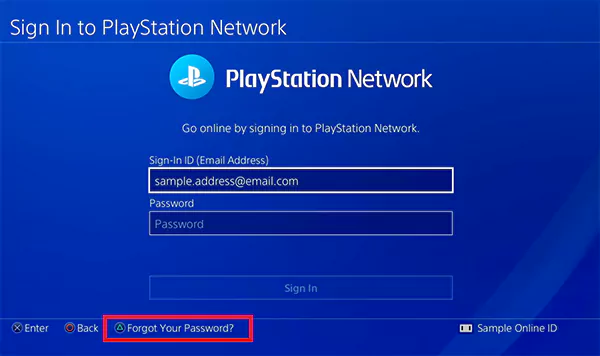
- Enter the email address linked to your PlayStation Network account and select Next.
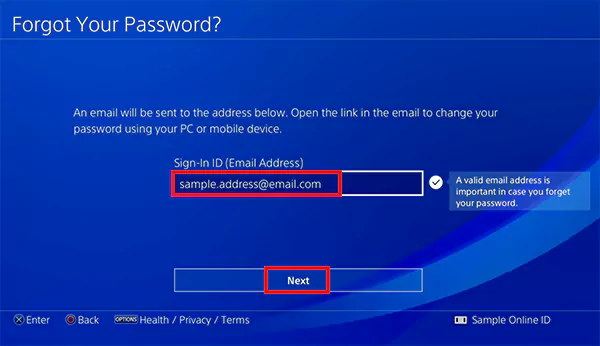
- Open the reset email and follow the link.
- Verify your date of birth on the next screen.
- Now, just create a new password, and you are done.
If you can’t get a reset email after multiple attempts, the problem is almost always email access, not the console. At that point, move on to the next section for recovering the PlayStation Account.
Can You Recover a PSN Account Without Email Or Password?
Yes, but this is the backup path, and it involves human verification. Officially, Sony allows you to recover your PlayStation account online if you have email access or a passkey. If you don’t have that, you must use the online assistant support route.
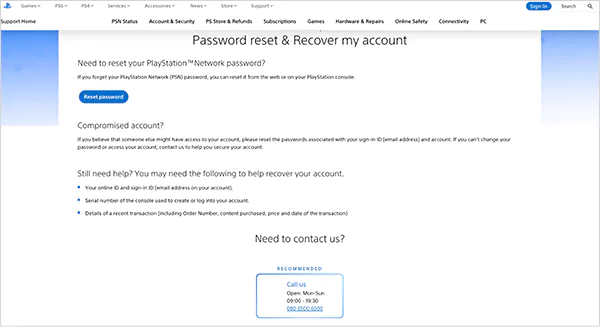
On the recovery page, when it says you can’t access your email, you will be prompted to contact support. They will verify your identity with alternate details such as:
• PSN Online ID or username.
• Recent purchase info or transaction IDs.
• Console serial numbers used to sign in.
• Account region, date of birth, or other security details.
If you are still signed in on another device, use that first. Otherwise, support verification is required to recover PSN accounts.
How to Change Your PlayStation Password (If You Can Sign In)?
If you are logged in, changing your password is always better than a PlayStation password reset. It is much faster and simpler.
Option 1: Change Password on the Website
- Open Account Management on the PlayStation website.
- Go to Security and click on the Edit option next to Password.
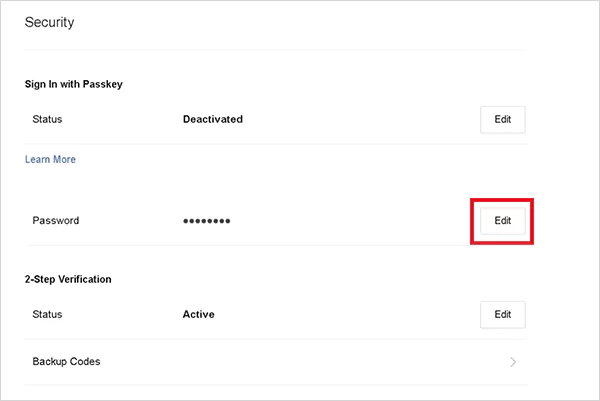
- Enter your current password, then set a new one.
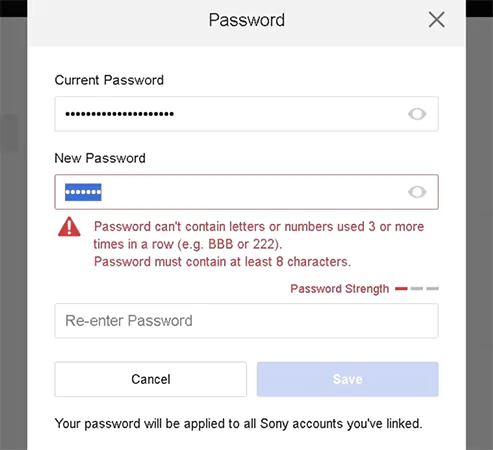
- Save changes and sign out of other devices if prompted.
Option 2: Change Password on Console
- On PS4, go to Settings > Account Management > Account Information > Security > Password.
- On PS5, go to Settings > Users and Accounts > Account > Security > Password.
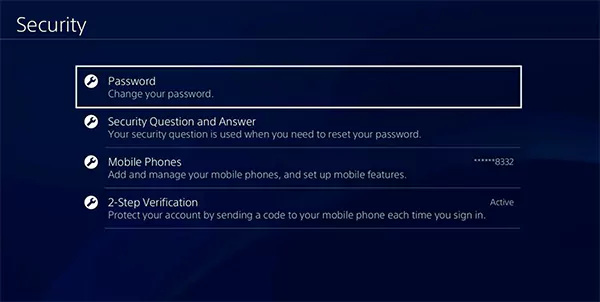
- Enter your current password, and then just create a new one to change the password.
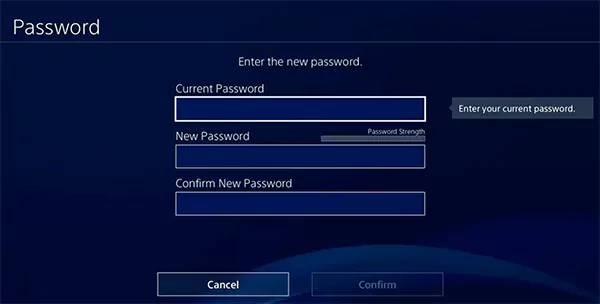
After changing the password or executing the PSN network reset password, follow the tips given in the next section to avoid losing your account again.
How to Secure Your PSN Account After Recovery?
Getting back is only half the job. The real win is making sure this never happens again. So, after recovering your PSN account, follow these small but useful steps:
- Turn on Two-Step Verification
Go to Account Management > Security and enable 2SV using an authenticator app or SMS. This adds an extra layer of security every time someone tries to sign in.
Also, save your backup codes somewhere safe because they can help you get back in if your phone is lost.
- Set up a Passkey
Passkeys allow you to skip typing a password and make your account more secure. After you recover the PSN accounts. Set a passkey under the same Security section.
- Check and Update Email and Phone
Make sure the recovery email and phone number are correct. If either was changed by someone else, restore your own information immediately.
- Review Transactions and Linked Payment Methods
Check your purchase history for anything you don’t recognize. If there’s unauthorized activity, remove payment methods and contact PlayStation support right away.
These steps do not just protect your account. They also make any future recovery faster and cleaner.
Final Takeaway
If you can access your email, a PlayStation password reset is quick. If you cannot, recovery is still possible, but only with proper verification.
The crucial thing is what you do after regaining access. So, please secure your account, update recovery details, and stop depending on passwords alone. That’s how you protect your PSN account long-term.
Frequently Asked Questions
How do I recover my PlayStation password?
How do I recover my PlayStation account without a date of birth?
Try the email recovery steps from the console first. If that does not work, contact support with proof like transaction IDs, purchase receipts, console serial numbers, or billing details. Also, please avoid any so-called DOB bypass tricks.
What happens if I forget my PSN password?
Your account stays safe but locked. You cannot sign in until you reset it. However, you can recover your account using the registered email address.
How do I reset a child account password?
Only the family manager can reset a child’s PSN account password. Sign in to Account Management and go to Family Management. Then select the child account and reset the password.
Why haven’t I received my PSN password reset email?
Wait for a few minutes and check spam or junk folders. Also, make sure that the email address is correct. If you have not received the email yet, please contact PlayStation support or use the online assistant.
How soon can I sign in after resetting my PSN password?
If you reset via email, you usually regain access immediately. However, if support verification is involved, the timing depends on how quickly the support team can confirm your identity.
What should I keep ready before contacting PlayStation Support?
For a quick resolution and to save time, keep the following things handy before contacting the official support:
- PSN Online ID
- Registered email address
- Console serial numbers
- Recent transaction IDs or receipts
- Account region and date of birth
What are 2SV backup codes?
2SV codes are single-use passwords that are generated when you set up 2-Step Verification (2SV) or 2-factor authentication (2FA) for PlayStation or other platforms. These codes allow you to sign in if you lose your phone or can’t get codes via text/authenticator app.
Related Posts
How to Reset Android Phone When Locked? (Safe Factory Reset Methods)
Locked out of your Android phone or stuck on the screen? It happens more than you think. A forgotten PIN,…
How to Transfer Contacts from Android to iPhone: 4 Easy Methods
Switching from Android to iPhone should not feel like rebuilding your life from scratch. Restoring contacts on iPhone should be…
White Label Ad Server vs Development From Scratch: What to Choose
Even though the DSP segment is the largest market within AdTech at the moment, an ad server remains a crucial…
How Data Infrastructure Powers Next-Gen Mobile Recognition Apps
Modern digital applications have evolved with time, offering various functionalities to users that weren’t possible or even imaginable before. But…
How Poor Contract Visibility Leads to Revenue Leakage in Growing Companies
Growth is an important factor that determines the success rate of any business. When we witness new operations, partnerships and…

Managing Bitcoin Operations? Here’s How Salesforce Automation Helps
“Digital currency is here to stay, and it’s only a matter of how long before governments embrace it.” — Brad…

Why Modern Organizations Depend on Data Privacy Software
Data growth has significantly accelerated beyond what most compliance teams can manage, with personal records, financial details, contracts, and emails…

Converting Chats Into Leads While Maintaining Professionalism
The way marketing teams and businesses approach their potential clients to boost their sales has completely transformed in the last…
How to Delete iCloud Account? Complete Guide for 2026
Thinking, how can I delete iCloud or Apple account? It is not just about removing an account; it is about…