
Yes, formatting a device removes all the data currently present in it, prepping it for a fresh start.
Best Practices for Formatting and Maintaining Removable Storage
 Mahima Dave
Updated on: Feb 26, 2026
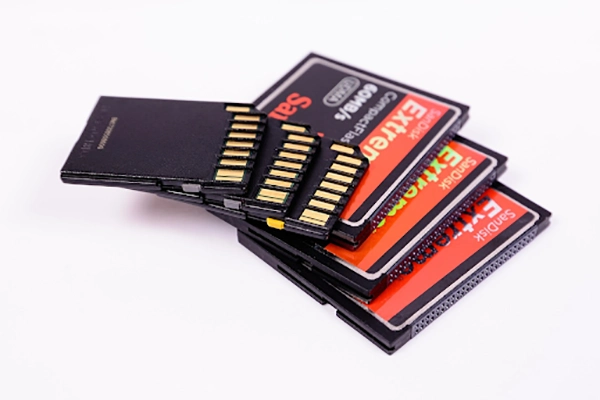
Removable storage devices are small and delicate gadgets that keep all your best memories stored in them. This is why we need to keep these devices safe and working at their best.
Tons of photos, vidoes and important files kept safely on these devices are lost forever due to the lack of maintenance of these things, which could have been easily avoided.
But worry not, in this guide, we’ll discuss how you can format and keep these devices working, promoting their reliability and longevity.
Key Takeaways
- How To Choose Which File System To Use
- Best Practices when Formatting Removable Storage Devices
- Maintenance Tips To Increase Storage Life Cycle
- Mistakes That Will Kill Your Storage Devices
Formatting and Maintenance: Why it Matters
Okay, so here’s the thing…
USB drives and SD cards aren’t indestructible. In fact, they wear down with every single write and read cycle they go through. Performance starts to degrade,e and there’s an increased risk of corruption if they’re not properly maintained.
Stats don’t lie.
According to one recent study, 44% of data loss is caused by hardware failures. That includes your storage media failing, whether that’s SD cards, USB flash drives, or external HDDs and SSDs.
Failures due to mishandling, power loss, or just general wear and tear. Nearly half of data loss incidents can be attributed to hardware failing.
Preventing those failures starts with properly formatting and maintaining removable storage. Whether you’re using a high-speed SD card optimized for 4k video recording or a regular old USB stick for work documents, the same principles apply.
Even high-end SD memory cards with fast transfer speed and built-in SD will perform at their best when properly taken care of. Formatting and maintenance will keep your cards running smoothly and performing well into the future.
How To Choose Which File System To Use
The first thing you’ll want to do is format your storage device with the proper file system. Picking the wrong file system can limit performance, decrease compatibility, or cause errors.
Before we get into the different types of file systems, here’s what you need to know.
- FAT32: Super compatible, but limits file size to 4GB. Great for older devices, but not ideal if you want to store large video files.
- exFAT: Pretty much the best file system for removable storage these days. No practical limits to file size, and it plays nicely with Windows, Mac, and just about every other device.
- NTFS: Best used with Windows computers. Not ideal for USB drives or SD cards because macOS is limited to read-only access unless you install third-party software.
The easiest way to remember this is.
exFAT is the go-to file system for SD cards and USB drives. It’s compatible with large files and every platform you’ll use it with.
Best Practices When Formatting Removable Storage Devices
Formatting your SD card or USB drive does more than erase all of your data. When done properly, formatting fixes errors in the file system that may be slowing down your device.
Here are some best practices to follow when formatting.
Format with the Native Application
Ideally, you should format any removable storage device within the device you’ll be using it with most. If you’re using an SD card with your camera, format it using the camera. The same goes for game consoles, computers, etc.
Each device has different optimizations when formatting its hardware. Formatting within the device can increase write speeds and help avoid compatibility issues later on.
Full Format vs Quick Format
A quick format simply deletes the file table on the storage device. It does not scan for errors or repair anything.
When in doubt, perform a full format. It takes longer, but it checks the entire storage device for errors.
This is particularly helpful for older storage devices that have been written to and read from too many times.
Format Before First Use
Yes, even new storage devices should be formatted when you first receive them. Factory pre-formats aren’t optimized for the device they’re being used with right out of the box.
Formatting before first use ensures you’re starting off with a clean, optimized file system.
Maintenance Tips to Increase Storage Life Cycle
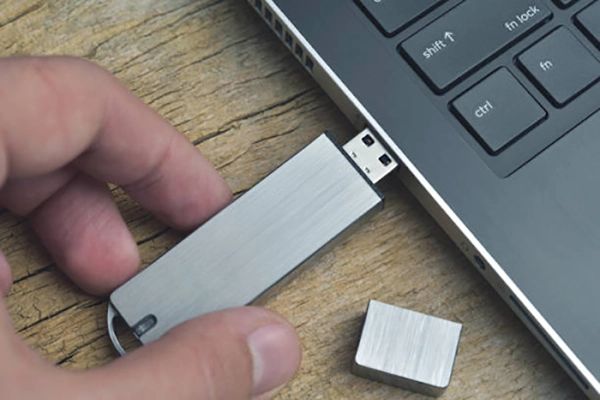
Let’s talk about maintenance. There are some good habits you can get into that will keep your storage devices running healthy for years to come.
Safely Remove Hardware
Please please please…..always eject your USB drives and SD cards safely.
Removing the storage device before all transfers have completed can corrupt the file system. Once that happens, you risk losing everything on the device.
Take the extra couple of seconds and save yourself hours of data recovery.
Keep Your Devices Clean
Specks of dust may not seem like they can hurt, but dust and foreign objects can cause problems with USB drives and SD cards.
Extreme temperatures can also reduce the lifespan of your storage devices. Try to keep SD cards and USB drives in a safe location when not in use. A case is best, but somewhere out of direct sunlight works too.
High humidity can cause corrosion over time as well. Avoid moist areas whenever possible.
Don’t Max Out Storage Space
Did you know that using 100% of the storage space on an SD card or USB drive wears it down more quickly?
It decreases the storage medium’s ability to spread out write cycles. Something called “wear leveling”.
Round things off at about 85-90% usage, and you should be good.
Regularly Back Up Your Data
Motherboards and SSDs/HDDs don’t last forever. Even with proper care, your storage media will fail eventually.
DataNumen reports that an unbelievable 85% of organizations suffered from a data loss incident in 2024. Yikes!
Make sure you regularly back up data stored on your removable storage devices. Cloud storage works, external HDDs, or even another SD card.
Fun Fact
USB drives are highly durable, due to them aving no moving parts, they can even function after being dropped in water.
Mistakes That Will Kill Your Storage Devices
Believe it or not, a few bad habits can destroy the lifespan of your storage devices.
- Continuing to use an SD card or USB drive you’ve used in multiple devices without formatting.
- Not formatting new storage devices before initial use.
- Downloading files from untrustworthy sources can cause errors you may not immediately see.
- Exposing your devices to physical damage. Did someone say water damage?
- Use your card to the maximum capacity.
- Running your storage device at full capacity will wear it out more quickly.
- Not backing up your data. (see above)
Avoid these bad habits, and you’ll notice a drastic improvement in the lifespans of your storage devices.
Check out this infographic to learn more ways on how to smartly back up your data:
Final Thoughts
Maintaining removable storage doesn’t have to be difficult. There are a few good habits you can develop that will drastically increase the longevity of your storage devices.
Here’s a quick recap:
- Pick the right file system for your device. (exFAT for most devices)
- Format with the native application.
- Always use “safely remove hardware”.
- Keep your devices clean and dry.
- Don’t run your storage devices at full capacity.
- Back up your data regularly.
All of these tips cost absolutely nothing to implement. Some will only take a couple of seconds of your time.
So what are you waiting for? Start maintaining your removable storage devices today. You’ll thank yourself when you don’t lose those files tomorrow.
Frequently Asked Questions
Does formatting erase all data from my device?
How can I prevent data loss?
Always select the “safely remove hardware” option before disconnecting your removable storage device from your computer.
What is the difference between quick format and full format?
The following are the differences between the two:
- Quick Format – Removes the file, making the data non-accessible, but it is still recoverable.
- Full format – Deletes all data and scans the drive too, making data or file recovery almost non-recoverable, and ensures the drives stay healthy.
How to keep my drives healthy?
Avoid exposure to extreme physical shocks, temperatures, or moisture to keep it healthy and working for the long term.
Related Posts
Simple Ways to Clean Audio Data for Better Model Performance
Most of the machine learning teams do not struggle because their processing systems are not capable—they struggle because their audio…

How to Check for Malware on Mac in 2026?
Can Mac computers get viruses? Macs are not as safe as people think. Yes, macOS has built-in tools like XProtect…
10 Best Lightroom Preset Alternatives in 2026
“Photography is the story I fail to put into words.” — Destin Sparks (Landscape Photographer) For years, Lightroom presets have…
Elementor Hosting vs SiteGround: Which is Faster in 2026?
A website’s performance is mainly determined by its Speed. Even a slight delay can reduce conversions by a significant margin.…

10 Best Visual UGC Platforms for eCommerce Brands in 2026
“People influence people. Nothing influences people more than a recommendation from a trusted friend.” — Mark Zuckerberg (Meta CEO) That…

The Data Models Powering the Next Creative Revolution in Video Generation
Artificial intelligence has evolved from a mere tool to the cornerstone of advancements in the new era. Over the years,…

Solar Software Companies: How Platforms Improve Cross Team Collaboration
“If everyone is moving forward together, then success takes care of itself.” — Henry Ford (Industrialist & Business Magnate) Handoffs…

What Healthcare Leaders Expect From Digital Tools
Healthcare executives are under pressure to protect patient safety, clinician time, and data privacy while modernizing the delivery of care.…
How to Reset Android Phone When Locked? (Safe Factory Reset Methods)
Locked out of your Android phone or stuck on the screen? It happens more than you think. A forgotten PIN,…