
The 304 Not Modified means that the content on the requested page has not been changed since your last visit. Thus, the browser shows you the last cached version of the page to work efficiently.
304 Status Code: Meaning, Causes, Fixes, and Impact
 Mahima Dave
Updated on: Oct 15, 2025
Table of Contents
- What is the 304 Status Code?
- Why Does a Server Return an HTTP 304 Status Code?
- How Does an Error 304 Work in the Browser?
- How to Fix the HTTP 304 Not Modified Status Code?
- What is the Difference Between HTTP 304 and HTTP 200?
- The Impact of Status 304 on SEO and User Experience
- Best Practices to Manage Error Code 304
- Final Thoughts
- Frequently Asked Questions
Have you ever seen a 304 Not Modified message while opening a website and wondered what it means?
This one is different from HTTP status codes like Error Code 522 and Code 409. It is not a typical error and usually appears when your browser loads an old version of a page instead of showing the latest updates.
In this guide, I will explain what the HTTP 304 status code is, why it occurs, and how to fix it effectively. Whether you are a developer, SEO expert, or website owner, understanding this response can help you keep your website fast, updated, and user-friendly.
How to Fix a 304 Status Code? (Quick Look)
- Fix 1: Clear Your Browser Cache
- Fix 2: Run a Malware Scan
- Fix 3: Disable Browser Extensions
- Fix 4: Clear Your DNS Cache
- Fix 5: Use Google Public DNS
- Fix 6: Review Redirects in Your .htaccess File
- Fix 7: Verify Server Caching Settings
- Fix 8: Review Conditional Request Headers
What is the 304 Status Code?
The HTTP code 304, also known as “304 Not Modified”, is a server response that tells your browser the content you are trying to access has not changed since your last visit. So, instead of downloading the same data again, the browser loads the saved (cached) version.
Unlike the 500 Internal Server and 400 Bad Request errors, it is deliberately used by developers for website optimization. This process helps websites load faster, reduces unnecessary data transfer, and improves overall browsing experience.
In short, the return code 304 acts as a signal between the server and your browser, which says: “No update needed; use the version you already have.”
However, if it is not set up correctly, it can cause users to see outdated information without even realizing it. That’s why developers use it carefully to balance speed and updated content, which is essential for both user experience and search engine optimization.
Why Does a Server Return an HTTP 304 Status Code?
The 304 Code status is usually good (faster pages and less bandwidth). But when visitors see a 304 code unexpectedly, they may get outdated content or broken features. The issues can be on both the visitor’s side (browser or device) or the server’s side. Here are the most common causes:
- Browser issues: The user’s browser cache can get damaged or corrupted, or hold an old copy. So, the browser keeps using the outdated file.
- Recent software changes: Installing or removing software can mess with system settings or the browser settings and affect how pages are cached.
- Malware or corrupted files: Viruses, broken browser files, or apps that interfere with the browser can break normal cache behavior.
- Overly aggressive caching rules: Server or CDN settings and cache-control or expire headers can be set too strictly, causing the error 304 even when the content has changed.
- Misconfigure CDN/Reverse proxy: Services like Cloudflare, Fastly, or proxy setups can also cause the error if not set up correctly.
- Wrong ETag or Last-Modified headers: If the server sends incorrect ETag or Last-Modified info, the server and browser cannot be on the same page, which may trigger a 304 error.
- Bad redirects or URL rewrites: Mistakes in redirect rules or rewrite files, like .htaccess, can produce request patterns that end up returning the old content instead of the new one.
- Browser extensions or security software: Ad blockers, privacy extensions, or antivirus tools can alter requests or caching behavior and lead to unexpected errors.
Knowing these causes is the first step towards fixing the error. It helps you figure out whether the problem is likely on the client side or the caching setup of the website.
How Does an Error 304 Work in the Browser?
When you visit a website, your browser and server work together to make sure you see the latest content, but without wasting time or data. This is where the HTTP 304 response code comes in. Let’s understand how it works in simple terms:
- When you type a URL or click a link, your browser sends a request to the website’s server asking for the page and its resources, like images, scripts, or stylesheets.
- If you have visited the site before, your browser may have saved parts of the page as cache. Instead of downloading everything again, the browser asks the server if its saved copy is still valid using two headers:
- If-Modified-Since: Tells the server the last time your browser saved the page.
- If-None-Match: Sends a unique identifier (Etag) to check if the file has changed.
- Then, the server compares your cached version with its current version. If the page has changed, it sends the new content with an HTTP 200 Ok status code. If the page has not changed, it sends a 304 Not Modified status, telling your browser to keep using the saved copy.
When the server responds with 304, your browser instantly shows the cached content. This makes the page load faster, uses less bandwidth, and improves your browsing experience.
How to Fix the HTTP 304 Not Modified Status Code?
The status code 304 is not always the problem for your website. But when it becomes an issue, it is often related to the visitor’s browser or device, and not the website itself. Here are the 8 best and practical ways to resolve the 304 code status:
Clear Your Browser Cache
Old or corrupted browser data is one of the most common causes for many HTTP codes, like Error 502 Bad Gateway, and 304 is no different. Clearing the cache often solves the issue.
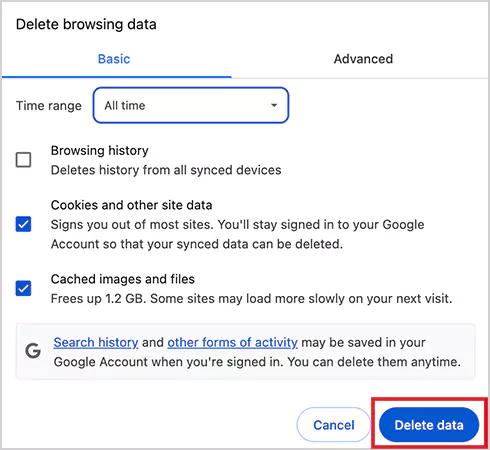
- Just open your browser (for example, Google Chrome), click on the three-dot menu, and select Delete browsing data.
- Now, check the Cached images and files and Cookies option.
- Finally, click on Delete data and reload the page.
Run a Malware Scan
Malware or viruses can interfere with browser requests and trigger errors. Running a malware scan can help you fix this. Here are the steps you need to follow if you are using Chrome on Windows 10 or Windows 11:
- Update Chrome by clicking on Menu > About Chrome.
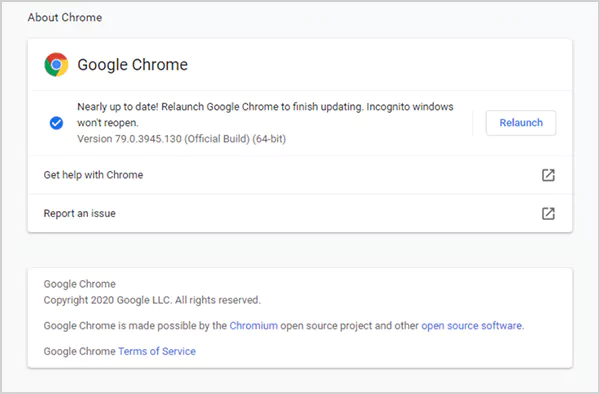
- After updating, open a new tab, type ‘chrome://settings/cleanup’, and press Enter.
- Click on Find to scan for harmful software.
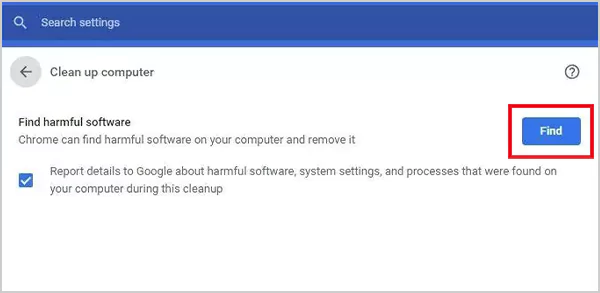
For other browsers or operating systems, you can use a reliable antivirus software to run a scan.
Disable Browser Extensions
Extensions can sometimes conflict with web requests and cause 304 error codes. Here’s what you can do to fix this:
- Go to your browser’s extensions or add-ons settings.
- Next, disable all extensions for a while.
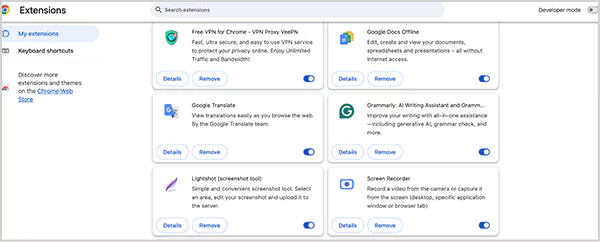
- Now, reload the page you were trying to access.
Here, if the error disappears, re-enable extensions one by one to find the main culprit. Then just try to update it or remove it completely.
Clear Your DNS Cache
Your computer also keeps a record of website addresses in a DNS cache. Sometimes this cache gets outdated or corrupted, which can cause problems when loading websites. Clearing it can often fix the issue. Here’s how you can flush the DNS cache:
- On Mac: Open Terminal, type: sudo dscacheutil -flushcache; sudo killall -HUP mDNSResponder, and press Enter. Also, you may have to enter your admin password (if required).
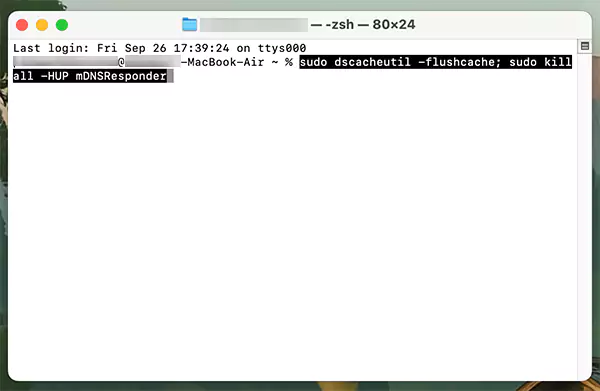
- On Windows: Open Command Prompt as administrator, type: ipconfig /flushdns, and press Enter.
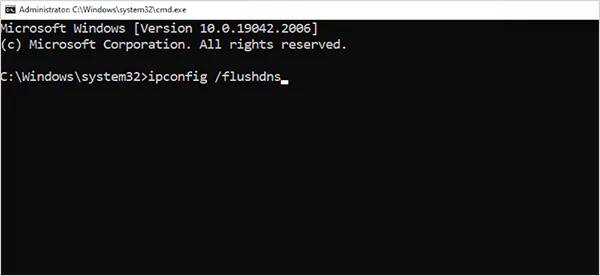
You will see a message indicating that your DNS cache has been cleared. Also, it is crucial to note that you need administrator access to flush the DNS cache. You can check guides for devices operating on different OS.
Use Google Public DNS
Sometimes, an incorrect DNS address can also cause website issues like error code 304. Switching to Google Public DNS can help your case.
On Windows:
- Press Win + R, type ncpa.cpl, and press Enter.
- Right-click your network connection and select Properties > Internet Protocol Version 4.
- Here, select “Use the following DNS server addresses” and enter: 8.8.8.8 (under preferred) and 8.8.4.4 (under alternate).
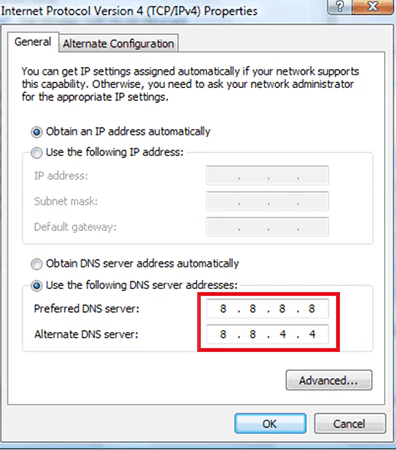
- Click on OK and restart your computer.
On macOS:
- Go to Apple > System Preferences > Network.
- Select your connection > Details > DNS tab.
- Click on the + icon and enter Google’s DNS addresses (8.8.8.8 and 8.8.4.4).
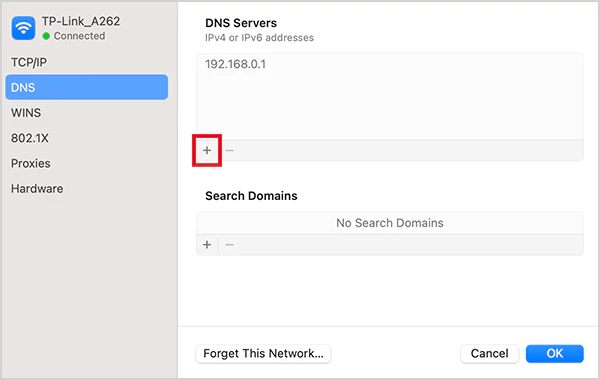
For Linux and other operating systems, you can refer to Google’s official DNS guide.
Review Redirects in Your .htaccess File
If none of the above fixes worked for you, the problem might be in your website’s server settings, especially the direct rules. Here’s what you can do as a website owner if you are on Apache servers:
- Access your hosting account’s File Manager.
- Next, go to the public_html folder and locate the .htaccess file.
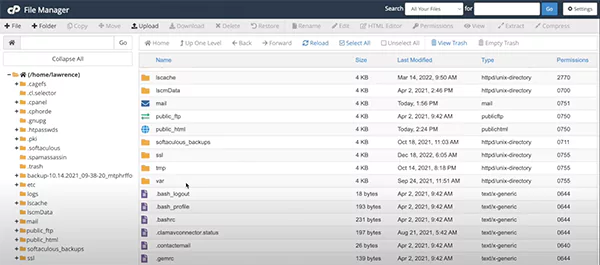
- Now, temporarily rename it to .htaccess_disabled and check your site again.
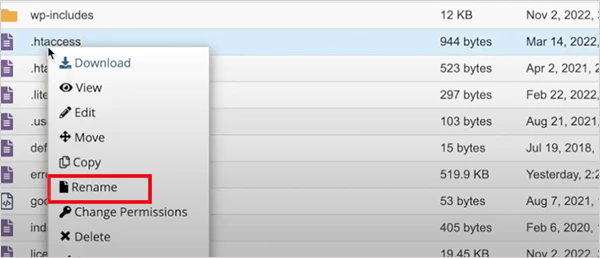
If the issue is resolved, you can try reviewing your direct rules or consulting your developer. If you are on NGINX servers, you won’t have a .htaccess file. In that case, you can check your server’s error logs for clues.
Verify Server Caching Settings
Make sure server caching is set up the right way. Check the cache-control headers, expiry rules, and validation methods. For example, use headers like public or private to guide how resources are stored. You can also set expiry times or max-age values so the browser knows how long it can keep the file without reloading it.
Review Conditional Request Headers
Look at headers like If-None-Match and If-Modified-Since in client requests. These should match the server’s ETag or the resource’s last modified date. When these values are correct and properly formatted, the browser and server can confirm if the cached version is still valid.
These 8 methods can fix most of the HTTP return code 304 issues. However, if the problem continues, it may need a deeper look by a web developer or IT professional.
What is the Difference Between HTTP 304 and HTTP 200?
HTTP status codes are signals between your web browser and the server, telling how a request should be handled. Two of the most common ones are HTTP 200 Ok and 304 Not Modified.
200 OK means that the request was successful, and the server sends back the complete and fresh content (like a webpage, image, or file). The browser ignores its cache and loads the updated version directly from the server.
Response code 304 means the requested content has not changed since the last visit. So, instead of re-downloading the file, the browser uses the cached version it already has. This speeds up loading and reduces server load.
Simply put, 200 delivers a new copy of the content, while 304 tells the browser to reuse the copy it already saved.
The Impact of Status 304 on SEO and User Experience
As already mentioned, the 304 response code is not an error; it is actually a helpful response. Its main job is to make websites load faster and reduce the burden on the server.
When configured correctly, it can improve the website’s performance, optimize bandwidth usage, and perform better in search rankings. It also enhances the user experience as visitors enjoy seamless navigation without delays.
However, if caching is misconfigured, the following problems can arise:
- Outdated content may be shown instead of fresh updates.
- Dynamic websites, like news portals, may not benefit much.
- SEO can suffer if search engines detect outdated information.
- Users may get frustrated if they are not able to get new updates.
A well-managed 304 code status is a powerful tool for speed and efficiency, but poor caching practices can backfire.
Best Practices to Manage Error Code 304
The above section emphasizes managing a 304 status code effectively. It comes down to keeping your website and browser environment clean, secure, and optimized. Here are a few tips to follow:
- Update and clear both the browser and server caches regularly to avoid outdated or conflicting data.
- Refresh DNS caches and keep domain records accurate, especially if you use hosting services.
- Regular malware and vulnerability scans can help you block harmful activity before it affects your site.
- Disable or remove browser extensions that may interrupt normal web requests.
- Regularly review redirect rules and caching configurations with reliable SEO or server tools.
Following these practices ensures the status code works as intended while keeping everything optimized.
Final Thoughts
So, now you may have realised that the HTTP 304 status code revolves around the proper configuration of caching. When set up correctly, o speeds up page loading, saves bandwidth, and makes browsing smoother.
If you face error 304, just follow the right troubleshooting steps mentioned in the guide, and it will help your website in different ways. In short, it is a performance booster, not a problem (if handled the right way).
Frequently Asked Questions
What does the 304 status code mean?
How do I clear the cache in Chrome?
Just go to the three-dot menu, click on History, and select the Clear browsing data option. Here, select the cached files and cookies options, and then click on Clear data.
What is the difference between 301 and 304 status codes?
304 tells the browser to show the old and cached version of the page. On the other hand, 301 means that the page you are trying to access has been permanently shifted to a new URL.
Is a 304 response code bad?
No, it is a positive signal for the browser. It is usually used to improve website performance by saving bandwidth and time. However, developers need to manage it properly to enjoy these benefits.
Related Posts
How Poor Contract Visibility Leads to Revenue Leakage in Growing Companies
Growth is an important factor that determines the success rate of any business. When we witness new operations, partnerships and…
Managing Bitcoin Operations? Here’s How Salesforce Automation Helps
“Digital currency is here to stay, and it’s only a matter of how long before governments embrace it.” — Brad…

Why Modern Organizations Depend on Data Privacy Software
Data growth has significantly accelerated beyond what most compliance teams can manage, with personal records, financial details, contracts, and emails…

Converting Chats Into Leads While Maintaining Professionalism
The way marketing teams and businesses approach their potential clients to boost their sales has completely transformed in the last…
How to Delete iCloud Account? Complete Guide for 2026
Thinking, how can I delete iCloud or Apple account? It is not just about removing an account; it is about…

How Different Industries Use Specialized Software to Stay Competitive
In the market we have today, companies are always trying to find ways to work better and get results. The…

What Key Adjustments Enhance Visual Appeal Across Web Pages
Attractive web pages form the roots of any appealing website. For instance, imagine looking for content on Google, and you…

When is it Time to Consider IT Support Services for Your Business?
Every business needs to ensure smooth operations for a successful business. But despite trying hard to avoid barriers, technical issues…
How to Delete User Profile in Windows 10: Step-by-Step Guide
You don’t notice user profiles until one starts causing problems. A profile gets corrupted, a login error pops up, or…