
You can remove a directory using the rmdir and rm commands. The rmdir command deletes the directory only when it has no files or subfolders.
How to Remove a Directory in Linux?: Exact Commands and Safe Steps
 Kartik Wadhwa
Updated on: Mar 13, 2026
Table of Contents
- What Does Removing a Directory Mean in Linux?
- How to Remove a Directory in Linux Using the rmdir Command (Empty Directory)?
- How to Delete a Directory in Linux Using the rm Command (Non-Empty Directory)?
- How to Remove Directories in Linux By Age or Pattern?
- How to Delete Files in Linux Without Removing the Folder?
- Best Practices While Deleting Directories in Linux
- Conclusion
- Frequently Asked Questions
Managing files and folders is a core part of working with Linux. One skill every user should know is how to remove a directory in Linux safely and efficiently.
Whether you are clearing old project folders, managing server files, or doing routine system maintenance, using the right Linux command to remove folders keeps your file system organized.
Don’t worry if you are a beginner; I will explain how to delete folders in Linux in simple ways. You will learn how to delete both empty and non-empty folders, and tips to avoid accidental data loss.
Quick Cheat Sheet: How to Delete a Directory in Linux?
Here is a quick reference you can use when working in the Linux terminal. These are the most common commands used to remove directories:
- Delete an empty directory: rmdir folder_name
- Delete a non-empty directory: rm -r folder_name
- Force delete a directory: rm -rf folder_name
- Delete multiple directories: rm -r dir1 dir2 dir3
- Delete multiple empty directories: rmdir dir1 dir2 dir3
- Delete the directory with confirmation: rm -ri folder_name
- Delete all empty directories: find /path -type d -empty -delete
- Delete all files inside a folder: rm /path/to/folder/*
- Check the folder contents: ls folder_name
What Does Removing a Directory Mean in Linux?
In Linux, a directory is simply a folder that stores files, subfolders, or both. Removing a directory means deleting that folder from the system, so Linux no longer keeps its structure or references.
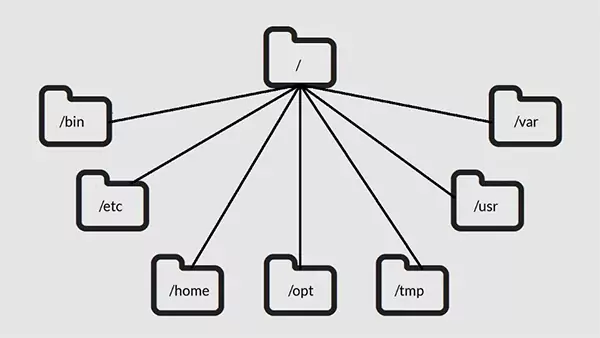
There are two common directory removal commands in Linux, depending on what the folder contains:
- rmdir: This deletes empty directories only.
- rm: This deletes directories that contain files or subfolders.
In practical terms, removing directories helps you clean up unused folders, organize your file system, and free up space. Linux provides these commands to handle both safe deletion and full removal when needed.
How to Remove a Directory in Linux Using the rmdir Command (Empty Directory)?
The rmdir command is used to remove directories that are completely empty. If the folder contains even a single file or subfolder, Linux will stop the operation and show the “Directory not empty” error.
Here’s the command to delete a directory in Linux that is empty:
Basic syntax:
rmdir directory_name
Example:
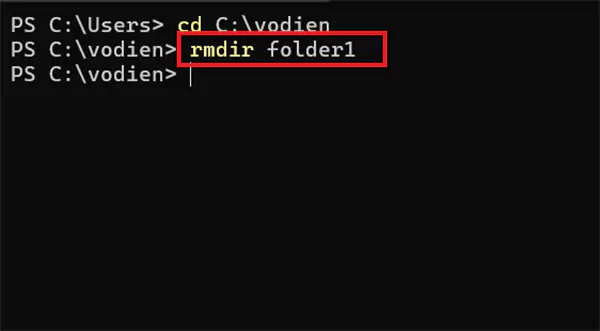
rmdir folder1
Just open the terminal, navigate to the directory using the cd command, and use the rmdir command. If the folder has no files inside it, Linux removes it immediately.
Remove multiple empty directories:
rmdir folder1 folder2 folder 3
You can delete several empty folders in a single command.
Remove parent directories:
rmdir -p project/archive/temp
This Linux directory removal command removes the target directory and its parent folders if they are also empty.
Before deleting, you can check if a directory is empty:
ls directory_name
If nothing appears, the folder is empty and safe to remove. Use rmdir when you want a safe way to clean up folders and avoid accidental deletion of files. It is a good option for beginners.
How to Delete a Directory in Linux Using the rm Command (Non-Empty Directory)?
If a directory contains files or subfolders, the rm command is used instead of rmdir to remove a directory in Linux. This deletes the directory and everything inside it. Here’s how to remove a folder in Linux:
Basic Syntax:
rm -r directory_name
Example:
rm -r folder2
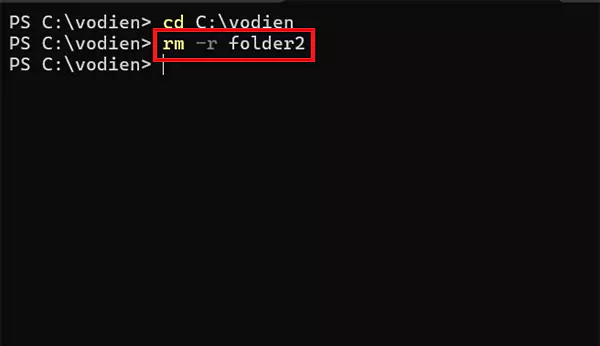
This command removes the entire folder along with all its files and subdirectories. Now, let’s take a look at some other useful rm options.
Interactive mode:
rm -ri directory_name
If you use this command, Linux asks for confirmation before deleting each file. This helps in preventing mistakes.
Force delete:
rm -rf directory_name
“-r” removes directories completely, and “-f” forces deletion without confirmation. This command deletes the directory instantly, so it should be used very carefully because the data cannot be recovered.
How to Remove Directories in Linux By Age or Pattern?
In many systems and distros like Linux Mint and Ubuntu, directories build up over time. Think of old logs, temporary folders, or backup directories. Instead of deleting them manually, you can use the find command to delete directories in Linux automatically based on specific conditions.
The find utility searches files and folders using filters such as name, type, or modification time, and then runs commands on the results. Let’s see how to delete Linux directories using the find command:
Delete directories older than a specific number of days:
find /path/to/directory -type d -mtime +30 -exec rm -rf {} +
- “-type d” searches only for directories.
- “-mtime +30” finds directories older than 30 days.
- “-exec rm -rf” deletes the matched directories.
This method is commonly used for automatic log cleanup or removing outdated backup folders.
Remove directories using a name pattern:
Sometimes folders follow a predictable naming format like temp, cache, or build. You can remove them using these patterns.
find . -type d -name “temp*” -exec rm -rf {} +
This command deletes all directories that start with temp in the current location.
Delete only empty directories:
find . -type d -empty -delete
Use this command if you only want to clean up unused folders without touching files. It scans the current directory and removes only empty folders.
Important Tip: Always run the find command without the delete part first to see what it selects. Once you confirm the results are correct, you can safely add the delete command.
How to Delete Files in Linux Without Removing the Folder?
Sometimes you want to clean files inside a directory but keep the folder structure intact. This is common when clearing logs, temporary files, or old reports. You can use the rm command to delete files directly from the terminal.
Delete a single file:
rm filename.txt
Delete multiple files at once:
rm file1.txt file2.txt file3.txt
Delete all files inside a directory but keep the folder:
rm /path/to/folder/*
Delete only files, but keep subdirectories:
rm -f /path/to/folder/*
This approach is useful when you want to maintain the folder structure while cleaning unnecessary files.
Best Practices While Deleting Directories in Linux
Executing a Linux command to delete folders is simple, but it can also be risky because most deletion commands are permanent. A small mistake in the command or path can remove your important data.
Here are a few habits experienced Linux users follow:
- Before deleting anything, inspect the folder by executing the “ls directory_name” command. This confirms what files or subfolders exist inside the directory.
- If you want confirmation before each deletion, use interactive mode. Linux will ask for approval before removing files.
- The “rm -rf” command removes directories completely and without confirmation. Be careful with this command because it is powerful and dangerous at the same time. Use it only when you are completely sure about the directory path.
- Always verify the folder path before pressing Enter. Even a small typo can delete the wrong directory.
- Since Linux deletion is permanent, maintaining backups is a smart practice. Tools like rsync, tar, or simply copying (cp) can help in protecting important files.
Just follow these practices, and you will be able to manage directories safely without any accidental data loss.
Conclusion
You now learned everything to know how to remove a directory in Linux effectively. It is a basic Linux task that every user should understand. Commands like rmdir and rm allow you to delete empty folders, remove directories with files, or clean unnecessary data quickly.
The key is knowing which command to use and when. Once you get comfortable with these commands, managing and organizing the Linux file system becomes much easier.
Frequently Asked Questions
How do I remove a directory in Linux?
How do I delete a directory in Linux that is not empty?
You can use the rm command to delete the directory and everything inside it. For example: rm -r folder_name. This removes the folder along with all files and subdirectories,
Can deleted files be recovered after using rm?
No, files removed with rm are permanently deleted from the system and are not moved to a recycle bin. That is why recovery is difficult without backups.
What is the remove directory command in Linux?
Linux mainly uses two commands: “rmdir” to remove empty directories and “rm -r” to remove directories with files inside.
How can I delete files but keep the directory in Linux?
You can remove the files inside a directory using “rm /path/to/folder/*”. This deletes the content but keeps the directory safe.
Related Posts

8 Best AI Presentation Makers for Business-Ready Slides
Making a presentation doesn’t just mean designing slides. It’s about defining a clear structure, using defined logic, useful visuals, and…

Queue Management Software Troubleshooting Guide: 8 Common Faults and Fixes
The long wait times and ineffective management of customer queues can have a significant impact on customer satisfaction and business…

How to Use Similarweb Website Traffic Data for Competitor Research
Competitor research without traffic data is guesswork. You can guess who your rivals are, guess how big they are, guess…

Choosing the Right Hosting Model for Scalable Digital Platforms
The performance of digital business is directly related to website speed, uptime, and scalability. Slow page performance has a negative…

How Data-Driven Performance Tools Are Transforming Employee Recognition in Tech Companies
“People work for money but go the extra mile for recognition, praise, and rewards.” — Dale Carnegie (Writer & Teacher)…

Why Businesses Struggle to Collect Reliable Data from the Web
Almost every company that depends on data runs into the same problem: although they can find the data they need,…

Why Financial Data Recovery Matters for Businesses
Financial data supports every part of a business, directly affecting cash flow, payroll, tax reports, audits, customer billing, and daily…

CMMC Compliance Is Coming for Manufacturers. Here Is What You Need to Do
“Cybersecurity is much more than a matter of IT.” — Stephane Nappo (Cybersecurity Professional) For manufacturers working within the defense…

How Data-Based Tools Influence Learning Performance
Learning has transformed in the modern age with the integration of new technologies to help students and professionals prosper in…