
You can use various Windows tools like the Command Prompt and Powershell or any third-party software to find all the necessary details.
How to Find Out What Motherboard I Have? Easy Methods for Windows, Mac, and Linux
 Mahima Dave
Updated on: Mar 10, 2025
Table of Contents
- How Do I Find What Motherboard I Have on Windows? — 5 Easy Methods
- How to Find Out What Motherboard I Have on a Mac?
- How Do I Know What Motherboard I Have in Linux?
- How to Find Out What Motherboard I Have? – Manual Methods
- Significance of Identifying Your Motherboard
- Final Thoughts
- Frequently Asked Questions
The motherboard is the heart of your computer, connecting all the key components like the CPU, RAM, storage, and peripherals. Its design plays a big role in how well your system performs and what upgrades it can support.
So, how to find out what motherboard I have and why is it important to know? Knowing about the model and manufacturer can be helpful when troubleshooting, upgrading hardware, or checking compatibility with new parts.
This guide will show you how to see what motherboard you have in simple ways on Windows, Mac, and Linux devices.
How Do I Find What Motherboard I Have on Windows? — 5 Easy Methods
How to find out what motherboard I have on Windows? Whether you are upgrading components or troubleshooting an issue (like the Windows key not working), there are several simple ways to check without opening your computer. Let’s have a look at the 5 best methods:
Method 1: Using the Command Prompt
Windows has a built-in tool called the Command Prompt that lets you quickly learn “how to tell what motherboard I have”.
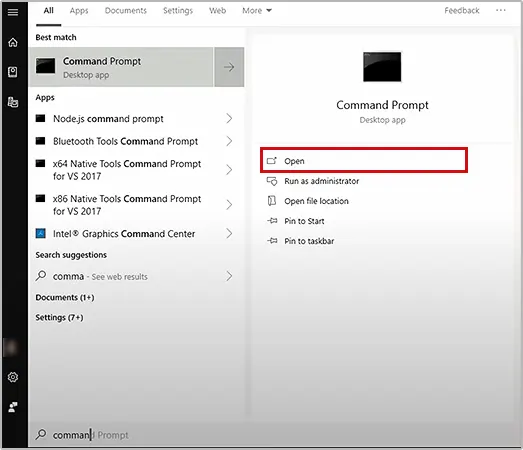
- Press the Windows key, type cmd, and open Command Prompt.
- Type the following command and hit Enter: wmic baseboard get product,Manufacturer,version,serialnumber
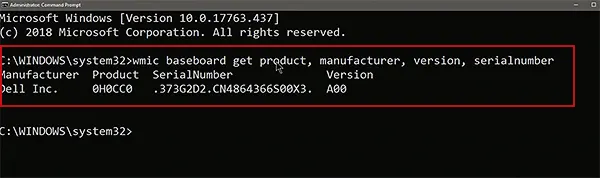
Here, you will see your motherboard’s manufacturer model, version, and serial number.
Method 2: Using PowerShell
PowerShell is another tool that comes with newer models like Windows 10 and Windows 11. It works similar to the Command Prompt; here’s how do I check what motherboard I have:
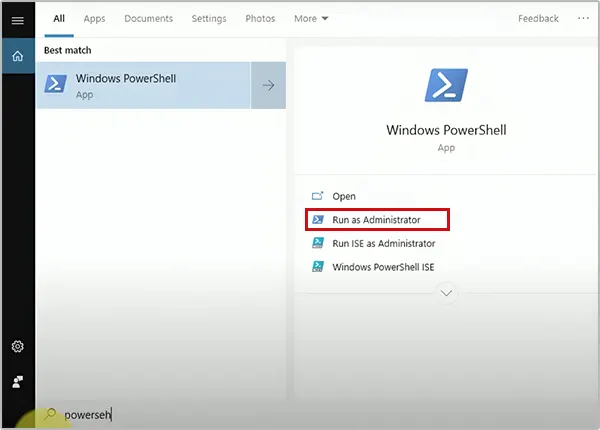
- Press the Windows key, type PowerShell, and select Run as administrator.
- Enter the command: Get-WmiObject Win32_BaseBoard | Format-Table –Auto Manufacturer,Product,SerialNumber,Version
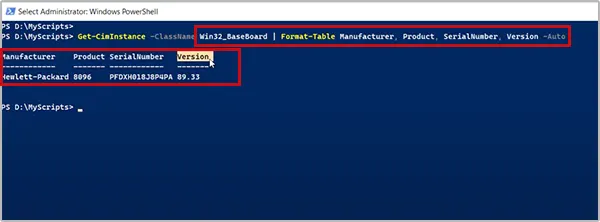
Finally, just hit Enter, and all your motherboard details will be displayed on your computer screen.
Method 3: Checking via System Information
Windows has a built-in System Information tool that can show your motherboard details:
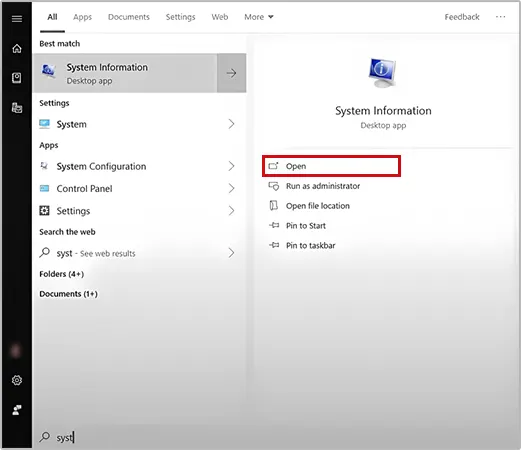
- Press the Windows key and type System Information. Click on the application and open it.
- In the System Summary, look for BaseBoard Manufacturer and BaseBoard Product. This is your motherboard’s brand and model.
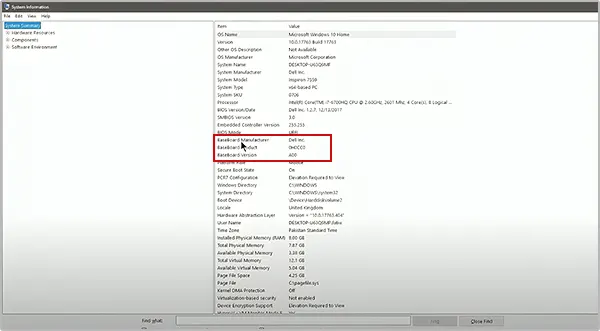
Keep in mind that this tool may not display complete details on a few occasions.
Method 4: Using Third-Party Software
If you want more detailed information, free tools like CPU-Z or HWInfo can help. These third-party programs display everything from your motherboard model to system temperatures.
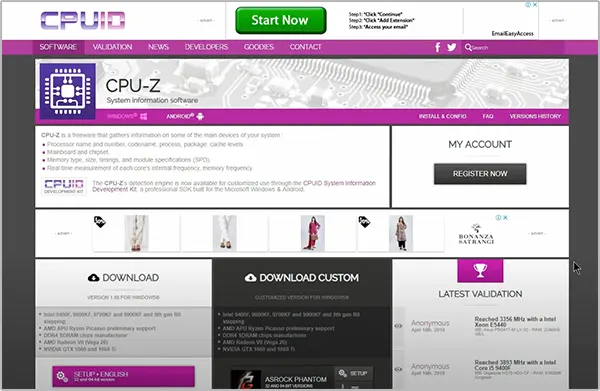
Some motherboard brands also provide their software, such as Asus Armoury Crate, MSI Center, or Gigabyte Control Center, which may show your motherboard details.
Method 5: Accessing BIOS/UEFI to Identify Your Motherboard
You can also get the answer to your question “how to find what motherboard I have” by checking the BIOS/UEFI settings:
- Restart your PC.
- When the computer starts booting, press the key mentioned on the screen to enter the BIOS or UEFI utility (usually F2, F10, DEL, or ESC).
- Look for the System Information or Main tab. You can find your motherboard’s brand and model listed there.
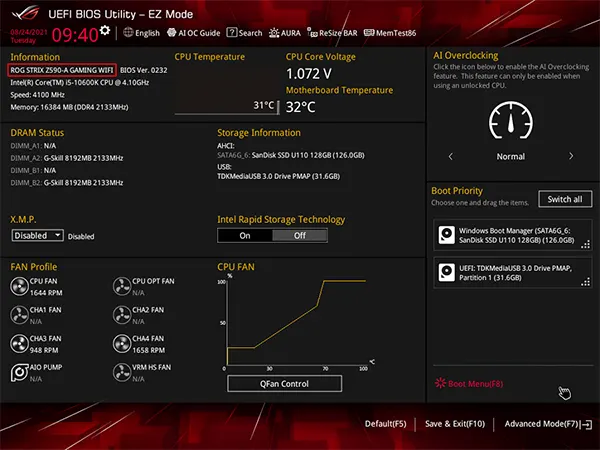
These five methods make it easy to check your motherboard details without opening your PC. Whether you prefer a quick command or a detailed report from the software, you can find the information you need effortlessly.
How to Find Out What Motherboard I Have on a Mac?
Many users ask, “How to determine what motherboard I have on my Macbook?”. Macs don’t have traditional motherboards like Windows; instead, they use a logic board.
However, macOS does not display detailed information about the logic board directly. The best way to identify it is by using your Mac’s serial number:
- Click on the Apple menu at the top-left corner and select the About This Mac option.
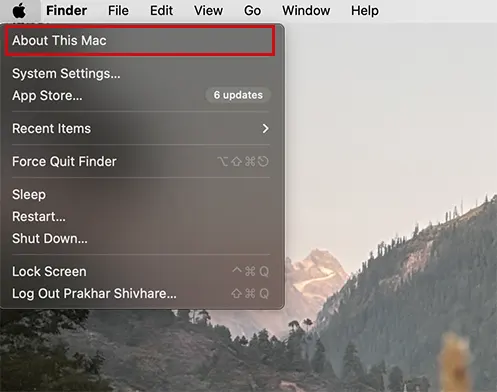
- Here, you will see your serial number listed in the system details.
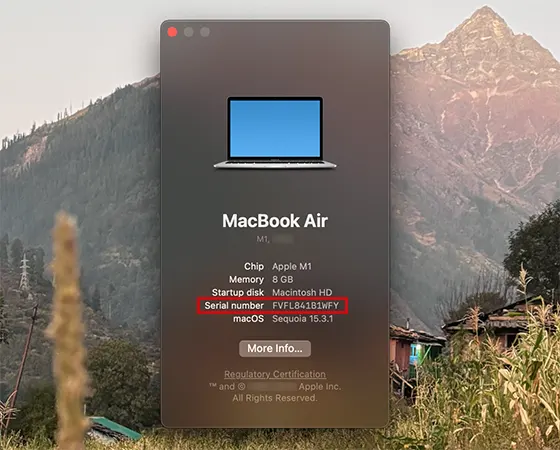
- Here, you will see your serial number listed in the system details.
- Once you have the serial number, you can use online tools like PowerbookMedic to search for your Mac’s logic board details.
- Simply enter the serial number into the search box of the tool.
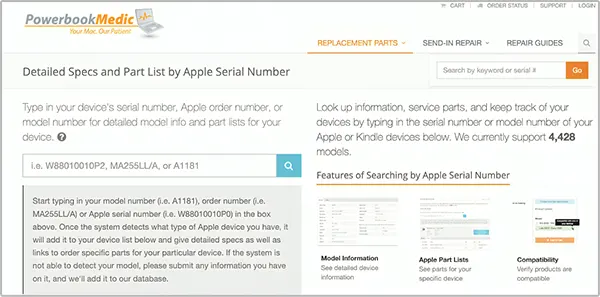
Here, you will get information about your logic board, including built-in RAM and other specifications.
How Do I Know What Motherboard I Have in Linux?
If you are using Linux and need to find out details about your motherboard. Follow these simple steps to learn what motherboard do I have on Linux:
- Press Ctrl + Alt + T to launch the Terminal on most Linux systems.
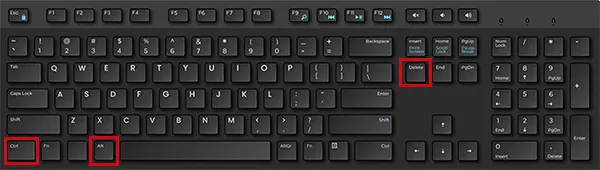
- Type the following command and press Enter: sudo dmidecode -t 2. If you need more details, you can use: sudo dmidecode -t baseboard
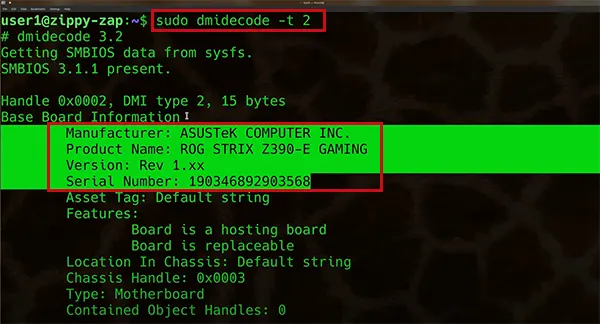
The output will show you key information like the manufacturer, model, and serial number of your motherboard.
How to Find Out What Motherboard I Have? – Manual Methods
If somehow you are not able to understand how to check what motherboard you have using the above-mentioned methods, you can try the following manual methods:
- Check the Motherboard Box: Manufacturers usually print the model name on it, along with other details. So, if you still have the box, take a look and you might find all the information you need.
- Check Your Purchase History: If you bought your motherboard online, check your order history or receipts from retailers like Amazon, Best Buy, or others. Your invoice or email confirmation should have the exact model name.
- Look Directly at the Motherboard: The last method is to open your PC case and check the motherboard itself. The model name is usually printed on the board, often near the PCIe slots.
Significance of Identifying Your Motherboard
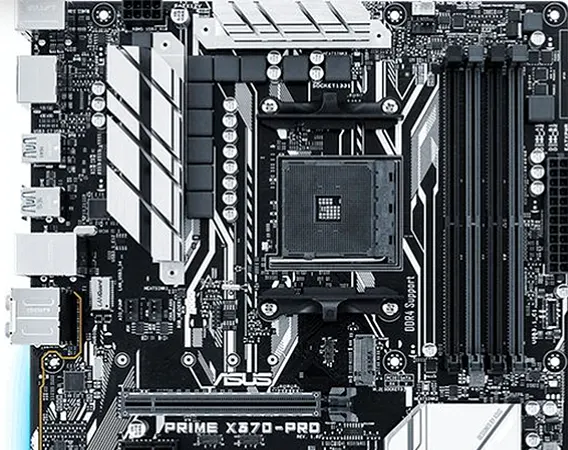
Once you are done with how to find out what motherboard I have, let’s talk about the importance of knowing the model details.
- For starters, it helps you ensure that new components, like a processor, RAM, or graphics card, are compatible with your system.
- It is also crucial when updating your BIOS or installing drivers. Manufacturers release updates to improve their offerings, but using the wrong update can cause serious problems.
- Plus, if you are into overclocking, understanding your motherboard is essential for safe and effective performance tweaks.
- Lastly, if you ever need technical support, knowing your motherboard details can make troubleshooting much easier.
Final Thoughts
I hope now you know how to find out what motherboard I have, with or without opening your system. This guide covers simple ways to find your model using system tools, command prompts, third-party software, or by checking it physically.
With this information, you can make smarter upgrade choices, fix technical issues, and ensure your components work well together.
Frequently Asked Questions
How do I find what motherboard I have?
How do I find out what CPU and motherboard I have?
Use the ‘msinfo32’ command on the Run command to open the System Information tool. Here, you will find the details of your CPU and motherboard.
How do I find my motherboard manual?
Identify your motherboard model, then go to the manufacturer’s website and search for the manual using your motherboard model number.
How can I know about the motherboard without opening the PC?
You can use PowerShell, Command Prompt, System Information tool, BIOS/UEFI, Terminal on Linux, and other third-party tools.
Related Posts

8 Best AI Presentation Makers for Business-Ready Slides
Making a presentation doesn’t just mean designing slides. It’s about defining a clear structure, using defined logic, useful visuals, and…

Queue Management Software Troubleshooting Guide: 8 Common Faults and Fixes
The long wait times and ineffective management of customer queues can have a significant impact on customer satisfaction and business…

How to Use Similarweb Website Traffic Data for Competitor Research
Competitor research without traffic data is guesswork. You can guess who your rivals are, guess how big they are, guess…

Choosing the Right Hosting Model for Scalable Digital Platforms
The performance of digital business is directly related to website speed, uptime, and scalability. Slow page performance has a negative…

How Data-Driven Performance Tools Are Transforming Employee Recognition in Tech Companies
“People work for money but go the extra mile for recognition, praise, and rewards.” — Dale Carnegie (Writer & Teacher)…

Why Businesses Struggle to Collect Reliable Data from the Web
Almost every company that depends on data runs into the same problem: although they can find the data they need,…

Why Financial Data Recovery Matters for Businesses
Financial data supports every part of a business, directly affecting cash flow, payroll, tax reports, audits, customer billing, and daily…

CMMC Compliance Is Coming for Manufacturers. Here Is What You Need to Do
“Cybersecurity is much more than a matter of IT.” — Stephane Nappo (Cybersecurity Professional) For manufacturers working within the defense…

How Data-Based Tools Influence Learning Performance
Learning has transformed in the modern age with the integration of new technologies to help students and professionals prosper in…