
You can find out your Windows version by checking out the Windows specifications in your system settings or by executing the ‘winver’ command.
What Windows Do I Have? Easy Ways to Find Your Windows Version
 Mahima Dave
Updated on: Feb 27, 2025
What Windows do I have? How do I tell which version of Windows I have? If you have similar questions, you have arrived at the right platform.
Most of the time, it does not matter which version of Windows you are using. Until you need to install software, upgrade your system like a popularly known BIOS update, or troubleshoot an issue. It helps with compatibility, security, and getting the right support.
The good news? It is very simple to find this information. This quick and helpful guide will help you learn how to tell what version of windows do I have.
Why Should You Know Your Windows Version?
Before we answer the question – “How to tell what Windows I have?” it is important to know why you should find out your Windows version.
One should know three key details about Windows: the major version (like Windows 11, 10, 8, and 7), the edition (such as Windows 10 Pro or Home), and whether it is 32-bit or 64-bit. It helps you:
- Install the right software and drivers.
- Follow the correct troubleshooting steps for different issues.
- Check if your system supports updates or upgrades.
- Keep your device secure with the latest patches.
Without this basic information, you might struggle with software compatibility, driver issues, or even finding the right support.
How to Check What Windows I Have Using System Settings?
Now, let’s address the main question – “How to tell what version of windows do i have?”. Finding out the Windows version is pretty easy; you can do it in two ways. Both of them work well in Windows 10 and Windows 11.
Let’s start with the step-by-step instructions involved in the system settings method:
- Click the Start menu and select Settings (gear icon).

- Now, click on the System option.
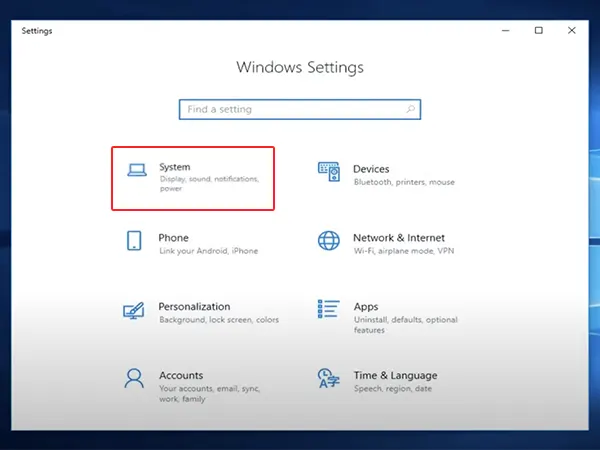
- Here, scroll down to About. You will find details about your Windows edition and version under the section of Windows specifications.
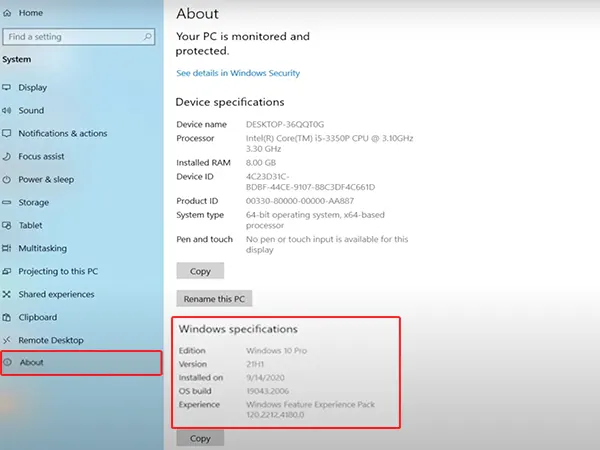
If required, you can also note down the OS build number from the same section. Moving on, let’s talk about the second method to learn how I know what Windows I have.
How to Find Windows Version Using the Winver Command?
Another quick way to find your Windows version is by using a simple command, i.e., Winver. You can easily use this method regardless of the Windows you are running. Just follow these steps:
- Press Windows + R to open the Run Dialog.
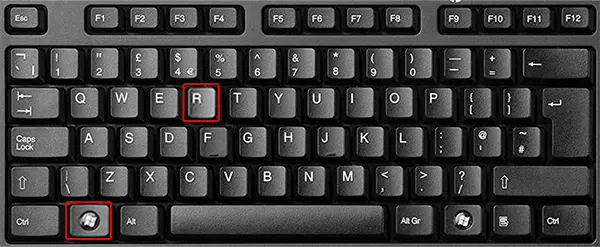
- Type winver and hit the Enter button.
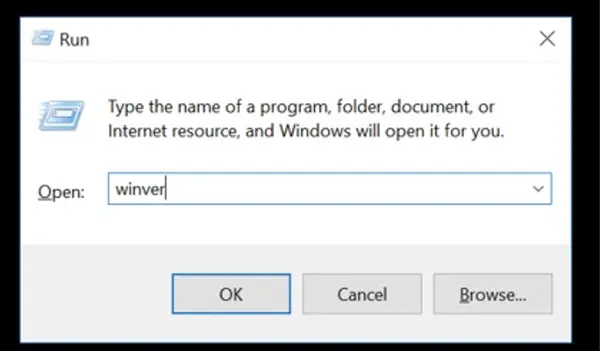
- Now, an ‘About Windows’ will pop up on your screen, showing your Windows version and OS build details.
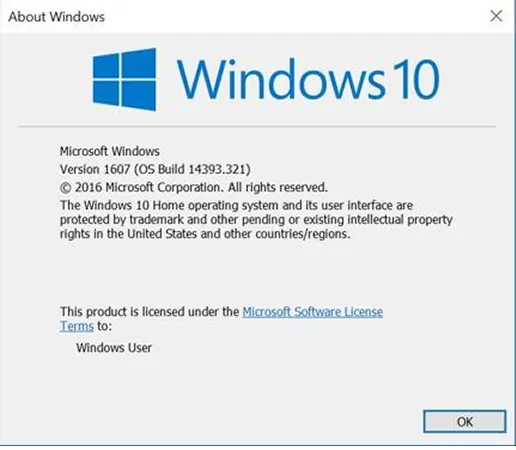
These two methods we discussed are enough to answer the, “How to find out what Windows version I have?”.
What Windows Version Do I Have? – Additional Ways to Find Out
You now know the two methods to learn, “What Windows do I have?”. However, there may be some instances when you will not be able to get the information. For those times, you should be familiar with the interface of different Windows versions to figure out your OS.
Here are some distinct features of different models to learn how do I know which version of windows I have:
1. Windows 11:
- The Start menu is centered (or left-aligned in some cases).
- Redesigned Start menu and Taskbar.
- Right-clicking the Start button opens the Power User menu.
- All Windows 11 versions are 64-bit
2. Windows 10:
- The Start menu is similar to Windows 11.
- Classic Start menu and Taskbar.
- You can find your system type (32-bit or 64-bit) in Control Panel > System.
3. Windows 8/8.1:
- Windows 8.1 has a Start button, but Windows 8 has no such button.
- Right-clicking the screen corner on Windows 8 opens the Power User menu.
4. Windows 7 and Vista:
- The Start button in Windows 7 is full inside the Taskbar.
- The Start button in Vista extends above and below the Taskbar.
- Both look similar, but Windows 7 is smaller than Vista.
5. Windows XP:
- The Start button has both the Windows logo and the word ‘Start.’
- It is horizontal with a curved right edge.
These features might help you learn about the Windows version you are using. So, keep these points in mind or refer to this guide when required.
Final Thoughts
To conclude, every individual should know their Windows version to keep their system secure, compatible, and up to date. The methods mentioned in this guide make it easy to find out the version you are using.
To keep things running smoothly, make it a habit to check your Windows version. Please share the article with others if you think it helped you learn something important.
Frequently Asked Questions
How do I tell if I have Windows 10 or 11?
How do I know if I have 32-bit or 64-bit Windows?
Go to Settings > System > About and check the details under System type.
What Operating System do I have?
For Windows, go to Settings > System > About. To check the macOS, click on the Apple menu and go to ‘About This Mac.’
How do I find out what Windows model I have?
Go to Start, search system, and select the System Information option from the results. Here, you can look for the System Model.
How do I check what Windows I have?
You can learn about your Windows by understanding the different interfaces of various models. You can also check out the System settings or run the ‘winver’ command.
Related Posts

8 Best AI Presentation Makers for Business-Ready Slides
Making a presentation doesn’t just mean designing slides. It’s about defining a clear structure, using defined logic, useful visuals, and…

Queue Management Software Troubleshooting Guide: 8 Common Faults and Fixes
The long wait times and ineffective management of customer queues can have a significant impact on customer satisfaction and business…

How to Use Similarweb Website Traffic Data for Competitor Research
Competitor research without traffic data is guesswork. You can guess who your rivals are, guess how big they are, guess…

Choosing the Right Hosting Model for Scalable Digital Platforms
The performance of digital business is directly related to website speed, uptime, and scalability. Slow page performance has a negative…

How Data-Driven Performance Tools Are Transforming Employee Recognition in Tech Companies
“People work for money but go the extra mile for recognition, praise, and rewards.” — Dale Carnegie (Writer & Teacher)…

Why Businesses Struggle to Collect Reliable Data from the Web
Almost every company that depends on data runs into the same problem: although they can find the data they need,…

Why Financial Data Recovery Matters for Businesses
Financial data supports every part of a business, directly affecting cash flow, payroll, tax reports, audits, customer billing, and daily…

CMMC Compliance Is Coming for Manufacturers. Here Is What You Need to Do
“Cybersecurity is much more than a matter of IT.” — Stephane Nappo (Cybersecurity Professional) For manufacturers working within the defense…

How Data-Based Tools Influence Learning Performance
Learning has transformed in the modern age with the integration of new technologies to help students and professionals prosper in…