
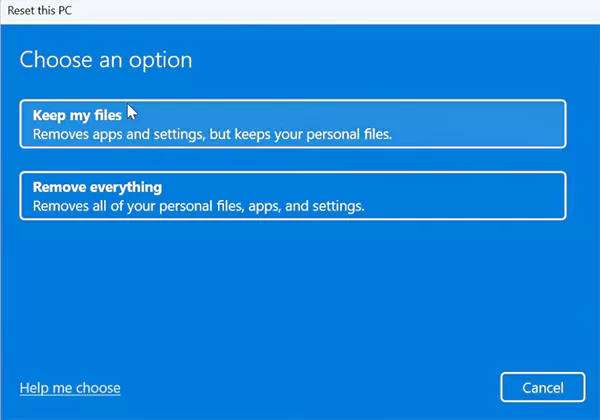
While choosing the Reset this PC option, choose the Keep my Files option instead of Remove everything.
How to Reset Acer Laptops: A Simple Step-by-Step Guide
 Prakhar Shivhare
Updated on: Feb 16, 2026
Your Acer laptop does not slow down overnight. It builds up over time with updates, apps, storage clutter, and the occasional rough shutdown.
Then, one day, you see the Acer loading screen stuck, or it stops responding. The fix is not always a full factory reset. What actually helps is knowing the right level of reset for the problem.
Here, I will explain how to reset Acer laptops, reboot, or completely restore your device step-by-step, without unnecessary data loss. Follow the right method for your situation and get your system running smoothly again in minutes.
Quick Answer: How Do You Reset Acer Laptops?
- Soft Reset: Click on Start > Power > Restart to clear temporary glitches without touching your files.
- Hard Reset from Windows: Go to Settings > System > Recovery > Reset this PC > Reset PC.
- Factory Reset from Recovery Screen: Turn off and then on the laptop, and press Alt + F10 when you see the logo. Now, go to troubleshoot > Reset your PC.
- Reset Using Acer Care Center: Search for Acer Care Center and go to Recovery Management > Reset your PC > Get Started.
- USB Reset (last option): Use a Windows installation USB if the system is completely broken or stuck in a boot loop.
When Should You Factory Reset Acer Laptops?
Start with a simple soft reset. A full Acer factory reset should not be the first step.
Use a normal reboot when the laptop is slow, apps are glitching, or something feels off after an update. A restart clears temporary bugs and fixes many more issues than people expect.
You are required to know how to factory reset an Acer laptop only in serious cases:
- Constant crashes or boot loops.
- Malware that will not go away with normal fixes.
- Extreme slowdown even after fixes.
- You are selling or giving away the laptop.
A factory reset on a PC or laptop deletes apps, settings, and some personal files. It brings the laptop back to its original state. Try repair tools or use the “Keep My Files” reset option first. Go full reset only when the system is beyond repair, or you want a completely clean start.
How to Reboot Acer Laptops (Soft Reset First)?
A reboot is the fastest fix and does not delete your data. There are multiple ways to perform a soft reset on your Acer computer:
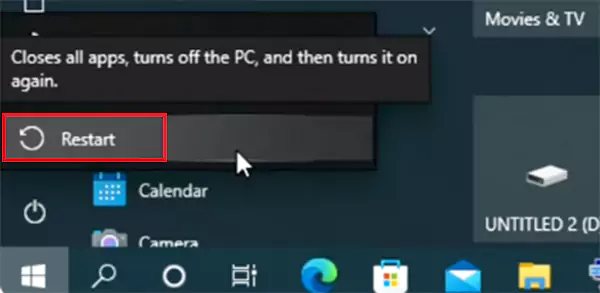
Safe Restart from the Start Menu
This is the easiest method when everything is working:
- Click on the Start button.
- Select Power and click Restart.
Reboot with Keyboard (When Mouse or Touchpad Fails)
This method is helpful when your screen is not responding to your touchpad.
- Press Ctrl + Alt + Delete.
- Use Tab to highlight the Power icon.
- Now, press Enter and choose Restart with the arrow keys.
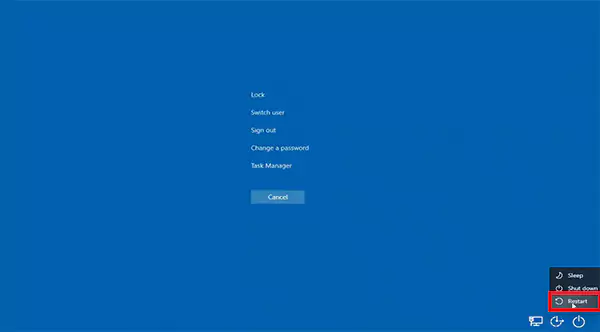
- Press Enter again.
Forced Restart (Use Only If Frozen)
Use this when your Acer laptop is stuck and not responding.
- First, hold the power button until it turns off.
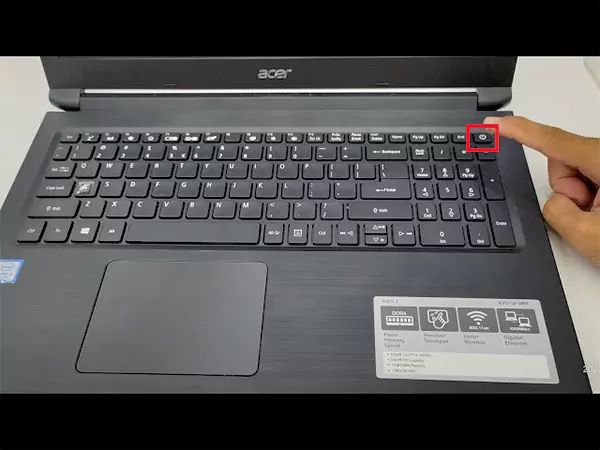
- Wait for a few seconds.
- Then, press the Power button again to turn it back on.
If it is still stuck, unplug the power, remove the battery (depending on the model), and hold the Power button for 15 to 20 seconds before turning it on again.
The forced restart or hard reboot option is also helpful when your Windows keyboard does not work.
Most Acer loading or freezing issues get solved at this stage. If not, move to Acer factory reset options.
How to Factory Reset Acer Laptops?
A factory reset removes deep system issues and malware and gives you a fresh start. So, how do I reset Acer laptops? Well, there are four reliable ways to reset an Acer laptop. Start with the easiest method and move down if needed.
But before any reset:
- Back up important files.
- Plug in the charger.
- And, set aside 30 to 90 minutes, depending on storage and speed.
Method 1: How to Reset Acer Notebooks Using Windows Settings
This is the safest and most common method if your laptop still turns on and loads Windows. This method is similar on most Windows systems. You can use the same steps to reset your Dell laptop, Acer laptop, HP device, and even desktop:
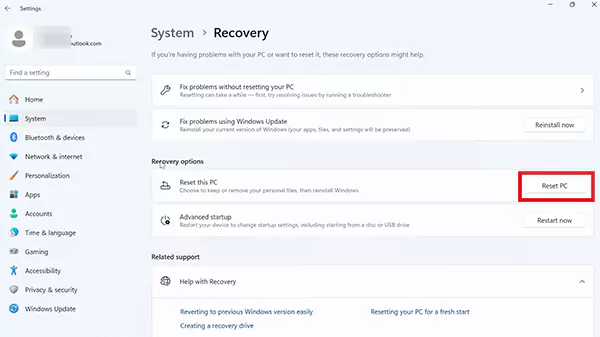
- Click on Start > Settings > System > Recovery.
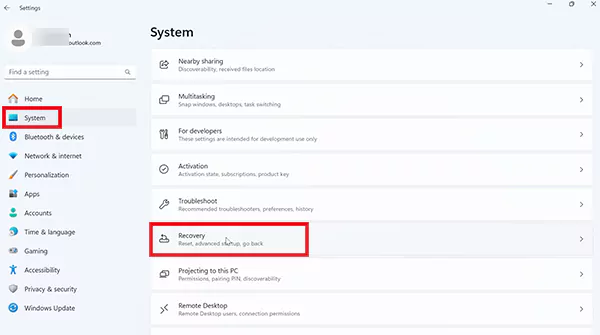
- Here, find Reset this PC and click on Reset PC.
- Now, choose one option from the following:
- Keep my files (removes apps, keeps personal data)
- Remove everything (full factory reset)
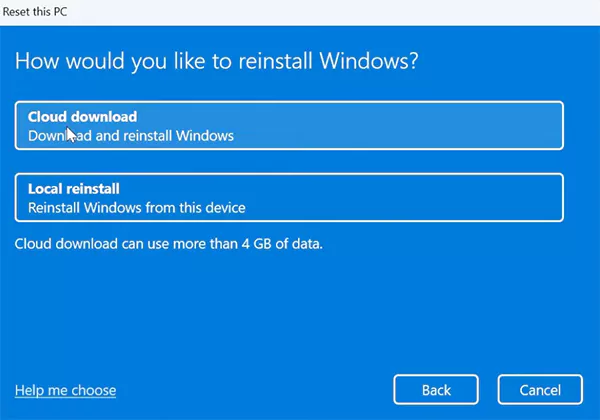
- Next, select between Cloud download or Local reinstall.
- Click Reset and let the process finish.
The laptop will restart several times; that is normal. You can use this method when the laptop works, but it is slow, buggy, or infected with software issues.
Method 2: How to Restore an Acer Laptop to Factory Settings Using Alt + F10 on Startup?
This method uses Acer’s built-in recovery partition. It works even if Windows won’t open properly. Here’s how:
- Turn off the laptop completely.
- Wait for some time and turn it on.
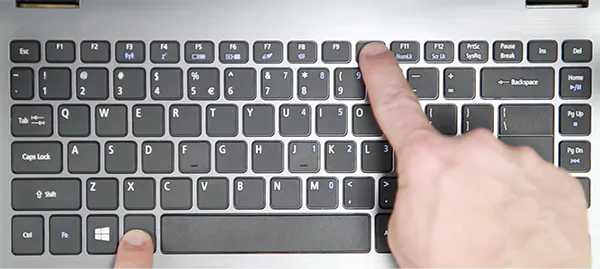
- Then, press Alt + F10 when the Acer logo appears on your screen.
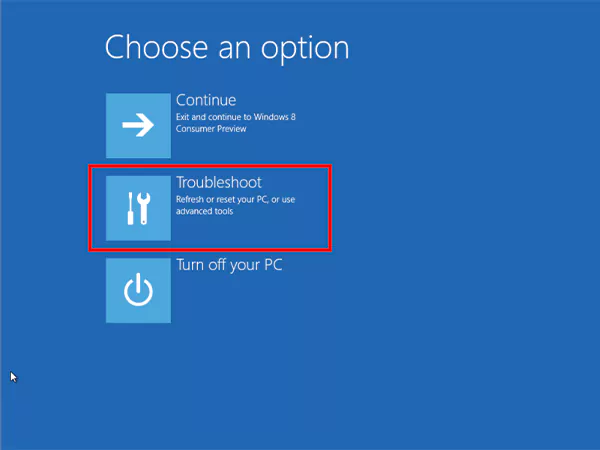
- Now, your device will boot to a blue screen. Here, choose Troubleshoot.
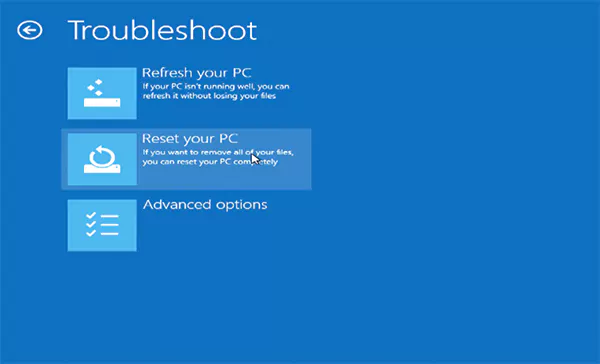
- Next, click on the Reset your PC option to do a full reset. Or, choose the Refresh your PC option to keep your files and data.
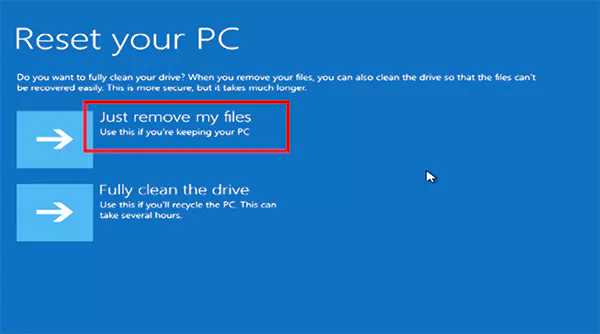
- Here, choose Next and then Just remove my files.
- Finally, confirm by clicking on Reset.
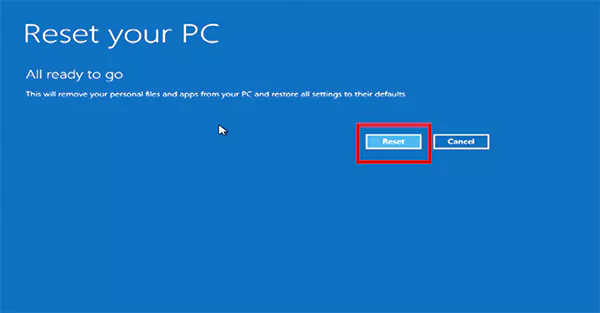
This will begin the recovery process. This reinstalls Windows and can erase all data if you do a full reset.

If the Alt + F10 does not trigger the recovery menu, the recovery partition may be missing on your system. In that case, use the next method.
Method 3: How Do I Reset an Acer Laptop Using the Acer Care Center?
Most new Acer laptops come with Acer Care Center. It is a built-in reset tool for Acer users. Here’s how you can reset your system to default settings using Acer recovery management:
- Search for Acer Care Center on your device.
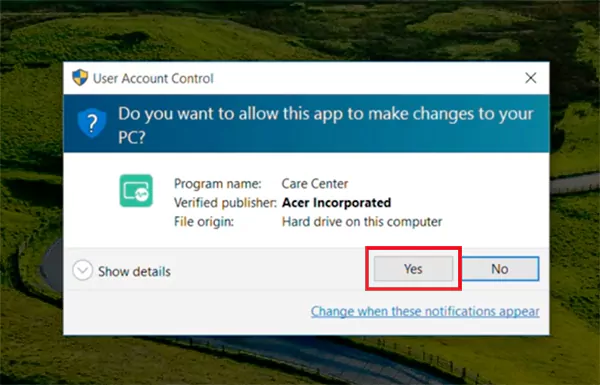
- Then, open Acer Recovery Management, and click on Yes.
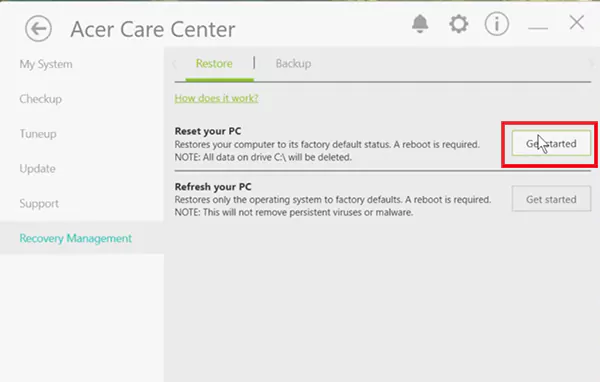
- Within the Reset your PC option, choose Get started.
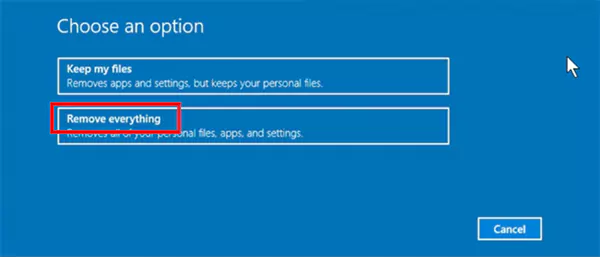
- On the next window, select Remove everything.
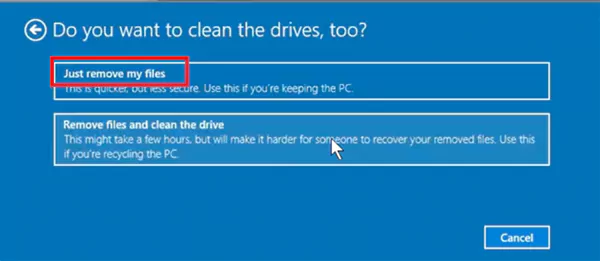
- Now, click on the Just remove my files option.
- Confirm the reset, and your computer will restart to start the resetting process.
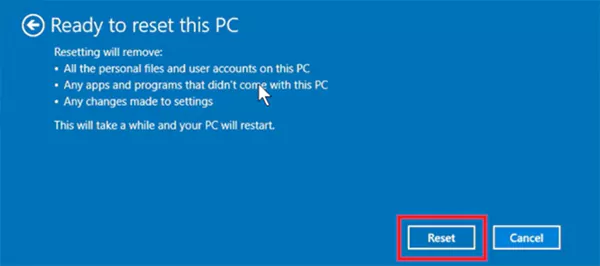
This is an official Acer reset method, which is really simple to follow. Use this when Windows is loading but feels unstable.
Method 4: How to Reset Acer Laptops with a Recovery USB or Installation Media?
Let’s talk about the most advanced method now. Use this if your laptop won’t boot, the recovery partition is gone, and your other reset methods keep failing.
- First, you need to create a Windows installation USB on another computer.
- Then, insert that bootable USB into your Acer laptop.
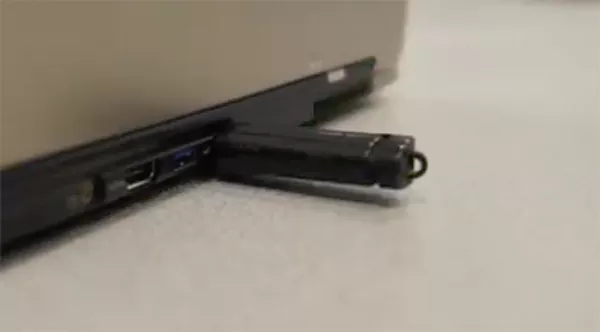
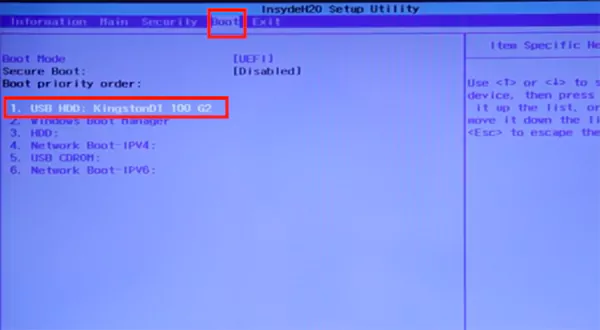
- Turn on and press F2 to open the BIOS on your laptop.
- Here, go to the Boot menu and set your USB as the first boot device using the F6 key.
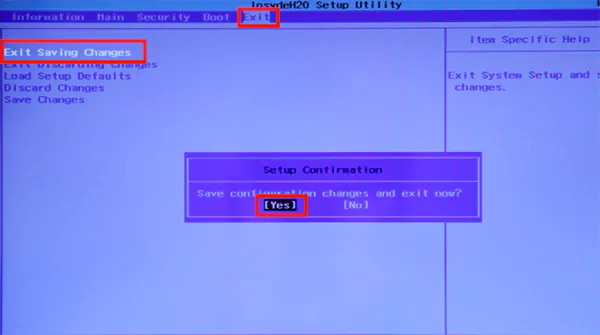
- Now, go to Exit > Exit Saving Changes, press Enter, and select Yes. This will restart your laptop and boot from USB.
- Next, select your preferred keyboard layout.
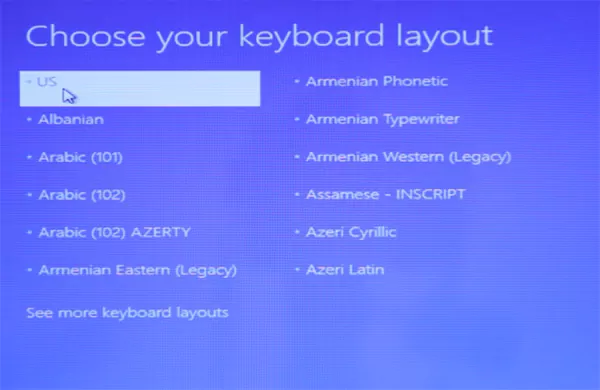
- Now, choose Troubleshoot > Reset your PC.
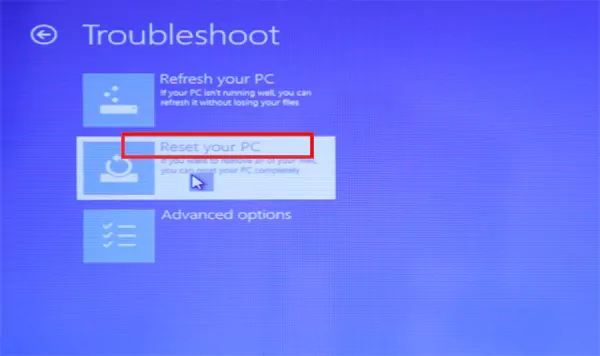
- Finally, confirm your choice and follow the on-screen instructions.
This is the most reliable method to factory reset Acer for completely broken systems or when you see the Acer loading screen stuck.
What to Do If Your Acer Laptop Won’t Turn On?
If your Acer laptop won’t turn on, it does not always mean major damage. Let’s start with the basics and move step-by-step:
- Check Charger and Socket: Try another outlet or charge if available because loose adapters and damaged cables are common.
- Look for Charging Lights: No light indicates a possible charger or motherboard issue. If the light is on but the display is not visible, it is likely a display or boot issue. This quick check saves time.
- Hard Power Reset: This step drains leftover electricity and can revive many non-booting laptops. Just unplug the charger, hold the power button for 30 seconds, reconnect, and turn on.
- Remove External Devices: Disconnect USB drives, hubs, or docks. Some devices block boot or draw excess power.
- Try Without the Battery (if removable): If it works only on a charger, the battery may be faulty and need replacement.
- Check Internal Hardware: Loose RAM can prevent proper startup. If you are comfortable with a little tinkering, try to reseat it. Otherwise, go to a professional for support.
If none of these steps work, the issue is likely hardware-related. And at this point, service support makes more sense than repeated resets.
Things to Do After Resetting Your Acer Laptop
An Acer factory reset gives you a clean system. Your setup on the other side decides how stable it stays. Here are a few things to consider:
- Install Windows Updates: Go to Settings> Windows Update, and install the latest update.
- Update Essential Drivers: Download graphics, Wi-FI, and chipset drivers from Acer’s support page if not installed automatically after the reset.
- Restore Files: Sign into cloud storage or copy data from backup drives.
- Reinstall Apps: Start with browser, office tools, and security software only. Add other apps gradually so that you can find out the flawed ones easily.
- Monitor Performance: For a few days, watch boot speed, temperature, stability, and overall performance of your laptop. If the problem returns too soon, hardware may be the real issue.
A proper reset plus clean setup usually makes Acer laptops feel faster because junk files and bad software are mostly gone.
Final Thoughts
Still wondering how to reset Acer laptop? Resetting an Acer laptop is simple; what matters is choosing the right option. A reboot can fix your minor glitches, a system reset can solve most performance issues, and a factory reset is the last option to try.
Follow this order, and you can save a lot of time and avoid losing data unnecessarily.
Frequently Asked Questions
How do you reset Acer laptops without losing files?
What does Alt + F10 do on Acer laptops?
Alt + F10 button together opens Acer’s built-in recovery environment. You have multiple troubleshooting and advanced options, including the factory reset.
How can I fix my Acer laptop stuck on the loading screen?
You can try a hard power reset to fix this. Plus, you can boot into Windows recovery and go to Troubleshoot > Advanced options > Startup repair. The final option is to reset the laptop using the recovery menu.
Will a factory reset fix a slow Acer laptop?
Yes, if the slowdown is caused by software issues, corrupted files, or too many apps. However, it won’t fix any hardware problems.
How do I restart my Acer laptop?
Go to the Start menu > Power > Restart. You can also press and hold the Ctrl + Alt + Delete or press Windows + X and then U to restart your Acer laptop.
Related Posts

How to Transfer Contacts from Android to iPhone: 4 Easy Methods
Switching from Android to iPhone should not feel like rebuilding your life from scratch. Restoring contacts on iPhone should be…
White Label Ad Server vs Development From Scratch: What to Choose
Even though the DSP segment is the largest market within AdTech at the moment, an ad server remains a crucial…
How Data Infrastructure Powers Next-Gen Mobile Recognition Apps
Modern digital applications have evolved with time, offering various functionalities to users that weren’t possible or even imaginable before. But…
How Poor Contract Visibility Leads to Revenue Leakage in Growing Companies
Growth is an important factor that determines the success rate of any business. When we witness new operations, partnerships and…

Managing Bitcoin Operations? Here’s How Salesforce Automation Helps
“Digital currency is here to stay, and it’s only a matter of how long before governments embrace it.” — Brad…

Why Modern Organizations Depend on Data Privacy Software
Data growth has significantly accelerated beyond what most compliance teams can manage, with personal records, financial details, contracts, and emails…

Converting Chats Into Leads While Maintaining Professionalism
The way marketing teams and businesses approach their potential clients to boost their sales has completely transformed in the last…

How to Delete iCloud Account? Complete Guide for 2026
Thinking, how can I delete iCloud or Apple account? It is not just about removing an account; it is about…

How Different Industries Use Specialized Software to Stay Competitive
In the market we have today, companies are always trying to find ways to work better and get results. The…