
Yes. Open the Alexa app > Devices > Echo and Alexa > Select your Device > Factory reset or Deregister. This removes the device from your account and clears local settings.
How to Reset Alexa: Quick Steps for Every Amazon Echo Device
 Mahima Dave
Updated on: Jan 31, 2026
Alexa and Echo devices have quietly become part of daily life. Around 35 percent of adults in the US now use smart speakers, and Amazon Alexa holds 23% of the market.
But when Alexa starts lagging or stops responding, that daily convenience turns into frustration. That is why you need to learn how to reset Alexa. Restarting or factory resetting is often the smartest move.
In this quick guide, I will explain exactly how to reset an Echo Dot, Show, and other Echo models the right way, with or without the app.

Key Takeaways: How to Reset an Alexa?
- Start with a simple restart. Most Alexa issues disappear with a soft reset.
- Use the Alexa app reset when the device shows online but behaves oddly. Go to Devices > Select your Device > Factory reset or Deregister.
- If your Alexa device is not responding to the app, use the model-specific button combination to reset.
- A factory reset wipes device settings and needs a fresh setup.
How to Restart Your Amazon Alexa (Soft Reset)?
When Alexa starts acting strange, most people panic and jump straight to a factory reset. But not every problem needs a hard reset. Most everyday issues are temporary glitches. A simple restart (soft reset)can fix most of them.
So, here’s how to soft reset Alexa Dot or other Echo devices:
- Unplug the Echo from power.
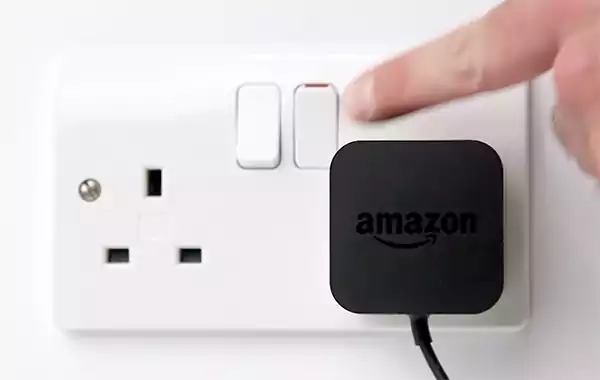
- Wait 10–15 seconds to clear temporary memory.
- Plug it back in.
- And, wait for the light ring to turn on.
Alexa usually returns to normal within a minute. You can also say “Alexa, restart” on supported devices, or use the Alexa app to restart. Open the app and just go to Devices > Echo > Settings > Restart Device.
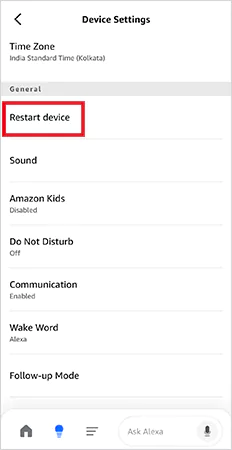
If the problem disappears, great. If not, move to the next level of Alexa reset.
Expert Tip: Whether you’re looking to hard reset an iPad, factory reset an iPhone, or reset an Alexa device, always start by trying to fix the issue with a quick restart. It may save you a lot of time and effort.
How to Reset Alexa Using the Alexa App?
Quick Checklist: Before You Reset Alexa Echo
Many Alexa problems are not related to the device at all. So, before you learn how to reset Amazon Echo devices, go through this checklist:
- Check Power Source: Loose adapters and unstable sockets can cause issues.
- Confirm Wi-Fi is Working: Check your connection or soft reset your router if other devices also feel slow.
- Move Alexa Closer to the Router: Weak signals often look like device failure.
- Check Alexa App Status: Open the Alexa app and see if the device shows online.
App-based reset is controlled, stable, and recommended if the button combinations are not working. If your Echo still appears in the app but behaves strangely, here’s how to factory reset Alexa:
- Open the Alexa app on your phone or tablet.
- Tap the Devices icon at the bottom.
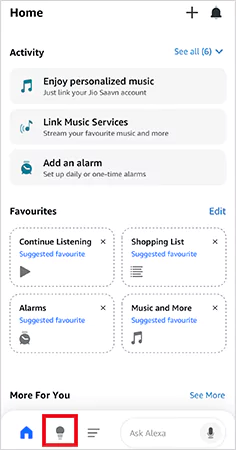
- Select the Echo you want to reset from the list.
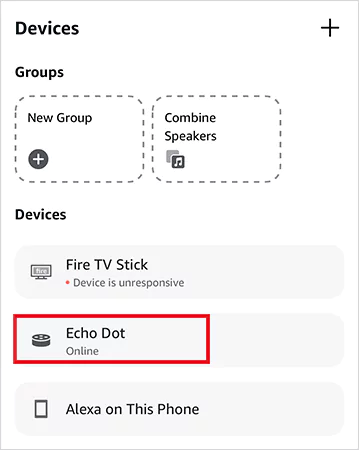
- Tap on the Settings icon at the top right.
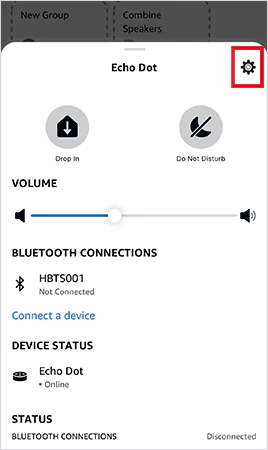
- Scroll down and tap on Factory Reset or Deregister.
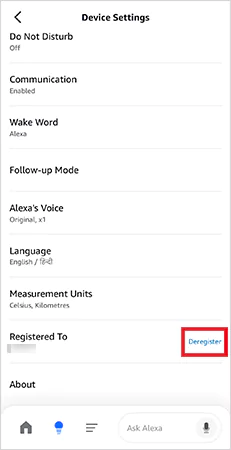
- Finally, confirm your choice.
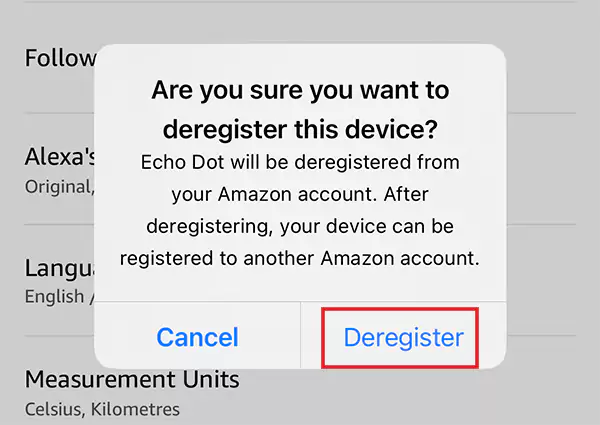
After this, our device settings will be erased, Alexa will be removed from your Amazon account, and you must set it up again like a new device.
How to Reset Alexa Echo Devices Using Buttons?
If Alexa is stuck, the app cannot detect it, does not respond to voice, or the screen is frozen, you can factory reset the Echo Dot and others directly using the physical buttons.
Button combinations vary by model and generation, which is where most users get confused. Below is the simplified version to learn how to factory reset an Echo Dot, Show, Plus, and other devices. Also, make sure that the Echo is plugged in and powered on.
How to Reset an Alexa Echo Dot?
- 2nd to 5th Generation:
- Press and hold the Microphone Off + Volume Down.
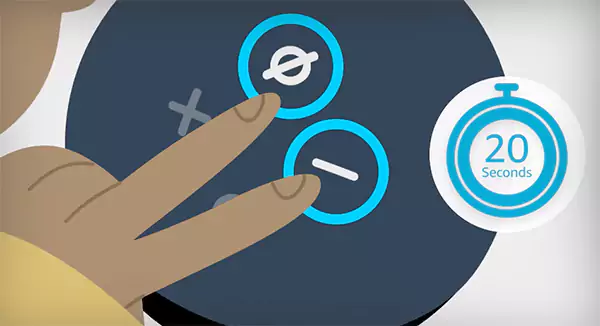
- Keep holding for about 20 seconds.
- Release when the light turns orange.

This means that the device has now entered setup mode.
- 1st Generation:
- Use a paperclip to press the small reset pinhole at the bottom.
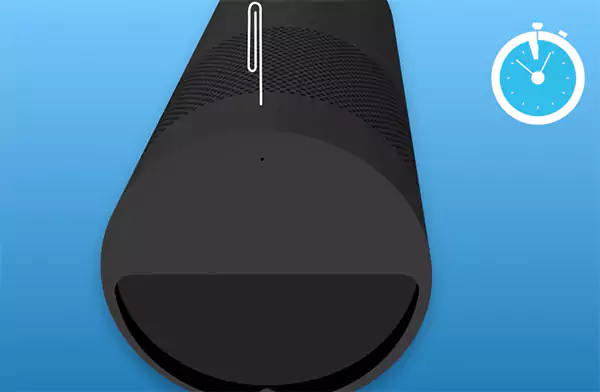
- Hold for 8 to 10 seconds until the light changes.

How to Reset an Amazon Echo and Echo Plus?
- 2nd, 3rd, and 4th Generation:
- Press and hold the Microphone Off + Volume Down for about 20 seconds.
- The light ring will go through a sequence and turn orange.
- 1st Generation:
- Use a paperclip in the reset hole near the base.
- Hold until the light ring restarts.
How to Reset Echo Show (Device with Screen)?
This method works for all generations of the Echo Show.
- Press and hold the Microphones & Camera Disable/Enable and Volume Down buttons.
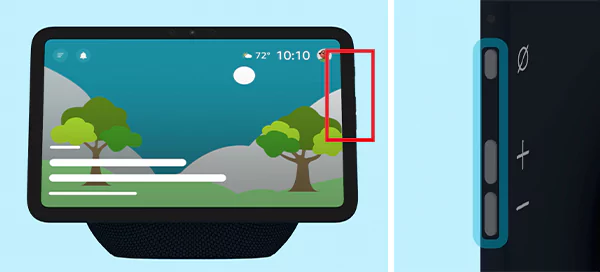
- Keep holding for around 15 seconds.
- Release when the Amazon logo appears.

Resetting Other Echo Devices
- Echo Studio:
- Hold the Microphone Off + Volume Down buttons for 20 seconds.
- Release once the light ring turns off and back on.
- Echo Pop or Echo Input:
- Hold the Microphone Off + Volume Down buttons for 20 to 25 seconds.
- Wait until the LED turns orange.
- Echo Flex:
- Press and hold the Microphone Off button for 20 seconds.
- The LED will pulse, turn off, then come back blue and orange.
- Eco Hub or Echo Spot:
- Open device settings from the touchscreen.
- Go to Device Options.
- Select Reset to Factory Defaults.
- Confirm to erase the device.
Once the light turns orange or the setup screen appears, the Echo is removed from local memory, smart home links on the device are cleared, and you must reconnect it using the Alexa app.
Your Amazon account data may sync back later, but device-level settings will start fresh.
When Should You Factory Reset Alexa?
Now that you know how to reset an Echo Dot and other devices, you should know why and when you should use the factory reset option:
- Wi-Fi Problems Keep Repeating: The device connects and disconnects in loops or refuses to join the network even with the correct password.
- Selling or Giving Away the Device: Factory reset removes your account, Wi-Fi, and smart home links so the next user can start fresh.
- Basic Fixes Failed: You already tried restarting and app reset, but Alexa still freezes, ignores commands, or behaves randomly.
It erases device settings, removes Alexa from your account, and requires full setup again. So, use it only when there is a clear reason.
Final Thoughts
Factory reset is a powerful tool, but not a shortcut. It fixes stubborn problems, but it also forces you to rebuild everything again. Always start with a soft reset or restart and use a hard reset for serious issues or device handover.
If the problem continues even after a reset, stop resetting and check the power supply, router settings, and firmware updates.
Frequently Asked Questions
Can I reset Alexa from the app?
How do I reset Alexa?
You can reset an Alexa device using the Alexa app or by using the button combination for your model.
How do I reset an unresponsive Alexa?
Use the button combination (e.g., pressing and holding the Microphone Off + Volume Down button) for about 20 seconds until the light turns orange and setup mode begins. First-generation models have a small reset pinhole on the bottom.
How do you reset Alexa for a new owner?
Factory reset your device if you are selling or giving it away to someone else. Use the Alexa app or buttons on your device to reset it.
Will factory reset delete my voice recordings?
No, resetting the device does not delete voice history stored in your Amazon account. You can only remove it by going to the Alexa app > Privacy > Voice History.
Related Posts
How Poor Contract Visibility Leads to Revenue Leakage in Growing Companies
Growth is an important factor that determines the success rate of any business. When we witness new operations, partnerships and…

Managing Bitcoin Operations? Here’s How Salesforce Automation Helps
“Digital currency is here to stay, and it’s only a matter of how long before governments embrace it.” — Brad…

Why Modern Organizations Depend on Data Privacy Software
Data growth has significantly accelerated beyond what most compliance teams can manage, with personal records, financial details, contracts, and emails…

Converting Chats Into Leads While Maintaining Professionalism
The way marketing teams and businesses approach their potential clients to boost their sales has completely transformed in the last…
How to Delete iCloud Account? Complete Guide for 2026
Thinking, how can I delete iCloud or Apple account? It is not just about removing an account; it is about…

How Different Industries Use Specialized Software to Stay Competitive
In the market we have today, companies are always trying to find ways to work better and get results. The…

What Key Adjustments Enhance Visual Appeal Across Web Pages
Attractive web pages form the roots of any appealing website. For instance, imagine looking for content on Google, and you…

When is it Time to Consider IT Support Services for Your Business?
Every business needs to ensure smooth operations for a successful business. But despite trying hard to avoid barriers, technical issues…
How to Delete User Profile in Windows 10: Step-by-Step Guide
You don’t notice user profiles until one starts causing problems. A profile gets corrupted, a login error pops up, or…