
Reset Chromecast to default settings when it keeps disconnecting, won’t appear in the Google Home app, freezes frequently, fails to update, or before giving it to someone else. For troubleshooting, use it only after a normal reboot does not fix the issue.
How to Reset Chromecast (Step-by-Step for Every Model)
 Kartik Wadhwa
Updated on: Jan 29, 2026
How do I reset a Chromecast? If your Google Chromecast is freezing, lagging, or refusing to connect, this question might have crossed your mind. But not every issue needs a full factory reset; sometimes a quick restart (soft reset) is enough.
I will break down everything clearly and explain how to reset Chromecast using the right method for every model, including Chromecast with Google TV. Discover the correct reset steps, avoid common mistakes, and learn how to set up Chromecast properly to get back to casting without frustration.
Quick Answer: How to Reset Google Chromecast
- First, try a soft reset by restarting the device from the Google Home app or by unplugging its power cable for some time.
- If the issue still persists, perform a factory reset using the app or by holding the physical reset button on the Chromecast until the LED turns white.
Do You Need to Factory Reset a Chromecast?
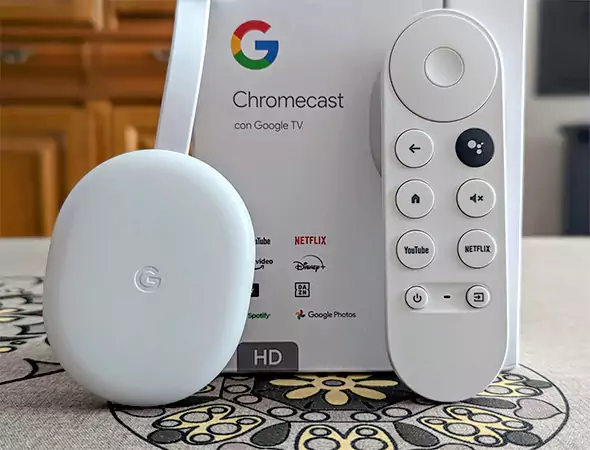
Resetting a Google Chromecast is not a technical move, but a practical one. If your device feels slow, does not connect, or behaves strangely, a reset often fixes more than people expect.
Here’s when a Chromecast reset makes sense:
- Streaming Feels Laggy or Keeps Buffering: This usually happens due to background cache buildup or minor software conflicts. A reset clears that clutter.
- Wi-Fi Connection Keeps Dropping: If Chromecast fails to stay connected even when other devices work fine, resetting refreshes network settings.
- Apps Freeze or Stop Responding: This is especially common after updates or long usage cycles.
- Software Updates Fail to Install: A reset forces the system to reinitialize and apply the firmware updates properly.
- Selling or Giving the Device to Someone: Chromecast factory reset to default settings is crucial if you want to resell or give away the device. It removes saved Wi-Fi, Google account data, and other personal settings.
- Security or Privacy Concerns: A factory reset wipes everything stored locally and brings the device back to its default state.
Important: A factory reset deletes all data permanently. If the issue is minor, always try a soft reset first.
How to Soft Reset Google Chromecast?
A soft reset simply restarts the device. No data is deleted in the process, and your settings stay intact. This should always be your first step.
Method 1: Restart Using Google Home App
It is the best way to soft reset when your Chromecast is still connected and visible.
- Open the Google Home app on your phone.
- Make sure you are logged into the same Google account.
- Tap on your Chromecast device.
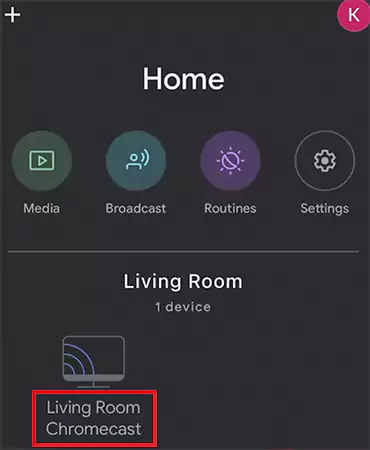
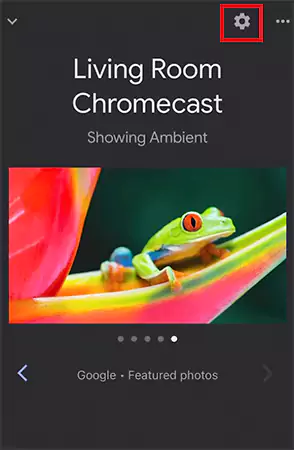
- Now, open Settings from the top corner.
- Finally, just tap on the three-dot menu and select Reboot.
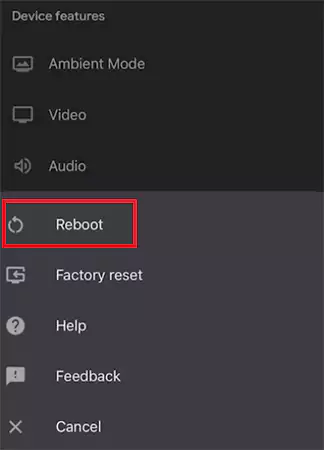
The device will restart within a minute.
Method 2: Reboot Chromecast from the Power Source
If the app is not responding, this works just as well as the above option. Here’s how to restart Chromecast:
- Unplug the power cable from the Chromecast.
- Wait for 60 seconds.
- Plug it back in.
Note that removing the HDMI cable alone will not restart Chromecast. You need to disconnect the power.
Method 3: Restart Chromecast with Google TV
If you use Chromecast with Google TV (HD or 4K), here’s what you need to do:
- Using the remote, go to your profile icon on the top right.
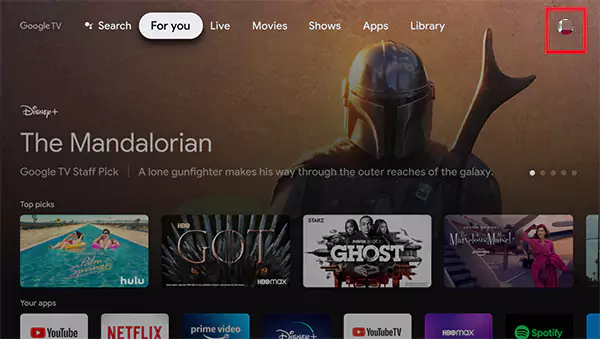
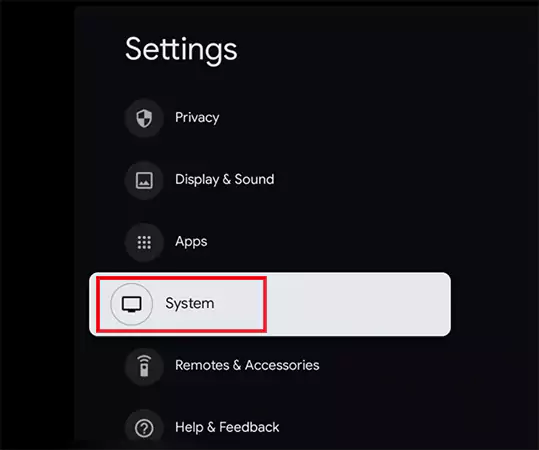
- Open Settings and select System.
- Now, choose Restart, and then select Restart again to confirm your selection.
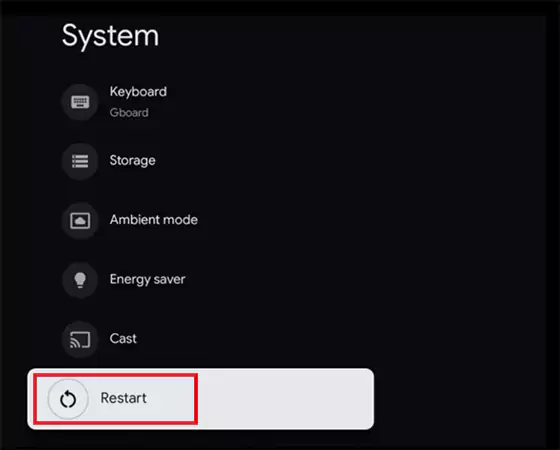
This is the cleanest soft reset method for Google TV models.
How to Factory Reset Chromecast?
If restarting does not fix the issue, a factory reset becomes necessary. This will remove all saved Wi-Fi networks, sign out your Google account, delete preferences and data, and restore the device to its original state. So, only do this as a last resort.
Method 1: Reset Google Chromecast Using Google Home App (Works for All Online Models)
This is the best option when Chromecast is still online and responsive. Let’s see how to factory reset a Chromecast:
- Open the Google Home app.
- Then, tap the tile of your Chromecast device.
- In the top right, tap Settings, then More(three-dots), and select Factory reset.
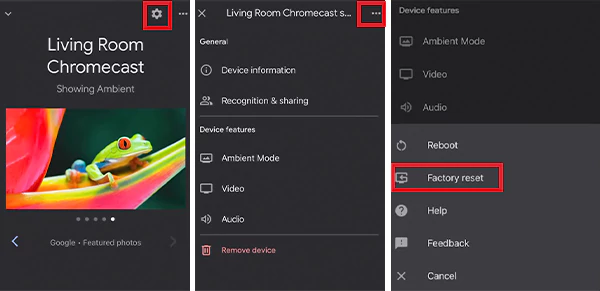
- Tap on Factory Reset again when prompted to confirm.
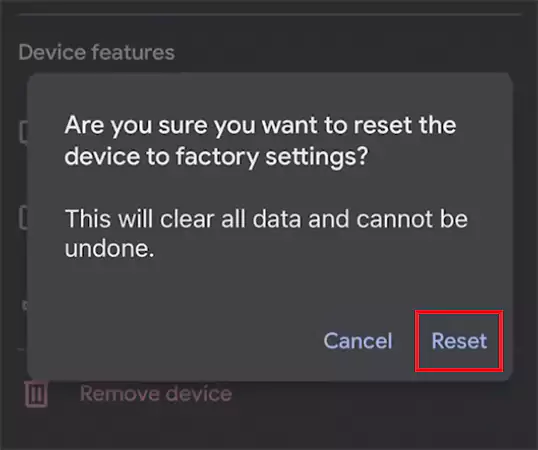
This method works for:
- Chromecast 1st gen, 2nd gen, and 3rd Gen
- Chromecast Ultra
- Chromecast Audio
- Chromecast with Google TV
This is the safest and most user-friendly Chromecast factory reset method.
Method 2: Manually Reset Chromecast Using the Device Button
Many users ask me: How do you factory reset a Chromecast without the app? In this section, I will answer this in detail.
I use the physical button method when Chromecast is frozen, Wi-Fi is inaccessible, or the Google Home app cannot detect my device. Here’s how you can do that too:
- Keep Chromecast plugged into power and TV.
- Find the physical button on the device (usually on the back or side, depending on the model).
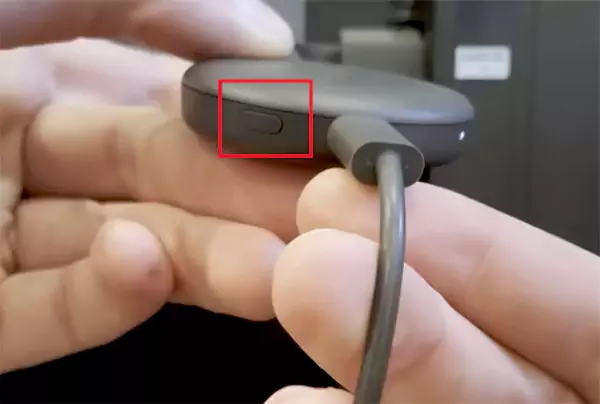
- Then, press and hold it for 10 to 25 seconds.
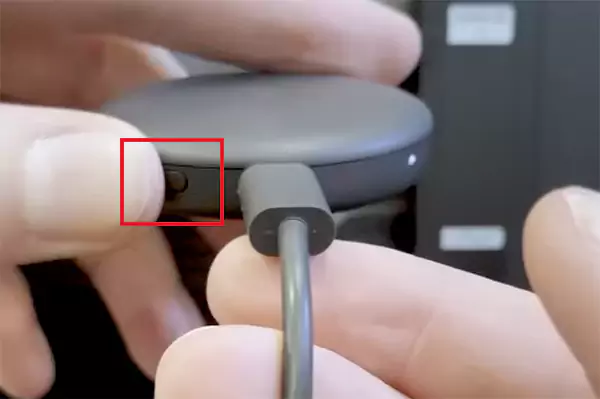
- Watch the LED light, it will start blinking.
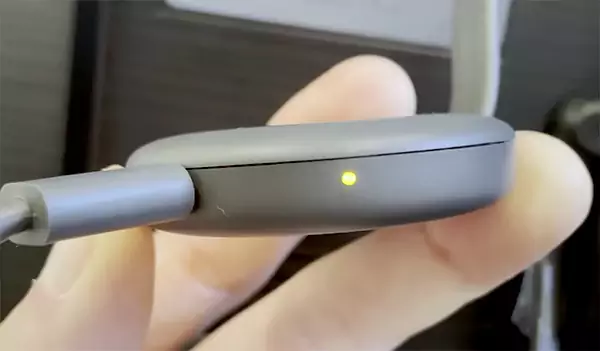
- Release when the light turns solid white (Gen 2,3, and Google TV models), or blinking white (Gen 1), or the TV screen goes blank.
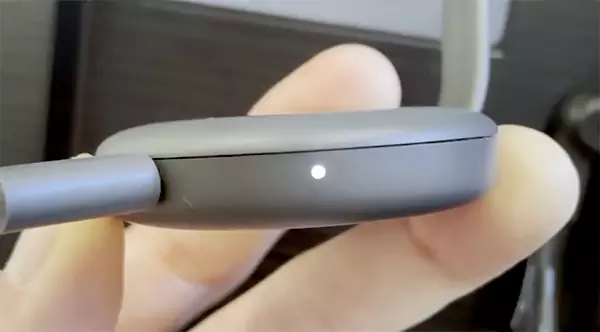
Now, just wait for sometime and your device will reset automatically to its default settings. If nothing happens, hold the button slightly longer and make sure you have stable power.
Method 3: Factory Reset the Chromecast with Google TV Settings (HD or 4K)
If your Chromecast with Google TV is still usable on screen, you can directly master reset Chromecast using the remote. Here’s how:
- Turn on your TV and make sure your Chromecast with Google TV (HD or 4K) is active.
- Using your remote, go to your profile icon in the top right corner of the TV screen.
- Next, go to Settings.
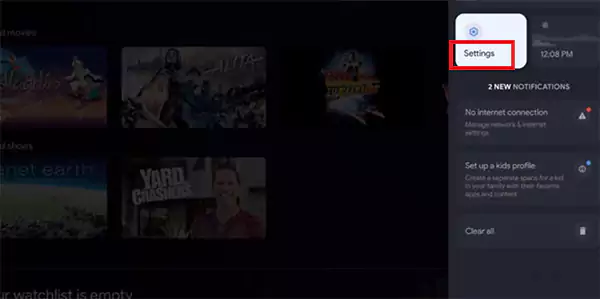
- Then, choose System > About.
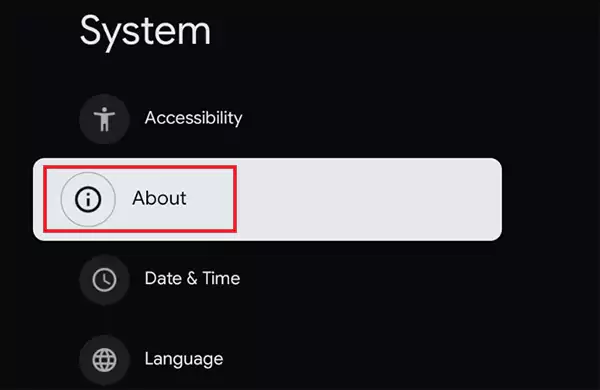
- Choose the Factory Reset option and confirm the reset when prompted.
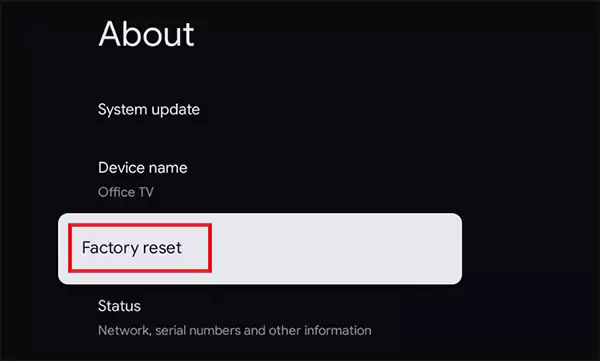
Now, the device will erase all data and restart automatically. This method gives you clear on-screen confirmation and is ideal for HD and 4K Google TV models.
How to Identify Your Chromecast Model?
Before resetting anything, pause for a second and understand that not all models work the same way. So, let’s see how you can identify your exact model in a few seconds.
- Look at the Device: Flip your Chromecast and check the small label on the back. You will find a model number, which directly tells you about the version.
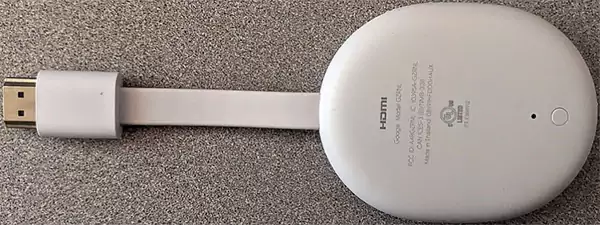
Referring to the following table to quickly know your model:
| Model Number | Chromecast Model |
| H2G2-42 | Chromecast (1st Generation) |
| NC2-6A5 | Chromecast (2nd Generation) |
| NC2-6A5B | Chromecast (3rd Generation) |
| GA00439 | Chromecast (3rd Generation) |
| NC2-6A5-D | Chromecast Ultra |
| GA3A00403A14 | Chromecast Ultra |
| GZRNL / G9N9N | Chromecast with Google TV (4K) |
| GA01919 | Chromecast with Google TV (4K) |
| G454V / G9N9N | Chromecast with Google TV (HD) |
| GA03131 | Chromecast with Google TV (HD) |
- Check Inside the Google Home App: This option is more convenient if your Chromecast is still detectable. Just open the app, tap your Chromecast tile, then go to Settings and look for Device information to see the model name and firmware details.
Plus, older models look like small dongles with no remote. Newer ones run Google TV, which comes with a voice remote.
How to Set Up Chromecast After Reset?
Once the reset finishes, your Chromecast behaves like a brand new device. The setup is simple if you follow the order correctly.
- Plug the Chromecast into your TV and connect the power.
- Turn on the TV and select the correct HDMI input.
- Open the Google Home app on your phone or tablet.
- Follow the on-screen prompts to connect Chromecast to your Wi-Fi network.
- Sign in using your Google account.
- Name the device and finish setup.
For Chromecast with Google TV, you can also complete most steps directly on the TV using the remote.
If you run into network discovery issues, ensure your phone/tablet is on the same Wi-Fi network and that Bluetooth and location permissions are enabled for the app.
Chromecast Not Working After Reset? Here’s What to Do
If your Chromecast still doesn’t work properly after resetting, don’t panic. This usually means the issue is not with the device. Here’s the smart way to troubleshoot:
- Check Your Wi-Fi Properly
Chromecast is extremely sensitive to network instability. Restart or reset your router, avoid weak or public networks, and try switching between 2.4 GHz and 5 Ghz bands. Many reset failures are router-related, not Chromecast-related.
- Restart Everything
Do this in order: Unplug Chromecast for 10 seconds, restart your TV, restart your phone, and reopen Google Home. This can help you clear hidden pairing conflicts.
- Reinstall the Google Home App
A corrupted app cache can also block device selection. So, just uninstall the app, reinstall it, and log in again. This simple step can sometimes have a big impact.
- Try a Different Phone or Tablet
If one device cannot detect Chromecast, try it with another device. This helps you in identifying whether the issue is app-related or hardware-related.
- Connect Manually to Wi-Fi
Go to your phone’s Wi-Fi settings and look for a network starting with “Chromecast”. Connect to it manually, then return to the Google Home app to continue setup. This bypasses automatic discovery issues.
- Use the Physical Reset Button Again
If the setup fails midway, try to perform one more hard reset using the hardware button and retry from scratch. Sometimes, partial resets can cause pairing issues.
When to contact Google Support?
If your Chromecast never appears on any device, LED behavior is abnormal, and setup fails across multiple networks, you should contact Google Support. And yes, if your device is too old, replacement would be a better and more efficient option.
Final Takeaway
Now you know how to reset Chromecast, and it is not that complicated. But doing it blindly is where people mess up. So, just remember the following things:
- Identify your Chromecast model first.
- Try a soft reset before a factory reset.
- Most post-reset issues are Wi-Fi or app-related.
Once you follow the right order, the Google Chromecast setup becomes smooth again.
Frequently Asked Questions
When should you factory reset Chromecast?
How can I reset Chromecast without the button?
You can reset it using the Google Home app. It works for every model if the device is still online. Open the app, select your Chromecast, go to Settings, choose Factory reset, and confirm.
How do I manually reset my Chromecast?
To manually reset Chromecast, keep it plugged into power, press and hold the reset button on the device, and release it when the LED turns solid white.
How do I reset my Google Chromecast to a new Wi-Fi?
You must reset it and set it up again through the Google Home app. Chromecast with Google TV allows you to directly change the network from settings. Just forget the old network and follow the on-screen prompts.
How do I hard reset the Chromecast?
Go to the Google Home app and select the option to factory reset. You can also reset using the physical reset button. Just press and hold the button until the LED changes color.
What happens after a Chromecast hard reset?
After a hard reset, all saved Wi-Fi networks, Google accounts, and preferences are removed. The device returns to its original state and must be set up again from scratch.
Related Posts
Simple Ways to Clean Audio Data for Better Model Performance
Most of the machine learning teams do not struggle because their processing systems are not capable—they struggle because their audio…
How to Check for Malware on Mac in 2026?
Can Mac computers get viruses? Macs are not as safe as people think. Yes, macOS has built-in tools like XProtect…
10 Best Lightroom Preset Alternatives in 2026
“Photography is the story I fail to put into words.” — Destin Sparks (Landscape Photographer) For years, Lightroom presets have…
Elementor Hosting vs SiteGround: Which is Faster in 2026?
A website’s performance is mainly determined by its Speed. Even a slight delay can reduce conversions by a significant margin.…
10 Best Visual UGC Platforms for eCommerce Brands in 2026
“People influence people. Nothing influences people more than a recommendation from a trusted friend.” — Mark Zuckerberg (Meta CEO) That…
The Data Models Powering the Next Creative Revolution in Video Generation
Artificial intelligence has evolved from a mere tool to the cornerstone of advancements in the new era. Over the years,…

Solar Software Companies: How Platforms Improve Cross Team Collaboration
“If everyone is moving forward together, then success takes care of itself.” — Henry Ford (Industrialist & Business Magnate) Handoffs…
What Healthcare Leaders Expect From Digital Tools
Healthcare executives are under pressure to protect patient safety, clinician time, and data privacy while modernizing the delivery of care.…
How to Reset Android Phone When Locked? (Safe Factory Reset Methods)
Locked out of your Android phone or stuck on the screen? It happens more than you think. A forgotten PIN,…