
No, Firefox’s Refresh feature is designed to keep bookmarks, saved passwords, cookies, and history while resetting settings and removing problematic add-ons.
How to Reset Firefox to Default Settings?
 Mahima Dave
Updated on: Feb 11, 2026
Table of Contents
- When Should You Reset Firefox Browser?
- Before You Reset Firefox To Default: A Quick Checklist
- How to Reset Firefox to Default?
- What to Do If the Firefox Reset Option is Not Available?
- How to Restore Bookmarks, Passwords, and Settings After a Mozilla Reset?
- How to Avoid Frequent Firefox Factory Resets?
- Wrapping Up
- Frequently Asked Questions
Mozilla Firefox usually does not crash or show errors. But sometimes you may notice slow performance, extensions stop working after updates, and random search results redirect.
Most people try to resolve these issues individually and miss the real problem, i.e., an overloaded or corrupted Firefox profile. That’s why you need to learn how to reset Firefox web browsers.
Resetting the Firefox browser is a smart cleanup move. When done correctly, it removes hidden clutter without deleting your bookmarks or saved passwords. In this guide, I will explain when a Mozilla reset helps and how to do it safely.
Key Takeaways: How to Reset Firefox Browser
- The Refresh Firefox option is smarter than reinstalling. It rebuilds settings and removes conflicts while keeping bookmarks and passwords.
- For additional safety, back up bookmarks and passwords once before resetting.
- Standard method to reset Firefox: Open Firefox > Menu > Help > More Troubleshooting Information > Refresh Firefox > Confirm.
- Reset using Safe Mode: Go to Help > Troubleshooting Mode, and select Refresh Firefox before entering Safe Mode.
When Should You Reset Firefox Browser?
Resetting Firefox browsers is not a daily fix. It is a deep cleanup tool you use when normal troubleshooting stops working. You should consider a Firefox reset when you notice things like:
- The browser freezes, lags, or crashes regularly.
- Extensions break pages or stop working completely.
- Your homepage or search engine changes without permission.
- Ads, pop-ups, or strange redirects appear out of nowhere.
- Performance stays poor even after clearing the cache or cookies.
- You are regularly facing issues like the 502 Bad Gateway error and the SSL Protocol error.
Firefox’s Refresh feature works better than reinstalling because it rebuilds your browser profile instead of replacing app files. Most serious issues come from corrupted profile data or problematic extensions, not from the browser itself.
A refresh removes harmful add-ons, resets hidden settings, and restores smooth performance while keeping your important data intact.
Before You Reset Firefox To Default: A Quick Checklist
How do you reset Firefox? You must be looking for answers to this particular query. But before you move forward, take a quick look at the following checklist.
A Firefox reset is safe, but a smart user should always be prepared. Before you hit refresh, do this once:
- Export bookmarks as an HTML file for backup. Mozilla’s refresh process keeps bookmarks and other settings, but this adds a layer of safety.
- Sync or back up your passwords using Firefox Sync or a password manager.
- Save important tabs or note them down (if required).
- List your extensions since all add-ons will be removed.
- Note custom settings or themes you may want to reapply.
If Firefox does not open normally, you can still access your profiles through “about:profiles” and back up data manually. This one-minute prep can save you hours.
How to Reset Firefox to Default?
Without wasting any more time, let’s see how to reset the Firefox browser safely:
- Open Firefox.
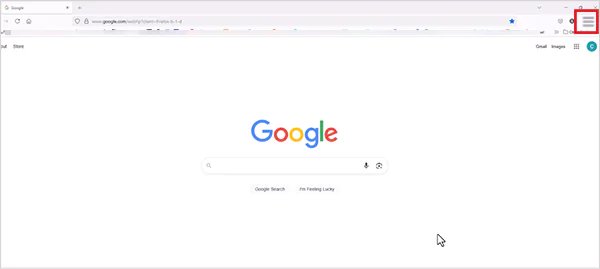
- Click the three-line menu in the top-right.
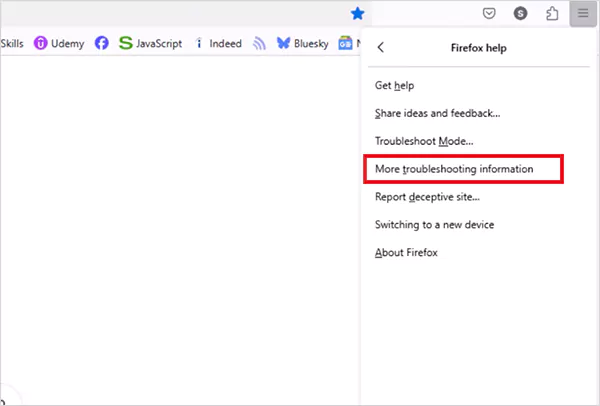
- Then, go to Help > More Troubleshooting Information.
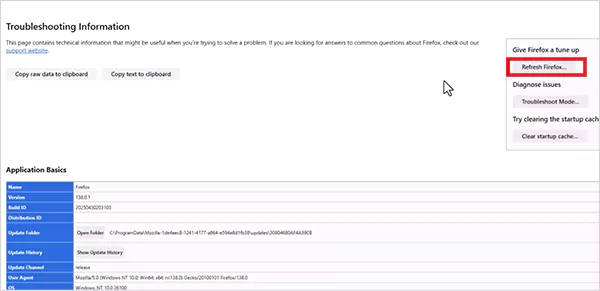
- On that page, click Refresh Firefox in the top-right corner.
- Finally, confirm your action.
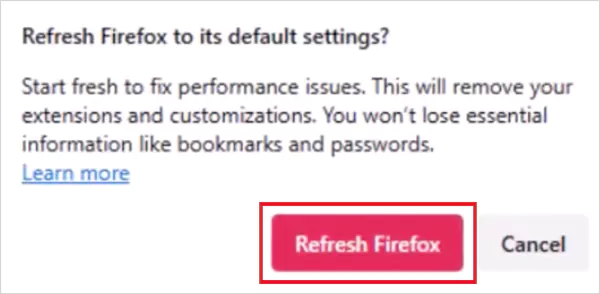
Firefox will close, reset itself, and reopen with a clean profile while automatically restoring bookmarks and saved passwords.
How to Reset Mozilla Browser Using Safe Mode?
If your Firefox won’t start normally, Safe Mode can also help you reset the browser. Here’s what you need to do:
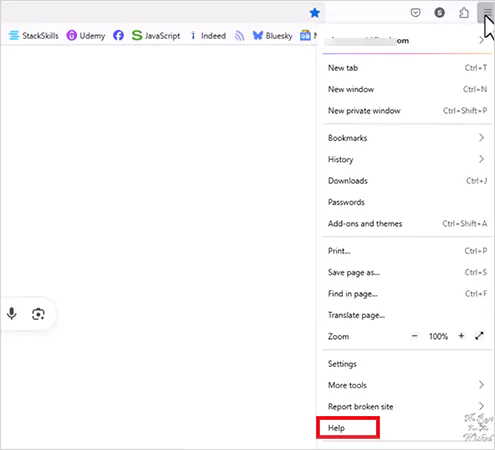
- Open the Firefox menu and go to Help.
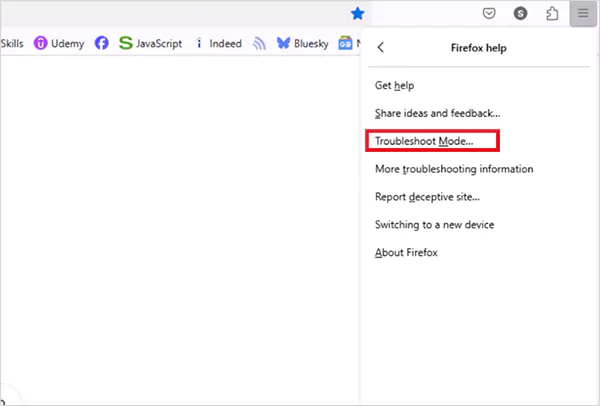
- Next, select Troubleshooting Mode.
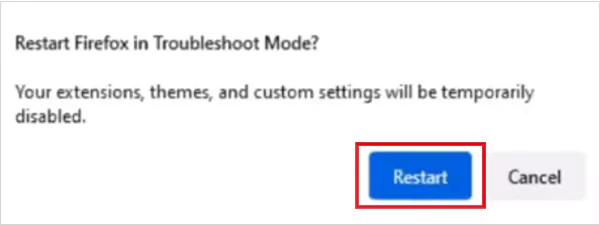
- Click on the Restart button when prompted.
- Before entering Safe Mode fully, the system will give you an option to Refresh Firefox. Just click on that, and you are done.
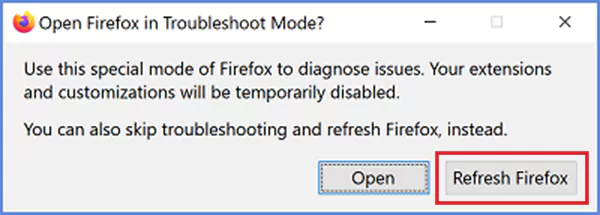
This method is useful when extensions or hardware acceleration prevent normal resets.
What to Do If the Firefox Reset Option is Not Available?
In some Firefox versions or configurations, the Refresh Firefox button may not appear on the Troubleshooting Information page. In that case, here’s your best alternative to reset Firefox:
- Open Firefox and type “about:profiles” in the address bar.
- Here, create a new profile and set it as the default.
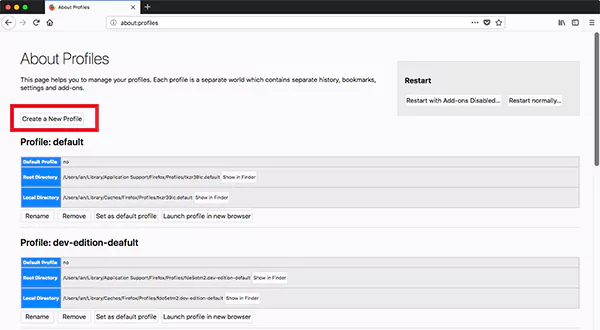
- After creating the new profile, import your bookmarks from the exported HTML file.
- Then, sign in to Firefox sync to restore passwords and history.
This method works because a fresh profile gives you the same clean start as a reset, without risking data loss.
How to Restore Bookmarks, Passwords, and Settings After a Mozilla Reset?
In almost all cases, Firefox restores your data automatically. When you use the refresh feature. You will see a pop-up window for the same when you restart the browser after the reset. However, if something is missing, you still have options:
- Restore Bookmarks: Firefox keeps automatic backups. Go to Bookmarks > Manage Bookmarks > Import and Backup > Restore and pick a backup you need to restore bookmarks. You can ever restore them from your existing HTML backup.
- Restore from an Old Firefox Data Folder: After a reset, Firefox may create an “Old Firefox Data” folder on your desktop. You can recover bookmarks and settings from there (if needed).
- Recover Saved Passwords: If you backed up your profile files earlier, copying files like ‘logins.json’ and ‘key4.db’ into your new profile restores passwords.
- Use Firefox Sync: If you signed into a Firefox account before resetting, signing back in will automatically pull your synced data (bookmarks, passwords, history, open tabs) back into the browser.
These methods together help you recover what matters most without reinstalling or manually searching through hidden system files.
How to Avoid Frequent Firefox Factory Resets?
Now that you know how to reset Mozilla settings, it is also important to understand that frequent resets mean something is wrong. You need to fix the cause, not just the symptoms. Here’s how:
- Install fewer extensions and review their permissions.
- Avoid unknown themes or unofficial add-ons.
- Keep Firefox updated at all times.
- Use Safe Mode first for minor issues before jumping to reset.
- Back up bookmarks and profiles occasionally.
- Use Firefox sync, but do not depend on it as your only backup option.
Applying these steps reduces frustration and the need to reset Firefox again and again.
Wrapping Up
Refreshing or resetting Firefox is powerful yet simple. Firefox does most of the heavy lifting. So, use it when performance drops, settings break, or your extensions take over.
When used at the right time and with the right precautions, it can fix stubborn problems without wiping out your most important data.
Frequently Asked Questions
Will resetting Firefox delete my bookmarks and passwords?
How do I fully reset Firefox?
Open Firefox > Menu > Help > More Troubleshooting Information > Refresh Firefox > Confirm.
How can I reset Firefox without the Refresh button?
Type “about:profiles” in the address bar, create a new profile, set it as the default, then import bookmarks and sign in to Sync. This works like a full reset
Does a Firefox reset remove extensions?
Yes, all extensions and themes are removed to eliminate conflicts. After reset, reinstall only the ones you trust from the official add-ons site.
How to reset the homepage in Firefox?
Go to Settings > Home, choose Firefox Home, or enter your preferred URL. Also, remove any extensions that keep changing it.
How to reset the search engine in Firefox?
Open Settings > Search, select your default search engine, or click Restore Default Search Engines if options are missing.
Related Posts
Database Scaling: How to Manage 10,000+ Political Volunteers
Every small business or growing team needs to deal with a common issue—the database that was working perfectly for the…
What Structured Cabling Systems Include and Why Businesses Still Need Them
Nowadays, IT conversations jump straight to cloud apps, wireless coverage, and cybersecurity tools. While these are visible and easy to…
Top 10 Web Development Companies to Partner with in 2026
In today’s fast-growing digital world, every business needs a strong online presence to stay competitive. A well-designed website not only…
Intelligent Dynamic Pricing with Market Data
Rising fixed costs no longer exist in retail as real-time market volatility and AI-driven shifts reshape the way brands do…
Recovering Lost YouTube Videos from a Corrupted Drive
Losing your videos strikes fear into any YouTuber. One instant everything runs smoothly—crisp footage, clean sound, visuals locked in place—the…
How to Fix Windows Update Error? 10 Reliable Fixes
Windows Update keeps your Windows system secure, fast, and packed with the latest features. But let’s be honest, sometimes Windows…
How to Recover Data on Mac
People who work on a Mac almost every day often lose data, whether on purpose or by accident. And it…
Making Games Accessible Worldwide on Your Chromebook
Historically seen as a device for educational purposes, Chromebooks have become a global hub for gaming due to their use…
Best Ways To Convert Email Files (EML) To Images
An EML file is a saved email message. It contains the full content of the email, including the text, sender…